Table of Contents
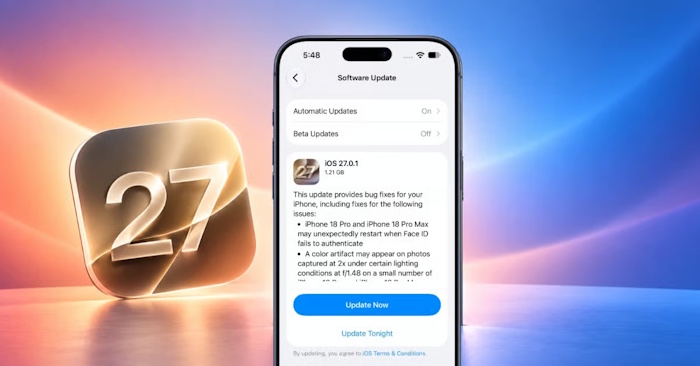
If your iPhone reports “Unable to Install Update,” check available storage, power and the network connection before trying again. The message alone does not prove there is a hardware fault. The steps below apply to iOS 27.2 installation failures and similar update errors.
Back up important data before further troubleshooting. See backing up an iPhone before an iOS update and confirm that the backup completed.
Check what is failing
- The update is not offered: Check your model's compatibility and the version available in Software Update. Do not use a third-party profile to force an unsupported installation.
- Download or verification fails: Start with the network and downloaded update file.
- Installation is in progress: Keep the phone connected to power. A slow progress bar is not the same as a failed download.
Prepare storage, power and Wi-Fi
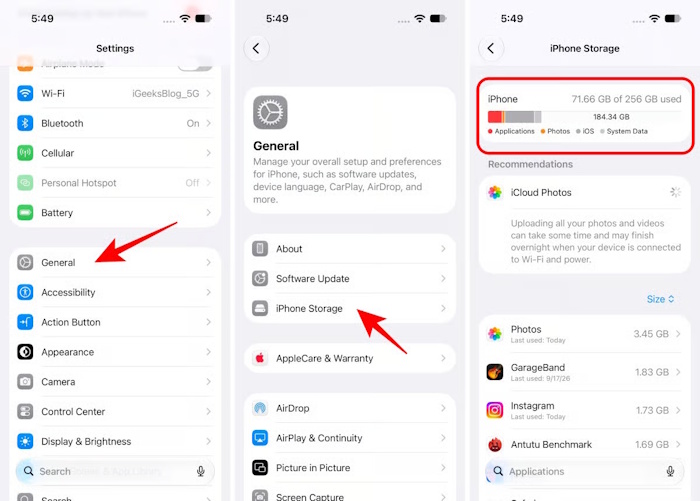
Connect the iPhone to power and a reliable Wi-Fi network. Open Settings > General > iPhone Storage and inspect the available space. The amount needed varies with the device and update; there is no universal requirement to free exactly 20 GB.
Offload unused apps or remove files you have safely backed up and no longer need. Check your backup before deleting irreplaceable photos or documents. Then return to Settings > General > Software Update.
Retry a failed download or verification
If the phone still works normally, close and reopen Settings or restart the iPhone, then try the update again. Avoid restarting solely because a large download is taking longer than expected.
If an internet or verification alert persists, try another trusted Wi-Fi network. An alert does not by itself establish that Apple's servers are overloaded. If there is a confirmed service problem, wait and retry later.
Delete only the downloaded update and download it again
If the downloaded package will not install:
- Open Settings > General > iPhone Storage.
- Find the iOS update entry in the list.
- Tap it and choose Delete Update.
- Return to Settings > General > Software Update and download the version offered.
This removes the downloaded update package; it is not the same as erasing the iPhone. If no update entry appears or another download also fails, use a computer.
Update with a Mac or Windows PC
Use a trusted computer, an appropriate cable and current Apple software. Unlock the iPhone and respond to its Trust prompt if it appears.
- Mac with Finder: Select the iPhone in Finder, open General, choose Check for Update and follow Download and Update.
- Windows with Apple Devices: Select the phone in the sidebar, open General and choose Check for Update or Update.
- Older supported computer setup using iTunes: Select the device, open Summary and choose Check for Update.
Choose Update for this troubleshooting step, and read prompts carefully. Restore can erase the device. Keep the cable connected until the process finishes. Apple's Windows update instructions show the Apple Devices controls.
If installation remains stuck or reports an error code
Record the exact message and error number. A phone stuck on the Apple logo, an unrecognized device and a verification failure require different follow-up steps. Use Apple's update troubleshooting guide or contact support with the model and error details.
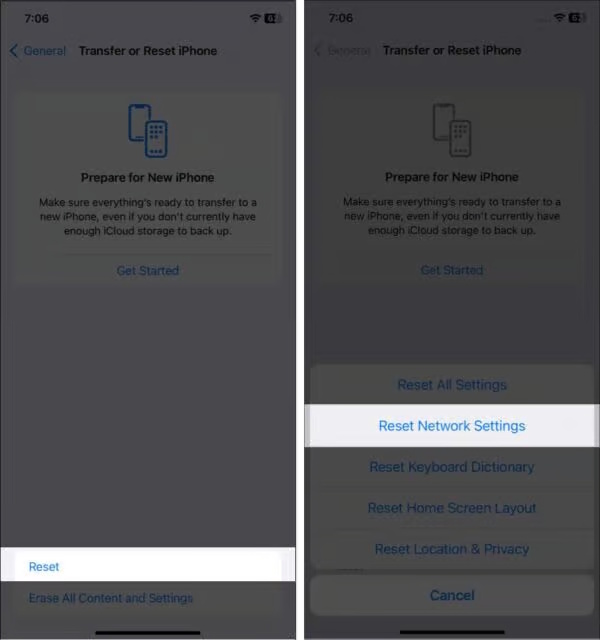
A network-settings reset removes saved network configuration and should not be an automatic response to every installation failure. Avoid erasing the phone or using a restore tool until you understand the data consequences and have a verified backup.
Related Articles
 iPhone error again after updating iOS 13.1.2
 How to fix iPhone error does not ring when there is a call
 Errors after upgrading iOS 12 and how to fix it
 Summary of some ways to fix 3194 errors during the restore or update iPhone, iPad
 Summary of some common errors that occurred during iOS 10 update and how to fix errors (Part 1)
 Errors when upgrading iOS 11.2.6 and how to fix it
Reader Comments 0
Sign in with email or Google to join the discussion.