Table of Contents
When your iPhone or iPad says “Cannot Connect to App Store,” check Apple’s service status and your internet connection before changing account settings. The message alone does not identify the cause, and it does not mean your device needs a repair tool.
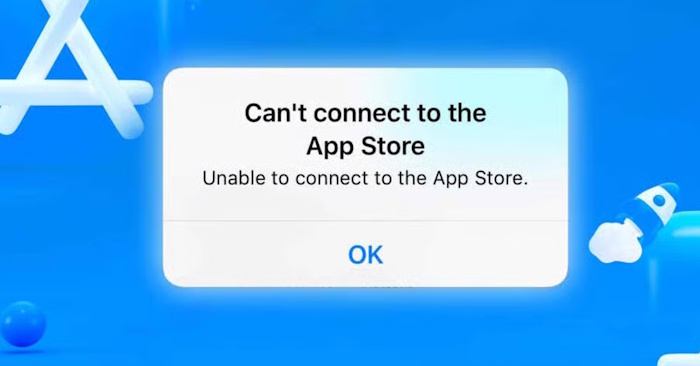
1. Check for a service or network problem
Check Apple’s System Status page for an App Store incident. If one is listed, try again after service is restored. Otherwise, open a website in Safari. If it will not load, troubleshoot the connection first.
Try a different trusted Wi-Fi network or cellular data, if your device and plan support it. If the store works on one connection but not another, focus on that network rather than resetting your Apple Account. A school or workplace network may restrict access; ask its administrator.
2. Reopen the store and restart the device
Close the App Store from the app switcher and reopen it. If the same error returns, restart the iPhone or iPad and test again. There is no need to install a third-party “cache cleaner.”
3. Check time, data access, and restrictions
- Open Settings > General > Date & Time and check that the date, time, and time zone are correct. Use Set Automatically when available.
- If the error occurs only on cellular data, check Settings > Cellular or Mobile Data and allow the App Store to use data. Names vary by region and version.
- If the App Store is missing or app installation is blocked, check Screen Time restrictions or ask the person who manages the device.
- If you use a VPN or network-filtering app, check its settings or contact its provider. On a managed device, ask the administrator before changing the configuration.
4. Update software and identify the exact error
Check Settings > General > Software Update for an update compatible with your device. Back up before installing it. If the App Store opens but a purchase or download fails, follow that specific message: billing, verification, and unavailable-app errors are different from a connection failure.
For related symptoms, see App Store sign-in troubleshooting and troubleshooting app updates. Older screenshots and menu names may differ from your device.
If it still cannot connect
Contact Apple Support with the exact message, device model, software version, and results from testing another network. Avoid changing the account’s country, signing out of iCloud, erasing the device, or using paid repair utilities as routine fixes. The connection message does not establish system-file corruption or justify claims that a repair tool can fix it without data loss.
Related Articles
 Can't connect to the App Store on iOS 11? Here's how to fix it
 Error cannot connect to iTunes Store, this is a fix
 How to connect iPhone/iPad to TV
 Fix 'Windows was unable to connect to' error when connecting to wifi
 How to fix VPN Error 800 error
 Fix 'Unable to Join Network Failure (error -3)' error on iPhone
Reader Comments 0
Sign in with email or Google to join the discussion.