Table of Contents
You can turn off Siri completely or disable only the activation method that causes problems. For example, you can stop voice activation while keeping the Side button, or prevent Siri from working on the Lock Screen without disabling it after the device is unlocked.
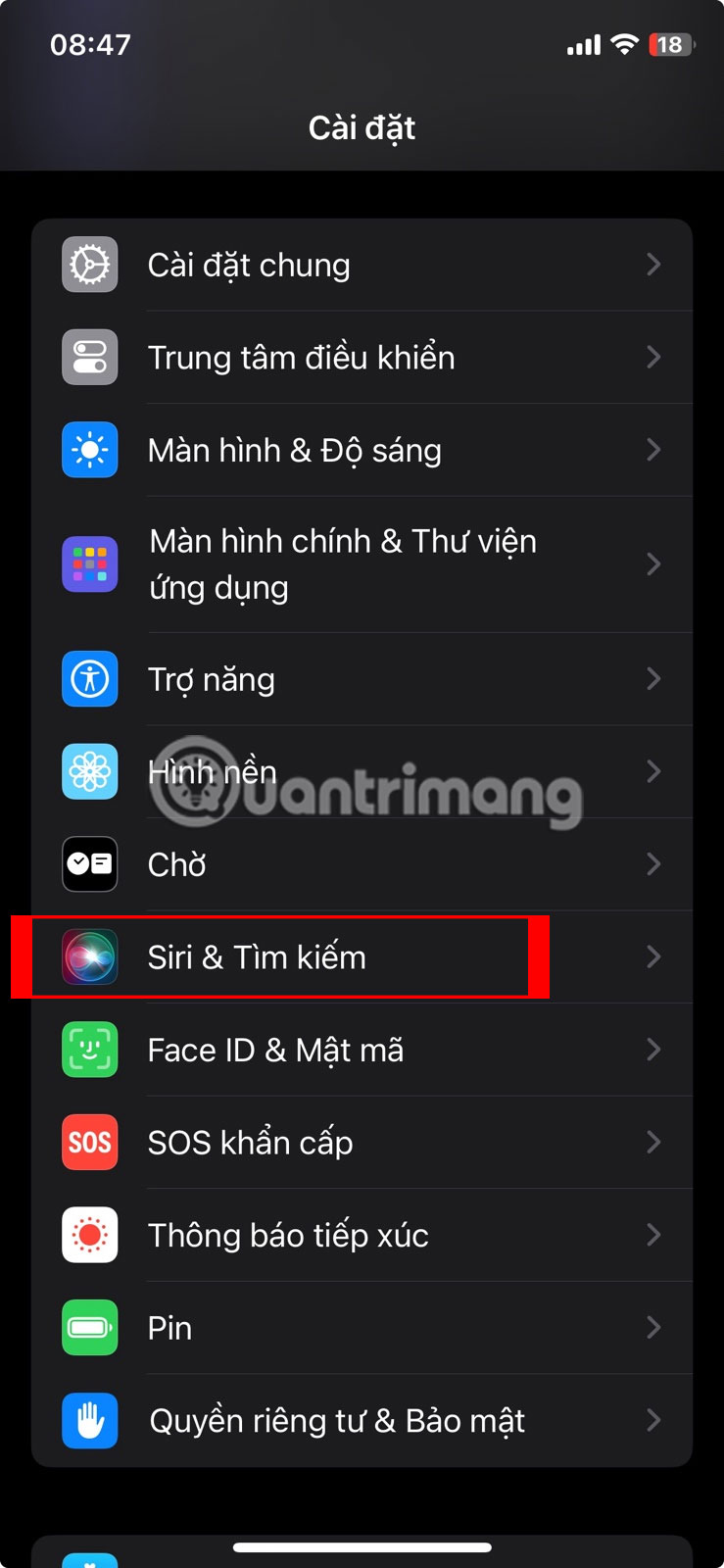
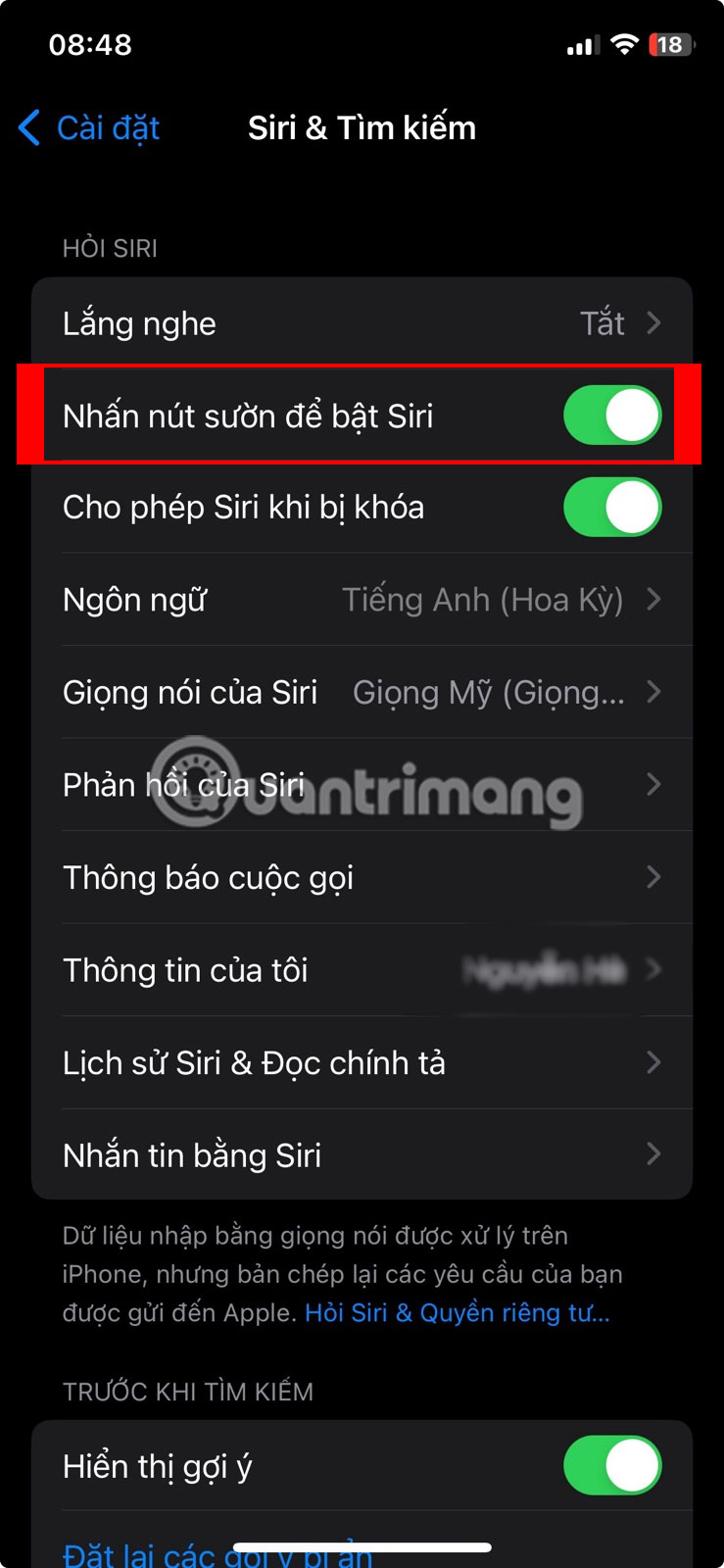
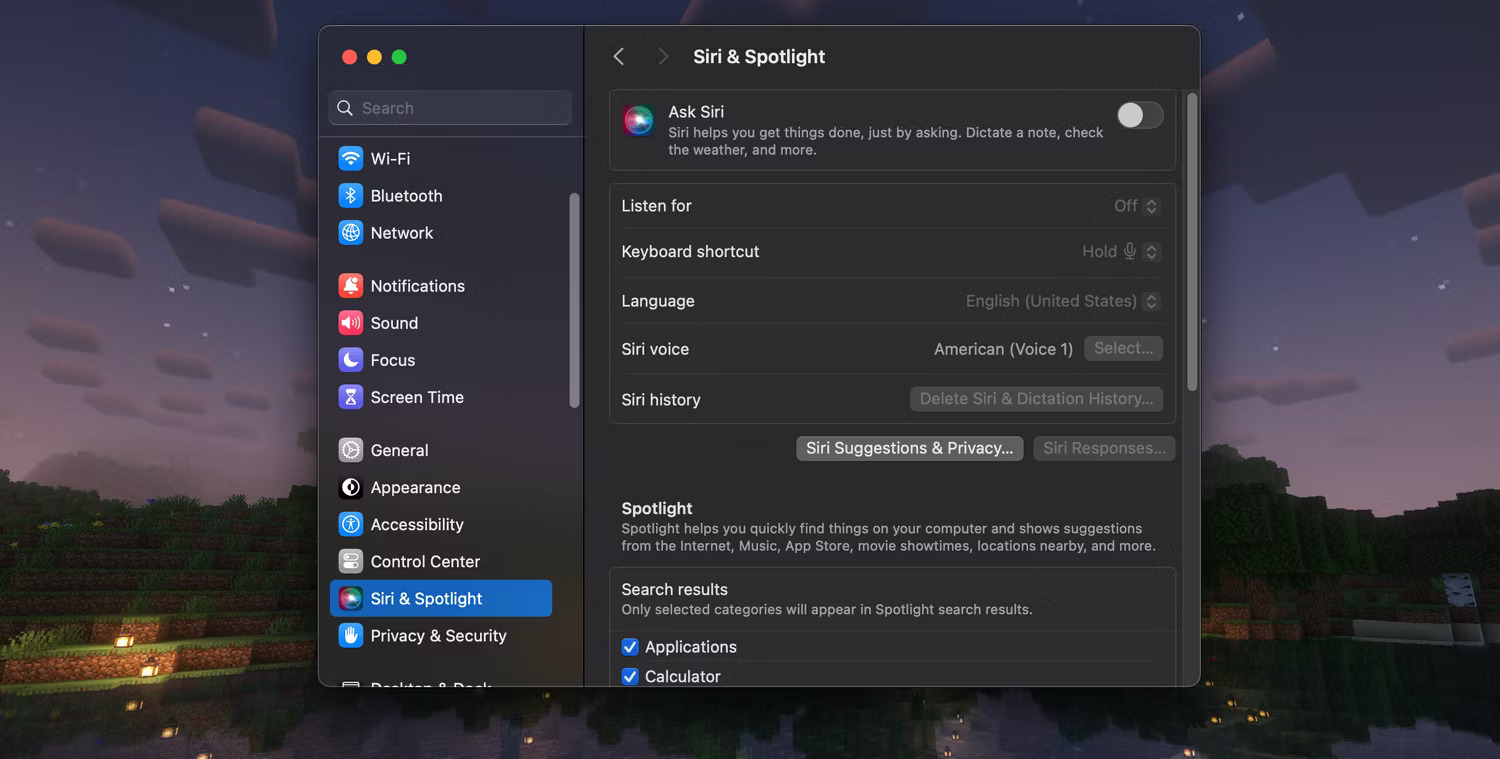
Apple changes some menu names between software versions. Depending on the device and whether Apple Intelligence is available, look for Siri, Apple Intelligence & Siri, or an older Siri & Search label. The screenshots below show an earlier interface, but the controls serve the same purposes.
Turn off Siri on iPhone or iPad
- Open Settings.
- Tap Siri or Apple Intelligence & Siri.
- Tap Talk to Siri or Talk & Type to Siri, then choose Off.
- Turn off Press Side Button for Siri. On an older device with a Home button, turn off the equivalent Home-button option.
- Confirm that you want to turn Siri off if a prompt appears.
Keep Siri but limit how it starts
You do not have to disable every option. Leave Siri enabled and adjust only the control you do not want:
- Stop accidental voice activation: set Talk to Siri or Talk & Type to Siri to Off.
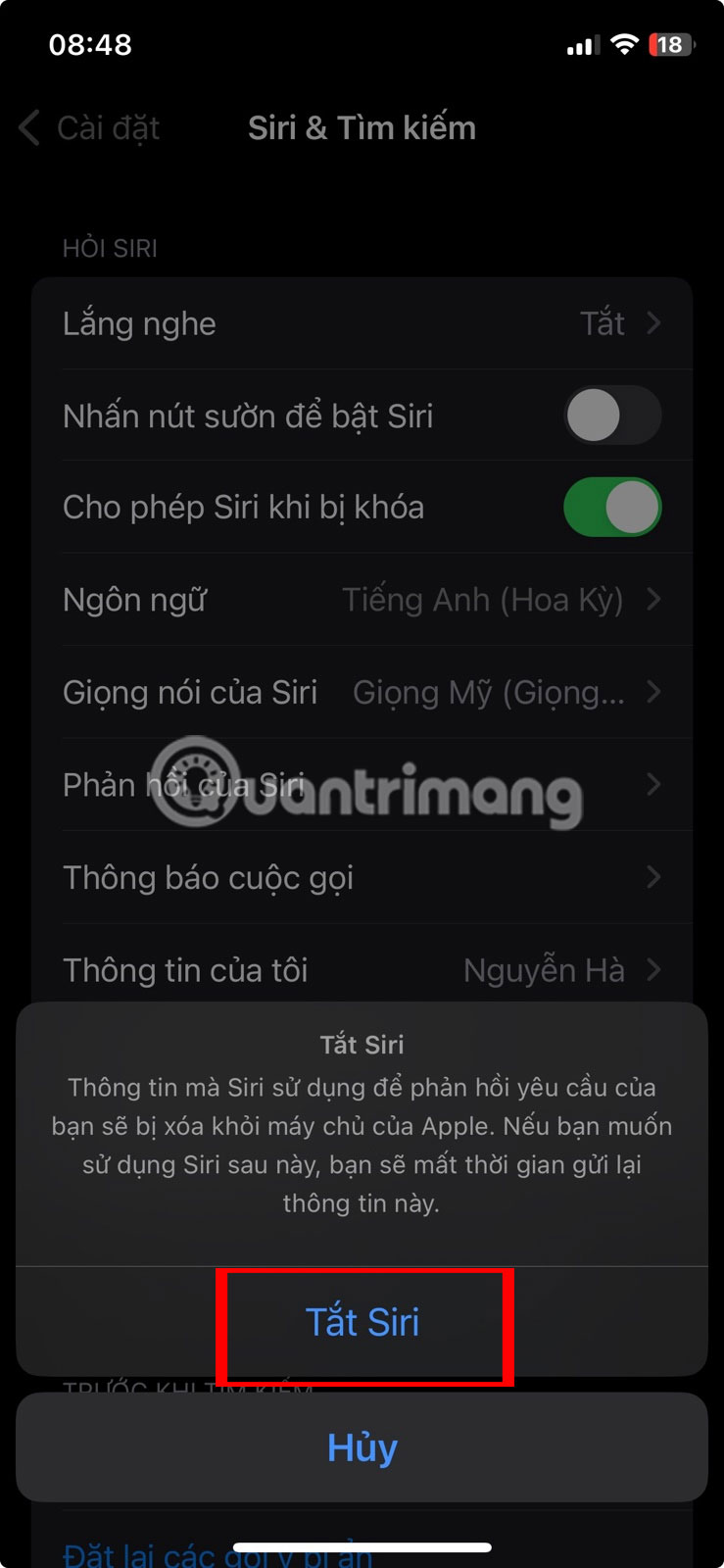
- Stop button activation: turn off Press Side Button for Siri or the corresponding Home-button option.
- Block Siri on a locked device: turn off Allow Siri When Locked.
If your goal is broader privacy or fewer prompts rather than disabling the assistant, review these optional iPhone settings you may want to turn off. Siri Suggestions can also be managed separately, so disabling voice activation is not the same as removing every suggestion from Search or the Home Screen.
Delete Siri and Dictation history on iPhone or iPad
- Open Settings > Siri or Apple Intelligence & Siri.
- Tap Siri & Dictation History.
- Tap Delete Siri & Dictation History and confirm.
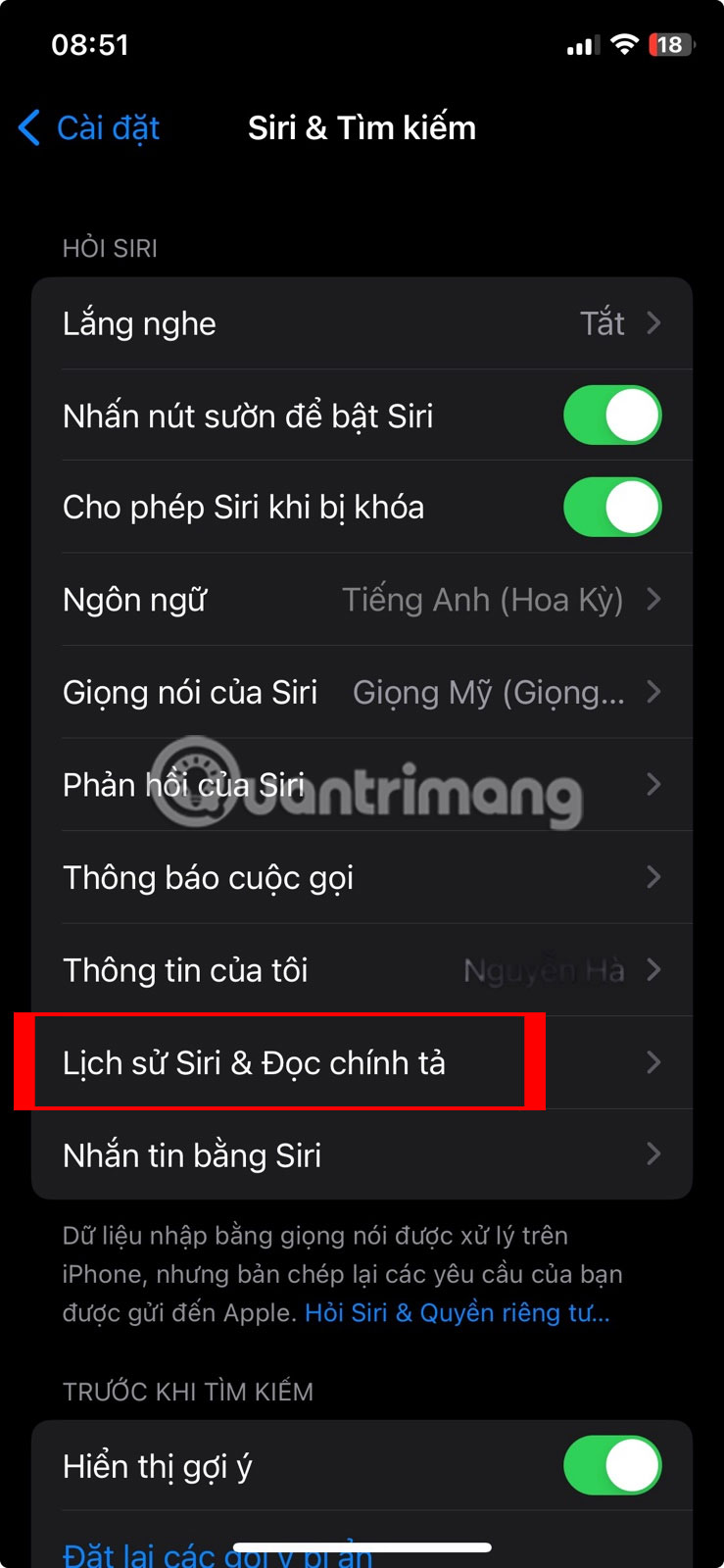
The device must be online to send the deletion request. This control removes eligible Siri and Dictation interactions associated with that device from Apple's servers; it does not erase text you deliberately saved elsewhere, such as a message or note created with Siri.
Turn off Siri on a Mac
- Choose Apple menu > System Settings.
- Click Apple Intelligence & Siri or Siri in the sidebar.
- Turn off Ask Siri, or set Listen For to Off if you only want to stop voice activation.
- Confirm the change if macOS asks.


On older versions of macOS, the same controls may appear under Siri & Spotlight or in System Preferences. If you still want to use the assistant but need help with voice activation, see how “Hey Siri” works on a Mac.
Delete Siri history on a Mac
In System Settings > Apple Intelligence & Siri (or Siri), click Delete Siri & Dictation History, then confirm. Apple provides the current procedure in its Mac user guide.
Turn off Siri on Apple Watch
You can change these settings directly on the watch:
- Open the Settings app on Apple Watch and tap Siri.
- Tap Listen for “Siri” or “Hey Siri” (or Listen for “Hey Siri”) and choose Off.
- Turn off Raise to Speak.
- Turn off Press Digital Crown.
- Confirm Turn Off Siri if prompted.
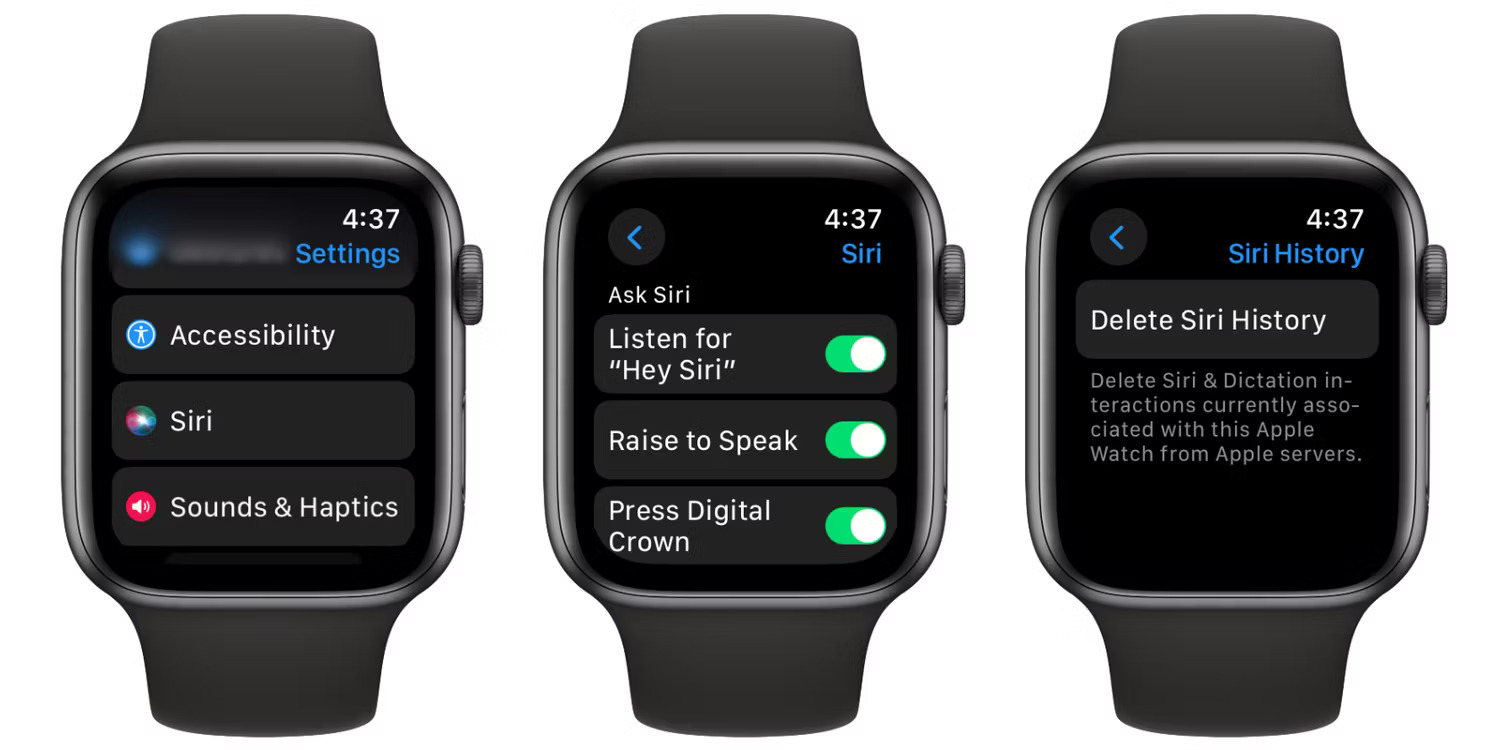
The paired iPhone's Watch app may expose the same Siri controls. To remove history from the watch, open Settings > Siri > Siri History on Apple Watch and tap Delete Siri History. See Apple's current Apple Watch Siri guide if a menu name differs.
Skip Siri during initial device setup
When a new iPhone or iPad asks you to configure Siri, choose Set Up Later in Settings. You can enable it later from Settings without resetting the device.
What turning off Siri does not disable
- Dictation: keyboard Dictation is a separate control. Manage it under Settings > General > Keyboard on iPhone or iPad, or System Settings > Keyboard on a Mac.
- Apple Intelligence: on supported devices, turning off Siri activation does not necessarily turn off all Apple Intelligence features. Manage Apple Intelligence with its separate switch.
- Suggestions and Search: app suggestions, Search results, and notification suggestions have their own settings.
- Other Apple devices: Siri settings are device-specific. Disabling it on an iPhone does not automatically disable it on a Mac, Apple Watch, HomePod, or Apple TV.
If Siri is behaving unexpectedly rather than unwanted, check Apple's Siri troubleshooting steps for iPhone and iPad before disabling it entirely.
Related Articles
 How to Turn Off Siri on iPhone, iPad6 minutes read
 How to Block Siri from Automatically Pop-up on Apple Watch4 minutes read
 Everything Apple users need to know about Siri AI on iPhone11 minutes read
 How to Use Hey Siri on a Mac4 minutes read
 How to Ping Apple Watch from iPhone4 minutes read
 11 Features Siri Can Do When iPhone Is Not Connected to the5 minutes read
Reader Comments 0
Sign in with email or Google to join the discussion.