Table of Contents
To start an iMessage group on iPhone, open Messages, compose a new message and add all recipients in the To field before sending. Everyone must have iMessage enabled for the conversation to use iMessage; adding several recipients alone does not guarantee a blue-bubble group.
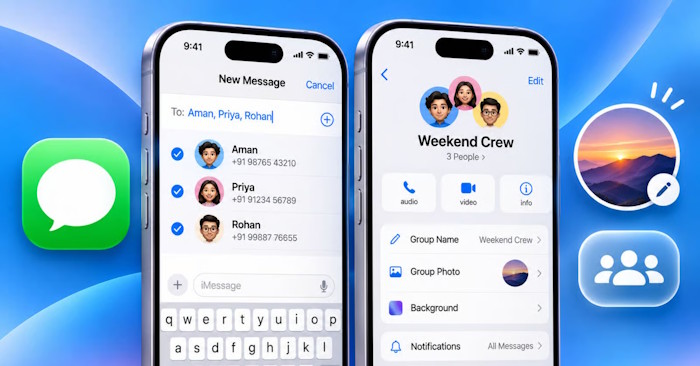
Create the group
- Open Messages and tap the compose button.
- Enter each recipient’s name, phone number or Apple Account address in To. Use the plus button to choose contacts if available.
- Check the recipient list carefully, then enter and send your first message.
Messages chooses the supported messaging service for the participants. Blue bubbles indicate iMessage. Green bubbles can indicate RCS or SMS/MMS, whose group features differ. iMessage needs a working internet connection.
Change the group name and picture
Open the group and tap the icons or name at the top. On iOS 26, tap Edit, then Edit Name & Photo. On iOS 18 and earlier, look for Change Name and Photo.
Enter a name, choose a picture, emoji or Memoji, and tap Done. The shared group name and photo help everyone identify the conversation. These instructions apply to an iMessage group, not an ordinary SMS/MMS thread.
Add or remove people
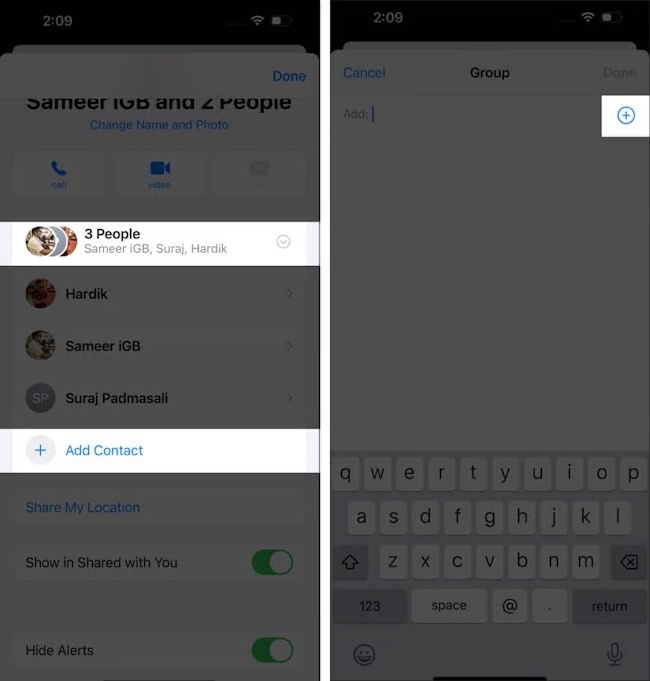
Add a participant
Open the group details, find the contact list and tap Add or Add Contact. Enter the new participant and tap Done. The existing group must already contain at least three people, including you, and the person you add must use an Apple device with iMessage.
To turn a conversation with just one other person into a group, compose a new message with everyone included. Create a new mixed-device group if a participant cannot use iMessage.
Remove a participant
The group must have at least four people, including you, and everyone must use an Apple device. In current versions, open group details, touch and hold the person’s icon, choose Remove from Group and confirm. Older versions may show a swipe-left Remove control in the participant list.
Removing someone from Messages does not necessarily revoke access to documents or other projects previously shared with them. Review those permissions in the app hosting the project.
Reply to a message or mention someone
To keep a busy thread clear, touch and hold a message and choose Reply, then type your response.
To mention a participant, type their name, then select the matching contact when prompted. Mention notifications depend on the recipient’s settings; a mention does not create a separate private conversation.
Mute the group without leaving
Tap the group name or icons and enable Hide Alerts. You remain in the group and can read new messages when you open it. A muted-alert icon appears beside the conversation.
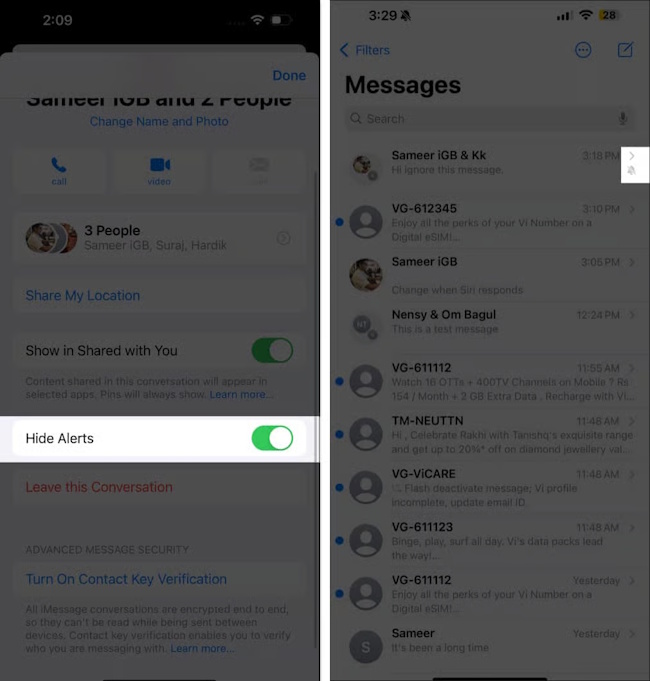
See also how to mute an individual Messages conversation for the same approach outside a group.
Leave an iMessage group
Open group details, scroll down and tap Leave This Conversation, then confirm. For an iMessage group, at least three other people must remain, and everyone must use iMessage. If the option is missing or unavailable, use Hide Alerts or create a new conversation with the people you want to contact.
Deleting the thread from your phone is different from leaving: new messages can still arrive. For other group types and missing exit controls, see what to do when you cannot leave a group conversation.




Reader Comments 0
Sign in with email or Google to join the discussion.