Table of Contents
First check Settings > Bluetooth on your iPhone or iPad. A switch that is grayed out or will not turn on is a different problem from an accessory that will not pair. Start with the checks below and avoid resetting unrelated settings before identifying which issue you have.
Check Bluetooth in Settings
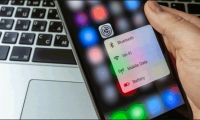
Open Settings > Bluetooth and try the switch. Use this screen to judge whether Bluetooth is enabled; a dimmed Control Center icon does not necessarily mean the radio is completely off. Control Center can temporarily disconnect accessories while Bluetooth remains available for other Apple features.
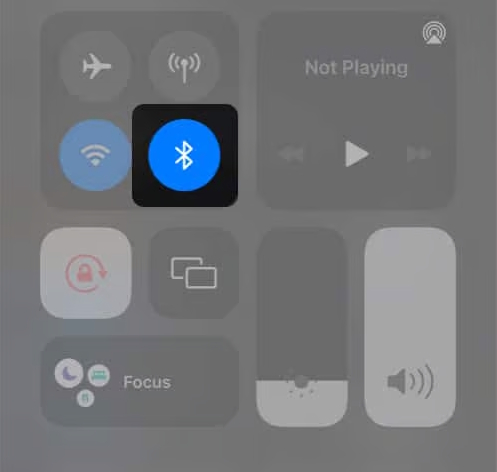
If the switch works, continue with accessory troubleshooting. If it remains grayed out, restart the iPhone or iPad and check again. A persistent disabled switch needs assessment rather than repeated pairing attempts.
If one accessory will not connect
- Check power. Charge the accessory or replace its batteries if needed, then turn it off and on.
- Move it close. Put it beside the iPhone or iPad for testing. Walls, interference and the accessory's own range can affect the connection; a nominal range is not a guarantee.
- Enter pairing mode. Follow the manufacturer's instructions. Turning a device on does not always make it discoverable.
- Check other connections. If the accessory is already connected elsewhere, disconnect it there and try again.
- Select it in Settings. Tap the accessory name when it appears. Use the PIN supplied by its instructions if requested.
For the basic pairing workflow, see connecting a Bluetooth accessory to iPhone.
Forget and pair the affected accessory again
If an existing pairing fails, open Settings > Bluetooth, tap the information button beside that accessory and choose Forget This Device. Then put the accessory back in discovery mode and pair again.
Do this for the affected item rather than removing every working accessory. Be aware that unpairing AirPods can also unpair them from other devices using the same Apple Account.
Check app permission when only one app fails
If the accessory depends on an app, check Settings > Privacy & Security > Bluetooth and allow that app if appropriate. This is separate from the main Bluetooth switch. An app permission problem does not prove the device's Bluetooth hardware has failed.
Restart and update
Restart both devices using their normal power controls. Then check Settings > General > Software Update for an available iOS or iPadOS update. Back up important data and follow the installation requirements shown on screen.
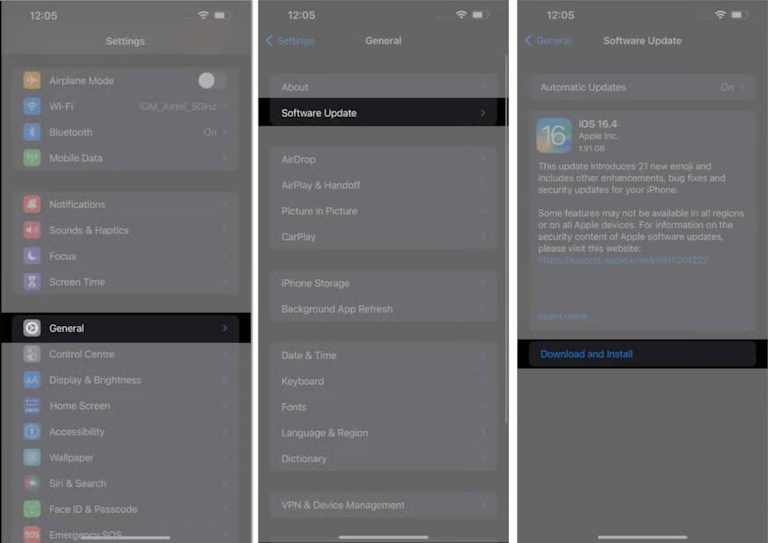
Updates can address software problems, but an update is not a guaranteed repair for every connection fault. Also check the accessory manufacturer's firmware and compatibility guidance.
When to contact support
Apple recommends contacting support if Bluetooth cannot be turned on or remains grayed out, no accessories connect, or the accessory manufacturer has confirmed the accessory works correctly.
When seeking help, note the device model, software version, exact symptom and whether a second known-working accessory connects. If only one accessory fails, start with its manufacturer. If every accessory fails, the iPhone or iPad needs further assessment.
A network-settings reset is disruptive because it removes saved network configuration, including Wi-Fi details. It is not a guaranteed Bluetooth fix and is unnecessary as a first step. Follow support advice for your specific symptom before resetting.
See Apple's Bluetooth accessory troubleshooting and Control Center explanation for the distinction between connection and switch issues.
Related Articles
 What to do when an iPhone, iPad phone does not connect to Bluetooth?
 How to use Bluetooth on the simplest iPhone
 Quick fix of Bluetooth error does not work on iPhone 7 and iPhone 7 Plus
 Why do iPhone and iPad apps require using Bluetooth?
 Instructions for turning on and off Bluetooth on Windows 10
 Revealing a simple and easy way to keep your iPhone screen from turning off
Reader Comments 0
Sign in with email or Google to join the discussion.