Table of Contents
On a supported Ubuntu computer, install VirtualBox from Ubuntu's package repositories or use an Oracle package that matches your release and architecture. Choose one packaging source and keep it consistent. Do not copy old version numbers or repository commands from screenshots.
Before installing
Check your Ubuntu release and hardware architecture in Settings or with:
lsb_release -a
uname -m
Confirm that the VirtualBox package supports that combination, and that hardware virtualization is enabled for the host. Allow enough RAM and storage for both Ubuntu and the guest. If you already have virtual machines, back up their configuration and virtual disks before changing the host software.
Option 1: Use Ubuntu's packages
Ubuntu provides VirtualBox packages for supported releases and architectures. Check Ubuntu's package listing if availability is uncertain.
sudo apt update
apt policy virtualbox
sudo apt install virtualbox virtualbox-qt
Read the package manager's proposed changes before confirming. If there is no installation candidate, check your release, architecture, and enabled repository components rather than adding random repositories. A full distribution upgrade or automatic package removal is not a prerequisite for installing one application.
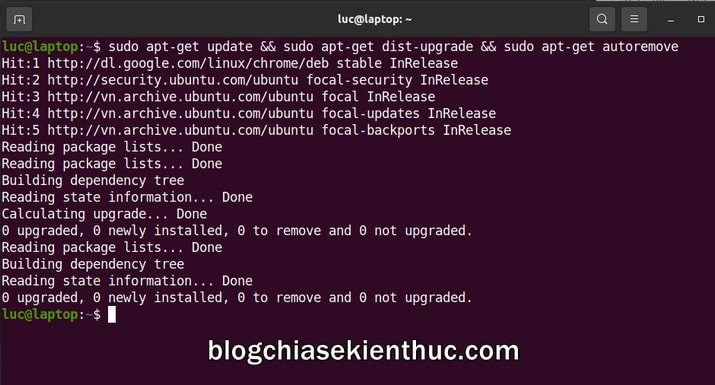
Historical terminal illustration; the commands above replace the older upgrade-and-cleanup sequence.
Option 2: Use a matching Oracle package
- Open the official VirtualBox downloads page and choose Linux distributions.
- Select a package explicitly intended for your Ubuntu release and architecture. Do not substitute an old Ubuntu 20.04 package for an unsupported newer release.
- Download the package and install it through a compatible graphical package installer, or follow Oracle's current package instructions.
- Review the package details, dependencies, and proposed changes. Authenticate using an authorized administrator account when requested.
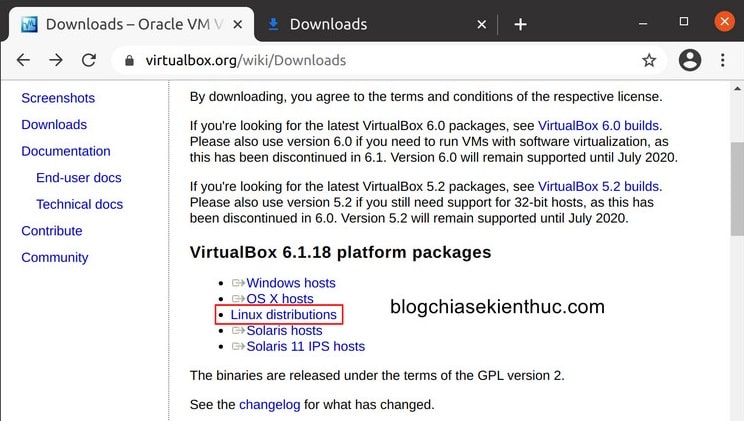
Select the Linux download category.
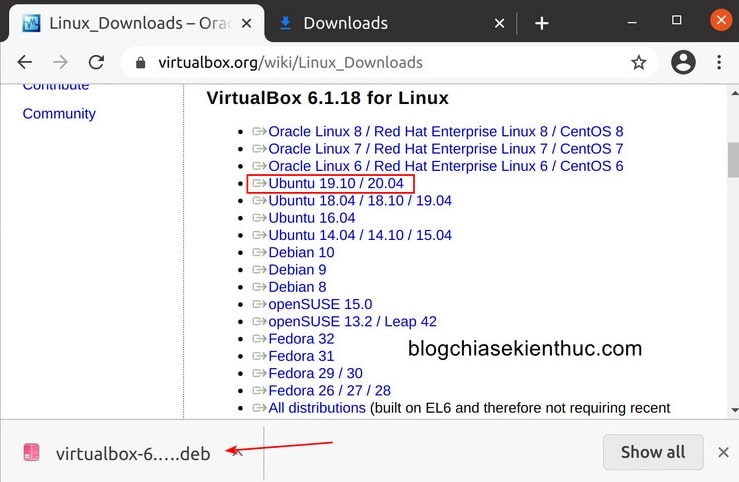
The pictured release list is historical; select the entry matching your current system.
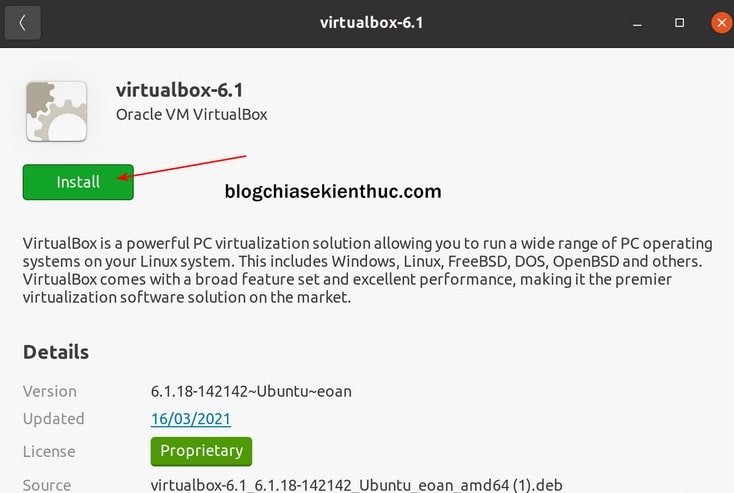
Example graphical package installation screen.
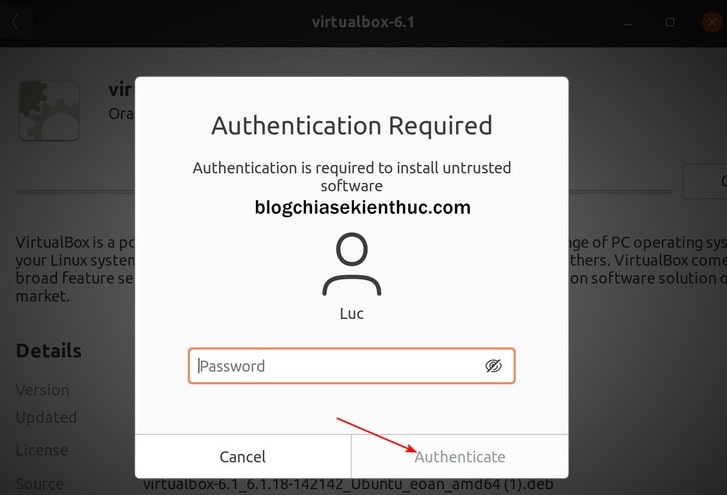
Ubuntu may request your user's administrator authentication; this is not necessarily a separate root password.
If you prefer Oracle's APT repository for updates, use its current instructions for the repository entry and signing key. A repository signing key verifies package origin; it is not a license key. Avoid the old apt-key and malformed shell-quoting examples.
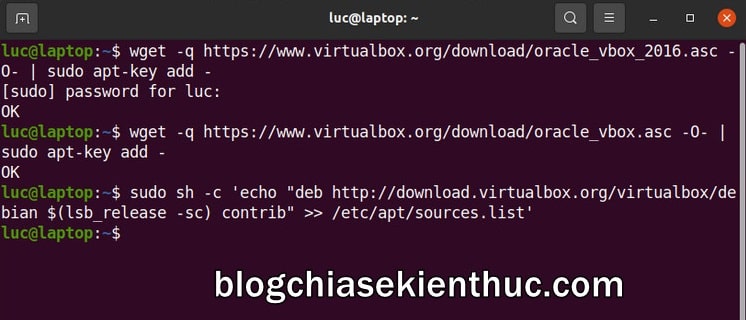
Legacy repository setup screenshot; use the current vendor instructions instead of transcribing it.
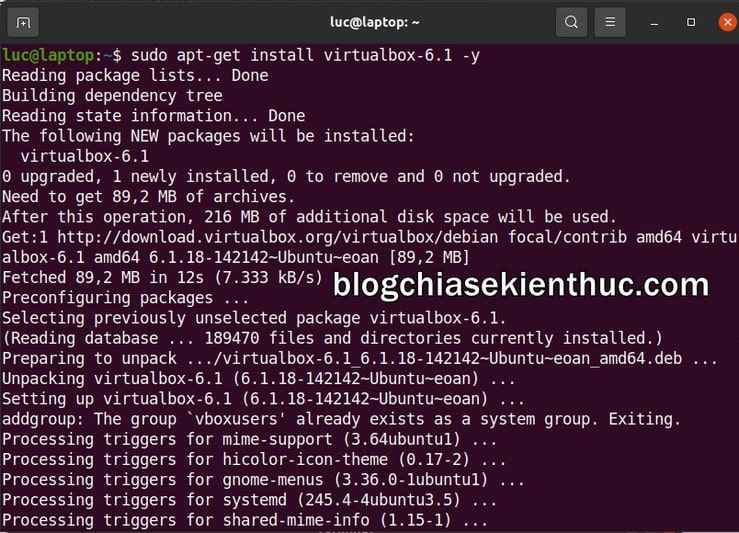
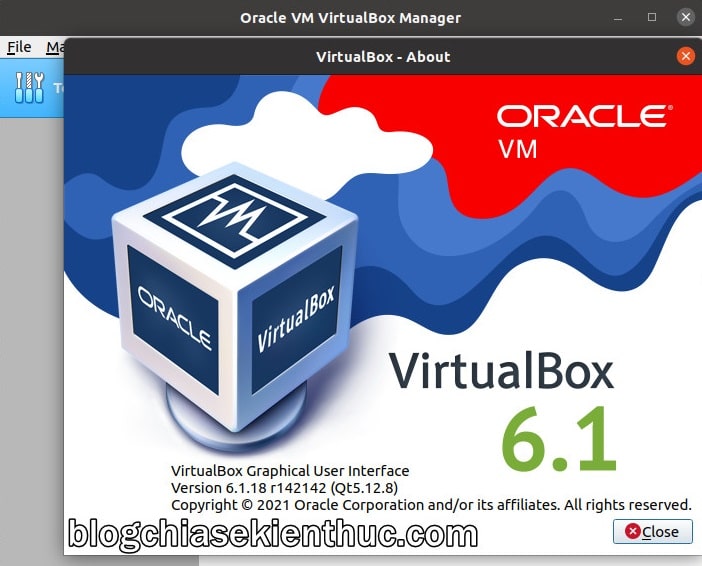
Older version-specific installation example; do not install VirtualBox 6.1 merely to match this image.
Verify VirtualBox and start a test guest
Open the application launcher and search for VirtualBox. You can also check the installed version with VBoxManage --version.
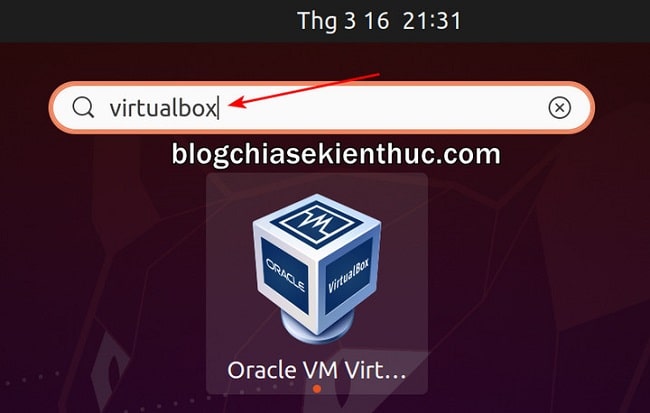
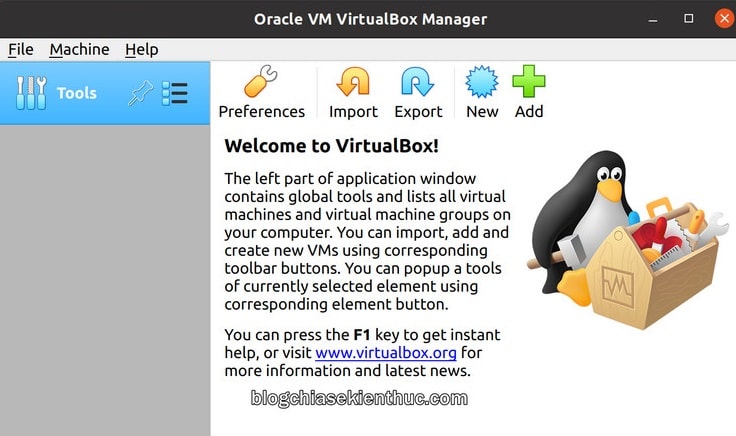
Create a small test virtual machine using an operating-system image from its official source. Starting the guest verifies more than merely opening the manager. For the creation workflow, see creating a VirtualBox virtual machine.
If a kernel module fails to load
Read the error and package-install log. VirtualBox requires host kernel modules, and building them can require matching kernel headers and build tools. Do not assume a successful GUI launch proves those modules are ready.
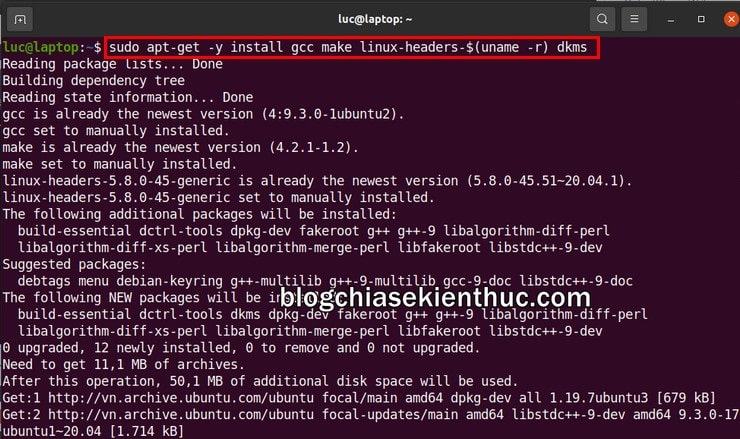
Kernel-header and build-tool installation in an older Ubuntu setup.
After a kernel update, complete any required restart and check that the module build succeeded for the running kernel. With Secure Boot, follow Ubuntu's module-signing and key-enrollment prompts where required; disabling Secure Boot should not be the default troubleshooting step.
For persistent errors, confirm support for your host kernel and package version before reinstalling repeatedly.
Uninstall without deleting your virtual machines
Shut down guests first. Use your package manager to identify the exact installed VirtualBox packages and review their removal. For Ubuntu's package names, a basic removal is:
sudo apt remove virtualbox virtualbox-qtAn Oracle package may use a versioned name; remove the name actually installed. Avoid broad wildcard purges. Review the transaction before confirming and keep virtual-machine backups separately.
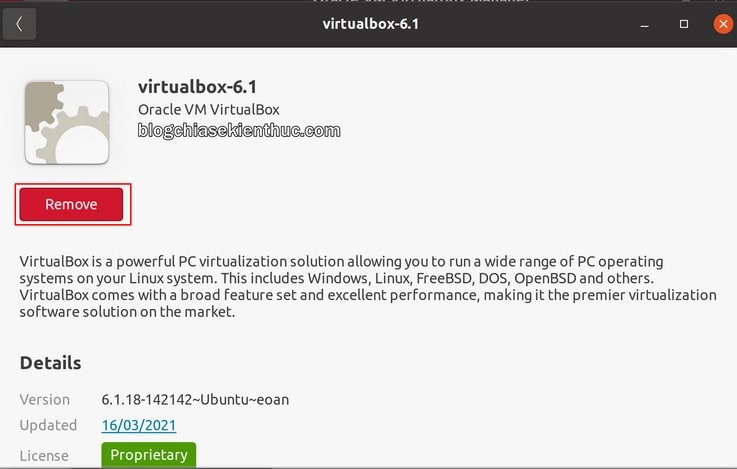
Example graphical removal screen.
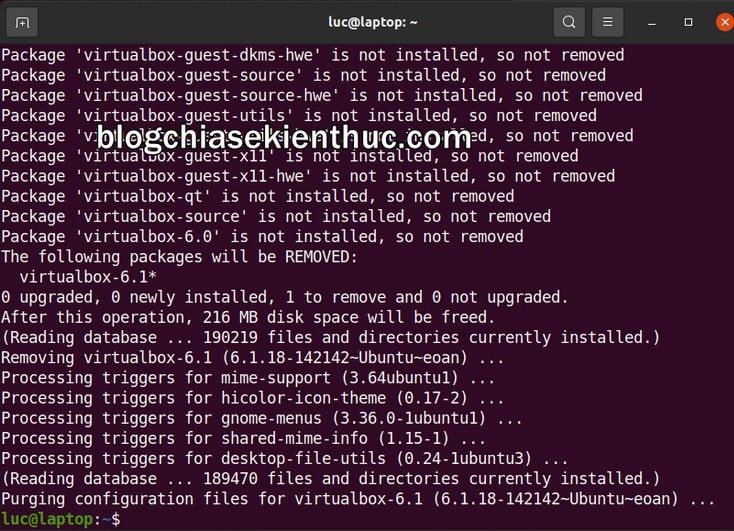
Historical terminal removal example; use exact installed package names.
If choosing between host tools, compare virtual-machine applications by platform and requirements before migrating important guests.
Related Articles
 Installing Ubuntu in VirtualBox does not need DVD or USB
 Instructions for installing Ubuntu Maverick in Mac Virtualbox
 Instructions on how to install Ubuntu on VirtualBox virtual machine
 Virtualbox - Download Virtualbox here.
 Ways to install Ubuntu on Windows, run in parallel or run separately
 How to fix Ubuntu freezing in VirtualBox
Reader Comments 0
Sign in with email or Google to join the discussion.