Table of Contents
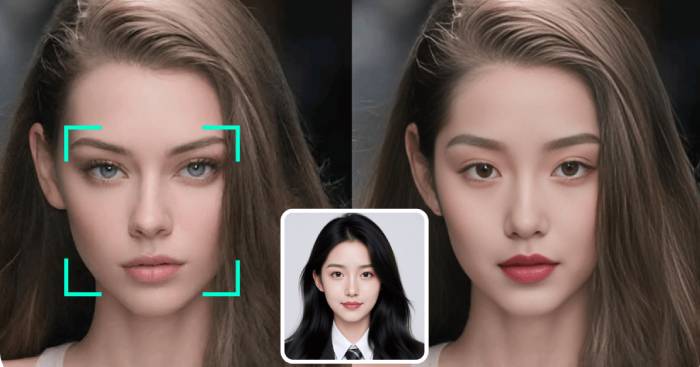
EaseMate AI offers face-swap tools that combine a replacement-face photo with a target image or video. The useful workflow is to prepare clear inputs, run a small test, and inspect the output before sharing it. Results are generated edits, not a reliable record of what a person actually did.
Prepare the right inputs
Use images you own or have permission to edit, with the agreement of the people depicted. A clear, unobstructed face and similar lighting and angle give the tool more usable information than a dark or heavily turned portrait.
For video, start with a short clip containing one clearly visible face. Fast motion, occlusion, changing light, and multiple faces make consistency harder to assess.
Create a face swap
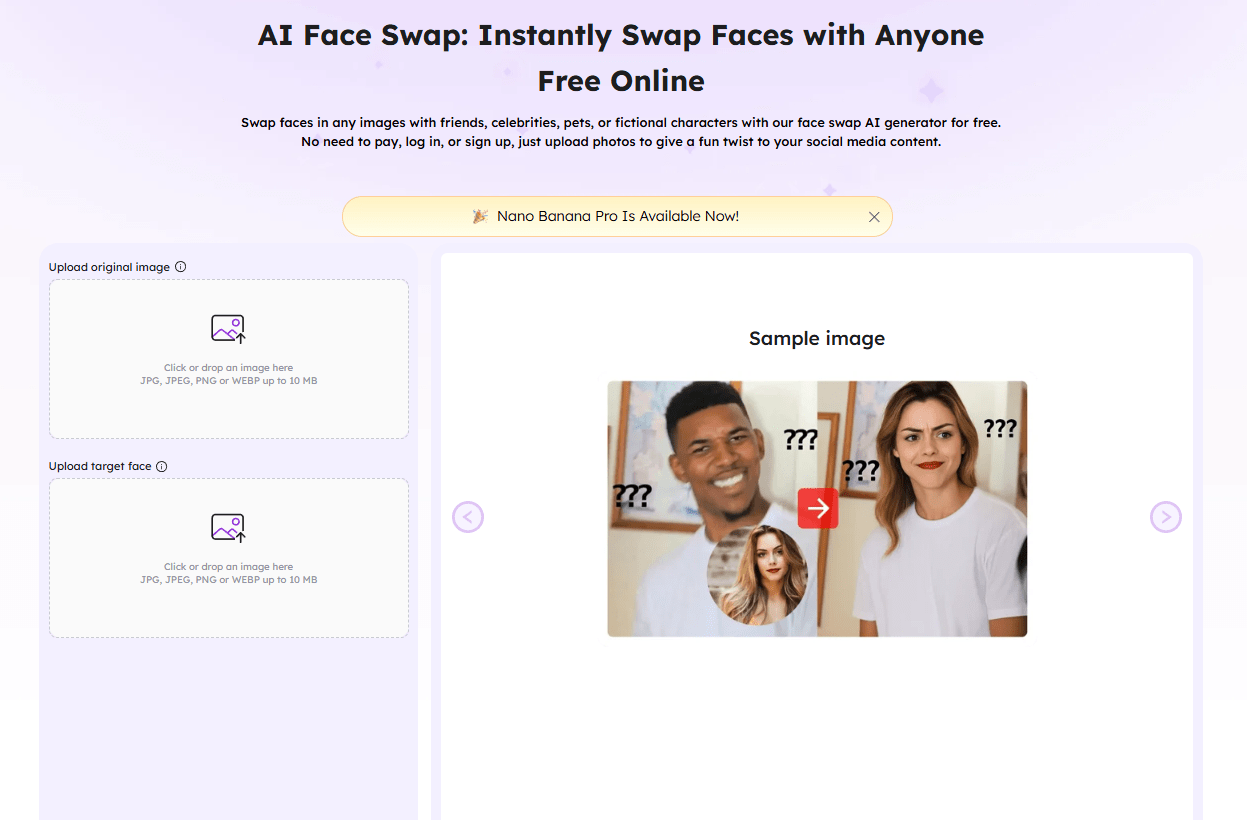
- Open the appropriate tool on EaseMate's official site. The video face-swap page separates the original video from the replacement-face upload.
- Upload the target media, then the photo containing the face to insert. Check the file types and size or duration limits shown on the form.
- If several faces are detected, review any mapping controls so the replacement is applied to the intended person.
- Check the displayed credit requirement, sign-in requirement, and available output options before generating.
- Generate a preview, inspect it carefully, and download only when the result is suitable.
The interface may offer separate image, video, or GIF workflows. Do not assume every mode has the same controls, allowance, export format, or processing time.
What to inspect in the result
- Face boundaries: Look around the hairline, ears, jaw, and neck for abrupt transitions.
- Expression: Check teeth, eyes, and mouth shape rather than judging only a thumbnail.
- Lighting and color: Compare the inserted face with the surrounding skin and scene.
- Video continuity: Watch the whole clip for flicker, identity changes, or a face disappearing behind a hand.
- Export: Open the downloaded file and confirm its resolution, duration, audio, and any watermark.
If the face is unstable, try a clearer portrait or a shorter, simpler target clip. Repeated generation cannot guarantee realistic results from incompatible inputs. For manual control, see face swapping in Photoshop.
Check “free” and “no watermark” claims separately
EaseMate advertises watermark-free outputs, but its video-tool information also describes sign-in and credit-based access. Check the current form and account terms instead of assuming unlimited processing without registration. A free first generation is different from unrestricted ongoing use.
The original article's claims about a specific “GPT-40” engine, guaranteed difficult-angle performance, and automatic compatibility with VR platforms were not supported. A face-swapped image or MP4 is not automatically a working 3D avatar for VRChat or another virtual world.
Upload and share with care
Review the service's current privacy and retention terms before uploading identifiable faces. Avoid sensitive photographs and do not rely on a generic security claim as a guarantee.
Label shared edits clearly where viewers could mistake them for real footage. Do not use a swap to impersonate someone, suggest an endorsement they did not give, or create intimate content without consent.
For other editing approaches, compare AI photo-editing tools by workflow. Choose the simplest method that provides enough control for the image you need.



Reader Comments 0
Sign in with email or Google to join the discussion.