Table of Contents
If you have used ChatGPT, you must have known about the temporary chat feature to keep your personal content more secure. And Google has now added this feature to Gemini on both computers and phones so that users can create temporary chats whenever they want. This not only makes the AI assistant more personalized but also enhances user privacy. Here is a guide to temporary chats on Gemini.
How to create temporary chat on Gemini computer
You access Gemini on your computer then select the 3 dashes icon on the left side, then select the temporary icon at New Chat as shown below.
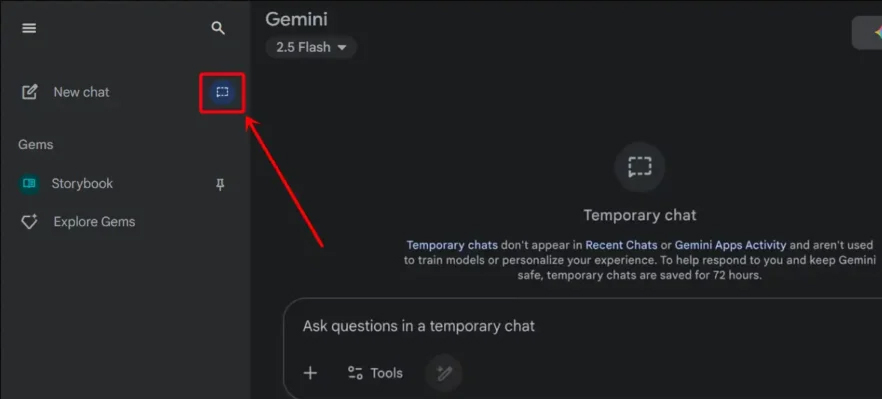
Immediately after that, the Gemini secret chat interface will appear so we can text as usual.
Gemini secret chat guide on mobile
In the Gemini application on your computer, select the 3-dash icon in the top left corner. Next, you just need to select the temporary chat icon to create it.
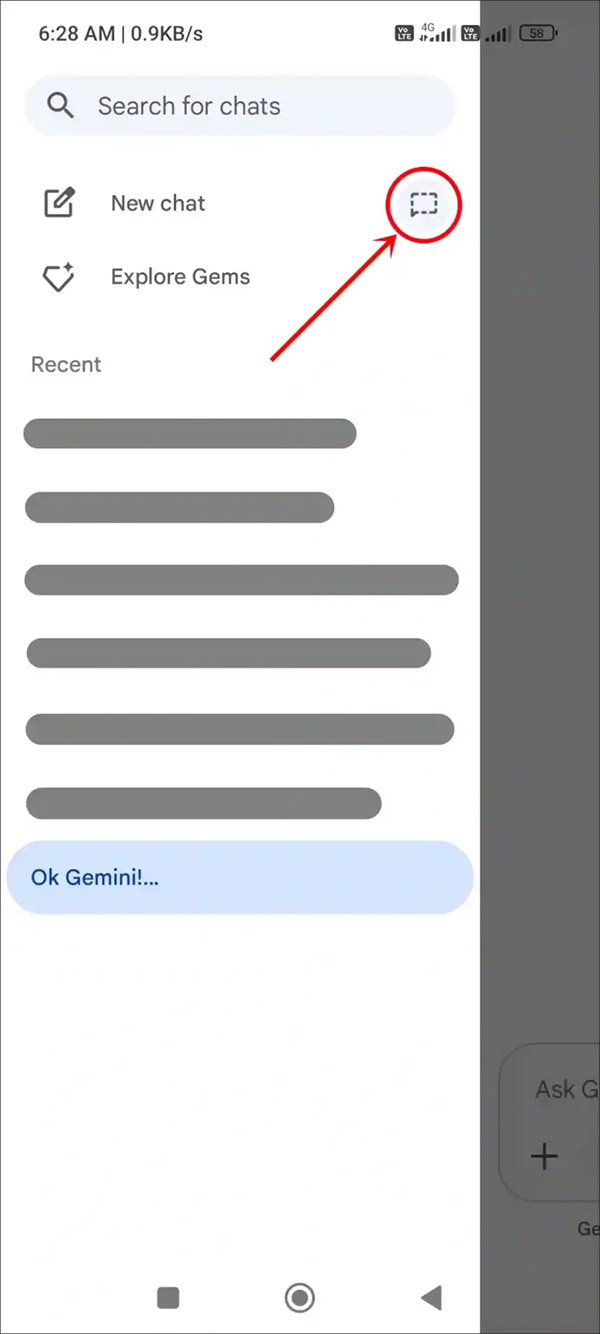
The temporary chat interface on Gemini is displayed as shown below.
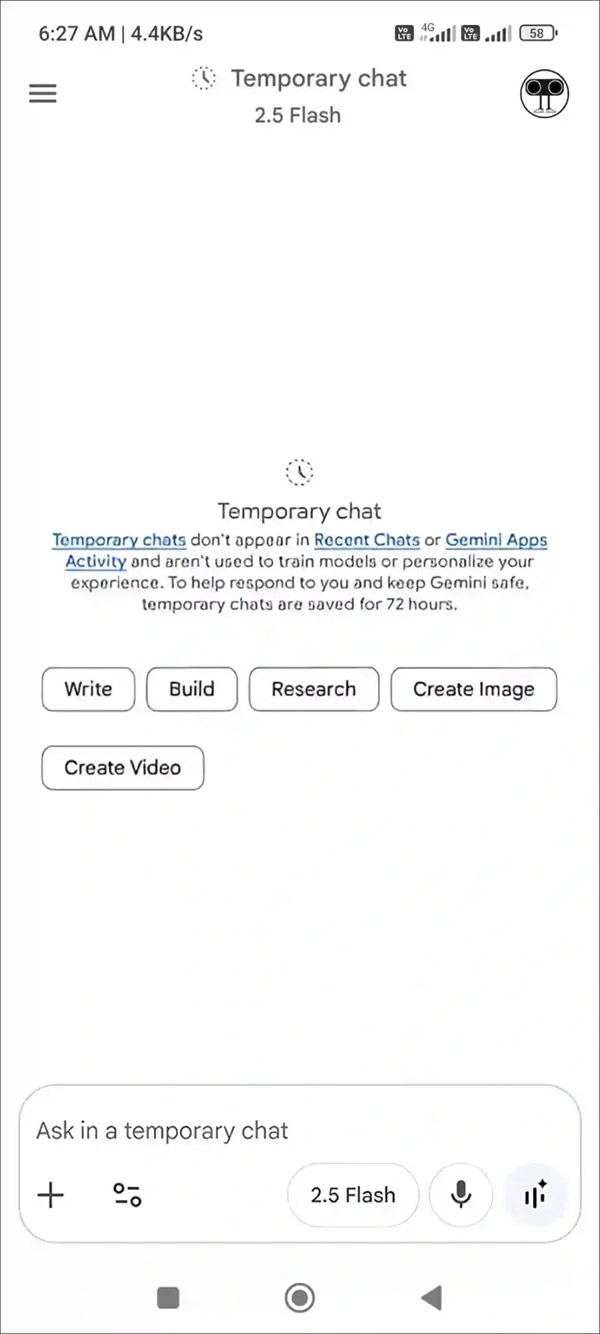
So when you use this feature, conversations will not be saved to your chat history. However, according to Google, Gemini can keep a copy of the conversation for up to 72 hours for security reasons.
Final Thoughts
Overall, Temporary Chat Guide on Gemini is best understood by considering the main facts, practical context, and limitations together. Use the details above as a clear starting point and confirm time-sensitive information when necessary.
FAQ
What does this article explain about Temporary Chat Guide on Gemini?
If you have used ChatGPT, you must have known about the temporary chat feature to keep your personal content more secure. And Google has now added this feature to Gemini on both computers and phones so that users can create temporary chats whenever they want.
What should you know about How to create temporary chat on Gemini computer?
You access Gemini on your computer then select the 3 dashes icon on the left side, then select the temporary icon at New Chat as shown below.
Should time-sensitive details be verified?
Yes. Software features, game codes, product specifications, prices, and research findings can change. Confirm important details with an official or primary source when accuracy affects your decision.
Related Articles
 Gemini Chat Sharing Guide5 minutes read
 How to Move Chat History and Saved Info to Gemini9 minutes read
 How to Create and Export Microsoft Office Files Directly from a Chat with Gemini4 minutes read
 Gemini AI Agent Builder User Guide13 minutes read
 Instructions for Getting Started with Gemini Embedding 211 minutes read
 Gemini 3.1 Pro or Gemini 3 Pro: Better?8 minutes read
Reader Comments 0
Sign in with email or Google to join the discussion.