Table of Contents
While many AI assistants like Microsoft 365 Copilot or ChatGPT support creating documents directly from chat, Gemini still lacks this crucial feature. Users have to copy content from Gemini, paste it into Word, Excel, or other applications, and then reformat it themselves—a time-consuming process prone to errors.
Now, Google has addressed that weakness. Gemini can create and export files directly from conversations , making the entire process more seamless.
What file formats does Gemini support?
The new feature allows Gemini to create a variety of common file types, serving both office and technical needs.
For documents, you can export to Google Docs, Google Slides, Word files (.docx), PDF, TXT, or RTF. For spreadsheets, Gemini supports Google Sheets, Excel (.xlsx), and CSV.
Additionally, technical formats such as LaTeX and Markdown are also supported, making it suitable for programmers or technical content creators.
This transforms Gemini from a text-response chatbot into a tool capable of generating complete, ready-to-use documentation .
How to use the file export feature in Gemini
It's quite simple to use and not much different from regular chat.
First, the user types in a prompt such as 'create proposal', 'write project documentation', or 'create a WBS task list'. Gemini will generate the content directly within the chat window.
Once you have the results, simply select the export option to download the file to your computer or save it directly to Google Drive. The entire content will be pre-formatted according to the file type you selected.
One notable feature is that Gemini can also handle handwritten notes in image format. Simply upload your image and request a PDF conversion, and the system will automatically convert it into a digital document.
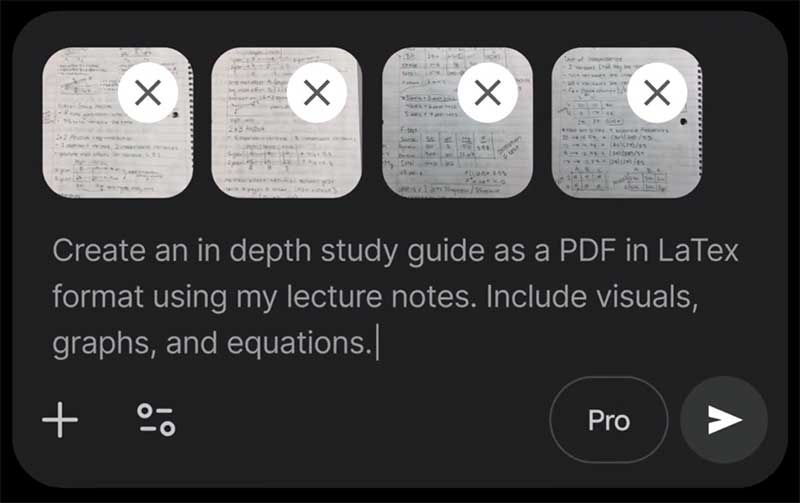
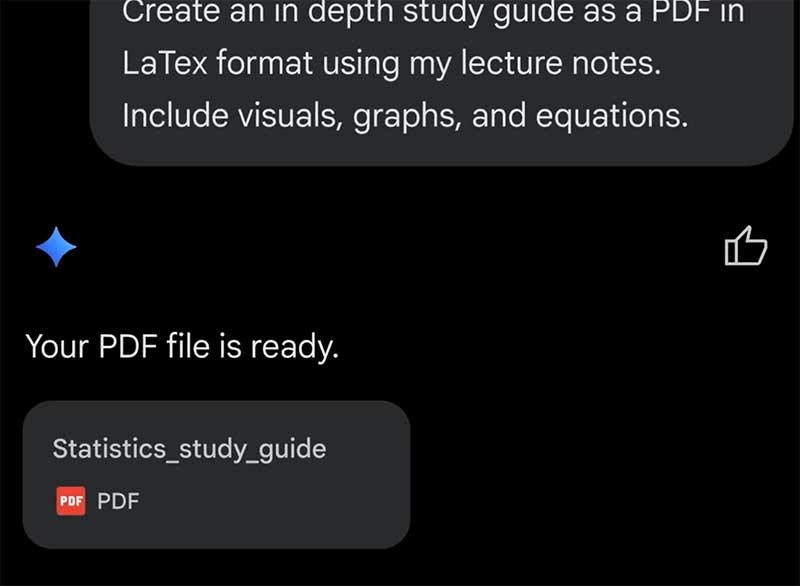
Google says the feature is being rolled out globally to Gemini users and will be available to the following user groups:
- Google Workspace customers
- Workspace Individual users
- Log in to Gemini using your personal Google account.
This means that most users will be able to access the feature in a short period of time.
The addition of direct file export capabilities makes Gemini a more formidable competitor in the AI for business applications. Instead of just creating raw content, Gemini can now finalize its output as documents, spreadsheets, or technical files. This significantly shortens workflows, especially for repetitive tasks such as report writing, planning, or data processing.
With the ability to create and format documents directly within the chat, users can save time and reduce intermediate steps. This is also a general trend in AI today — not only assisting in thinking, but also directly creating complete products.
Related Articles
 How to Share Chat on Copilot4 minutes read
 How to Move Chat History and Saved Info to Gemini9 minutes read
 Temporary Chat Guide on Gemini3 minutes read
 Microsoft Released Gemini Office in the Fall3 minutes read
 Gemini Chat Sharing Guide5 minutes read
 A Complete Guide to Excel 2016 (Part 4): How to Store and Share10 minutes read
Reader Comments 0
Sign in with email or Google to join the discussion.