Table of Contents
Ollama and LM Studio both run supported language models on your own hardware, and both can expose local APIs for other applications. Ollama is especially convenient for terminal commands and scriptable workflows. LM Studio combines a graphical model browser and chat interface with command-line, SDK, and server options. Switching is useful only when the other tool better matches your workflow.
Quick comparison
| Need | Ollama | LM Studio |
|---|---|---|
| Start a model from a terminal | Simple ollama run workflow | Available through LM Studio's CLI and server tools |
| Browse and chat in a desktop interface | Desktop app availability and features depend on platform/version | Core strength of the application |
| Connect existing code | Native API and OpenAI-compatible endpoints | Native APIs, SDKs, and compatibility endpoints |
| Model management | Named models and commands | Visual search, download, configuration, and CLI options |
For another comparison, see TipsMake's detailed guide to Ollama and LM Studio. If you want more candidates, review seven tools for running LLMs locally.
Why developers often choose Ollama
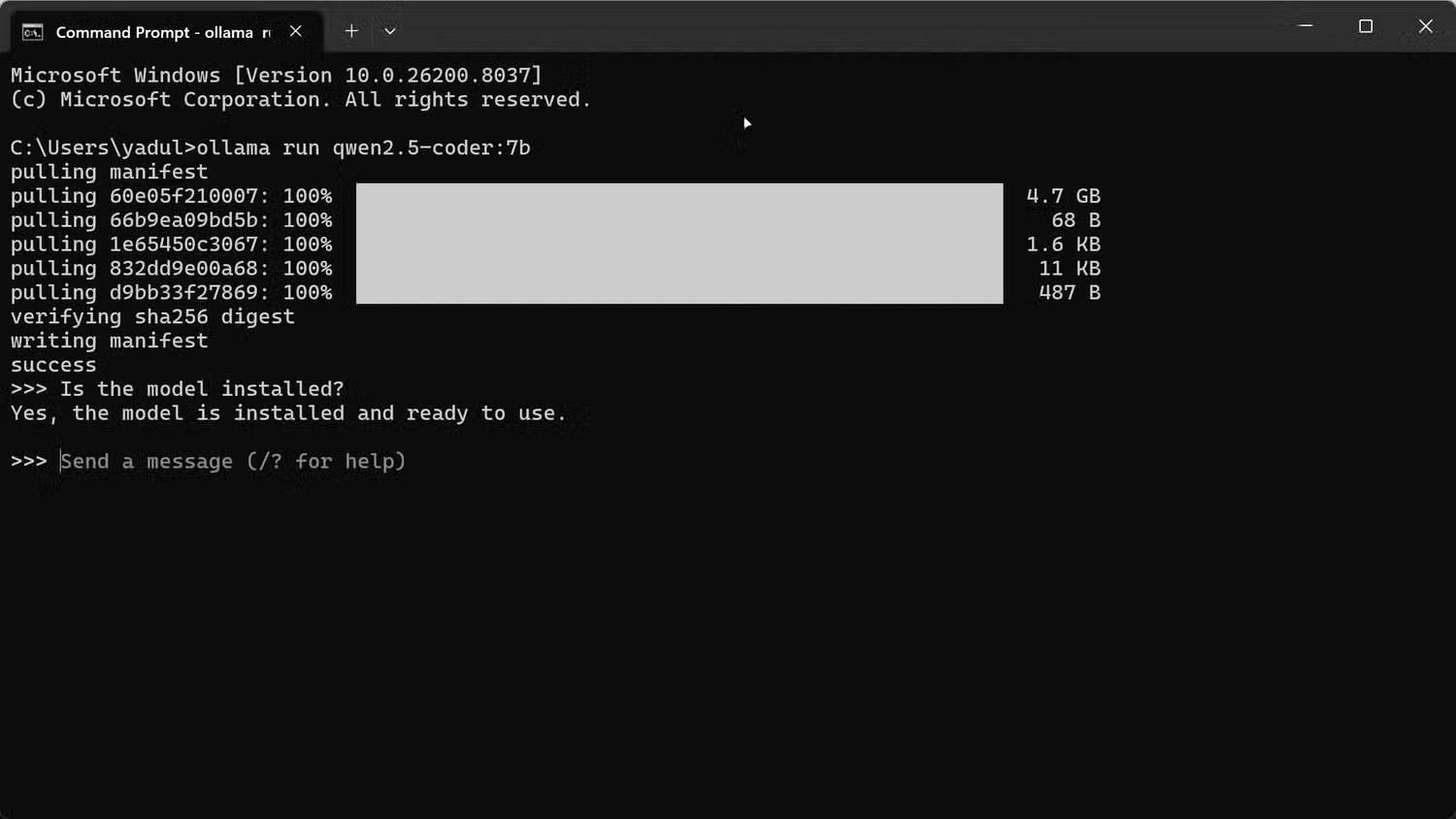
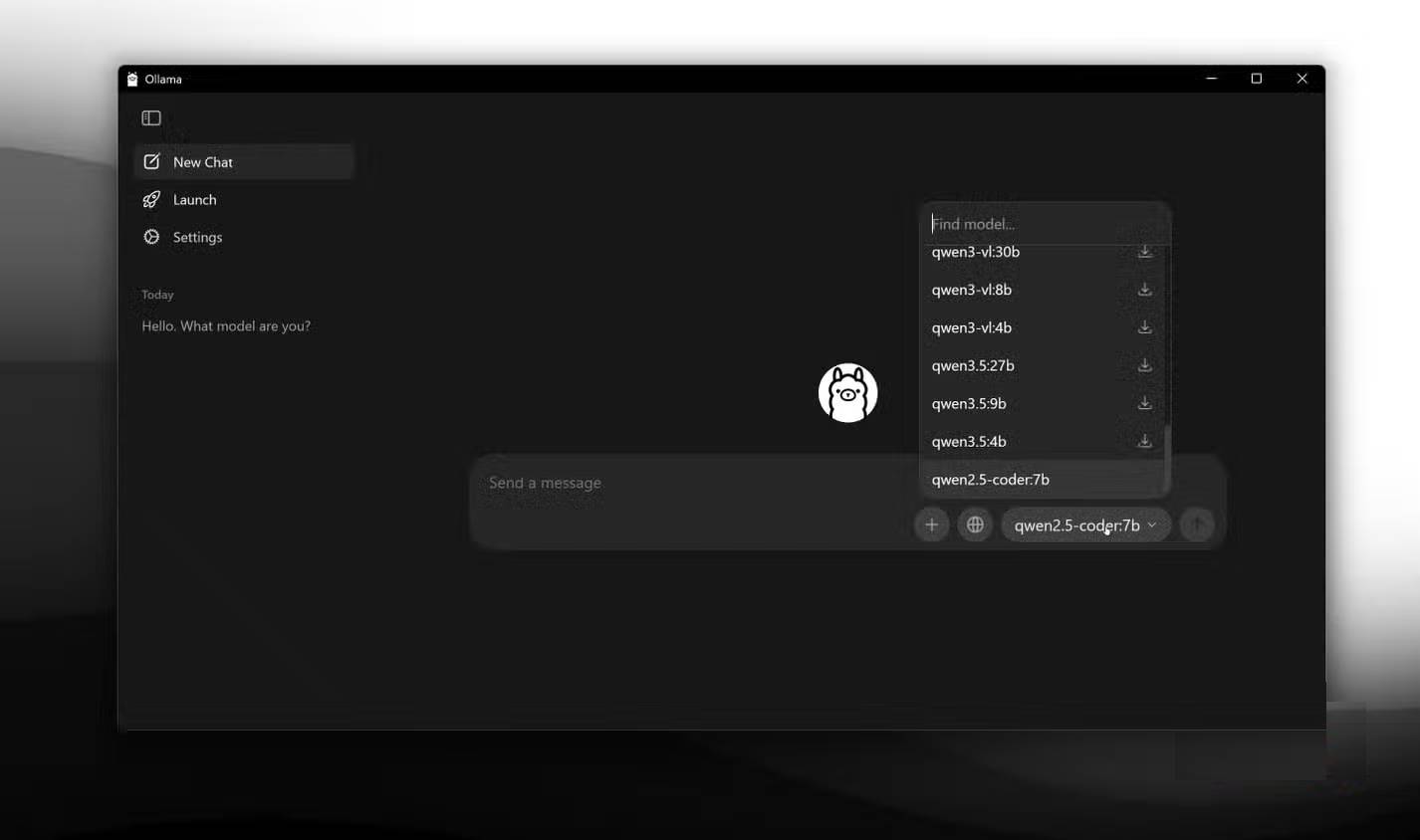
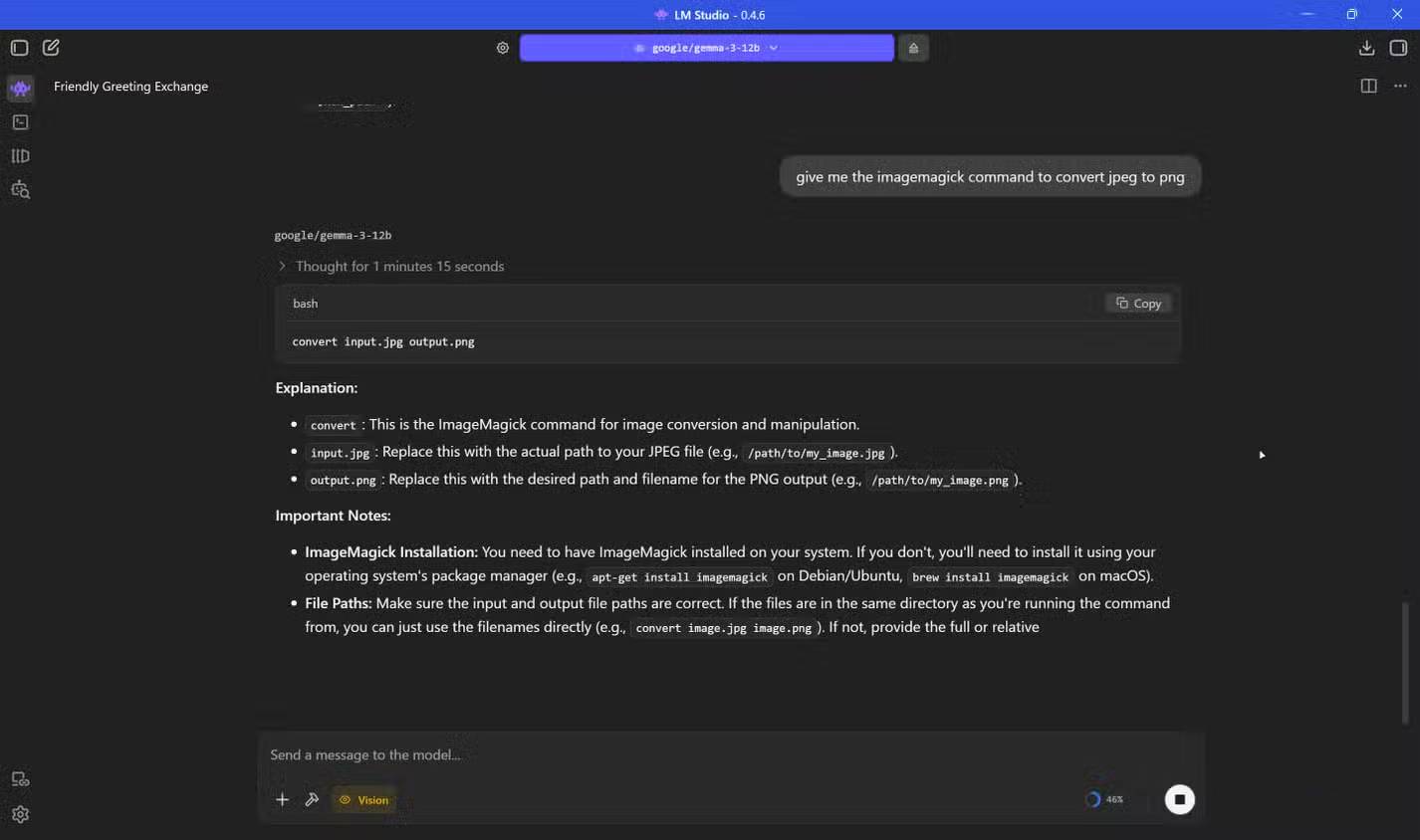
Ollama's command workflow is easy to automate. After installation, a command such as ollama run gemma4 downloads a compatible model when necessary and starts an interactive session. Model names and availability change, so copy the current command from the official library instead of relying on an old screenshot.
This design works well for shell scripts, development tools, and services that need a predictable local endpoint. Ollama also has desktop and cloud-related features, so describing it as only a minimalist command-line program is no longer complete.
Installation and hardware checks
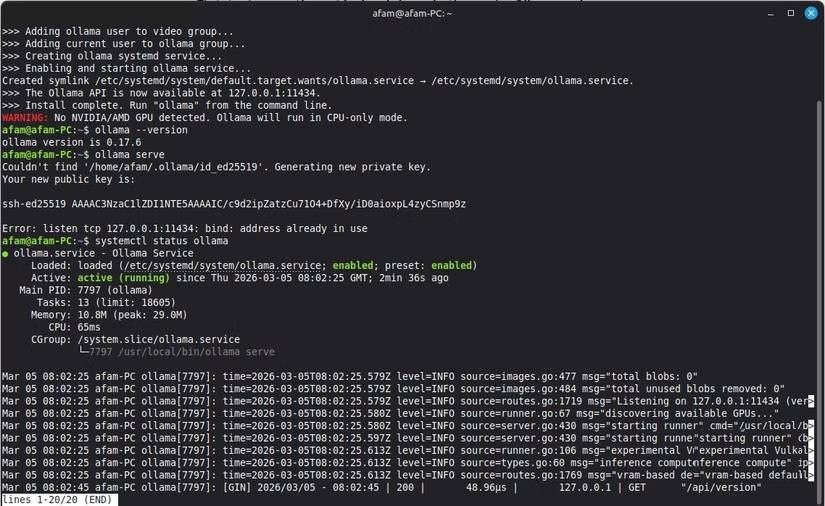
- Download Ollama from the official site for Windows, macOS, or Linux. Avoid unofficial installers.
- Open a terminal and run a small model recommended for your available memory.
- Send a short test prompt and watch memory use, generation speed, and system temperature.
- Increase model size or context only after the first model runs reliably.
Large models may require tens or hundreds of gigabytes of disk space, and runtime memory needs depend on quantization and context length. A model can download successfully but still be too large to run well. Consult the official Ollama quickstart and hardware documentation for current platform requirements.
The local API is a major reason to use Ollama
Ollama serves its native API on http://localhost:11434/api by default. It also provides OpenAI-compatible endpoints for supported workflows. Existing code may need only a base URL and model-name change, but compatibility is not guaranteed for every OpenAI feature or third-party client.
Do not expose a local inference port to a public or untrusted network without authentication and access controls. A service intended for localhost can create a security risk if it is bound broadly or forwarded through a router.
Start with the Ollama API documentation, then test the exact endpoint, streaming behavior, tool use, and structured-output features your application requires.
LM Studio also has strong developer APIs
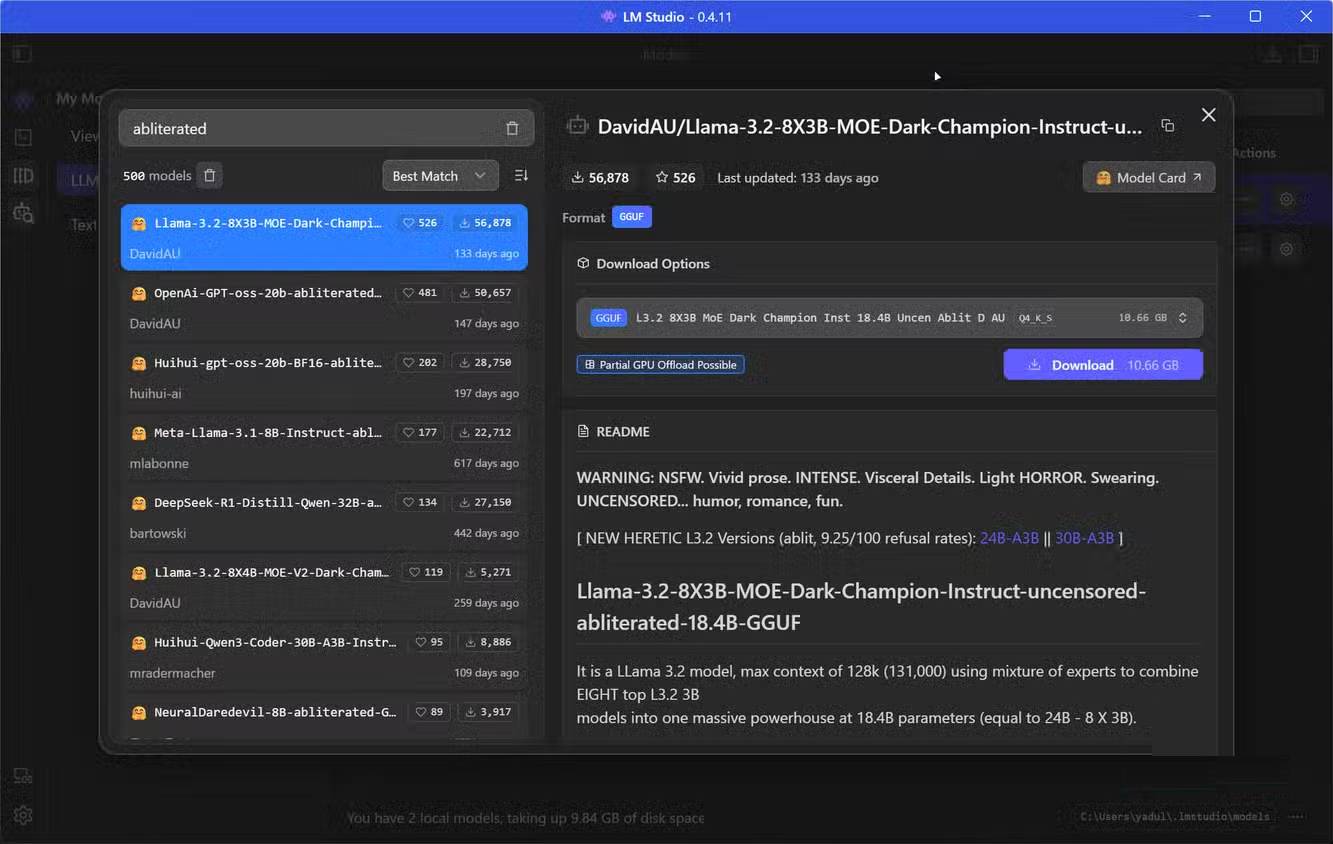
The claim that LM Studio requires a cumbersome GUI for every developer task is outdated. It can run a local server, offers REST and language SDKs, and supports OpenAI-compatible endpoints. Current versions also provide command-line tools for downloading models and operating the server.
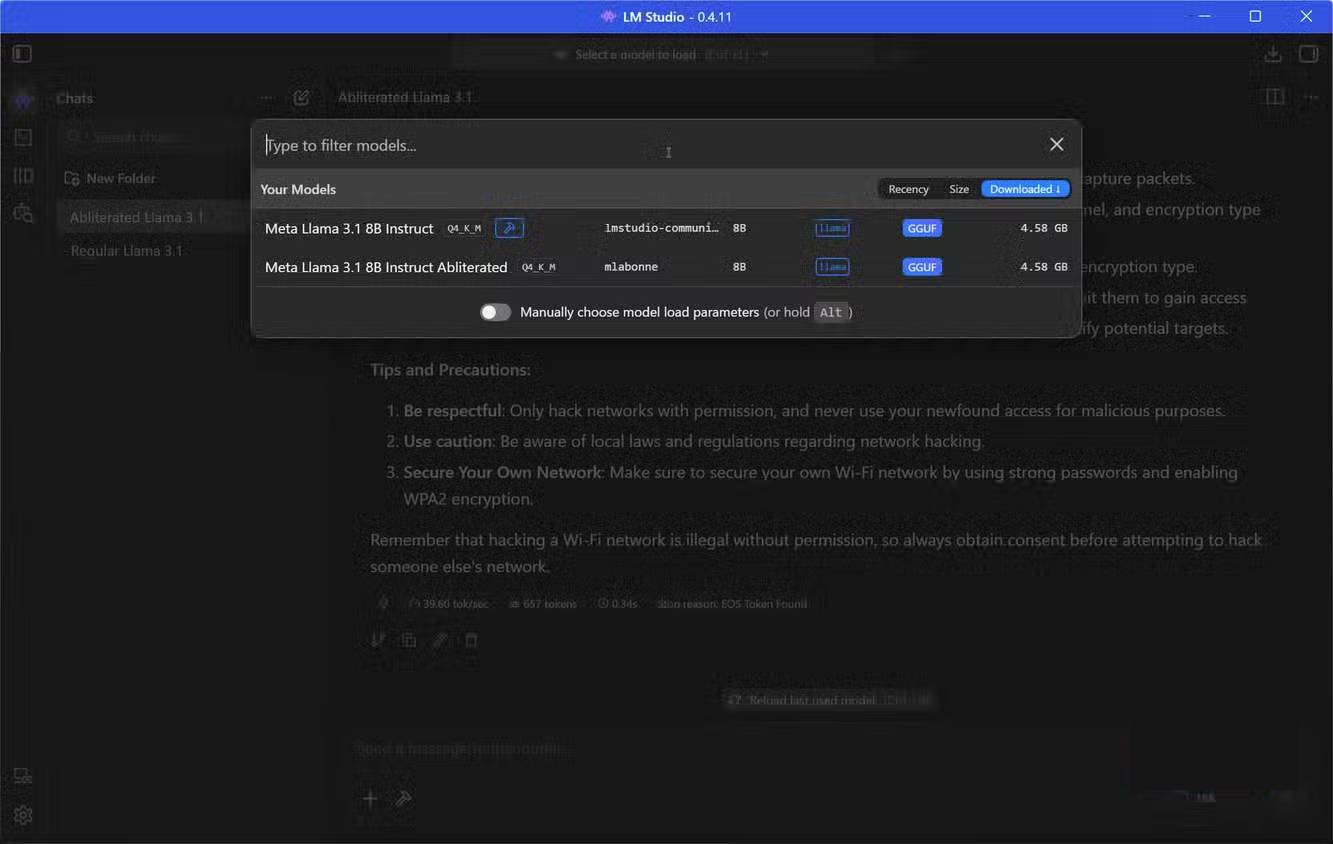
LM Studio may be preferable when you want visual model discovery and chat alongside an API server. Its official local-server documentation explains the available interfaces.
When switching makes sense
- Move to Ollama when terminal-first model management, simple automation, or its integration ecosystem is the deciding factor.
- Stay with LM Studio when its visual workflow, model browser, configuration tools, or developer APIs already work reliably.
- Use both for testing when you need to compare runtime performance or compatibility with a specific model and client.
Before migrating, record the model file, quantization, context length, prompt template, and generation settings. Differences in those values can look like an application problem even when the underlying model is responsible.
Related Articles
 What Is Ollama?: What You Need to Know6 minutes read
 Ollama (Desktop Application)11 minutes read
 The Main Difference Between Ollama and LM Studio10 minutes read
 How to Build and Use Mock API in React App Using Mirage.js: Step-by-Step Guide12 minutes read
 How to Setup and Run Qwen 3 Locally with Ollama9 minutes read
 Using OpenClaw with Ollama: Building a Local Data Analytics System21 minutes read
Reader Comments 0
Sign in with email or Google to join the discussion.