Instructions on using Gemma 4 in VS Code

There are several different ways to connect Gemma 4 with VS Code, providing you with specific settings that make for a quick and efficient experience, rather than a frustrating one.

Every developer has the same question: "Can I get a real AI programming assistant without paying $19 a month and without sending my code to someone else's server?" The answer, as of mid-2026, is yes — and Gemma 4, running locally via Ollama inside VS Code, is the best way to do it. Not a toy. Not a compromise. A truly useful programming companion, running entirely on your computer.

This guide is the result of daily use of the full-time setup above for over a month, on Flutter, Python, and TypeScript projects — not a quick test, but a real workflow built on Gemma 4. There are many different ways to connect Gemma 4 to VS Code, giving you specific setups that make the experience quick rather than frustrating. If you haven't installed Gemma 4 yet, start with the beginner's guide to running Gemma 4 locally and come back here after Ollama is up and running.

Before you begin: Is your computer powerful enough?

Gemma 4 runs entirely on your hardware — there's no cloud redundancy. If your machine isn't powerful enough, you'll experience sluggish completion times, interrupting your workflow instead of supporting it. Here's what you really need:

  1. Windows or Linux with an NVIDIA GPU : 8GB of VRAM is the practical starting point for gemma4:e4b, the best default tag for most developers. If your GPU only has 4-6GB of VRAM, start with gemma4:e2b and expect simpler suggestions.
  2. Macs with Apple Silicon : Any M1, M2, M3, or M4 chip with 16GB of unified memory will handle gemma4:e4b comfortably. With 24GB or more of unified memory, you can try gemma4:26b, and 32GB or more will give you a better chance of using the full gemma4:31b model.
  3. Without a dedicated GPU , gemma4:e2b can still run on the CPU, but expect 2-5 seconds per completion instead of under a second. You need a minimum of 8GB of RAM, preferably 16GB. This configuration is usable for chat workflows but will be frustrating for online text auto-completion features.

Quick hardware check : On Windows, press Ctrl+Shift+Esc to open Task Manager, go to Performance > GPU — find Dedicated GPU memory . On Mac, click the Apple menu and check About This Mac to see chip and memory information. On Linux, run the nvidia-smi command in the terminal.

Install VS Code (Skip if you already have it)

If VS Code is already installed on your computer, go straight to the Ollama section below.

1. Go to code.visualstudio.com and download the installer for your operating system.

  1. Windows : Run the .exe file. During installation, select Add to PATH and Register Code as an editor for supported file types  — both will help you avoid problems later.
  2. Mac : Unzip the downloaded file, drag VS Code to Applications. When launching it for the first time, right-click the icon and select Open to bypass the macOS Gatekeeper warning.
  3. Linux : Download the .deb package and run the command sudo dpkg -i code_*.deb, or install via snap using the command sudo snap install code --classic.

2. Open VS Code and press Ctrl+` (the single quotation mark key above the Tab key) to open the built-in terminal. You will need this for the following steps.

Install Ollama — The tool behind it all

Ollama is the component that actually downloads and runs Gemma 4 on your machine. Think of it as a local server running silently in the background, waiting for VS Code extensions to send prompts. All the methods in this guide rely on it.

1. Go to ollama.com and download the installer.

  1. Windows : Run the .exe file. After installation, Ollama will automatically start and appear as an icon in your system tray (bottom right corner, near the clock).
  2. Mac : Open the .dmg file, drag Ollama into Applications, and launch it. You will see its icon appear in the menu bar.
  3. Linux : Run the command curl -fsSL https://ollama.com/install.sh | shin the terminal. It will automatically install and launch as a background service.

2. Verify the settings: Open the terminal and run the command:

ollama --version

If you see the version number, the installation was successful. If you receive a "command not found" message, restart the terminal or restart your computer.

3. Confirm the server is running: Access http://localhost:11434 in your browser. You should see the message "Ollama is running". If not, restart the Ollama application from the Start menu or the Applications folder.

Download Gemma 4 — One command, one download.

This step downloads the model weights to your local drive. This only happens once — after that, the model will be loaded from memory for a few seconds each time you start programming.

As of this update, Google's Gemma 4 family includes E2B, E4B, 26B, A4B, and 31B. Ollama's Gemma 4 tags follow that naming convention, so use the specific tags below instead of the older 12B or 27B references you might see elsewhere.

1. Open the command line window (or use the built-in command line window in VS Code with the keyboard shortcut Ctrl+` ).

2. Download the E4B model; it's the best balance between speed and quality for most developers:

ollama pull gemma4:e4b

3. Limited VRAM or CPU? Download the lightest official Ollama tag:ollama pull gemma4:e2b

4. Do you have 16GB+ VRAM or more of the combined memory? Download the mixture-of-experts 26B A4B model for significantly more powerful reasoning capabilities:ollama pull gemma4:26b

5. Is there 24GB+ VRAM or 32GB+ consolidated memory? Download the top 31B model: ollama pull gemma4:31b. If you want explicit quantization tagging, use ollama pull gemma4:31b-it-q4_K_M.

6. Verify the download process: Run ollama list— your model should appear with its dimensions.

7. Quick test: Run the command `ollama run gemma4:e4b` to open the chat window. Ask a simple question like "Write a hello world in Python". If you receive working code, everything is set up correctly. Type `e4b` /byeto exit.

Test Gemma 4 in the Ollama desktop application (No VS Code required)

Recent Ollama builds come with a built-in desktop chat window — this is the quickest way to confirm your settings are working before connecting anything to VS Code. If the desktop application communicates well with Gemma 4, all the methods below will also work, as they all connect to the same local Ollama server at localhost:11434.

  1. Open the Ollama application from the Start menu (Windows), the Applications folder (Mac), or the system tray icon.
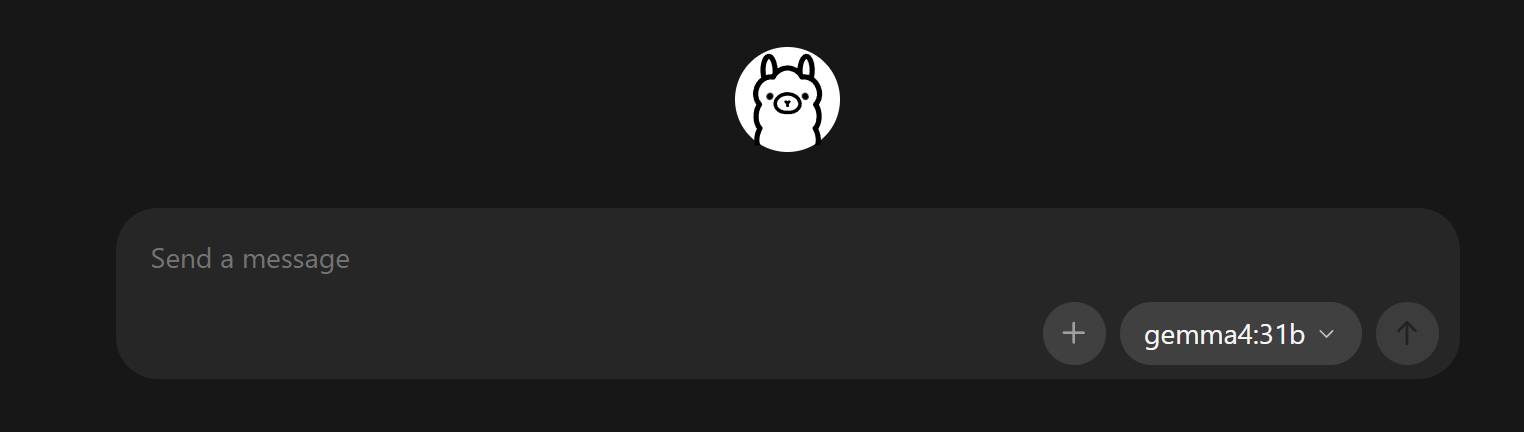
  2. You'll see a minimalist chat interface with a pattern selector in the bottom right corner. Click on it and select your chosen variant, such as gemma4:e2b, gemma4:e4b, gemma4:26b, or gemma4:31b.
  3. Type a quick prompt like "Write a Python function that reverses a string" and press Enter . Gemma 4 will start transmitting a response within a second or two.

images 1 of Instructions on using Gemma 4 in VS Code
Images 1 of Instructions on using Gemma 4 in VS Code

Can't see the chat window? You're using an older version of Ollama. Update to the latest version from ollama.com — the desktop chat UI is built into every new installation. The CLI command ollama run gemma4:e4b(above) still works on all versions if you want to use the terminal.

This is the recommended approach for most developers. Continue provides you with chat functionality, live code editing, and Tab key auto-completion — essentially everything GitHub Copilot does, but pointed to your local Gemma 4 model. If you use Android Studio for Flutter work, the same Continue + Ollama setup works there as well.

Establish

  1. In VS Code, press Ctrl+Shift+X ( Cmd+Shift+X on Mac) and search for Continue . Install the version released by Continue.dev .
  2. Click the Continue icon in the left sidebar. The setup wizard will launch and automatically detect Ollama — it lists all the models you've downloaded. Select Ollama as your provider.
  3. If it asks you to log in, click Skip or Use local models . You don't need an account to use it locally.
  4. Select Gemma 4 from the model drop-down menu at the top of the chat panel. Chat and live editing will be active immediately after this step.

Enable auto-completion using the Tab key (important — this feature is disabled by default).

Continue's chat and live editing features work immediately, but the Tab key auto-completion feature is not enabled by default. You need to configure it separately.

1. Open the Continue configuration file. Press Ctrl+Shift+P ( Cmd+Shift+P on a Mac), type Continue: Open Configand select it. Newer versions of Continue use `` config.yaml; older installations may still display ` config.json`. This file is located in ~/.continue/ on Mac/Linux or C:UsersYourName.continue on Windows.

2. In the config.yaml file, add Gemma 4 to the models section and include the roles.

name: Local Gemma 4 version: 0.0.1 schema: v1 models: - name: Gemma 4 E4B Chat provider: ollama model: gemma4:e4b roles: - chat - edit - apply - name: Gemma 4 E2B Autocomplete provider: ollama model: gemma4:e2b roles: - autocomplete autocompleteOptions: debounceDelay: 350 maxPromptTokens: 1024

3. If your Continue installation is still using config.json, the tabAutocompleteModelold style might still work, but treat it as the old path and switch to YAML when the extension prompts you.

4. Save the file. Continue will automatically reload the configuration — no need to restart VS Code.

Tip : For faster auto-completion, keep a smaller pattern like gemma4:e2b reserved for Tab key completion, while using gemma4:e4b, gemma4:26b, or gemma4:31b for chat frames. Speed ​​is more important than quality for inline suggestions.

Three keyboard shortcuts you'll use frequently.

  1. Chat about selected code : Highlight any code block and press Ctrl+L ( Cmd+L on Mac). Ask questions like "explain this," "find the error," or "what happens if the input is null?". You can also type @file or @codebase in the chat box to reference other files without manually pasting.
  2. Edit the code directly : Highlight the code, press Ctrl+I ( Cmd+I on Mac), and enter a command — "add error handling", "convert to async/await", "add TypeScript style". You will get a comparison to review before accepting.
  3. Tab key auto-completion : Just start typing. Grayish, faint text will appear after a short pause — press Tab to accept the suggestion or continue typing to skip. Press Esc to close.

Troubleshooting

  1. No chat suggestions or responses : Open http://localhost:11434 in your browser. If "Ollama is running" is not displayed, relaunch Ollama from the Start menu or Applications folder.
  2. The tab autocomplete feature is not displaying : Please ensure your config.yaml model includes the autocomplete role. Otherwise, only the chat and live editing features will work.
  3. The suggestion is very slow : Run the command `ollama ps` in the terminal. If the processor column shows `cpu` instead of `gpu`, switch to a smaller model like `gemma4:e2b` or update your GPU driver.

Method 2: Extension CodeGPT — Best for multi-chat workflows

If you spend more time asking questions about code than writing it—debugging, explaining old code, brainstorming architecture—CodeGPT is worth considering. It focuses heavily on the conversational experience and has a cleaner conversational interface than Continue, although its live auto-completion feature is slower.

Establish

1. Press Ctrl+Shift+X ( Cmd+Shift+X on a Mac), search for CodeGPT, and install it.

2. Click the CodeGPT icon in the sidebar and select Ollama  as your AI provider.

3. CodeGPT will automatically scan for locally available models. Select Gemma 4 from the drop-down menu. If it doesn't appear, confirm Ollama is running with the command ollama listand click the refresh button.

4. Optional but recommended : Set the following system prompt in CodeGPT settings to adjust output quality:

You are an expert software developer. Write clean, well-structured code. When explaining, break it down step by step.
Bạn là một nhà phát triển phần mềm chuyên nghiệp. Hãy viết code sạch, có cấu trúc tốt. Khi giải thích, hãy chia nhỏ từng bước.

5. Test it: Ask:

Write a Python function that checks if a number is prime
Viết một hàm Python kiểm tra xem một số có phải là số nguyên tố hay không

If you receive a working code, the setup process is complete.

How to use

Highlight the code in your editor, right-click, and you'll see CodeGPT's context menu options — "Explain this code," "Find errors," "Refactor," "Create tests." CodeGPT also keeps a history of your conversations between VS Code sessions, which is very useful when you're working on a multi-step debugging problem for hours.

Note : CodeGPT's Tab key auto-completion feature with local models is significantly less reliable than Continue. If real-time, live suggestions are important to you, use Continue (Method 1) and only use CodeGPT for chat.

Method 3: Extension Ollama — Minimalist and Gentle

If you just want a simple chat window to ask Gemma 4 questions without any extra features, the standalone Ollama extension is the quickest way. No account needed, no configuration files, no learning required.

Establish

  1. Press Ctrl+Shift+X , search for Ollama, and install the extension with the highest number of downloads.
  2. Press Ctrl+Shift+P ( Cmd+Shift+P on Mac), type Ollama and select Ollama:Chat .
  3. Select Gemma 4 from the list of models. If the list is empty, Ollama will not run — restart.
  4. Test: Ask:
What does the map function do in JavaScript?
Hàm map trong JavaScript làm nhiệm vụ gì?

. — if you receive a coherent answer, you're done.

This extension offers nothing more than a chat panel — no inline auto-completion, no inline editing, no workspace indexing. That's the trade-off for its simplicity. It barely impacts VS Code performance, which makes it a good choice for older computers. For the full experience, use Continue (Method 1).

5 | 1 Vote
« PREV : What is OpenAI?...
How do I use the... : NEXT »