Table of Contents
Visual Studio Code 1.122 made it possible to use chat, tools, and Model Context Protocol (MCP) servers with a self-hosted Ollama model without signing in to GitHub. That is useful on privacy-sensitive projects and disconnected development networks, but it does not make every AI feature in VS Code offline. Inline suggestions, semantic search, and other embedding-dependent features may still require a supported cloud service.
This guide explains what the release added, how to connect Ollama, how to assign local utility models, and how to confirm that the workflow is actually staying on your computer.
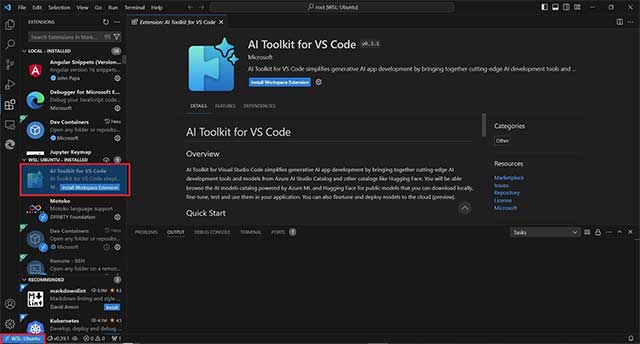
What “offline AI” means in VS Code 1.122
VS Code 1.122 expanded Bring Your Own Key (BYOK) support so that the editor can use custom model providers without a GitHub sign-in. The official VS Code 1.122 release notes specifically describe a fully offline setup using local Ollama models.
| Capability | Can use a local Ollama model? | Important limit |
|---|---|---|
| Chat requests | Yes | Quality and tool support depend on the selected model. |
| Agent tools and MCP servers | Yes | A tool or MCP server can still make network requests unless you restrict it. |
| Utility-model tasks | Yes, when configured | You must select compatible local models in the relevant settings. |
| Inline code suggestions | Not through this BYOK path | These remain separate from the custom chat-model connection. |
| Semantic search and embedding-based features | Not necessarily | They require an embedding service and may not work in a fully offline configuration. |
“Local model” describes where inference runs. It does not prove that the entire editor, extension set, or agent workflow is isolated. Extension telemetry, update checks, source-control integrations, MCP tools, and links opened by an agent may still contact external services.
Before you start
You need a supported VS Code build, Ollama installed on the same computer or an approved machine on the local network, enough RAM or GPU memory for the chosen model, and permission to download the model files before disconnecting from the internet.
Model size matters more than brand recognition. A smaller coding model will usually respond faster and fit more machines, while a larger model may follow complex instructions better but consume more memory. If you are choosing among local options, see TipsMake’s guide to compact coding models that can run locally.
Step 1: Install Ollama and download a model
Install Ollama using the instructions for your operating system from the official Ollama download page. Then open a terminal and download a model that fits your hardware. For example:
ollama pull qwen2.5-coder:7bStart a test session:
ollama run qwen2.5-coder:7bAsk a simple coding question, then exit the session. This confirms that the model is present and Ollama can load it before VS Code is involved. The exact model name is only an example; use a model and license appropriate for your project.
Ollama normally exposes a local API on http://localhost:11434. If Ollama runs on another computer, do not expose that endpoint broadly without authentication, firewall rules, and an encrypted network path.
Step 2: Connect Ollama to VS Code
Open the Command Palette and run Chat: Manage Language Models. In the VS Code 1.122-era workflow, you could choose Ollama as a provider and select an installed model without a GitHub account.
The current VS Code language-model documentation notes that the built-in Ollama provider is deprecated and directs users to the official Ollama extension. That means the exact menus can differ if you are following this guide on a newer VS Code release:
- Install the Ollama extension published by Ollama from the VS Code Marketplace.
- Confirm that the Ollama service is running.
- Open the model picker in Chat and select the local Ollama model.
- Send a short prompt and verify that a response appears.
If your organization freezes editor versions, follow the UI available in the approved build. Do not install an unapproved extension merely to match newer documentation.
Step 3: Configure local utility models
VS Code uses utility models for lightweight supporting work, such as generating chat titles or summarizing context. Without configuration, these background tasks may try to use a different provider or may not work.
Open Settings and search for chat.utilityModel and chat.utilitySmallModel. Assign suitable local models to both. A smaller model is usually sufficient for short utility tasks; reserve the stronger model for coding and tool-heavy requests.
If the model picker shows a context-window option, do not automatically select the largest value. A larger context can consume substantially more memory and slow local inference. Start with the project files genuinely required for the task.
Step 4: Test the setup without internet access
A successful chat while online does not demonstrate offline operation. Test deliberately:
- Download the model and any required extension packages first.
- Close VS Code and stop other unnecessary applications.
- Disconnect the test machine from the internet or use your organization’s approved network-isolation procedure.
- Restart Ollama and VS Code.
- Select the local model and ask it to explain a small file that is already on disk.
- Run a permitted local tool, if applicable, and confirm that it does not need a remote service.
- Review firewall or proxy logs to check for failed outbound requests.
If chat works but repository search, inline completion, or a particular tool does not, that can be an expected feature boundary rather than a broken Ollama connection.
Keep local agents within safe boundaries
A local language model can still read sensitive files, execute commands, or pass data to a network-enabled tool. Treat the model, tools, and workspace permissions as separate security layers.
- Open only the repository or folder required for the task.
- Exclude secrets, credential files, private keys, production data, and unrelated directories.
- Review tool calls and command arguments before approving them.
- Use a low-privilege development account or container for agent experiments.
- Allowlist necessary MCP servers and inspect what data and actions each exposes.
- Keep version control clean so that generated changes can be reviewed and reversed.
- Do not assume “localhost” means safe if the service listens on all network interfaces.
For a broader decision about privacy, capability, and maintenance, compare offline and online AI workflows.
Use integrated browser device emulation carefully
VS Code 1.122 also added browser device emulation to its integrated browser. An agent can use Playwright-based tools to change viewport size, device pixel ratio, touch behavior, and related browser characteristics while testing a web interface.
This is useful for reproducing responsive-layout problems, but emulation is not the same as testing on physical hardware. It cannot fully reproduce device performance, operating-system behavior, mobile browser chrome, camera access, sensors, or manufacturer-specific quirks. Use it for fast iteration, then validate important flows on real target devices.
A safe testing request should define the page, viewport or device profile, expected behavior, and whether the agent may click, type, or submit data. Never point an autonomous test at a production checkout, account-deletion screen, or other destructive workflow without protections.
Report issues without leaking private information
The release introduced an issue-reporting wizard that can collect structured details and attach screenshots or a video. Those artifacts may reveal source code, file paths, usernames, browser history, access tokens, customer data, or internal hostnames.
Before submitting a report:
- Reproduce the problem in a minimal sample when possible.
- Read the generated diagnostic text.
- Crop or redact screenshots.
- Review every frame of a recording.
- Remove secrets and organization-specific identifiers.
- Confirm whether the destination issue tracker is public.
Administrators who do not want the wizard can review the issueReporter.wizard.enabled setting and enforce an appropriate policy.
Troubleshooting
The Ollama model does not appear
Confirm that Ollama is running and that ollama list shows the downloaded model. Restart VS Code after installing the provider extension. If Ollama is on another machine, confirm the endpoint, firewall policy, and extension configuration.
Responses are slow or stop with a memory error
Choose a smaller or more heavily quantized model, reduce the context supplied to the chat, close GPU-heavy programs, and avoid running multiple model sessions. Monitor system RAM and GPU memory rather than relying on a model’s download size alone.
Chat works, but code completion does not
The local BYOK chat connection does not automatically replace VS Code’s inline-suggestion service. Use a tool designed for local inline completion if that capability is required, and evaluate its permissions separately.
The model cannot understand the whole repository
Local chat may lack semantic-search embeddings or enough context capacity. Select a few relevant files, give the model the goal and constraints explicitly, and split the task into verifiable steps. TipsMake’s local-model workflow for VS Code offers another practical example.
What to retain from VS Code 1.122
The important change was not that every AI feature suddenly became offline. VS Code separated core chat and agent features from the requirement to sign in to GitHub, making a genuinely local Ollama workflow possible for selected tasks. A reliable deployment still requires compatible models, explicit utility-model settings, controlled tools, network testing, and careful handling of diagnostic media.
Related Articles
 Instructions for Installing and Using Claude Offline on a Computer6 minutes read
 Using OpenClaw with Ollama: Building a Local Data Analytics System21 minutes read
 What Is Ollama?: What You Need to Know6 minutes read
 Alternative Ways to Run LLM Locally Instead of Ollama or Llama. Cpp9 minutes read
 Stop Struggling with LM Studio's Mock-Up UI! Switch to Ollama!6 minutes read
 Best Tools for Running LLM Models on a Computer8 minutes read
Reader Comments 0
Sign in with email or Google to join the discussion.