Table of Contents
On many Acer laptops, hold Fn and press the Left Arrow to dim the built-in screen or the Right Arrow to brighten it. Newer models may place the sun icons on F5/F6 or other keys, so follow the symbols on your keyboard or the model's manual. You can also use Windows Quick Settings or Settings > System > Display.

Use the Acer brightness hotkeys
- Look for a small sun and a larger sun on the arrow keys or function-key row.
- Hold Fn and press the dimmer or brighter key.
- If the action key works without Fn, the laptop's Fn Lock or hotkey mode is already giving the top row its system-control behavior.
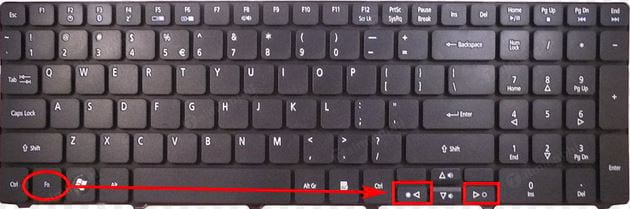
The screenshot shows the Fn + Left/Right Arrow layout found on many Acer models, but it is not universal. On supported keyboards, Fn + Esc may toggle Fn Lock; look for an Fn-lock symbol before using that shortcut. TipsMake's laptop Fn-key guide explains common icons.
Use Windows Quick Settings
Press Windows + A or select the network, volume, or battery area on the taskbar. Drag the brightness slider left or right. This is normally the quickest software method in Windows 11.
Adjust brightness in Display settings
- Open Start > Settings > System > Display.
- Select the built-in display if several screens are shown.
- Expand Brightness if necessary and move the slider.
- On supported hardware, review automatic brightness and brightness based on displayed content.
Current Windows versions use Quick Settings and Display settings. The Control Panel screenshots later in this article are retained for readers maintaining older Acer laptops.
Use Windows Mobility Center
Press Windows + R, type mblctr, and press Enter. Move the slider under Display brightness.
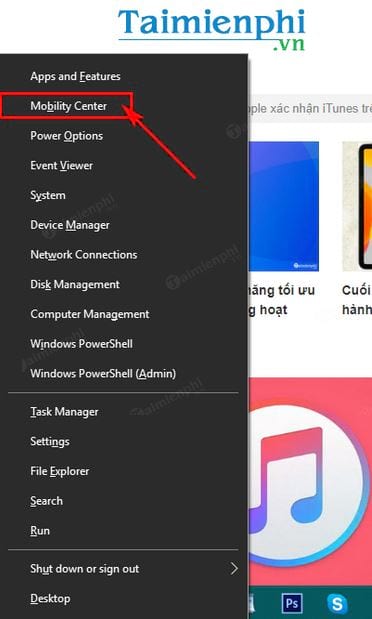
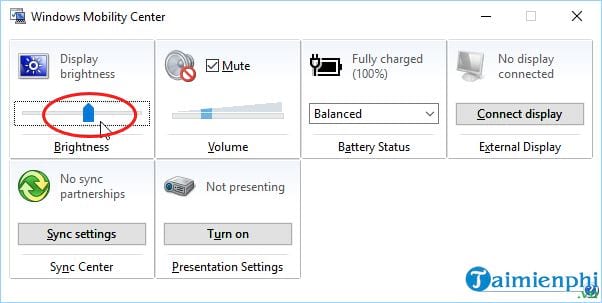
On some older Windows versions, Windows + X offers a Mobility Center shortcut. Current menus vary, so opening mblctr directly is more reliable. If the tool is unavailable, use Display settings instead.
Set battery and plugged-in brightness on older Windows versions
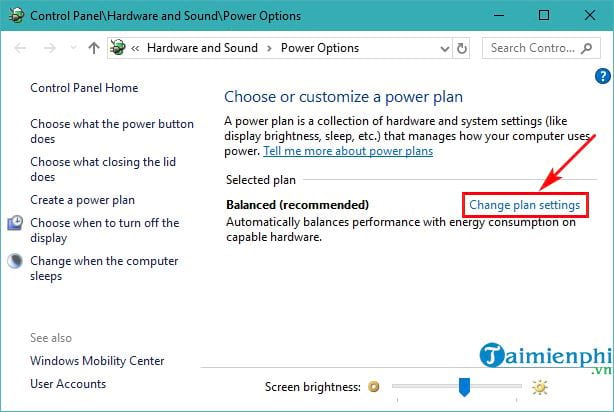
Legacy Windows power plans may have separate values for battery power and the charger. Open the battery menu or Control Panel > Power Options.
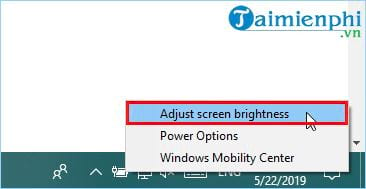
Select Change plan settings for the active plan.
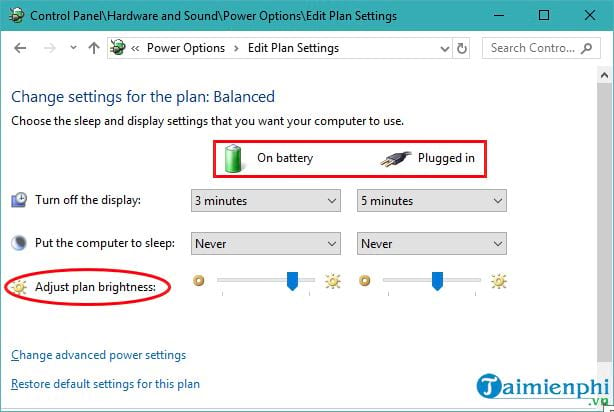
Move the On battery and Plugged in sliders, then save the changes.
Windows 11 may instead lower the screen through Energy Saver. Review Settings > System > Power & battery if brightness changes when the charger is connected.
If Acer brightness keys or the slider do not work
| Symptom | What to check |
|---|---|
| The Windows slider works but the Acer keys do not | Try the printed key with and without Fn. Check Fn Lock, then install the Acer hotkey or Quick Access component listed for the exact model. |
| The slider moves but the panel does not change | Press Windows + Ctrl + Shift + B to reset the graphics driver, restart, and install the Acer-supported integrated-graphics driver. |
| The brightness slider is missing | Select the built-in display. In Device Manager, confirm that the integrated GPU and Generic PnP Monitor are enabled and free of errors. |
| Brightness changes automatically | Under Display > Brightness, review automatic and content-adaptive settings. Also check Energy Saver, HDR, AcerSense, and Acer Quick Access profiles. |
| The controls became reversed after an update | Use Acer's support page for the model and check BIOS, embedded-controller, graphics, and hotkey updates. Do not flash firmware from a different model. |
| An external monitor remains unchanged | Use the monitor's physical controls. Windows may not expose a brightness slider for an external display. |
Install drivers and utilities only from Acer, Windows Update, or the GPU vendor when appropriate. Identify the complete model number and current BIOS version before applying model-specific packages; generic driver-updater programs are unnecessary.
For a systematic driver workflow, see TipsMake's guide for when Windows laptop brightness controls are available. If all controls are missing, start with a normal restart and supported graphics drivers rather than reinstalling Windows.
Third-party apps do not replace a working backlight control
Windows Night Light and tools such as F.lux adjust color temperature; they do not repair the hardware brightness path. External-monitor utilities depend on DDC/CI support and usually do not control the built-in laptop panel. Fix Acer hotkeys, Windows settings, or the graphics driver first.
When the issue may be hardware
If the screen stays very dim before Windows loads, flickers when the lid moves, shows dark sections, or has a faint image visible only under a flashlight, the panel, cable, backlight, or motherboard may need service. Disconnect docks, run Acer's built-in diagnostics where available, and follow TipsMake's laptop screen testing checklist. Back up important files before repair.
Related Articles
 Adjust Screen Brightness of Windows 7 on PC, Laptop7 minutes read
 Adjusting Screen Brightness on an Asus Laptop4 minutes read
 How to Adjust the Screen Brightness on Windows 10 Laptop5 minutes read
 How to Fix the Problem of Not Being Able to Adjust Laptop Screen Brightness6 minutes read
 How to Adjust the Screen Brightness of Android Phones6 minutes read
 How to Adjust the Brightness of the Laptop Computer Screen3 minutes read
Reader Comments 0
Sign in with email or Google to join the discussion.