Table of Contents
To change a MacBook's built-in display brightness, press the Brightness Down or Brightness Up key—usually F1 and F2—or go to Apple menu > System Settings > Displays and move the Brightness slider. A supported Mac can also adjust brightness automatically using its ambient-light sensor.

Use the brightness keys
On most MacBook keyboards, the sun icons on F1 and F2 identify the display controls:
- Press F1 to make the built-in display dimmer.
- Press F2 to make it brighter.
- Hold Option-Shift while pressing a brightness key to adjust in smaller steps.
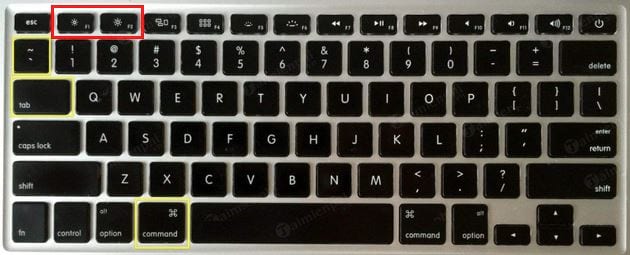
If F1 and F2 behave as ordinary function keys, hold Fn or the Globe key while pressing the brightness key. You can change this behavior under System Settings > Keyboard > Keyboard Shortcuts > Function Keys. MacBook Pro models with a Touch Bar use its Control Strip; expand it if the brightness control is not visible.
Keyboard shortcuts vary on non-Apple keyboards. TipsMake's guide to laptop Fn keys explains the icons and common key combinations on other brands.
Adjust brightness in System Settings
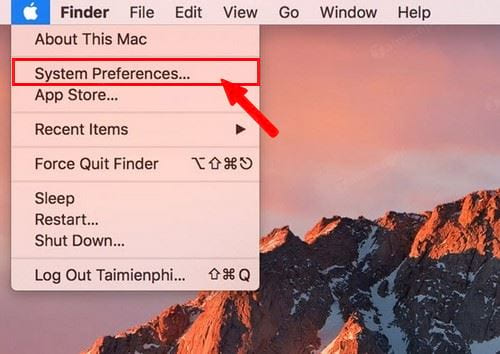
- Open the Apple menu.
- Select System Settings. On older versions of macOS, this is called System Preferences.
- Choose Displays in the sidebar.
- Drag the Brightness slider left or right.
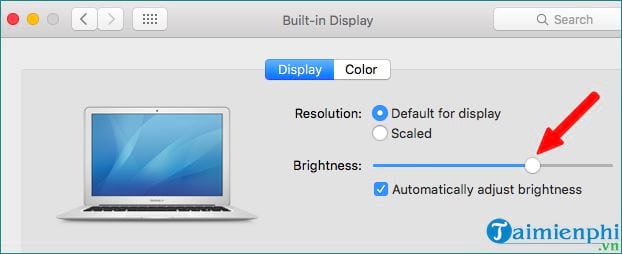
You can also open Control Center from the menu bar and use its Display control when available. The slider affects the selected supported display, not necessarily every monitor connected to the Mac.
Turn automatic brightness on or off
A Mac with an ambient-light sensor can raise the brightness in a bright room and lower it in darker surroundings:
- Open Apple menu > System Settings > Displays.
- Turn Automatically adjust brightness on or off. Some supported external displays use the label Ambient light compensation.
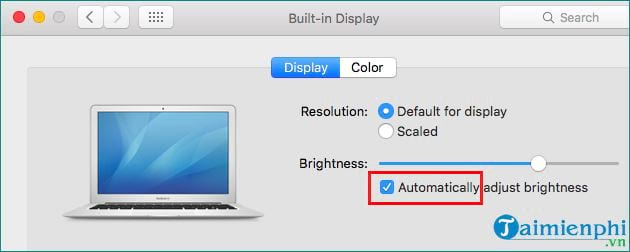
The option appears only when the Mac or display has a compatible light sensor. Keep the area near the MacBook camera clear so a cover or accessory does not obstruct the sensor. True Tone is separate: it changes color and intensity to suit ambient light, while automatic brightness changes the light level.
Why brightness controls may not work
| Symptom | What to check |
|---|---|
| F1 and F2 trigger app shortcuts | Hold Fn/Globe, or change the Function Keys setting so the top row controls system features. |
| The slider or automatic option is missing | Confirm that you selected the built-in display or a supported Apple/external display. Many monitors do not expose brightness control to macOS. |
| An external monitor does not respond | Use the monitor's physical controls. Some displays support software control through DDC/CI, but support depends on the monitor, cable, adapter, and app. |
| Brightness changes unexpectedly | Turn off Automatically adjust brightness temporarily, check whether the sensor is obstructed, and compare behavior on battery and power. |
| The screen stays very dim | Restart the Mac, install available macOS updates, test without docks or display adapters, and check Accessibility display settings. |
If the display flickers, shows discoloration, or remains uneven at several brightness levels, it may be a hardware rather than a brightness-setting problem. Use TipsMake's laptop screen testing checklist and arrange service if the issue persists.
Choose a comfortable setting
Set the screen so text is easy to read without glare in the current room. Lower brightness can reduce power use on battery, but an extremely dim display is not automatically more comfortable. Adjust room lighting, text size, and screen position as well as the brightness slider.
Related Articles
 Adjusting the Screen Brightness on an HP Laptop4 minutes read
 Adjusting Screen Brightness on an Asus Laptop4 minutes read
 Adjust Screen Brightness on Acer Laptop4 minutes read
 How to Turn on and Off the Self-adjusting Feature of Screen Brightness on3 minutes read
 How to Adjust Screen Brightness in Windows 11: Step-by-Step Guide4 minutes read
 How to Adjust the Brightness of the Laptop Computer Screen3 minutes read
Reader Comments 0
Sign in with email or Google to join the discussion.