Table of Contents
Learn how to fix the Problem of Not Being Able to Adjust laptop Screen Brightness with clear steps, practical tips. Read the full guide below.

How to adjust laptop screen brightness and extend battery life
Fixing the issue of not being able to adjust laptop screen brightness.
There are many reasons why you might not be able to adjust the screen brightness on your laptop, including system errors, malfunctions, or Windows updates, etc.
To fix this error, a temporary solution is to restart your laptop and check if the error persists.
If the error persists, please refer to the troubleshooting steps below:
Method 1: Update the Display Adapter driver.
Step 1: Right-click the Start button and select Device Manager .
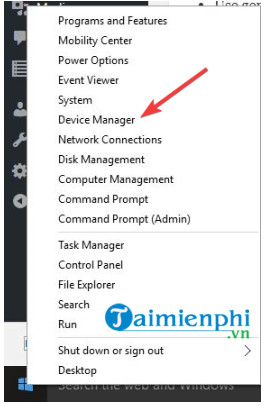
Step 2 : Find and expand the Display Adapters section.
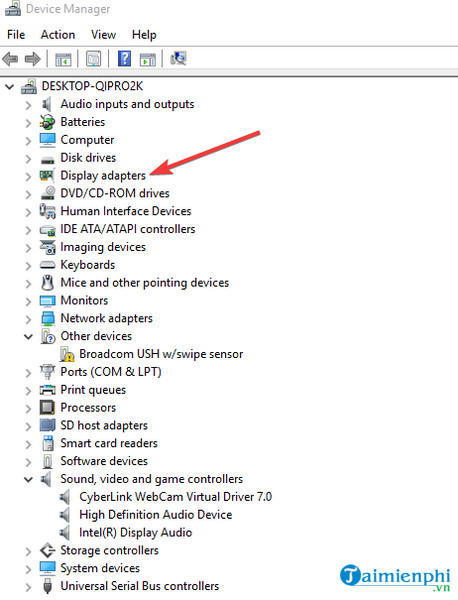
Step 3: Right-click the Display Adapter shown in the list and select Update Driver Software . Step 4: Select the option Automatically search for the updated driver software. Step 5: Finally, restart your laptop to apply the changes and check if the error persists.
Method 2: Activate the Adaptive Brightness feature.
Step 1 : Open the Control Panel window. Step 2: In the Control Panel window, find and click Power Options .
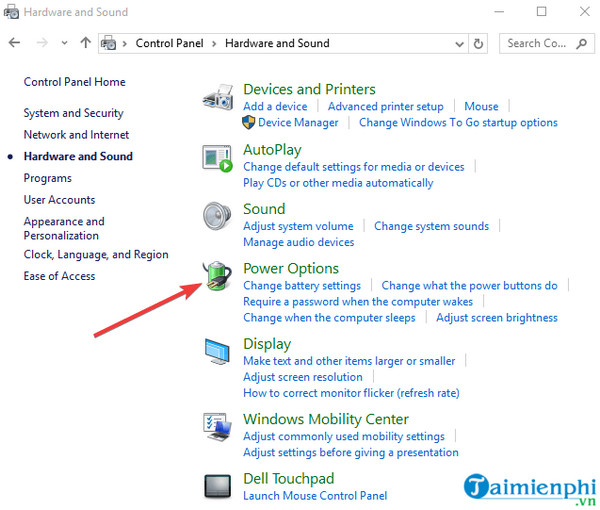
Step 3 : click Change plan settings next to the power plan you are currently using.
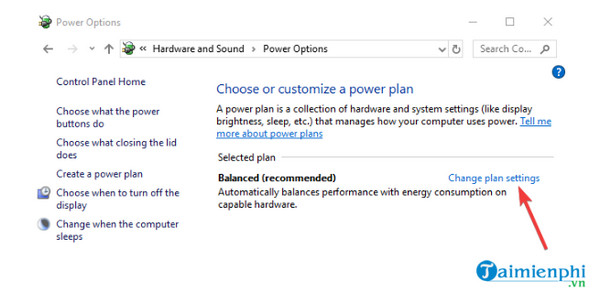
Step 4: click Change advanced power settings .
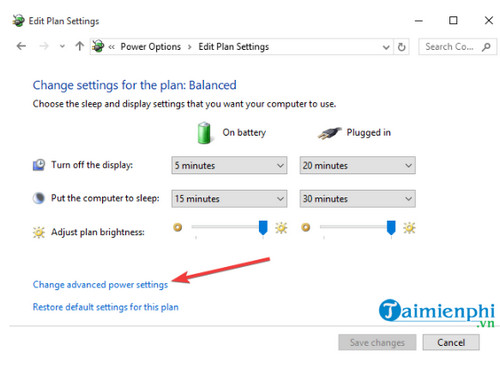
Step 5: In the next window, click Display. Step 6 : In the window displayed on the screen, find and change the values of the Display brightness, Dimmed display brightness , and Enable adaptive brightness options. Step 7 : Click Apply => OK and check if the laptop screen brightness has been adjusted.
Method 3: Activate PnP Monitor
Step 1 : Right-click the Start button and select Device Manager. Step 2 : In the Device Manager window, find and click Monitors .
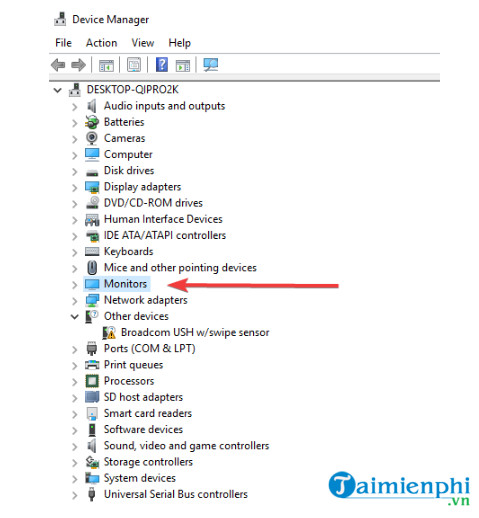
Step 3 : Find and right-click Generic PnP monitor to check if the option is enabled.
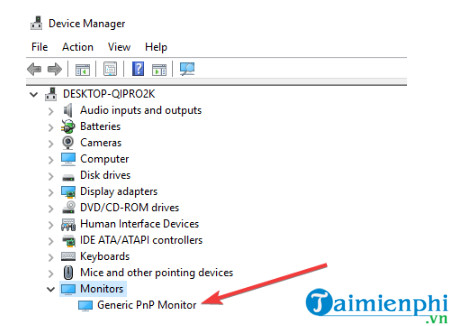
Step 4 : If it's not already enabled, click Enabled device to activate it.
Step 5: Click the Action tab located in the upper corner of the Device Manager window.
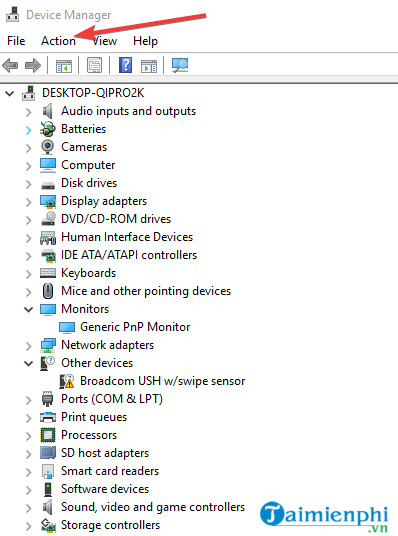
Step 6: Select Scan for Hardware Changes.
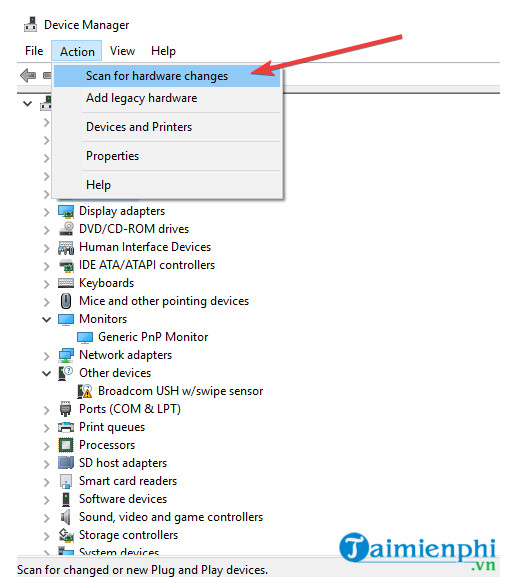
Step 7 : Wait until the scanning process is complete and check if the error persists.
If the above methods don't yield positive results, another option is to try updating the Registry and see if the error persists.
Note: This method involves modifying the Registry, so TipsMake recommends backing up your system beforehand to avoid any potential problems.
Next, follow the steps below:
Step 1 : Open the Run window by pressing Windows + R , then type regedit and press Enter to open the Registry Editor window. Step 2: In the Registry Editor window, navigate to the following path:
HKEY_LOCAL_MACHINESystemControlSet001Control
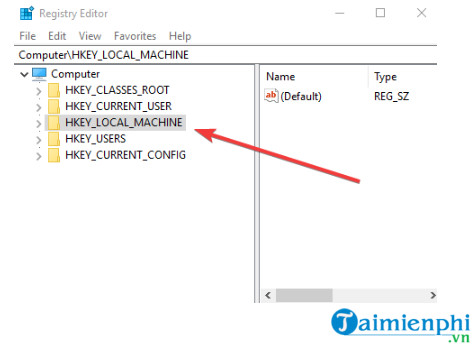
Step 3: Set the value in the value data field of the Class{4d36e968-e325-11ce-bfc1-08002be10318}000 and FeatureTestControl options to 0000ffff.
Finally, check if the error persists.
Finally, if you've tried everything and nothing works, it's time to consider seeking help from laptop repair centers.
If you live and work in Hanoi and don't know where to find a reputable laptop repair service, check out the article "Top Reliable Laptop Repair Addresses in Hanoi" on TipsMake for more details.
Similarly, if you are in Ho Chi Minh City, you can refer to the article "Top reputable laptop repair shops in Ho Chi Minh City" here.
However, before taking your laptop for repair, you should also pay attention to a few things to avoid being scammed. For more detailed information, please refer to the article " Things to note when getting your computer or laptop repaired" that TipsMake has previously introduced to you.
The article above from TipsMake has guided you through several ways to fix the problem of not being able to adjust the screen brightness on your laptop. Hopefully, This guide has provided you with useful information. Good luck!
FAQ
How can you fix the Problem of Not Being Able to Adjust laptop Screen Brightness?
Learn how to fix the Problem of Not Being Able to Adjust laptop Screen Brightness with clear steps, practical tips. Read the full guide below.
What should you know about fixing the issue of not being able to adjust laptop screen brightness?
There are many reasons why you might not be able to adjust the screen brightness on your laptop, including system errors, malfunctions, or Windows updates, etc.
Do the steps or features vary by device or software version?
They can. Menu names, available settings, and compatibility may differ by device, region, account type, or software version, so check the options shown on your own screen.
Related Articles
 Adjust Screen Brightness of Windows 7 on PC, Laptop7 minutes read
 Adjusting Screen Brightness on an Asus Laptop4 minutes read
 Adjust Screen Brightness on Acer Laptop4 minutes read
 How to Adjust the Screen Brightness on Windows 10 Laptop5 minutes read
 How to Adjust the Screen Brightness of Android Phones6 minutes read
 How to Adjust the Brightness of the Laptop Computer Screen3 minutes read
Reader Comments 0
Sign in with email or Google to join the discussion.