Table of Contents
Quick answer
Are you new to PowerPoint and struggling to find a way to add a background image to your slides to make them more beautiful and impressive during your presentation? If you follow these instructions, adding a background image will become quick and easy. Let's give it a try!
Sometimes, using the same old monotonous slides built into PowerPoint can get boring. Why not try changing the background in PowerPoint to make your presentations more attractive and engaging? This article will guide you on how to do just that!

Professional PowerPoint background images
However, you need to have some nice backgrounds first. Depending on the work you're doing, you can choose beautiful backgrounds that match the theme you need. You can find these backgrounds on the internet using Google.
Article contents:
1. PowerPoint 2003.
2. PowerPoint 2007.
3. PowerPoint 2010.
4. PowerPoint 2013, 2016.
How to insert a background into PowerPoint
1. PowerPoint 2003
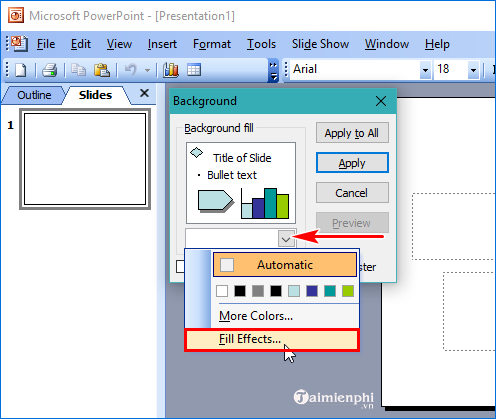
Step 1 : Go to Format , select Background , a window will appear, click the drop-down arrow and select Fill Effects as shown below:
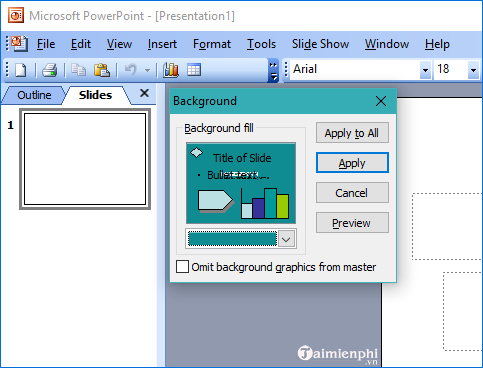
Step 2 : In the new window that appears, select the Picture tab , then click the Select picture button to choose the image you want to use as your wallpaper and press OK .

Finally, select Apply if you only want to create a background image for the current slide, or click Apply All if you want all slides to have the same background image.
2. PowerPoint 2007
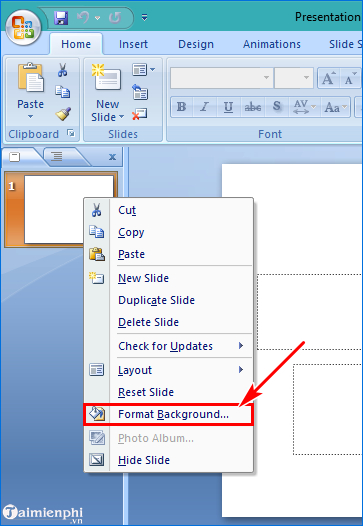
Step 1 : Right-click on the slide on the left side of the screen and select Format Background .
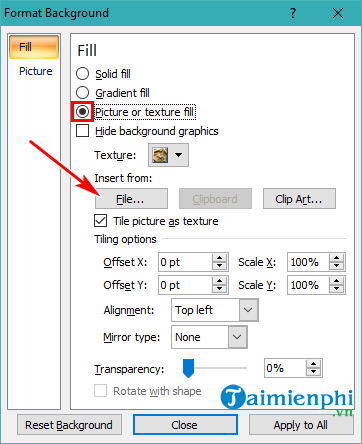
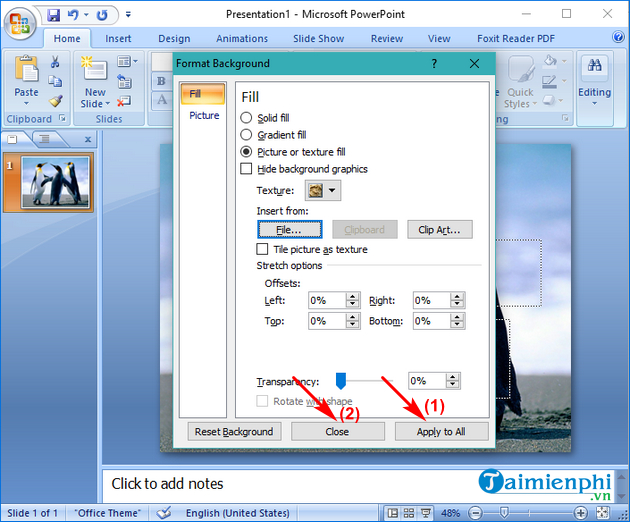
Step 2 : The Format Background window will appear. Follow the steps shown below. First, select the Fill tab and click on Picture or texture fill . Next, click on File . to choose the image you want to use as the background.
- The Insert Picture window will appear. Select the image you want to use as the background from your computer and click Insert .
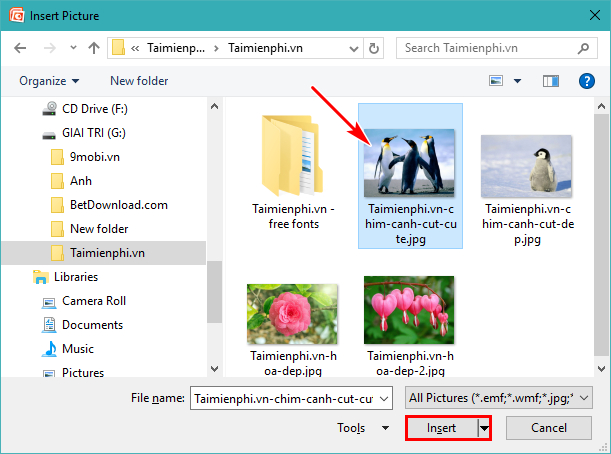
Besides the available backgrounds, you should find and download other beautiful PowerPoint backgrounds from the internet to make your slides more attractive and diverse. Finding beautiful PowerPoint backgrounds is not difficult at all; you can access Google and search for images.
- Finally, click Apply to All to insert the background image for all slides, then click Close to finish.
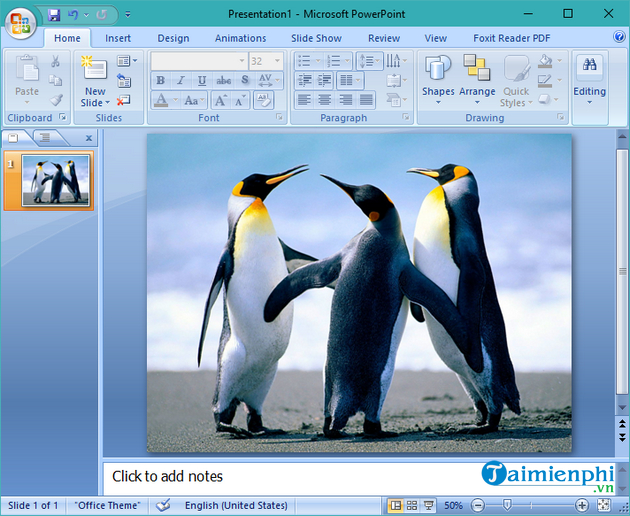
And here are the results.
3. PowerPoint 2010
Step 1: Go to the Design tab , look at the top right corner of the Background area , and click the arrow at the bottom as shown in the image:
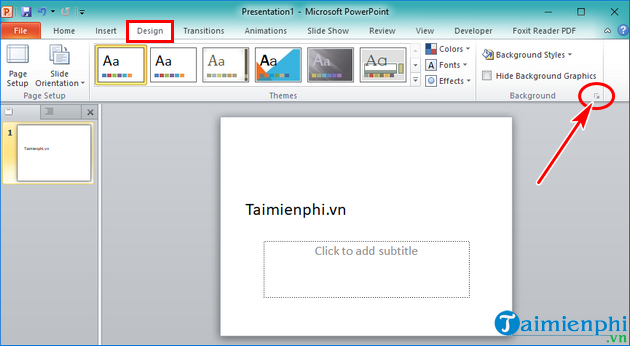
Step 2 : The Format Background window will appear. Proceed to insert a background image as shown in the image below:
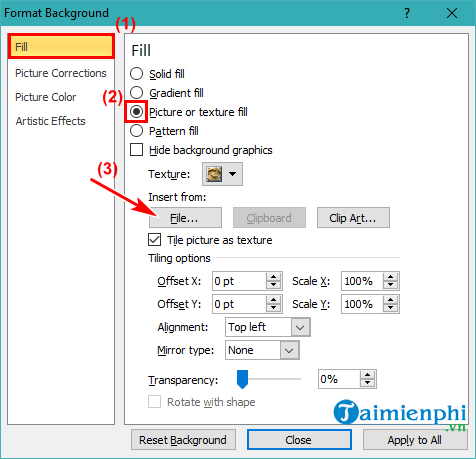
First, select the Fill tab and click on Picture or texture fill , then click File . After clicking File as shown in the image above, the Insert Picture window will appear. Browse to find the image you want to use as the background for your slide, then double-click on the desired image, click Apply to All , and select Close to finish. (You perform the same steps as in Office 2007)
4. PowerPoint 2013, 2016
Click on the Design tab, select the Format Background icon , then choose as shown below:
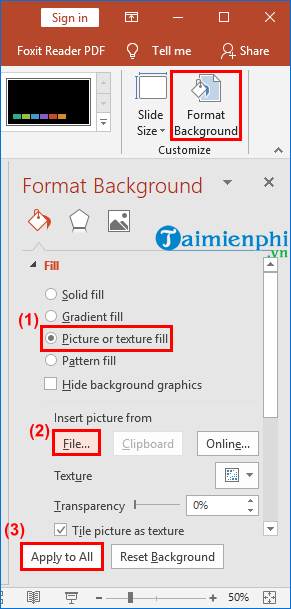
First, select the Fill tab and click Picture or texture fill . Next, click File to choose the image you want to use as the background for your slide. Finally, click Apply to All to complete the process (you perform the same steps as in Office 2007) .
Inserting background images into PowerPoint slides makes them more unique and engaging during presentations. With these simple steps, anyone can easily change the background image of their slides.
Related Articles
 PowerPoint 2019 (Part 14): Inserting Images: Explained7 minutes read
 How to Put a Picture Behind Text in PowerPoint8 minutes read
 PowerPoint 2019 (Part 16): Shapes: Explained7 minutes read
 PowerPoint 2019 (Part 19): Inserting Video: Explained8 minutes read
 PowerPoint 2019 (Part 21): Tables: Explained7 minutes read
 PowerPoint 2019 (Part 22): Charts: Explained9 minutes read
Reader Comments 0
Sign in with email or Google to join the discussion.