Table of Contents
Explore powerpoint 2019 (part 20): inserting audio, including the key concepts, practical examples, important considerations, and useful guidance.
How to insert audio from a file
This example will insert an audio file that is stored locally on the computer.
1. From the Insert tab, click the Audio drop-down arrow, then select Audio on My PC .
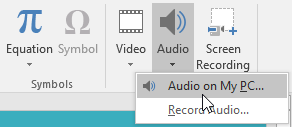
2. Locate and select the desired audio file, then click Insert.
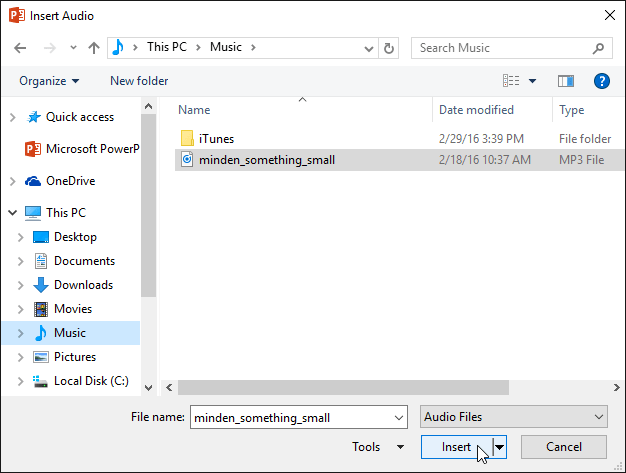
3. The audio file will be added to the slide.

Record your own audio
Sometimes you might want to record audio directly into your presentation. For example, you might want your presentation to include narration. Before you begin, make sure you have a microphone compatible with your computer. Many computers have built-in microphones, or microphones can be plugged into the computer.
How to record audio
1. From the Insert tab, click the Audio drop-down arrow, and then select Record Audio.
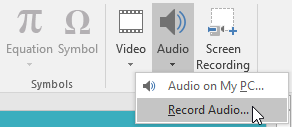
2. Enter a name for the recording if you wish.
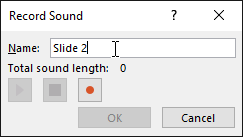
3. Click the Record button to start recording.
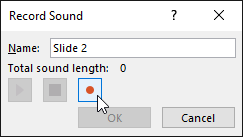
4. When you're finished recording, click the Stop button.
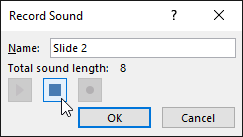
5. To preview your recording, click the Play button.
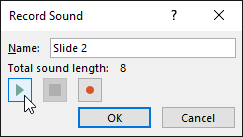
6. When you're finished, click OK. The audio file will be inserted into the slide.

Working with audio
How to preview an audio file
1. Click on an audio file to select it.
2. Click the Play/Pause button below the audio file. The audio will start playing, and the timeline next to the Play/Pause button will appear.

3. To move to a different section of the file, click anywhere on the timeline.
How to move audio files
Click and drag to move the audio file to a new position on the slide.

How to delete audio files
Select the audio file you want to delete, then press the Backspace or Delete key on your keyboard.
Audio editing
You can modify your audio files using the commands on the Playback tab. For example, if you add a song to the slide, you can trim it to play only a short segment. You can also add Fade In and Fade Out effects or add bookmarks that allow you to jump to specific points in the audio file.
How to cut an audio file
1. Select the audio file, then click the Playback tab on the Ribbon.
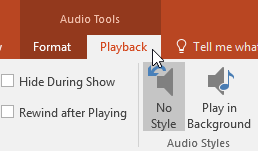
2. Click on the Trim Audio command.
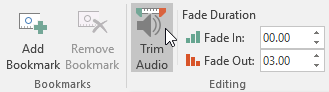
3. A dialog box will appear. Use the green handle to set the start time and the red handle to set the end time.
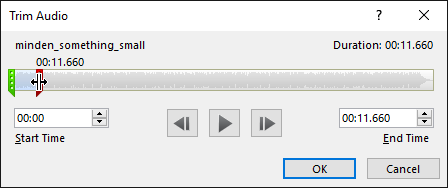
4. To preview the audio file, click the Play button.
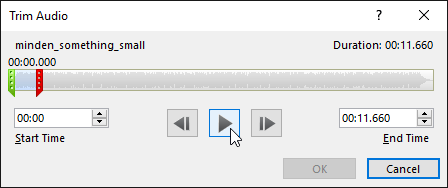
5. Adjust the handles if necessary, then click OK.
How to add Fade In and Fade Out effects
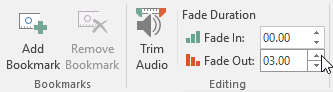
1. On the Playback tab, find the fields Fade In: and Fade Out :.
2. Enter the desired values or use the up and down arrows to adjust the time.
How to add bookmarks
1. Click on the timeline to find the desired section of the audio file.

2. From the Playback tab, click the Add Bookmark command.
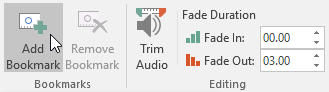
3. The bookmark will appear on your timeline. Click on the bookmark to go to its location.

Sound options
You can set other options to control how your audio files play. These can be found in the Audio Options group on the Playback tab.
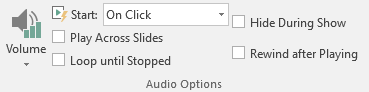
- Volume: This will change the sound volume.
- Start: This controls whether the audio file starts automatically or when the mouse is clicked.
- Hide During Show: This action will hide the sound icon while the slideshow is playing.
- Play Across Slides: This action continues playing the audio file across multiple slides instead of just the current slide.
- Loop until Stopped: This operation will play the audio file again until it stops.
- Rewind after Playing: This action will return the audio file to the player after playback is complete.
How to change the sound icon
By default, audio files will appear as a speaker icon in the slide. If you wish, you can change the icon to a different image.
1. Select the audio file, then click the Format tab.
2. Click on the Change Picture command.

3. The Insert Pictures dialog box will appear. Click Browse to select a file from your computer. You can also use online image search tools. For example, you can search using the phrase "music note".
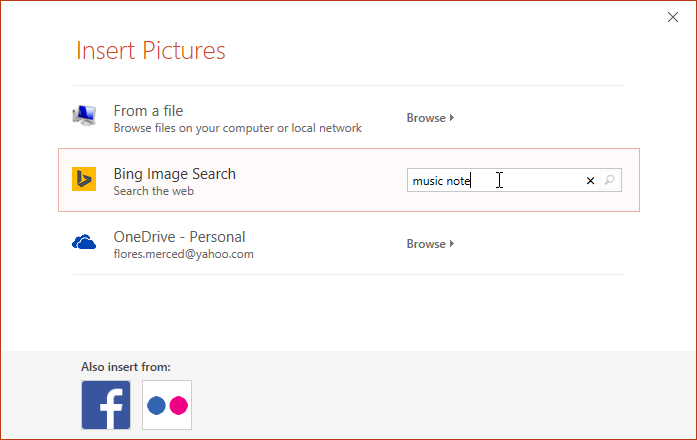
4. Locate and select the desired image, then click Insert.
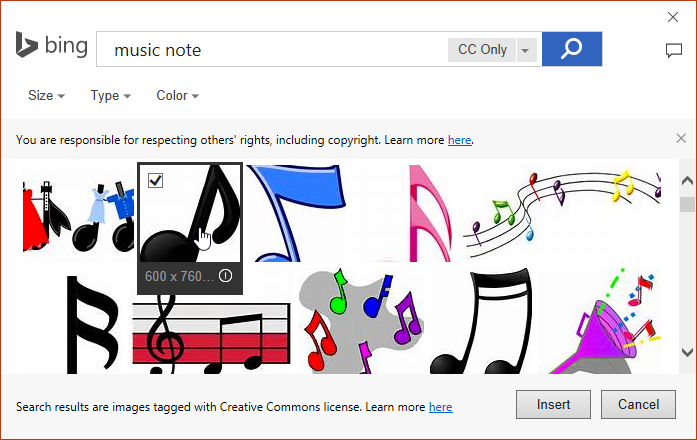
5. The icon will change to a new image.

For information on adjustments, color correction, borders, shapes, and effects, please refer to the article: Image Formatting.
Final Thoughts
Understanding powerpoint 2019 (part 20) makes it easier to evaluate the information and apply the most relevant recommendations. Focus on the key points above and verify details that may change over time.
FAQ
What is powerpoint 2019 (part 20)?
Explore powerpoint 2019 (part 20): inserting audio, including the key concepts, practical examples, important considerations, and useful guidance.
What key points does this article cover?
The article focuses on How to insert audio from a file, Record your own audio, How to record audio, with practical explanations and examples.
How can you use this information in practice?
Use the explanations to compare options, verify important details, and make a more informed decision. Apply the recommendations that best match your goals and situation.
Related Articles
 PowerPoint 2019 (Part 16): Shapes: Explained7 minutes read
 PowerPoint 2019 (Part 14): Inserting Images: Explained7 minutes read
 PowerPoint 2019 (Part 19): Inserting Video: Explained8 minutes read
 PowerPoint 2019 (Part 29): Link: Explained7 minutes read
 PowerPoint 2019 (Part 23): SmartArt Graphics: Explained7 minutes read
 PowerPoint 2019 (Part 22): Charts: Explained9 minutes read
Reader Comments 0
Sign in with email or Google to join the discussion.