Table of Contents
PocketPal AI runs language models on compatible Android phones and iPhones. Once you’ve downloaded and loaded a model, you can chat without an internet connection. Start with a small model to see what your phone can handle.
Download and load your first model
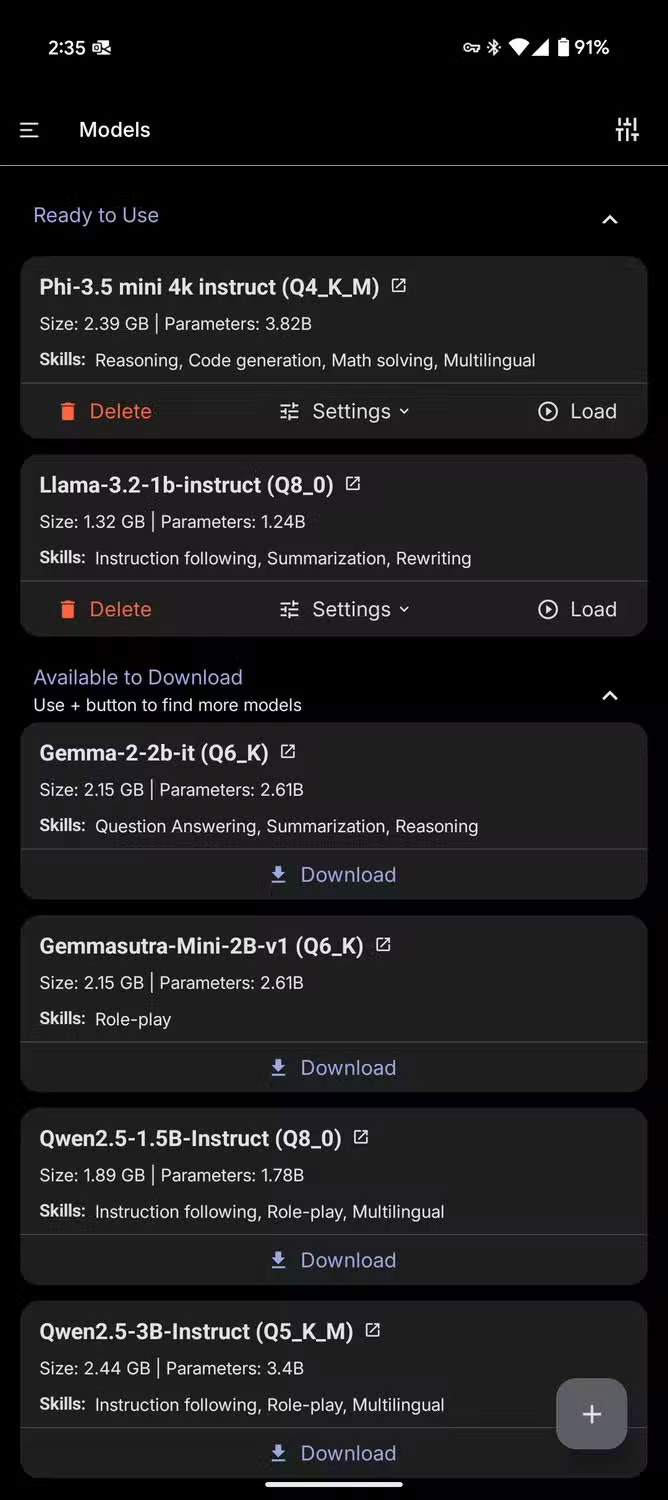
- Use the store links in the PocketPal AI project to find the app. Open Models while connected to Wi-Fi.
- Choose a small model intended for chat or instruction following. Check the download size and leave storage space for the model file.
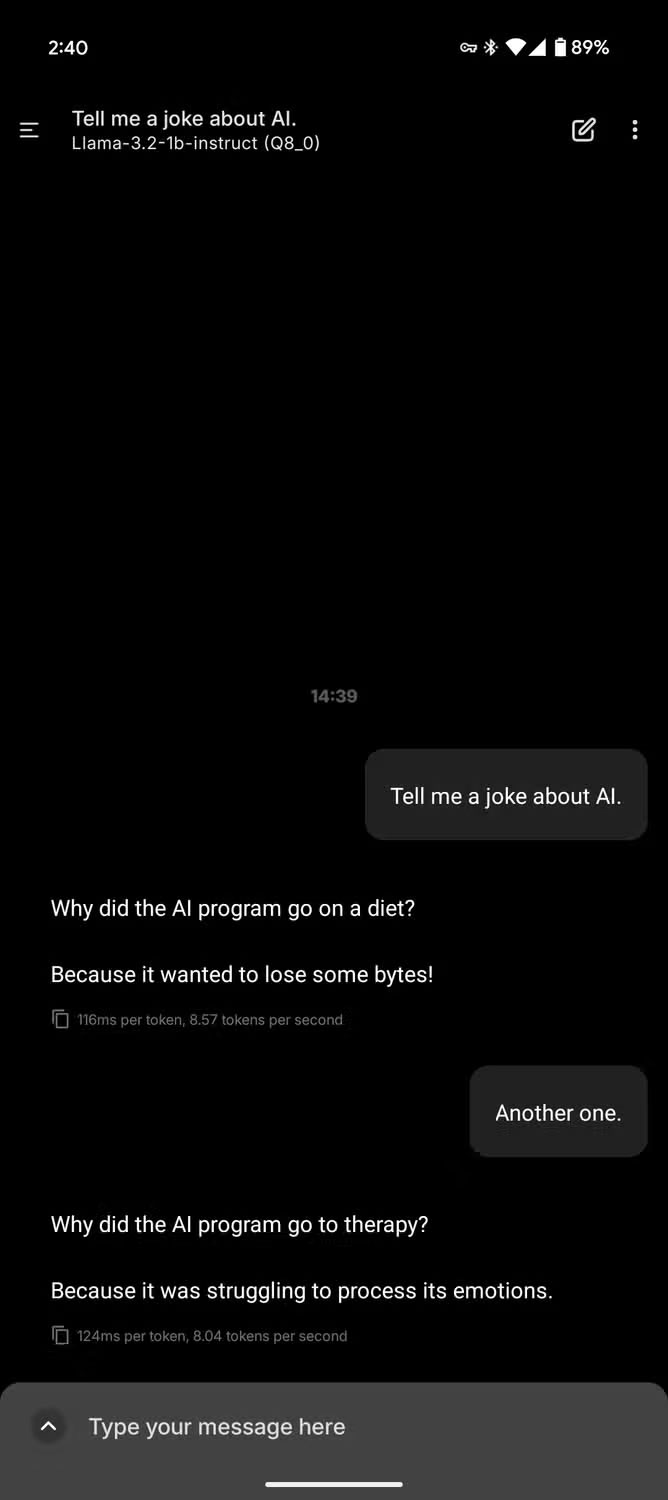
- Download it, tap Load, and start a chat. To confirm offline operation, turn on airplane mode and send a simple test prompt.
Choose a model your phone can run
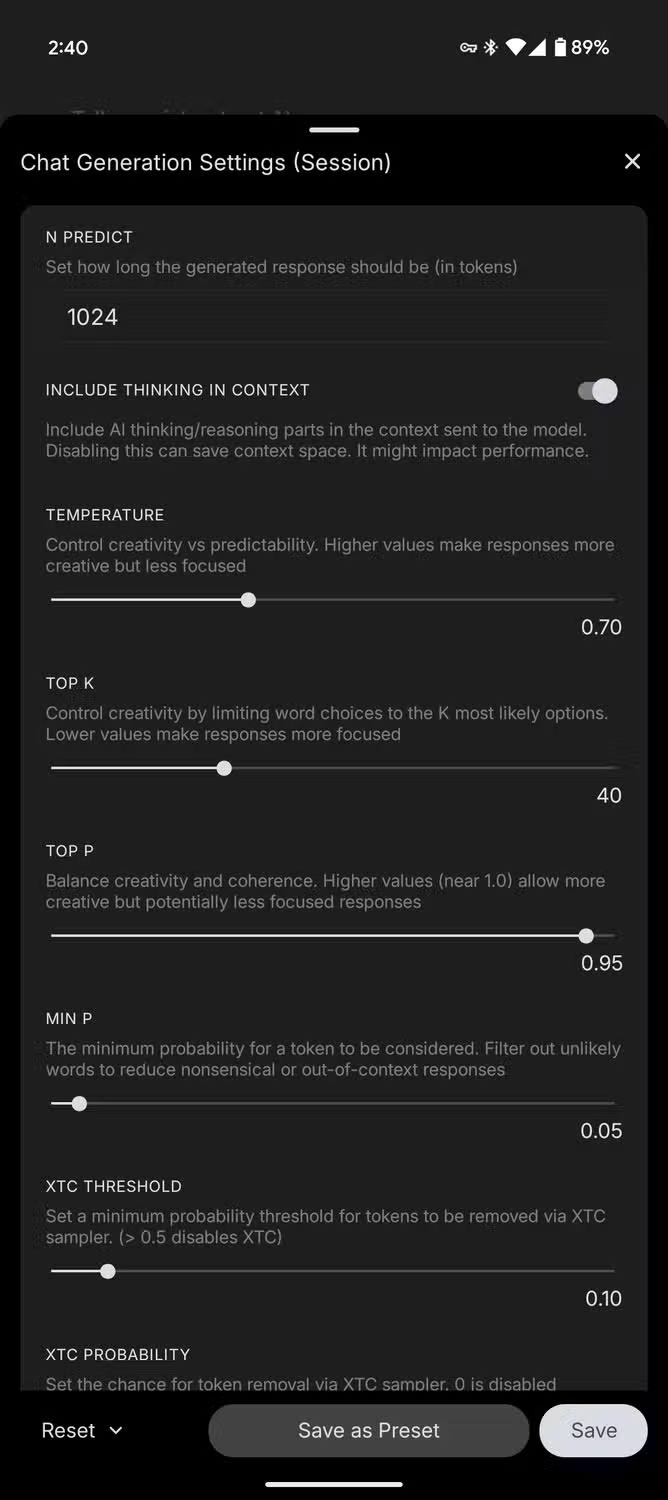
Storage determines whether the file fits. Available memory affects whether the model can load and finish a response. If the app closes, fails to load, or responds too slowly, try a smaller model or lower the context setting if available. Advanced users can import a compatible GGUF file. See TipsMake’s overview of local language models for help comparing options.
Use offline chat for tasks you can verify
Try drafting a checklist, summarizing text you supply, or brainstorming when you have a poor connection. The model can still make mistakes and may lack current information. Running a model locally keeps inference on the phone. Check the app’s history and your backup or sharing settings before entering sensitive material.
Related Articles
 Can Pokemon Go be played on a computer? The answer is yes!
 Summary - How to play Pokemon GO, virtual reality game catch Pokemon on smartphone
 Poké Ball Types Explained: Generations III–V (Part 2)
 How to Earn and Use Stardust in Pokémon GO
 How to Hatch Eggs in Pokémon GO
 Poké Ball Types Explained: Generations I–II (Part 1)
Reader Comments 0
Sign in with email or Google to join the discussion.