What you will learn
- Read Windows Security status without disabling protections.
- Choose quick, full, custom or offline scans appropriately.
- Interpret quarantine and Protection history.
- Know when a malware event requires account or professional incident response.
What you need
- A Windows 10 or Windows 11 PC.
- Administrator access for some threat details and offline scans.
Confirm which protection is active
Microsoft states that Defender Antivirus is built into Windows and normally turns off when another compatible antivirus product is installed and active, then returns when that product is removed.
The Virus and threat protection page displays current threats, scan history, security-intelligence updates and ransomware-protection options.
A green status is useful but not proof that no compromise exists. Check that real-time protection, cloud-delivered protection and security intelligence are current. On managed devices, policy may control settings; contact IT instead of overriding them.
Choose a scan for the evidence
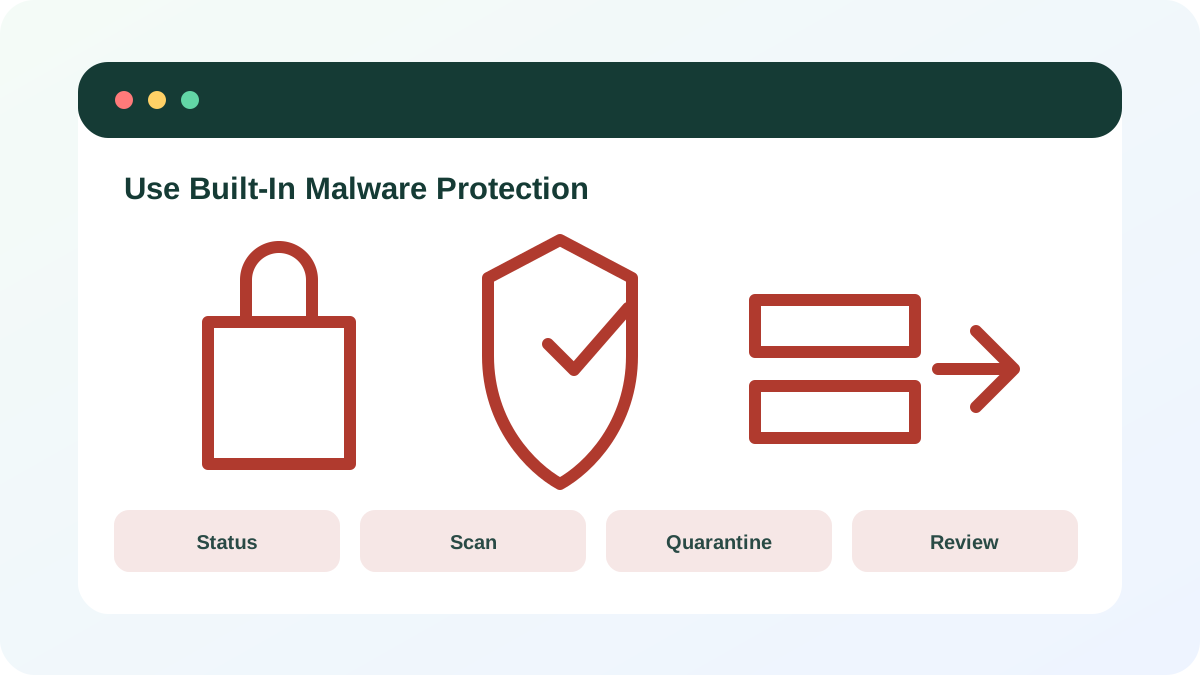
A quick scan checks common locations and is suitable for routine follow-up. A custom scan targets a file or folder. A full scan is broader but can take significant time. Microsoft Defender Offline restarts into a separate environment, making it harder for persistent malware to hide, but it interrupts work and should be used after files are saved.
- 1
Open Windows Security from Start, not from a pop-up.
- 2
Open Virus & threat protection and check protection updates.
- 3
Run a quick scan for a routine concern.
- 4
Use a custom scan for a specific downloaded folder.
- 5
Use a full scan when exposure is broader.
- 6
Use Offline scan when Microsoft guidance or persistent symptoms justify a restart-based check.
Review Protection history and quarantine
Protection history records Defender actions, quarantined items, potentially unwanted apps and disabled services. Microsoft notes that its events are retained for a limited period, so record important details promptly.
Quarantine prevents the file from operating without immediately restoring it. “Allow on device” reverses protection and should be used only when the file’s origin, signature and business need are independently verified. A detection name, path and timestamp are more useful than a screenshot of a generic red alert.
- 1
Open Protection history.
- 2
Expand the relevant event and record detection name, path and time.
- 3
Keep uncertain items quarantined.
- 4
Update definitions and rescan.
- 5
Report false positives through the vendor or organization process instead of adding broad exclusions.
Treat malware as more than a file-cleaning task
If credentials were entered after the suspected infection, use a known-clean device to secure the primary email, password manager and financial accounts. Disconnect the affected device from networks when active compromise is plausible, but do not erase it before organizational or legal evidence requirements are considered.
- 1
Save no new sensitive data on the affected device.
- 2
Disconnect network access if suspicious activity is ongoing.
- 3
Contact organizational IT or security for managed devices.
- 4
Secure high-value accounts from a known-clean device.
- 5
Preserve detection details and scan results.
- 6
Use reset or reinstall only after backups and recovery requirements are clear.
- One supported real-time antivirus is active.
- Security intelligence is current.
- Detected items were reviewed rather than blindly allowed.
Run and document a safe malware check
Use Windows Security on a healthy test device.
- 1
Confirm current protection status.
- 2
Check security-intelligence updates.
- 3
Run a quick scan.
- 4
Open Protection history.
- 5
Record the scan date and result.
- 6
Write the escalation plan for a real detection.
Common mistakes to avoid
- Installing multiple real-time antivirus suites.
- Clicking a web pop-up that claims to scan the PC.
- Allowing a file simply because work is urgent.
- Changing passwords on a device still suspected of credential-stealing malware.
Key takeaways
- Built-in protection works best when current and correctly interpreted.
- Quarantine is safer than Allow when uncertain.
- A malware detection may require account and incident response beyond file removal.
Frequently asked questions
Is a quick scan enough?
It is appropriate for routine checks and common threat locations. Use broader or offline scans when the evidence and Microsoft guidance justify them.
Should I delete every quarantined item immediately?
Review the detection and policy first. Quarantine already blocks the item; deletion may remove evidence or a file needed for false-positive review.
Sources and further reading
- Windows Security app overviewMicrosoft Support
- Virus and threat protection in Windows SecurityMicrosoft Support
- Protection history in Windows SecurityMicrosoft Support
Ready to continue?
Mark the lesson complete so your Learning Path progress stays current on this device.