What you will learn
- Distinguish synchronization, version history and independent backup.
- Choose data and retention based on impact.
- Protect backups from ransomware and account loss.
- Test restoration without overwriting the original.
What you need
- A small set of important files for a safe test.
- An external drive, supported cloud backup or other separate storage.
Define what the backup must survive
Microsoft Windows Backup can protect selected files, settings, apps and Wi-Fi information through the Microsoft account and OneDrive ecosystem.
CISA ransomware guidance recommends maintaining protected copies and planning recovery so malicious encryption or deletion does not destroy every copy.
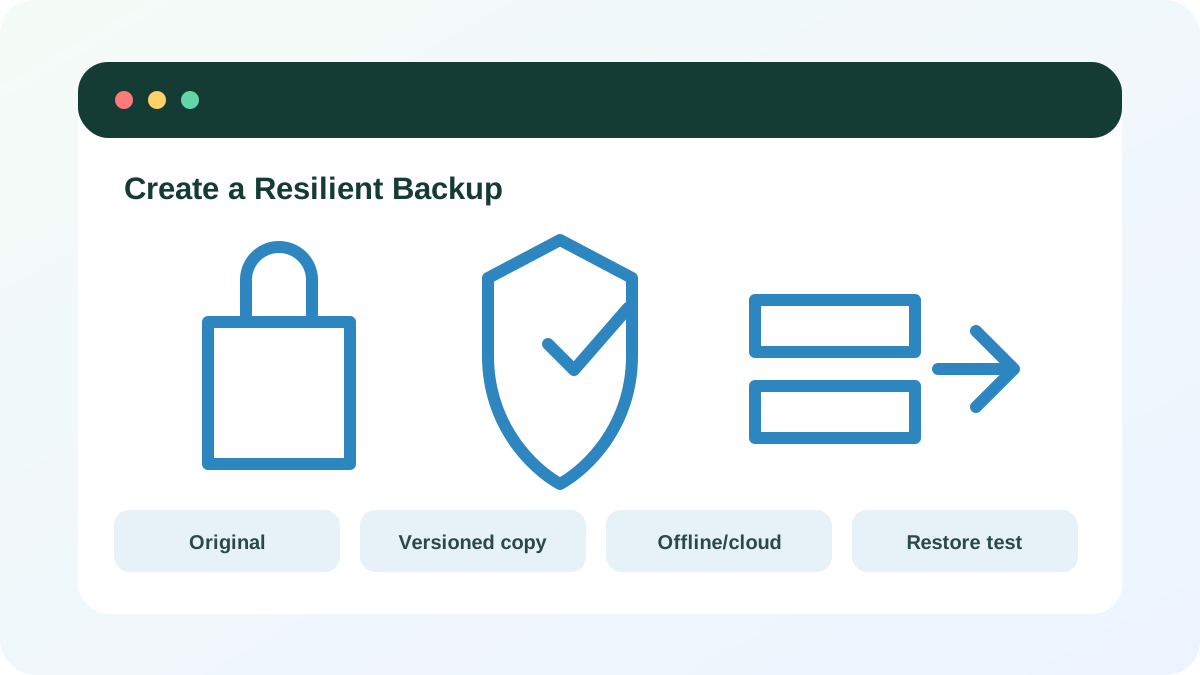
Start with events: accidental deletion, device failure, theft, ransomware, cloud-account loss and regional disaster. One copy rarely covers all of them. A synchronized folder with version history can help with deletion, while an offline or separately authenticated copy reduces shared-failure risk.
Choose data and retention
Prioritize documents, photos, project files, financial records, recovery codes and exports from services that cannot be recreated. System files and applications may be reinstallable, while personal data is not. Decide how much recent work you can afford to lose and how long older versions must remain.
- 1
List irreplaceable folders and cloud-only data.
- 2
Mark data that exists on only one device or account.
- 3
Choose a backup frequency based on acceptable loss.
- 4
Choose retention for accidental deletion and ransomware.
- 5
Exclude unnecessary caches and temporary downloads.
Create independent copies
Use a supported backup tool rather than manual dragging alone when you need schedules and versions. Encrypt portable media when loss is plausible and store the recovery key separately. Disconnect offline media after the backup completes. Protect cloud backup accounts with unique passwords, MFA and recovery methods.
- 1
Configure the primary scheduled backup.
- 2
Add a second copy in a different failure domain.
- 3
Enable version history where available.
- 4
Disconnect or logically protect offline media.
- 5
Record encryption and recovery-key locations.
- 6
Check that backup errors generate notifications.
Test a restore safely
A successful backup job does not prove recoverability. Restore a small sample to a separate folder, open the files and compare dates and contents. Do not overwrite the original during the first test. Repeat after major configuration changes and periodically thereafter.
- 1
Select one document, image and folder.
- 2
Restore them to a new test location.
- 3
Open and compare the restored files.
- 4
Confirm an older version can be selected.
- 5
Delete only the test restore after verification.
- Important data exists in at least one independent copy.
- Backup credentials and recovery keys are protected.
- A sample restore succeeded.
Complete a three-file restore test
Prove that the current backup is usable.
- 1
Choose three non-sensitive sample files.
- 2
Run or confirm the backup.
- 3
Modify one file after backup.
- 4
Restore the earlier versions to a separate folder.
- 5
Open and compare them.
- 6
Record the date and next test reminder.
Common mistakes to avoid
- Calling a synchronized folder a complete backup without testing versions.
- Leaving the only external backup permanently connected.
- Encrypting a backup while losing the only recovery key.
- Assuming a green backup status proves files can restore.
Key takeaways
- Backups must survive the same event that harms the original.
- Versioning and separate authentication reduce shared failure.
- A restore test is the final proof.
Frequently asked questions
How many backup copies do I need?
Use enough independent copies to cover your realistic failure scenarios. A common starting point is multiple copies on different media or services, with one separated from the primary device.
Is OneDrive or another sync service enough?
It can be an important layer when version history and account recovery are protected, but add an independent copy for failures that affect the account or synchronized data.
Sources and further reading
- Back up and restore with Windows BackupMicrosoft Support
- StopRansomware GuideCISA
Ready to continue?
Mark the lesson complete so your Learning Path progress stays current on this device.