Table of Contents
Medicat USB is essentially a giant toolbox that you can boot directly from a flash drive. Like PhoenixPE, it is built on the Windows Preinstallation Environment, running entirely from your computer's memory.
When creating a portable PC diagnostic USB with their favorite tools, many people set up PhoenixPE on Ventoy. While it works, it requires manually adding recovery tools to the WinPE setup, and additional portable apps and ISOs need their own environment to run.
Medicat eliminates this manual process and provides an easy way to create the ultimate USB rescue kit with a customized Windows 10/11 Preinstallation Environment containing a set of portable applications and bootable ISOs. Instead of spending hours selecting and configuring each tool, you have everything pre-packaged and ready to go. All you need is a large enough USB to get started.
What is Medicat? What does it cover?
A complete rescue kit
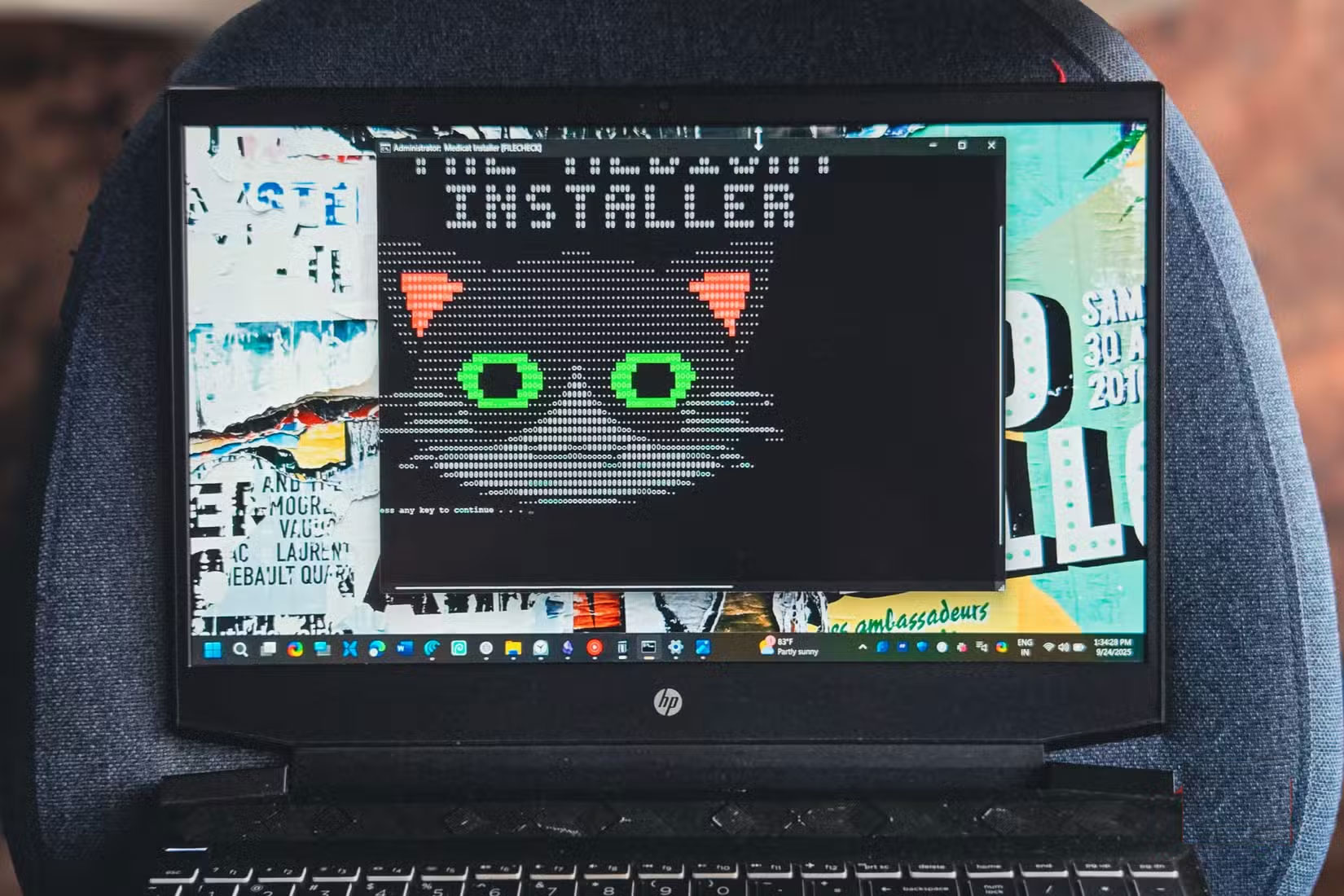
Medicat USB is essentially a giant toolbox that you can boot directly from a flash drive. Like PhoenixPE, it's built on the Windows Preinstallation Environment (here, it's called Mini Windows 10 ), running entirely from your computer's memory.
With this version, you will have a fully functional desktop environment, allowing you to browse the web, copy files, and launch applications. If your computer cannot boot into Windows, you can boot into Medicate WinPE and copy important files or troubleshoot problems without touching the faulty installation.
The big difference between Medicat and PhoenixPE is the amount of pre-installed tools. With PhoenixPE, You should manually add all the tools during setup. Medicat saves you the trouble by bundling them all. Right out of the box, you have malware scanners, partition managers, recovery apps, and even a password reset tool ready to go.
Create a USB rescue kit with Medicat
Create boot drive with Ventoy and download Medicat
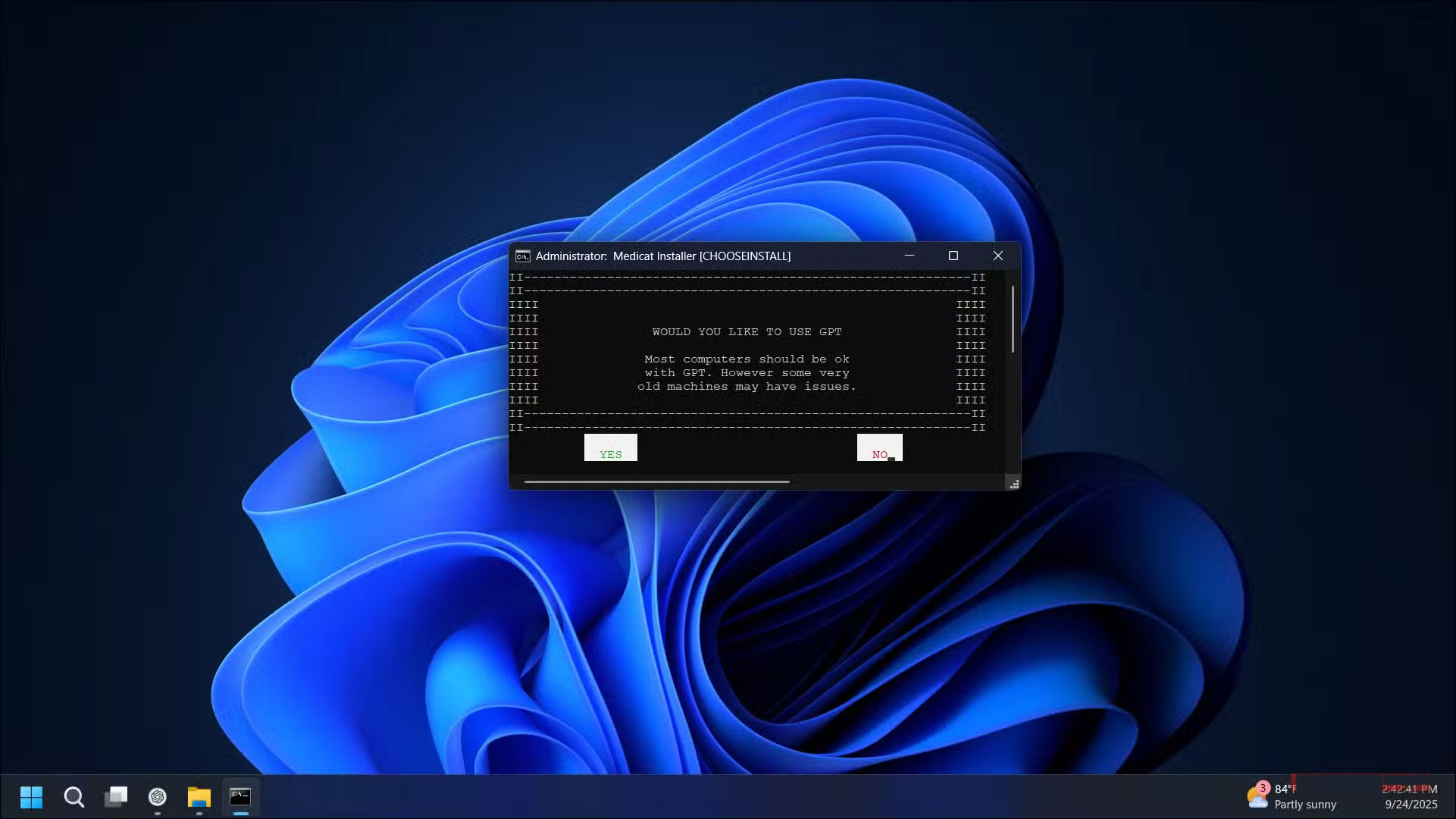
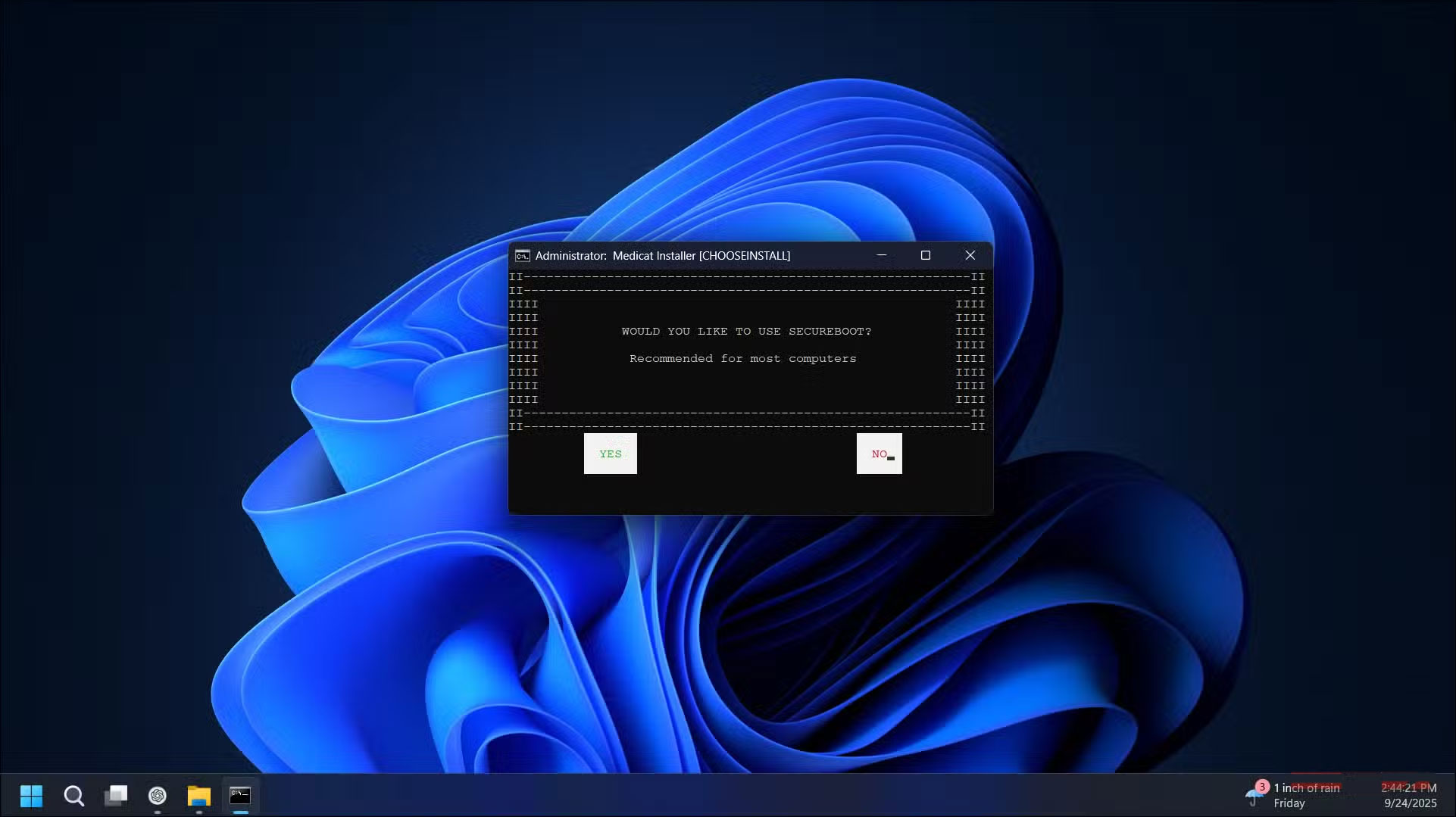
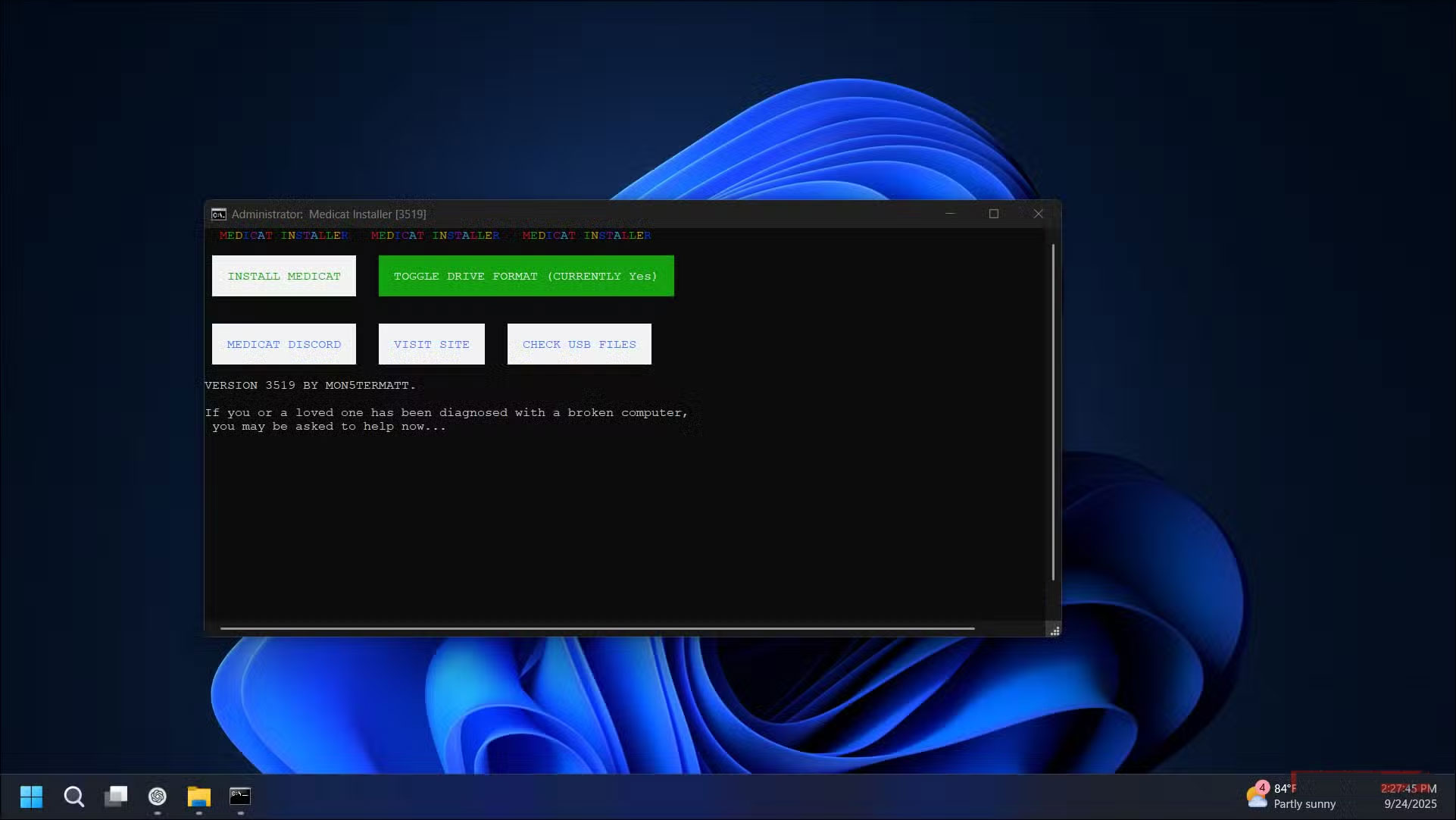
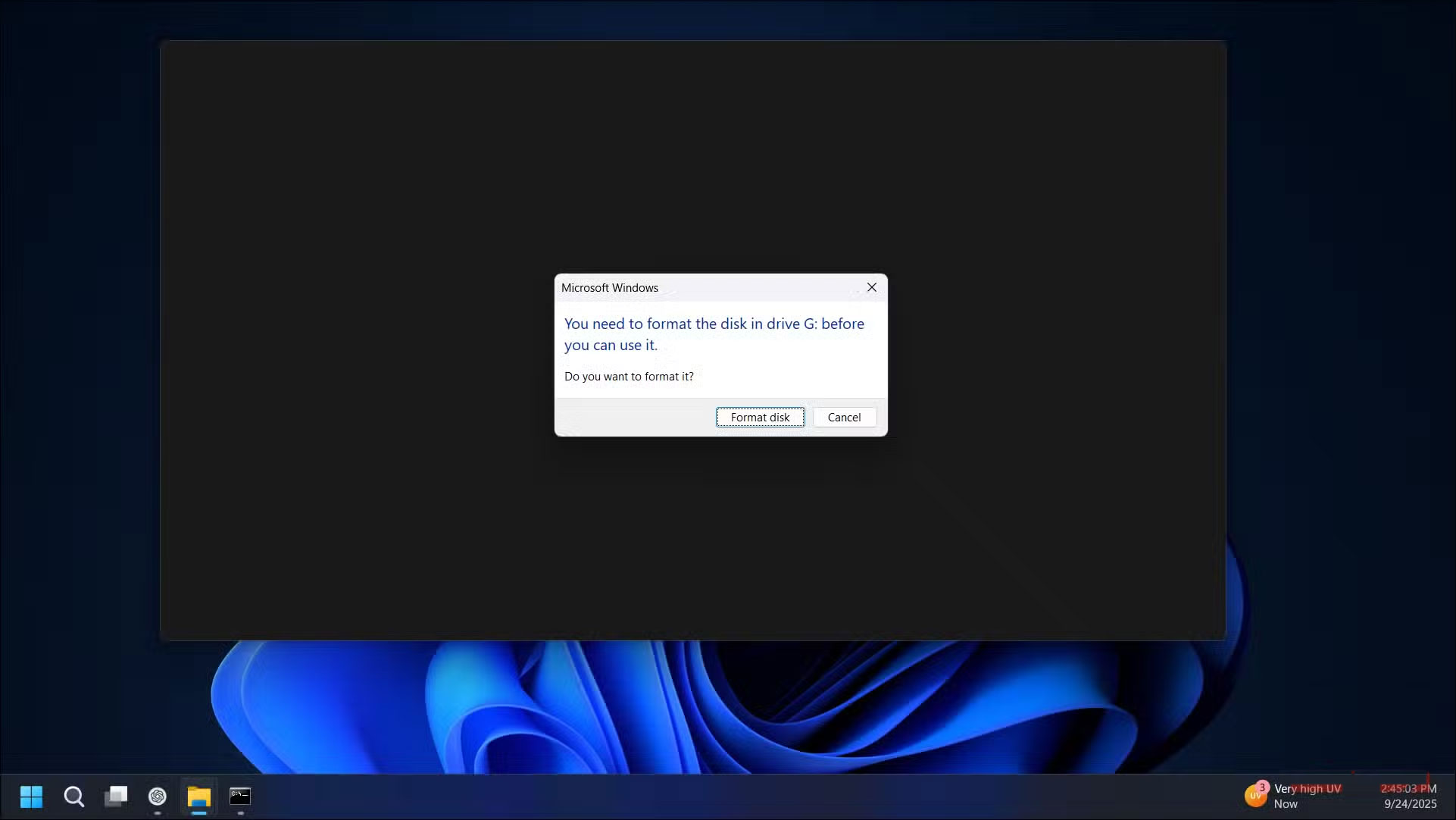
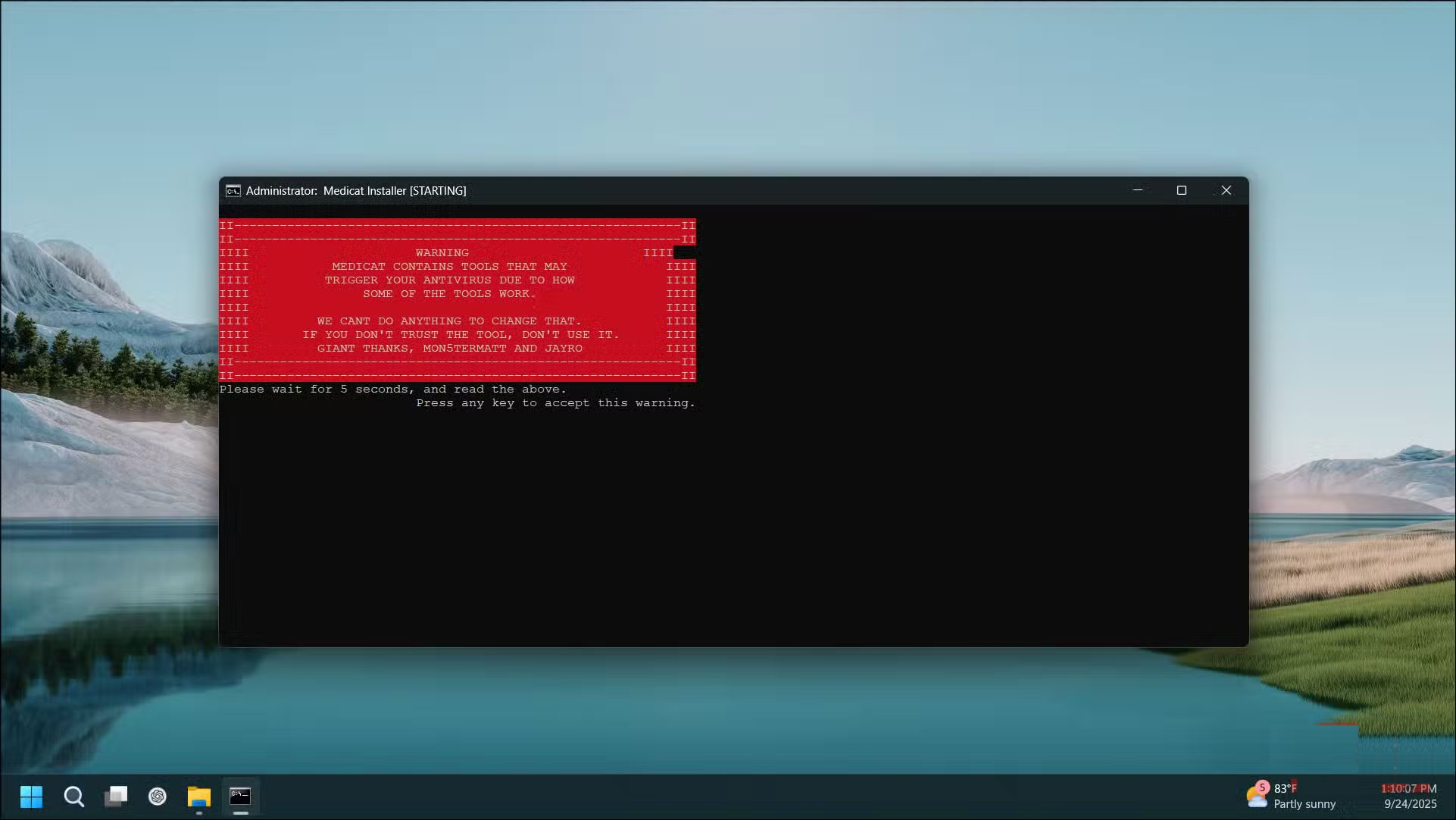
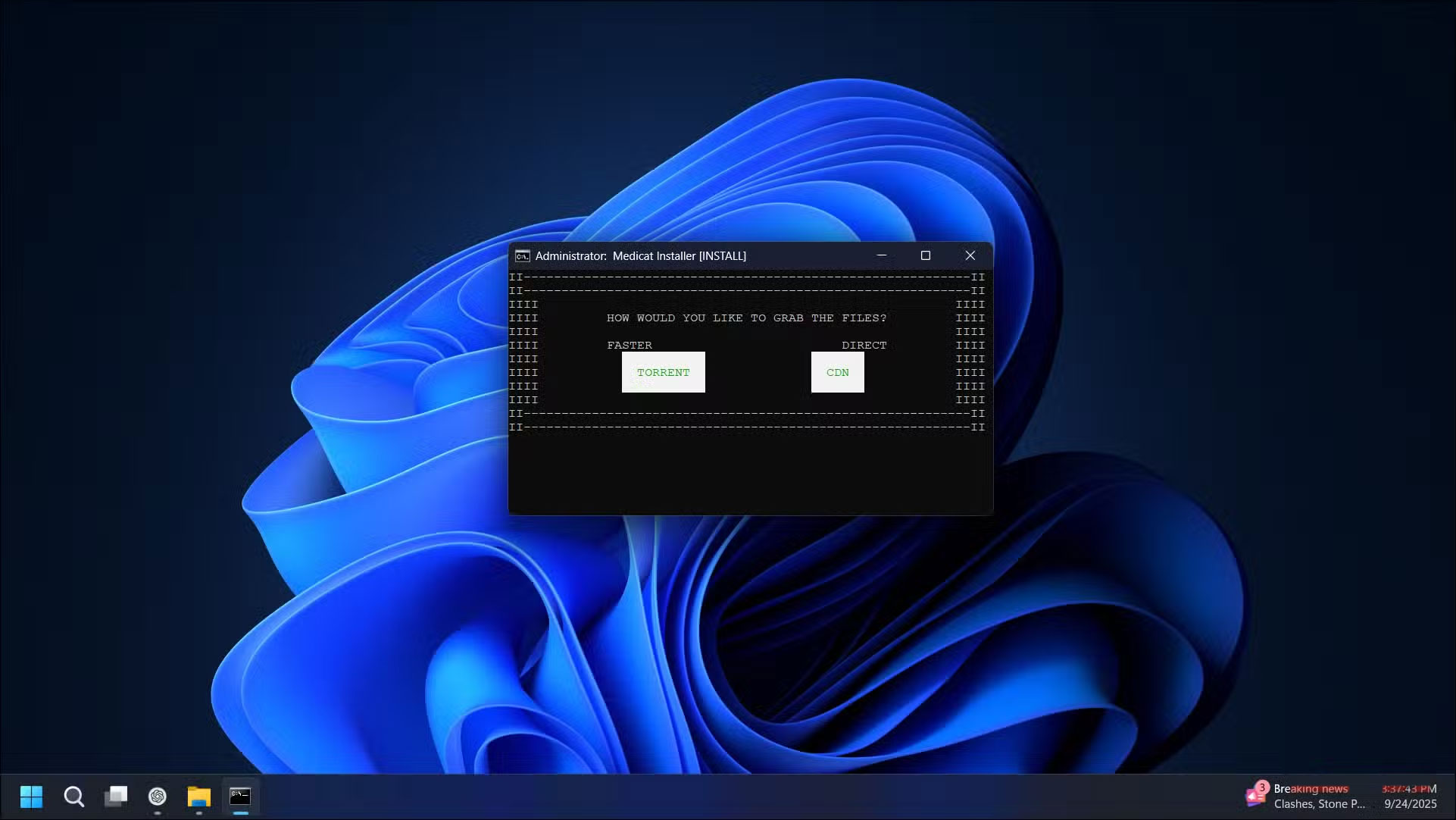
Before you start downloading anything, make sure your USB drive has at least 32GB of free space. The Medicat files alone will take up 22GB, and you'll need more space for any additional ISOs you add later.
Note : Windows Defender may block and warn you when downloading Medicat. These security warnings occur because the toolkit includes password reset utilities and system modification tools that antivirus software automatically flags as suspicious. You will need to temporarily disable Windows Security while creating the Medicat USB.
Open Windows Security , go to Virus & Threat Protection , click Manage settings And turn off Real-time protection . Also, navigate to App & browser control , select Reputation-based protection settings And turn that off as well.
Go to the Medicat USB website and download the installer for Windows. Run the downloaded script file with admin rights. If Windows displays a security warning, click More info > Run Anyway .
The installer runs in a command prompt window with text menus. You will see a Press any key to continue message While the initial files download. After a few screens of text, when you reach the main menu, select Install Medicat To begin. Medicat uses Ventoy as its bootloader, so it will automatically check for and install the latest version of Ventoy via the command line interface.
Medicat will format your drive to create a bootable USB using Ventoy. Backup any important data on the USB before continuing with the next steps.
Starting and using the Medicat USB rescue kit
Time to test out your new toolkit
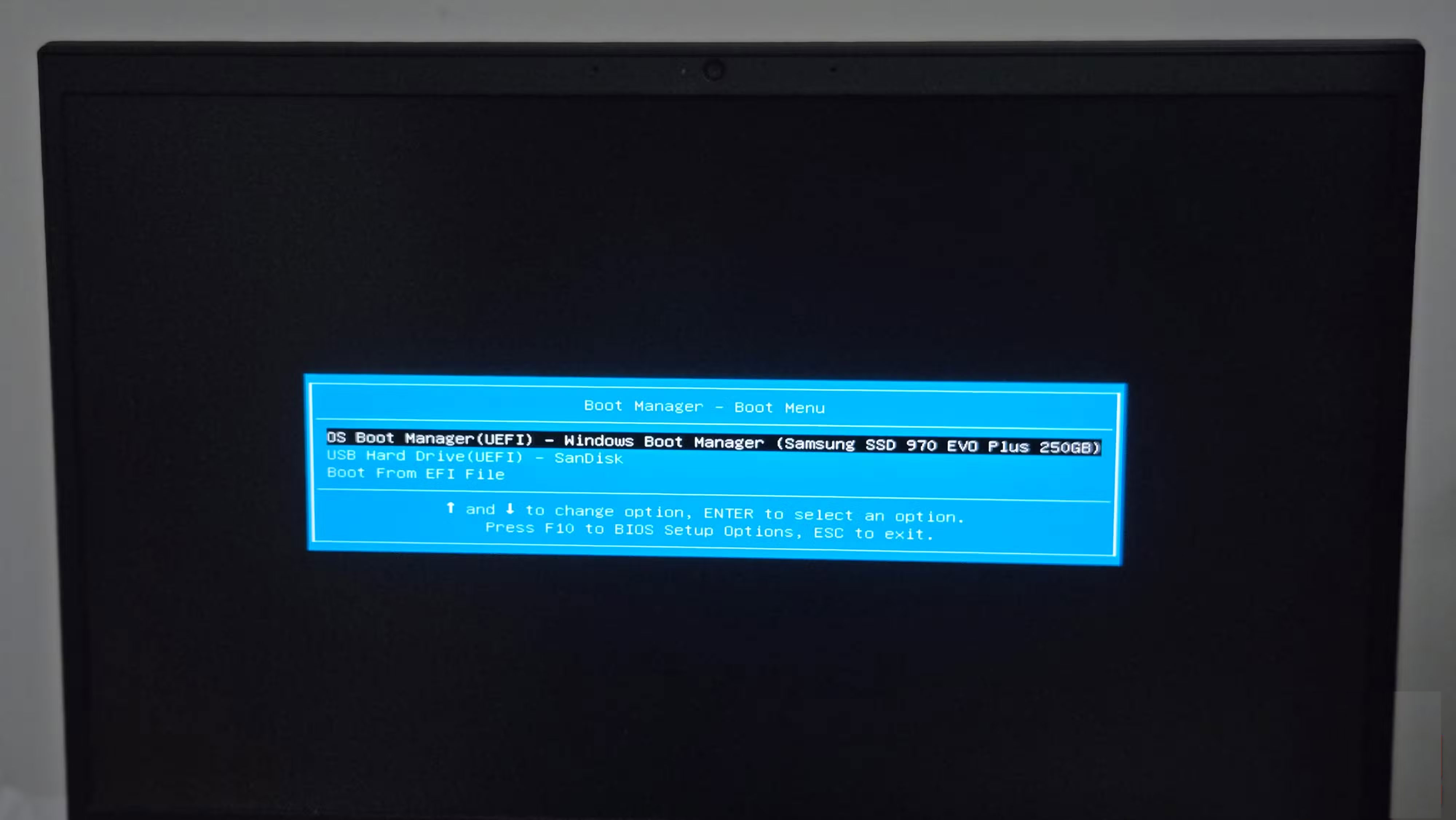
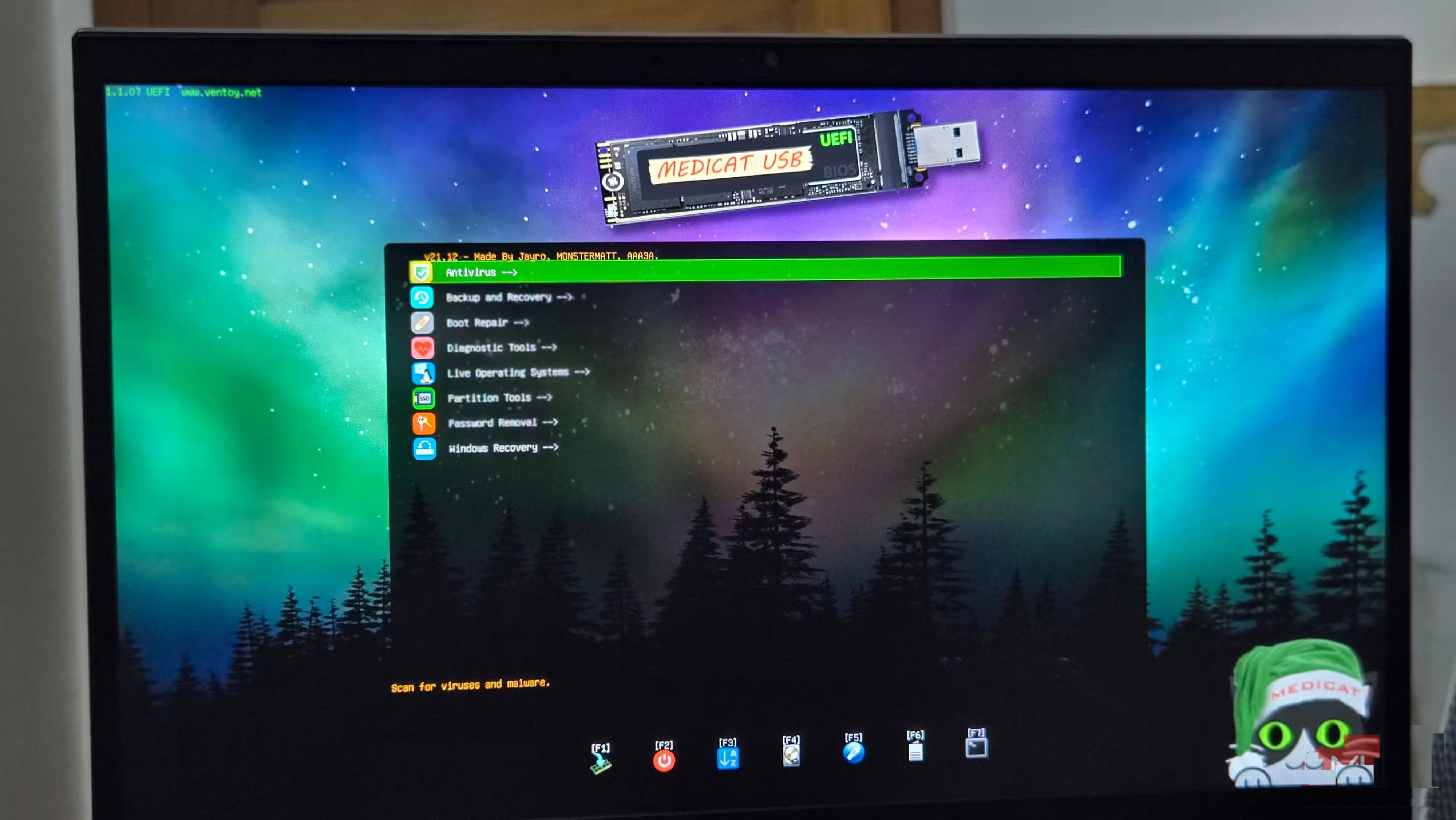
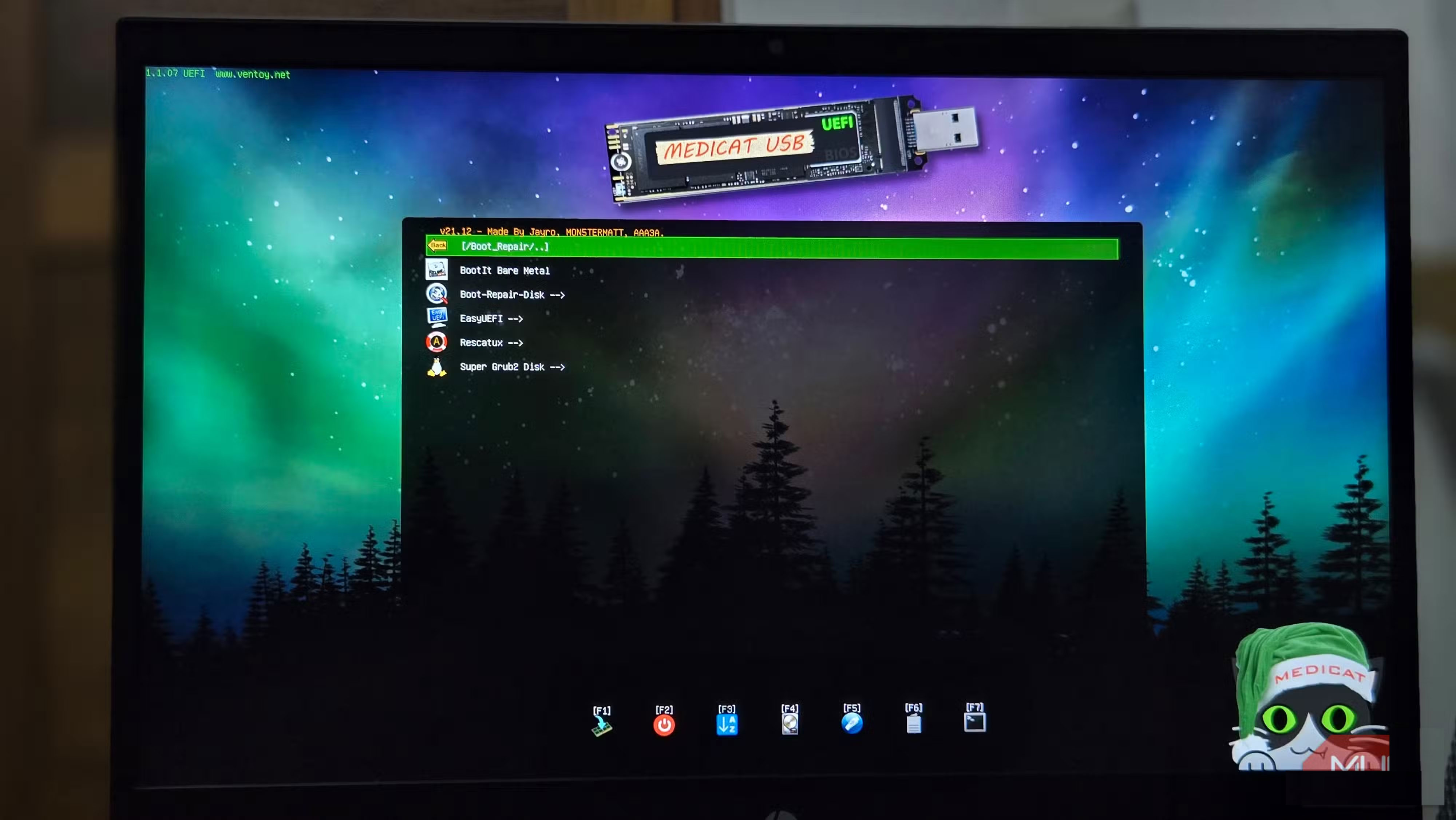
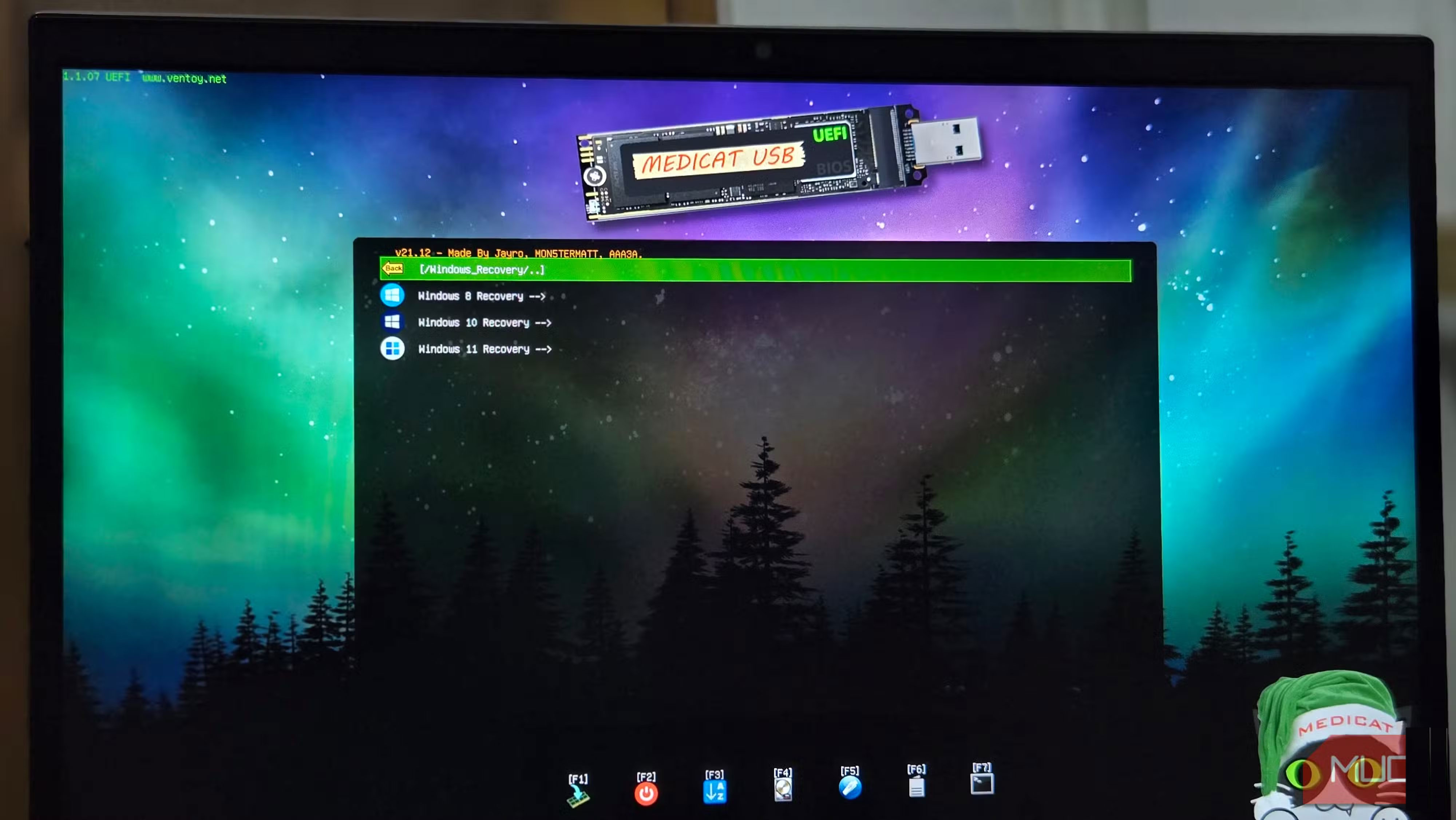
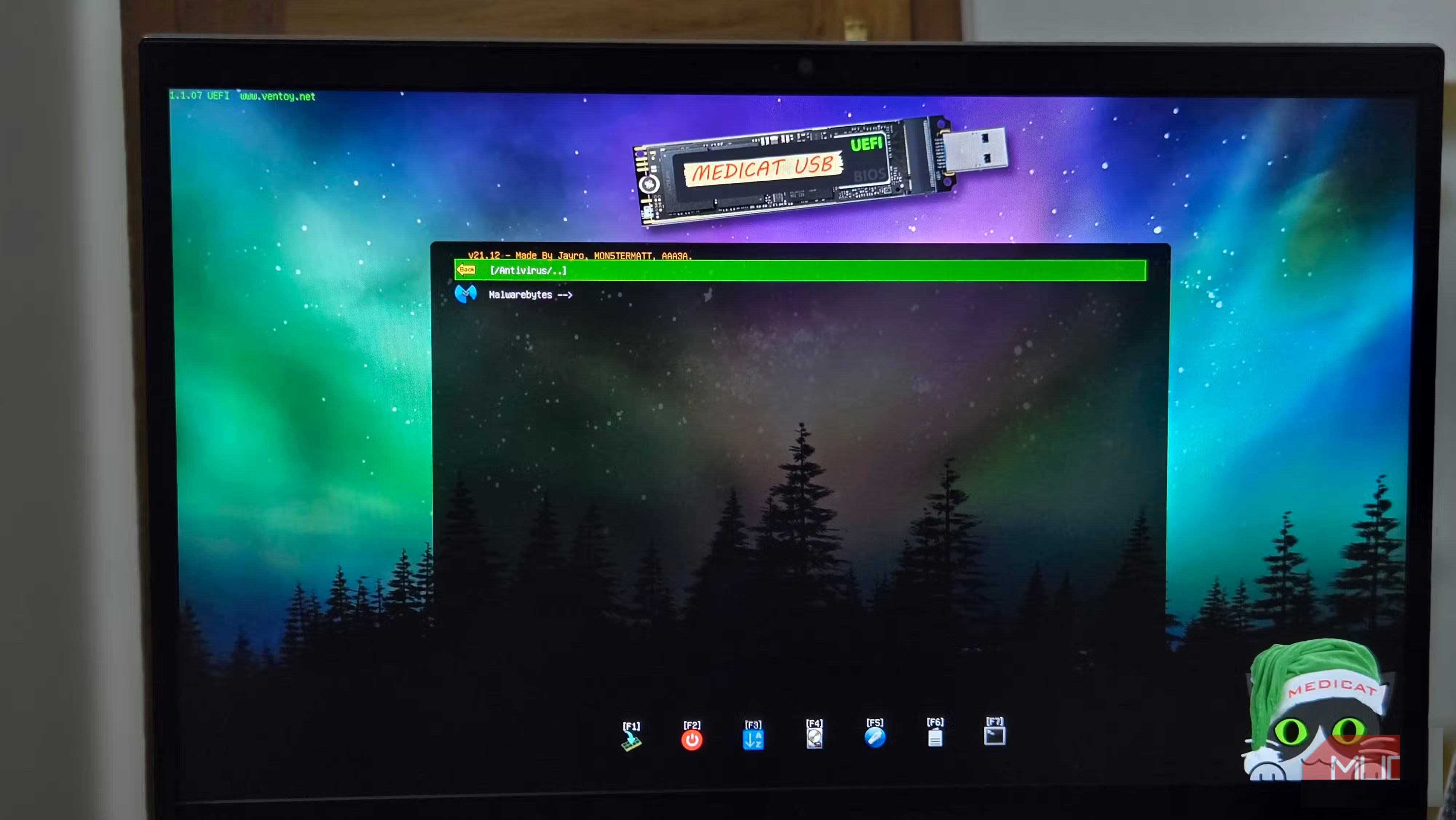
Medicat is easy to use once you know how to change your boot drive from the boot menu. To do this, connect your USB drive to your PC and reboot. While booting, press your computer's boot menu key (usually F12, F10 , or ESC ) and select your USB drive. The main Medicat menu will appear, with all the tool categories clearly labeled.
Let's say you're dealing with a system that's infected and won't boot properly. Select the antivirus section and choose Malwarebytes bootable. It will load the familiar dashboard, where you can run a full system scan. Unlike the regular Windows version, Malwarebytes bootable can remove deeply embedded malware that can't be removed normally.
For data recovery cases, the backup and restore section offers a variety of options. You can clone an entire drive with AOMEI Backupper, recover deleted files with EaseUS Data Recovery, or create a system image with Acronis.
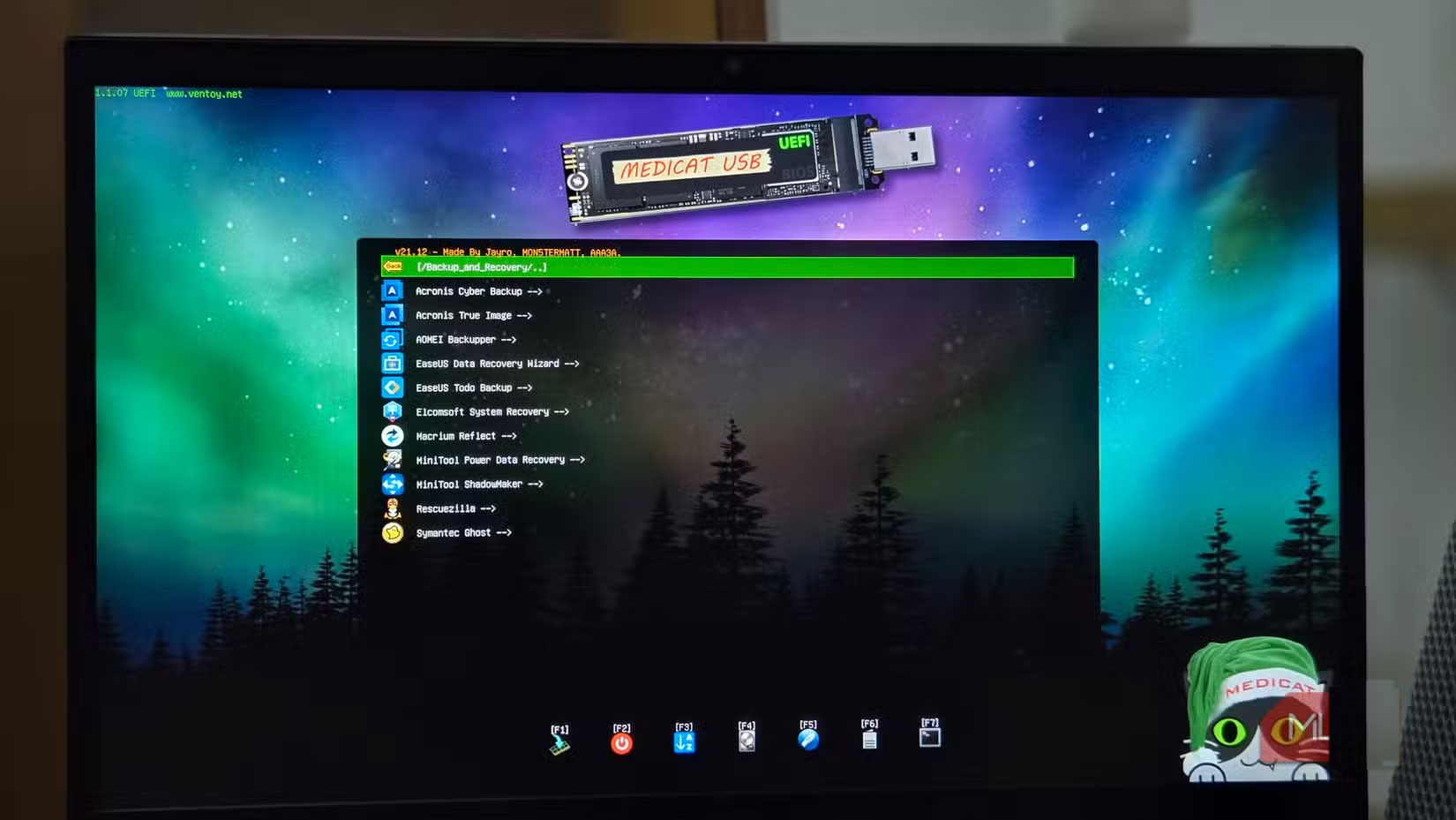
For boot problems, you can use tools like Boot Repair Disk and EasyUEFI. Boot Repair Disk automatically scans for common boot problems and provides one-click fixes.
FAQ
What should you know about medicat?
In practical terms, medicat USB is essentially a giant toolbox that you can boot directly from a flash drive. Like PhoenixPE, it is built on the Windows Preinstallation Environment, running entirely from your computer's memory.
Why does medicat matter?
The article highlights that a complete rescue kit Medicat USB is essentially a giant toolbox that you can boot directly from a flash drive.
What is the main takeaway?
The main takeaway is that the big difference between Medicat and PhoenixPE is the amount of pre-installed tools.
Related Articles
 How to Play Pokémon GO on a Computer6 minutes read
 How to Play Pokémon GO on a Smartphone6 minutes read
 26 Types of Poké Balls Explained: Part 25 minutes read
 How to Earn and Use Stardust in Pokémon GO5 minutes read
 Pokémon GO Eggs: Incubation and Hatching Guide4 minutes read
 26 Types of Poké Balls Explained: Part 18 minutes read
Reader Comments 0
Sign in with email or Google to join the discussion.