Table of Contents
Bootstrap 5 progress bars show measurable completion, such as a file upload, setup checklist, or multi-step process. Unlike a spinner, a progress bar should represent a known value or range.
Bootstrap 5.3 introduced more accessible progress markup: the outer progress element receives the progressbar role and value attributes, while the inner progress-bar controls the visual width.
Create a basic progress bar
Set the current value in aria-valuenow and use the same percentage for the inner bar's width. Give the component a specific accessible name.
<div class="progress"
     role="progressbar"
     aria-label="File upload"
     aria-valuenow="50"
     aria-valuemin="0"
     aria-valuemax="100">
  <div class="progress-bar" style="width: 50%"></div>
</div>
If the default range is not 0 to 100, calculate the visual width from the actual minimum, maximum, and current value. Keep the ARIA values in the original scale.
Add a visible label
Put a short label inside the inner bar:
<div class="progress"
     role="progressbar"
     aria-label="Profile setup"
     aria-valuenow="65"
     aria-valuemin="0"
     aria-valuemax="100">
  <div class="progress-bar" style="width: 65%">65%</div>
</div>
At low percentages, an internal label may be clipped or lose contrast. Place a longer label outside the bar:
<div class="d-flex justify-content-between mb-1">
  <span id="uploadLabel">Uploading report</span>
  <span>8 of 20 MB</span>
</div>
<div class="progress"
     role="progressbar"
     aria-labelledby="uploadLabel"
     aria-valuenow="8"
     aria-valuemin="0"
     aria-valuemax="20">
  <div class="progress-bar" style="width: 40%"></div>
</div>
Change the color
Use background utilities to distinguish states. Add a text label or other cue so color is not the only source of meaning.
<div class="progress"
     role="progressbar"
     aria-label="Completed tasks"
     aria-valuenow="75"
     aria-valuemin="0"
     aria-valuemax="100">
  <div class="progress-bar text-bg-success"
       style="width: 75%">75% complete</div>
</div>

<div class="progress mt-3"
     role="progressbar"
     aria-label="Failed tasks"
     aria-valuenow="20"
     aria-valuemin="0"
     aria-valuemax="100">
  <div class="progress-bar text-bg-danger"
       style="width: 20%">20% failed</div>
</div>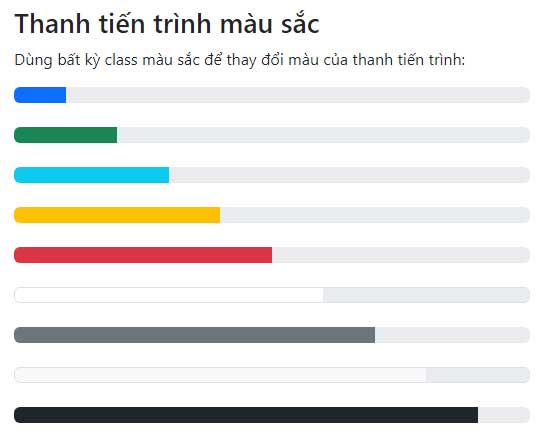
text-bg-* helpers set coordinated text and background colors. Check contrast when applying a custom color.
Adjust the height
Set the height on the outer progress wrapper. The inner bar fills it automatically.
<div class="progress"
     role="progressbar"
     aria-label="Thin progress example"
     aria-valuenow="35"
     aria-valuemin="0"
     aria-valuemax="100"
     style="height: 6px;">
  <div class="progress-bar" style="width: 35%"></div>
</div>
A very thin bar should have a separate visible value because text will not fit inside it.
Create a striped progress bar
Add progress-bar-striped to the inner bar:
<div class="progress"
     role="progressbar"
     aria-label="Data import"
     aria-valuenow="60"
     aria-valuemin="0"
     aria-valuemax="100">
  <div class="progress-bar progress-bar-striped bg-info"
       style="width: 60%">
    60%
  </div>
</div>
Stripes can make a status easier to distinguish, but the numeric value still needs to be accurate and available to assistive technology.
Animate the stripes
Add progress-bar-animated together with progress-bar-striped:
<div class="progress"
     role="progressbar"
     aria-label="Upload progress"
     aria-valuenow="75"
     aria-valuemin="0"
     aria-valuemax="100">
  <div class="progress-bar progress-bar-striped progress-bar-animated"
       style="width: 75%">
    75%
  </div>
</div>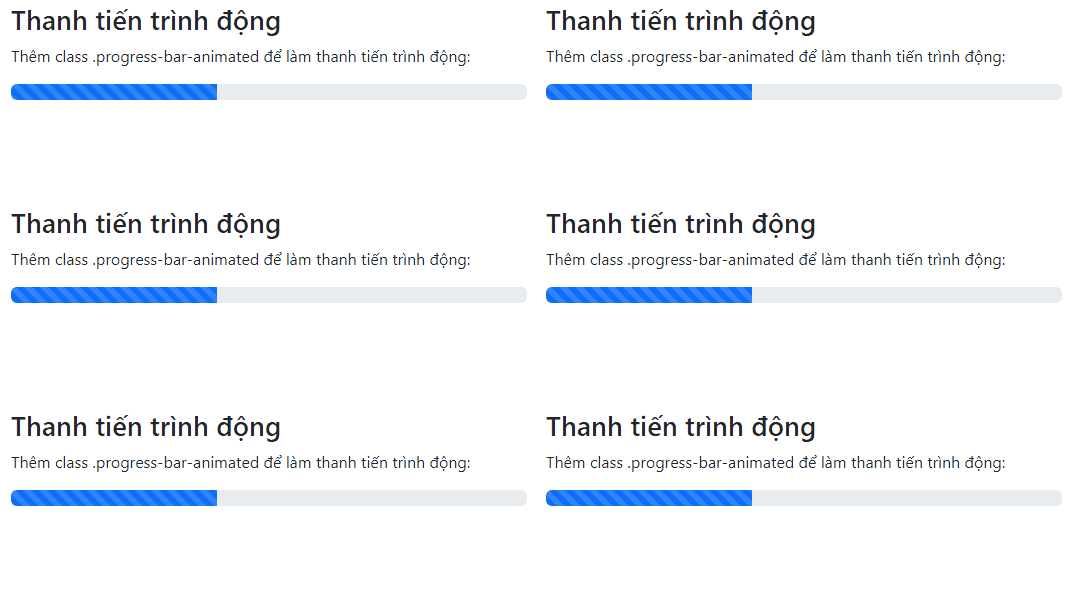
The animation follows the user's reduced-motion preference. Animation should indicate an active process, not disguise a value that is no longer changing.
Create a stacked progress bar
Bootstrap 5.3 uses progress-stacked. Each segment has its own progress wrapper, accessible name, and value. Apply the segment width to that wrapper.
<div class="progress-stacked">
  <div class="progress"
       role="progressbar"
       aria-label="Completed"
       aria-valuenow="45"
       aria-valuemin="0"
       aria-valuemax="100"
       style="width: 45%">
    <div class="progress-bar bg-success"></div>
  </div>

  <div class="progress"
       role="progressbar"
       aria-label="In review"
       aria-valuenow="25"
       aria-valuemin="0"
       aria-valuemax="100"
       style="width: 25%">
    <div class="progress-bar bg-warning"></div>
  </div>

  <div class="progress"
       role="progressbar"
       aria-label="Blocked"
       aria-valuenow="10"
       aria-valuemin="0"
       aria-valuemax="100"
       style="width: 10%">
    <div class="progress-bar bg-danger"></div>
  </div>
</div>

<ul class="list-inline mt-2" aria-label="Progress legend">
  <li class="list-inline-item">45% completed</li>
  <li class="list-inline-item">25% in review</li>
  <li class="list-inline-item">10% blocked</li>
</ul>
A visible legend gives each color a meaning. Confirm that the segment values make sense together and do not imply a total above the defined range.
Update progress with JavaScript
When progress changes, update both the accessible value and the visual width. Update visible text as well when the bar has a label.
function setProgress(element, value) {
  const safeValue = Math.max(0, Math.min(100, value));
  const bar = element.querySelector('.progress-bar');

  element.setAttribute('aria-valuenow', String(safeValue));
  bar.style.width = safeValue + '%';
  bar.textContent = safeValue + '%';
}

const uploadProgress = document.getElementById('uploadProgress');
setProgress(uploadProgress, 72);
Do not increment a fake percentage merely to make an operation look active. If the application cannot calculate meaningful progress, use a spinner with a clear status message.
Progress bar checklist
- Give every bar an accessible name and accurate minimum, maximum, and current values.
- Keep the visual width synchronized with
aria-valuenow. - Show long or low-percentage labels outside the bar.
- Do not use color as the only state indicator.
- Use animation only while work is active.
- Use the Bootstrap 5.3
progress-stackedstructure for segmented bars. - Switch to an indeterminate spinner when a percentage cannot be calculated.
You can test the markup in one of these free HTML editors or compare Bootstrap with other popular CSS frameworks. For the current markup and all styling options, see the official Bootstrap progress documentation.
Related Articles
 Lesson 42: Large Grid in Bootstrap 54 minutes read
 Lesson 38: Grid Systems from Stacked to Horizontal in Bootstrap 54 minutes read
 Lesson 30: Flexing in Bootstrap 59 minutes read
 Lesson 15: Pagination in Bootstrap 54 minutes read
 Lesson 4: Typography in Bootstrap 512 minutes read
 Lesson 29: Utilities in Bootstrap 59 minutes read
Reader Comments 0
Sign in with email or Google to join the discussion.