Table of Contents
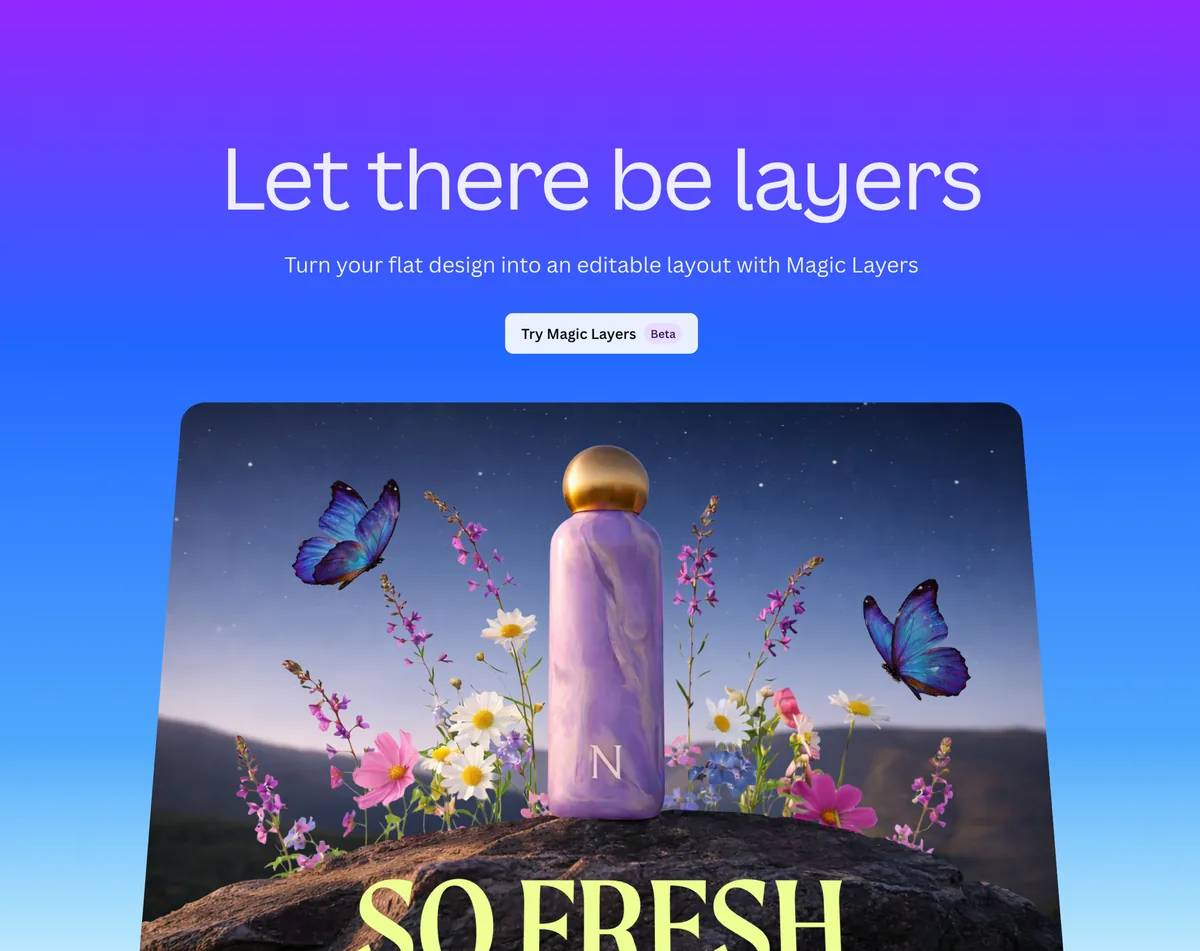
Canva's Magic Layers reconstructs a flat image as an editable design so you can change recovered text, move separated objects and adjust the background. It is useful when you have a poster or illustration but no original design file. The reconstruction still needs checking: not every object, font or letter is recovered correctly.
What changes when an image becomes editable?
A JPG or PNG normally stores pixels, not the text boxes and shapes that created them. Magic Layers analyzes the visible design and builds editable components from it. This is reconstruction rather than recovery of the original source file.
A clean poster with distinct shapes is a better starting point than a busy photograph or overlapping collage. If the text is distorted or the logo is complex, plan to replace that element manually.
Prepare the image
- Use a single-page JPG or PNG. The tool does not accept a PDF directly.
- Keep the longest edge at or below the current 5,000-pixel limit.
- Choose a clear image with readable text and separation between elements.
- Keep the original file so you can compare the reconstruction and undo your experiment.
- Use material you are allowed to edit. Converting an image does not grant rights to its contents.
For a PDF, export the intended page as an image first. Do not assume converting the format will make a scanned, blurry or densely layered page easy to reconstruct.
Use Magic Layers directly in Canva
- From the Canva homepage, open Magic Layers and choose Select Media.
- Select the image and wait for processing.
- Click individual components to check which text and objects are editable.
- Make a small change first, then inspect the surrounding layout.
You can also select an uploaded image in a design and look under Edit > Magic Layers. Canva's official instructions show the current entry points and file limits.

Request an editable design through ChatGPT
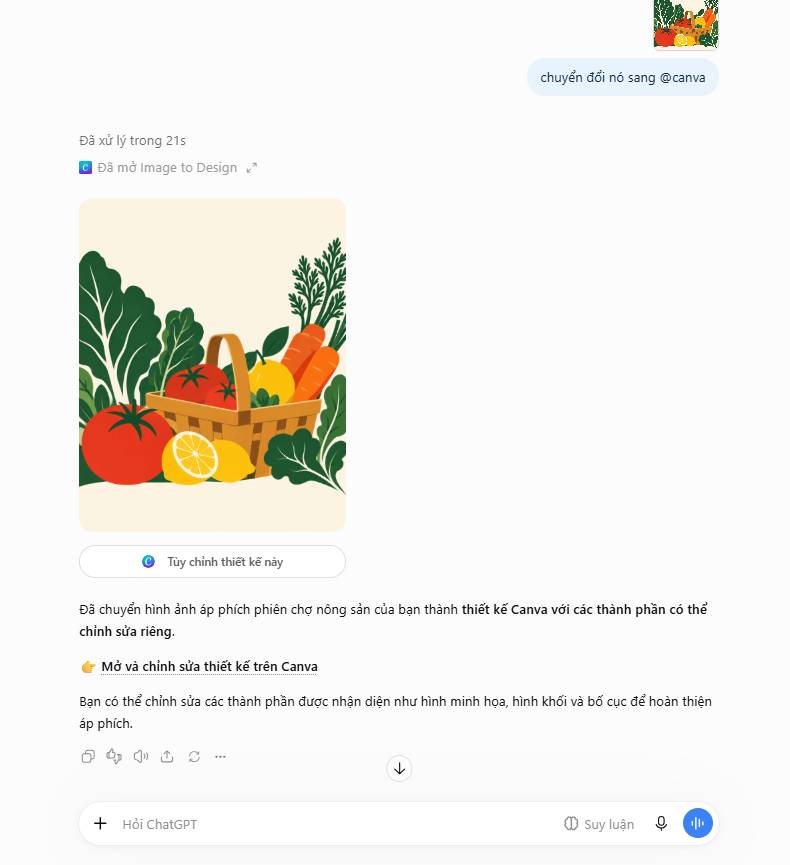
If Canva is connected and the action is supported in your account, attach or select the image and make the destination explicit:
@Canva, turn the attached poster into an editable Canva design. Preserve the layout and wording as closely as possible. I need to edit the title and date. Identify any text or objects that could not be reconstructed cleanly.The wording describes the task; it is not a guaranteed activation code. Review any account or permission prompt and open the returned design to verify that the requested elements are actually editable. See using Canva in ChatGPT if the app connection is unfamiliar.
A simple practice example
Start with a flat graphic instead of a photorealistic scene:
Create a flat graphic poster concept for a fictional farmers' market. Use simple bold shapes, clear spacing and separate areas for a headline and date. Keep the background uncluttered and avoid a photographic style.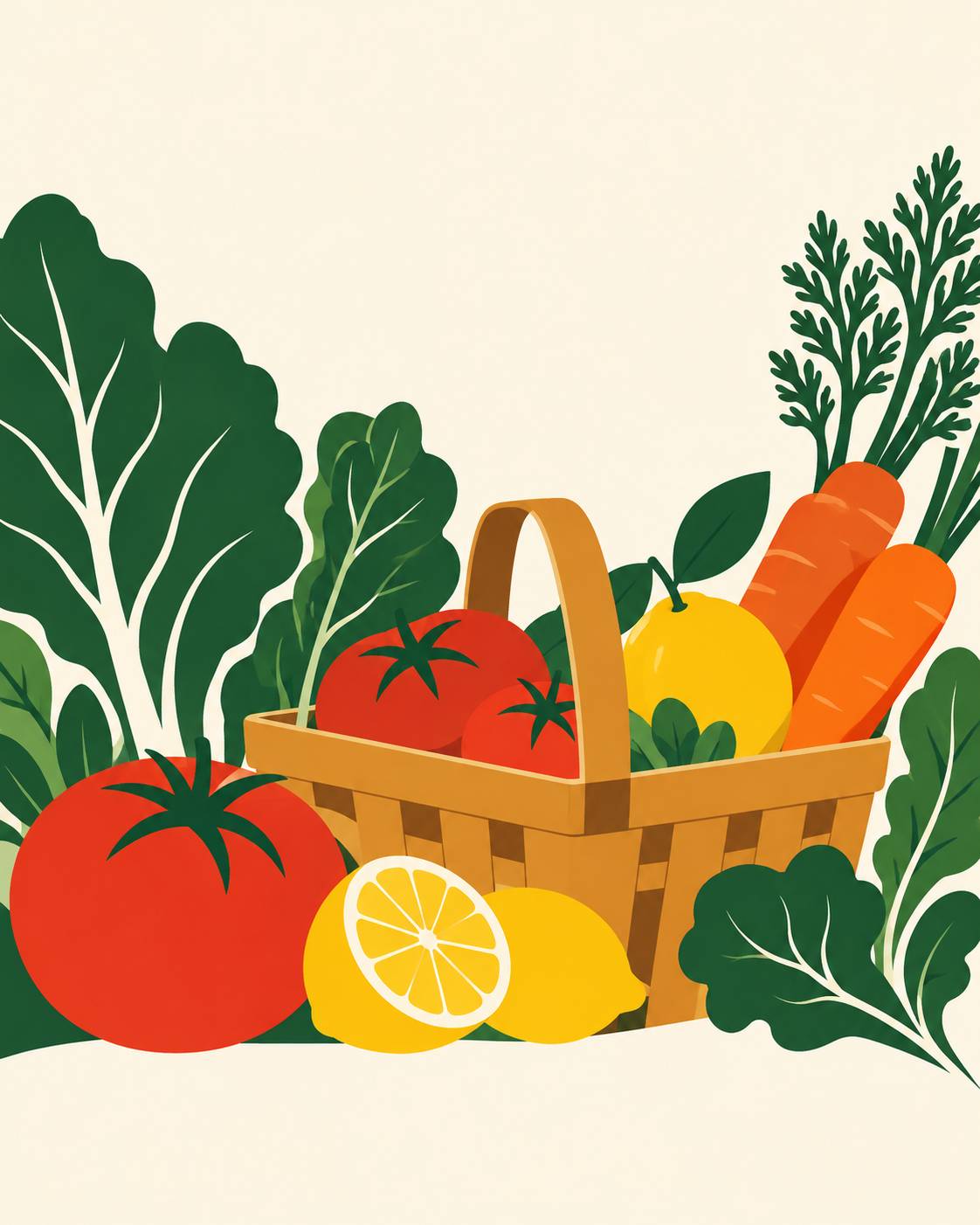
Then send the Canva conversion request above. Once processed, try changing the headline, moving one illustration and replacing the date. This tests the useful editing functions rather than judging only whether the preview resembles the original.
Check the reconstructed design
- Text: Compare every word, number and line break. Replace text that remains part of an image or was recognized incorrectly.
- Objects: Look for missing edges, fragments and unwanted duplicates after moving a component.
- Background: Inspect the area behind a moved or deleted object for visual defects.
- Layout: Check alignment and spacing after changing wording or font size.
- Export: Inspect the saved output, including any paid assets or restrictions.
If only a photograph's main subject needs moving, a different editing tool may be more appropriate; see Canva image-editing options.
If the option is missing or the result is poor
Check the file type, dimensions, account access and remaining AI allowance. Availability and usage limits can vary; an older statement that every education account is excluded is not reliable, as Canva now publishes classroom Magic Layers guidance.
For a poor reconstruction, try a clearer source or rebuild the difficult section manually. Simplifying a design can help, but recreating a photograph as an illustration changes the work and is not a necessary “repair” for every case.
Related Articles
 How to Use Magic Morph in Canva to Style Text and Shapes
 How to Use Canva Magic Expand to Extend an Image
 How to use Canva's Magic Studio to edit designs
 How to Resize a Canva Design for Another Format
 Instructions for creating videos from text on Canva using Magic Media
 How to Use Canva Magic Write in Docs and Presentations
Reader Comments 0
Sign in with email or Google to join the discussion.