Table of Contents
Connect an ElevenLabs agent to Cal.com when it needs to check availability and create appointments during a conversation. Use the native integration for the simplest setup, or configure webhook tools when you need control over the requests. The two approaches should not be configured as duplicate booking paths.
Before you connect
Prepare a Cal.com event type, its availability and the destination calendar. Verify the public booking flow works first. Identify the event type ID from your own account; example IDs from a tutorial do not refer to your meetings.
| Integration capability | Documented support |
|---|---|
| Zero Retention Mode | Not supported by this Cal.com integration |
| Tool attachments | Not supported; the tools operate on text |
Review these constraints and data handling before using the workflow for sensitive appointments. Consult the ElevenLabs integration reference for current support.
Option 1: native Cal.com integration
- In Cal.com, open Settings > Developer > API Keys and create an appropriate key.
- Copy the key securely when it is generated. For real calendar access, follow the integration's live-key requirement.
- Open the agent's integration or Tools configuration in ElevenLabs, select Cal.com and connect it using the API Key field.
- Review the available actions and attach only those needed for the workflow.
- Test availability lookup before creating a controlled test appointment.
The native integration configures its tools for you. Inspect the generated tool names and schemas before writing the agent prompt. The manual names below are examples, not a promise that every native action has the same identifier.
Scheduling demo
The original demonstration uses legacy webhook tools. Use it to understand the conversation flow rather than duplicating its setup over the native integration.
Option 2: manual webhook tools
In the agent's Tools area, add webhook tools. Store the Cal.com key in secret storage, never in the spoken prompt or a model-generated argument. The final authorization header must contain the Bearer prefix exactly once.
Authorization: Bearer YOUR_CAL_API_KEY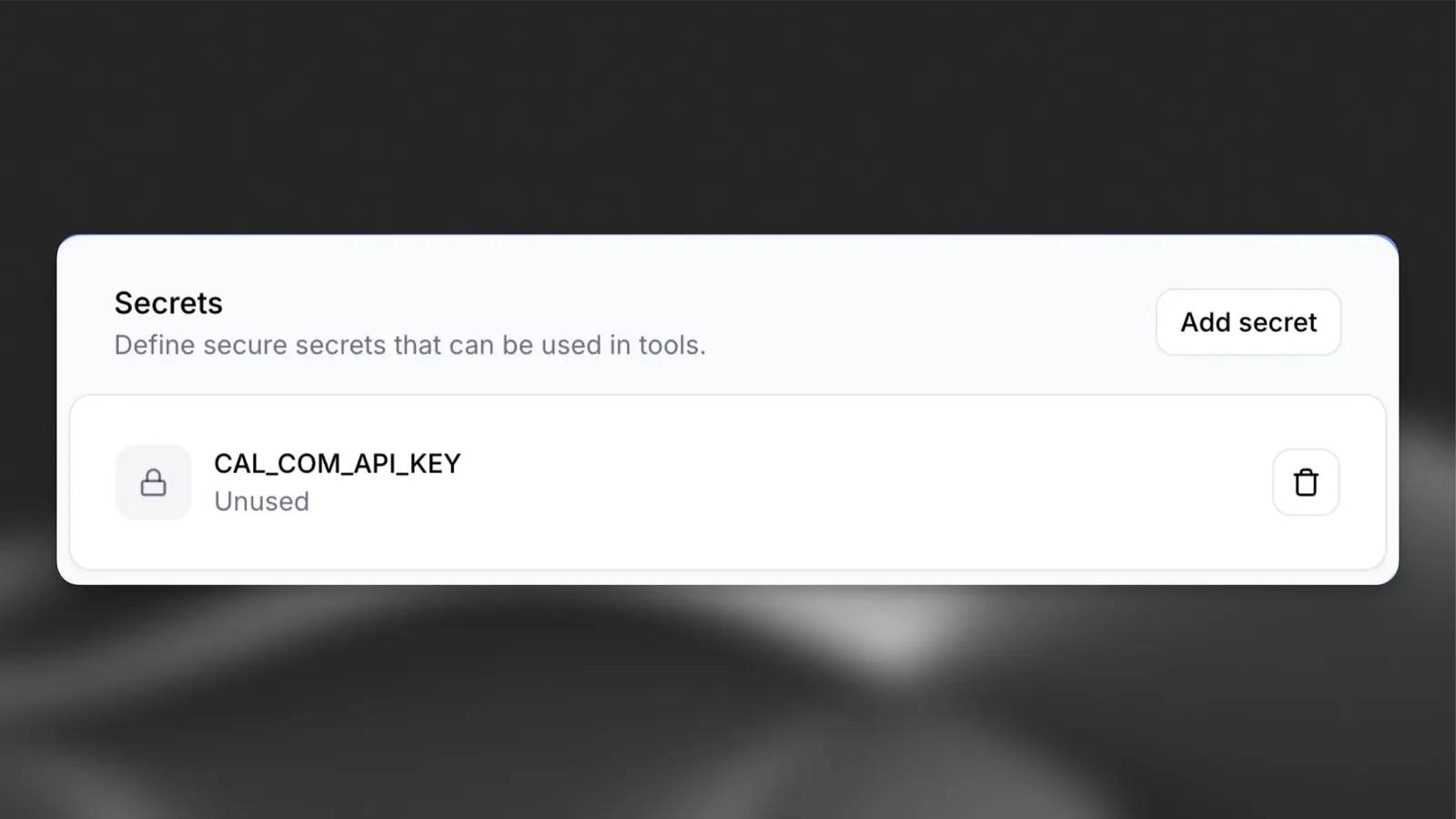
Availability tool
| Setting | Value |
|---|---|
| Name | get_available_slots |
| Description | Retrieve available slots for the configured event type and date range |
| Method | GET |
| URL | https://api.cal.com/v2/slots |
| Header | Configuration |
|---|---|
| Authorization | A secret reference containing the correctly formatted Bearer value |
| cal-api-version | Use the version required by the current slots endpoint; do not assume the booking endpoint uses the same version |
| Query parameter | Meaning |
|---|---|
start | Beginning of the availability search period |
end | End of the availability search period |
eventTypeId | The real event type identifier from your account |
Verify types, accepted date formats, timezone behavior and required fields against the current Cal.com API schema. The parameter is start, not the mistranslated search. Keep fixed event mappings in configuration instead of letting the caller invent an ID.
Booking tool
| Setting | Value |
|---|---|
| Name | book_meeting |
| Description | Create a booking only after the caller confirms the appointment details |
| Method | POST |
| URL | https://api.cal.com/v2/bookings |
| Header | Configuration |
|---|---|
| Authorization | Secret-backed Bearer authorization as required by your authentication method |
| cal-api-version | The version specified by the booking endpoint |
| Content-Type | application/json |
| Body field | Type / purpose |
|---|---|
start | ISO 8601 start-time string with timezone information as required by the endpoint |
eventTypeId | Numeric ID for the intended event type |
attendee | Object containing the attendee details |
bookingFieldsResponses | Additional answers where required by the configured event type |
| Attendee field | Value to collect |
|---|---|
name | Attendee's full name |
email | Confirmed email address |
timeZone | IANA zone such as Europe/London or America/New_York |
Use the exact field names start, attendee, name and email; translated variants are not API aliases. Check the current booking schema for required custom fields and event-specific behavior. This minimal configuration is not a universal payload for every event type.
Give the agent a clear booking procedure
You schedule appointments using the configured Cal.com tools.
Ask for the meeting purpose, preferred date, time zone and an available event type.
Resolve relative dates using trusted current-time context. Clarify ambiguous dates and time zones.
Check availability and offer only returned slots.
Collect the attendee name, confirm the email spelling, and collect required booking fields.
Read back the event type, full date, local time, time zone and attendee email. Ask for confirmation.
Create the booking only after confirmation.
Report success only when the tool returns a confirmed successful result. If the result is pending, say so.
If the request times out, check whether the booking already exists before retrying. Never invent an available slot or a booking confirmation.
Keep credentials and internal configuration out of the conversation.
Supply reliable current date/time context through the supported runtime mechanism or a time tool. For related configuration concepts, see ElevenAgents dynamic variables and system tools and function calls.
Test the complete outcome
Use an account and calendar you control. Test an available slot, an unavailable slot, a misspelled email, a different time zone, daylight-saving boundaries and a failed request. Inspect the actual Cal.com booking and calendar invitation rather than trusting the agent's spoken summary.
Check cancellation and rescheduling separately before enabling them. Restrict access to existing bookings appropriately, retain only needed personal information and rotate any key exposed during testing. A working availability lookup does not prove booking creation or invitation delivery is working.
Related Articles
 How to Connect ElevenLabs Agents to Calendly
 How to Connect ElevenLabs Agents to Cursor Coding Agents
 How to Connect an ElevenLabs Agent to Exa Web Search
 How to Connect ElevenLabs Agents to Freshdesk
 How to Connect External MCP Tools to an ElevenLabs Agent
 How to connect an external text channel to the ElevenLabs agent via webhook
Reader Comments 0
Sign in with email or Google to join the discussion.