Table of Contents
Use these five prompts to create a useful first draft with Canva in ChatGPT: a social post, invitation, flyer, short presentation or logo concept. Each prompt gives the purpose, format, visual direction and exact text so you can judge the result against a clear brief.
Connect the correct Canva account through the app or plugin available in your ChatGPT interface, review permissions, then invoke Canva in the conversation. If the connection is unavailable, you can still use ChatGPT to refine the brief and build the design directly in Canva. See setting up Canva in ChatGPT for a fuller workflow.
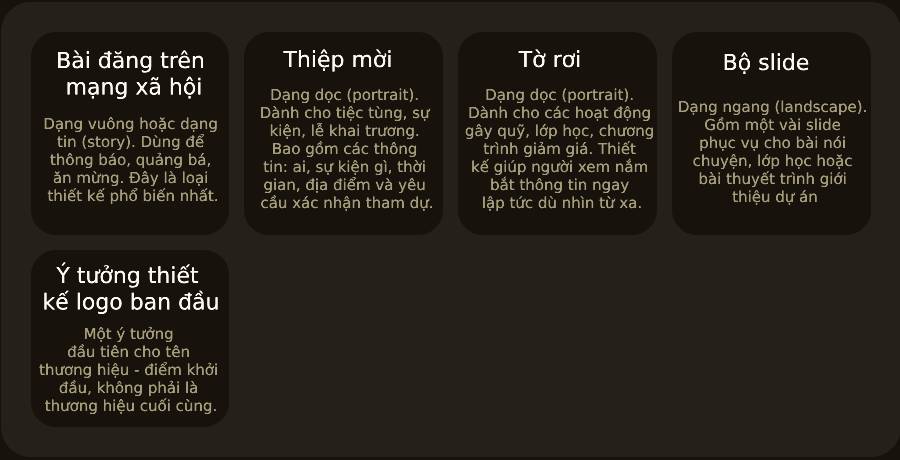
1. Social media post
Specify the destination and format before the style. A feed post and a story need different layouts.
Canva, create a square Instagram post promoting [offer or event] for [audience]. Use a [bright/playful/calm/minimal] style and [brand colors]. Include exactly: "[headline]", "[key detail]" and "[business name or handle]". Make the headline the most prominent element and keep important text away from the edges.Refine: “Shorten the headline to five words or fewer without changing the offer. Increase its size and keep the supporting text secondary.” Check that a shortened offer still states any important conditions.
2. Invitation
An invitation needs the event, date, time, location and response method. Use real details only when you are ready to share them with the connected service.
Canva, create a portrait invitation for [event] aimed at [guests]. Use a [style] with [colors]. Include exactly: "[event name]", "[date and time]", "[venue and address]" and "RSVP: [contact or link]". Make the event name largest and the date and time easy to find. Leave clear space between information groups.Refine: “Make the date and time the second most prominent element. Keep all wording unchanged.” Verify the address, time zone if relevant and RSVP method.
3. Flyer
For print, state the paper size. For a notice viewed from a distance, prioritize a short headline over dense details.
Canva, create an A4 portrait flyer for [event or offer]. The audience is [audience], and it will be displayed [location]. Use a friendly, high-contrast layout. Include exactly: "[headline]", "[date and time]", "[location]" and "[one key detail or action]". Use large readable text and leave margins for printing.Refine: “Increase headline contrast and remove decoration that competes with the message.” Print a draft at its actual size before producing multiple copies.
4. Three-slide presentation
A landscape layout is a useful default for a conventional screen presentation. Choose a different format explicitly if the deck is intended for portrait displays or social media.
Canva, create a three-slide 16:9 landscape presentation about [topic] for [audience]. Use a consistent [style] and [colors]. Slide 1: "[title]". Slide 2: "[main point]" with "[one supporting line]". Slide 3: "[call to action]". Use one main idea per slide. Do not invent figures, sources or claims.Refine: “Reduce text while retaining the essential meaning. Keep headings consistent and move optional explanation into notes.” Inspect each slide for overflow, alignment and readability.
5. Logo concept
Use this to explore direction before developing a finished identity. A generated concept does not establish exclusivity, ownership or suitability for trademark registration.
Canva, create two simple logo concepts for "[business name]", a [type of business] serving [audience]. Use a [friendly/refined/bold] style. Include the exact brand name. Make one text-only option and one option with a simple [symbol idea]. Avoid detailed illustrations and show how each looks in one color.Refine: “Simplify the symbol so it remains clear at a small size. Keep the brand name spelled exactly as supplied.” Check the asset licensing and do appropriate clearance before adopting a logo commercially.
A completed example
Canva, create an A4 portrait flyer for a fictional library storytelling event. Use a warm, family-friendly style. Include exactly: "Saturday Storytime", "10:30 a.m. every Saturday", "Maple Branch Library — Children's Room" and "Free — no registration required". Make the title largest, group the date and venue together, and leave clear printing margins.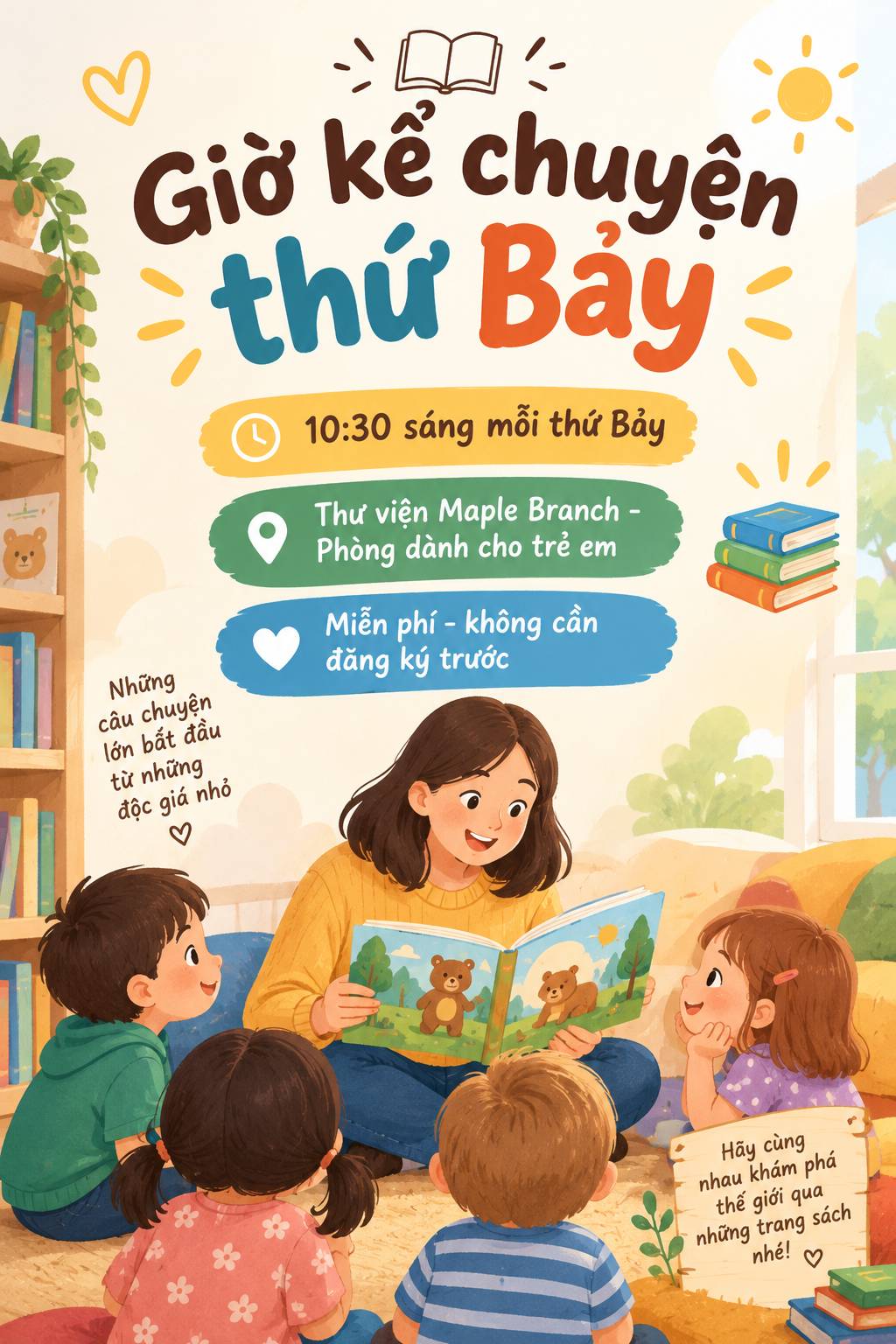
Replace the example's details with verified information before using it publicly. Compare the design with the prompt line by line, including punctuation and numbers.
Adapt a design to another size
Do not assume that a resized layout will remain readable. Ask for the target format, preserve the essential text and inspect the result. Current Canva integration capabilities can include resizing, so the older blanket claim that it can never happen through chat is too restrictive.
Canva's Magic Resize access depends on an eligible plan and usage limits; it is not limited only to a plan named Pro. If the feature is unavailable, create a new design at the target dimensions and rearrange the content manually. See resizing a Canva design for another format and Canva's current resize guidance.
Check before sharing
Open the design in Canva for final adjustments. Verify text, dates, prices, links, image rights and any paid assets. Preview at the size and medium people will actually use. A visually polished draft still needs that review before it is printed, presented or published.
Related Articles
 How to Use Canva in ChatGPT to Create Editable Designs
 Canva Free vs Pro: Watermarks, AI Limits and Export Features
 How to Use Canva and ChatGPT to Create Mass Content Designs
 Instructions for sharing designs on Canva
 How to Finish a Design with ChatGPT and Canva
 How to Generate and Rotate 3D Elements in Canva with AI
Reader Comments 0
Sign in with email or Google to join the discussion.