Table of Contents
To find apps using your phone’s battery, start with the battery-usage screen rather than a generic blacklist. Navigation, video, games and photo backup can use substantial power for legitimate reasons. The useful question is whether an app’s activity matches what you asked it to do.
Check actual usage first
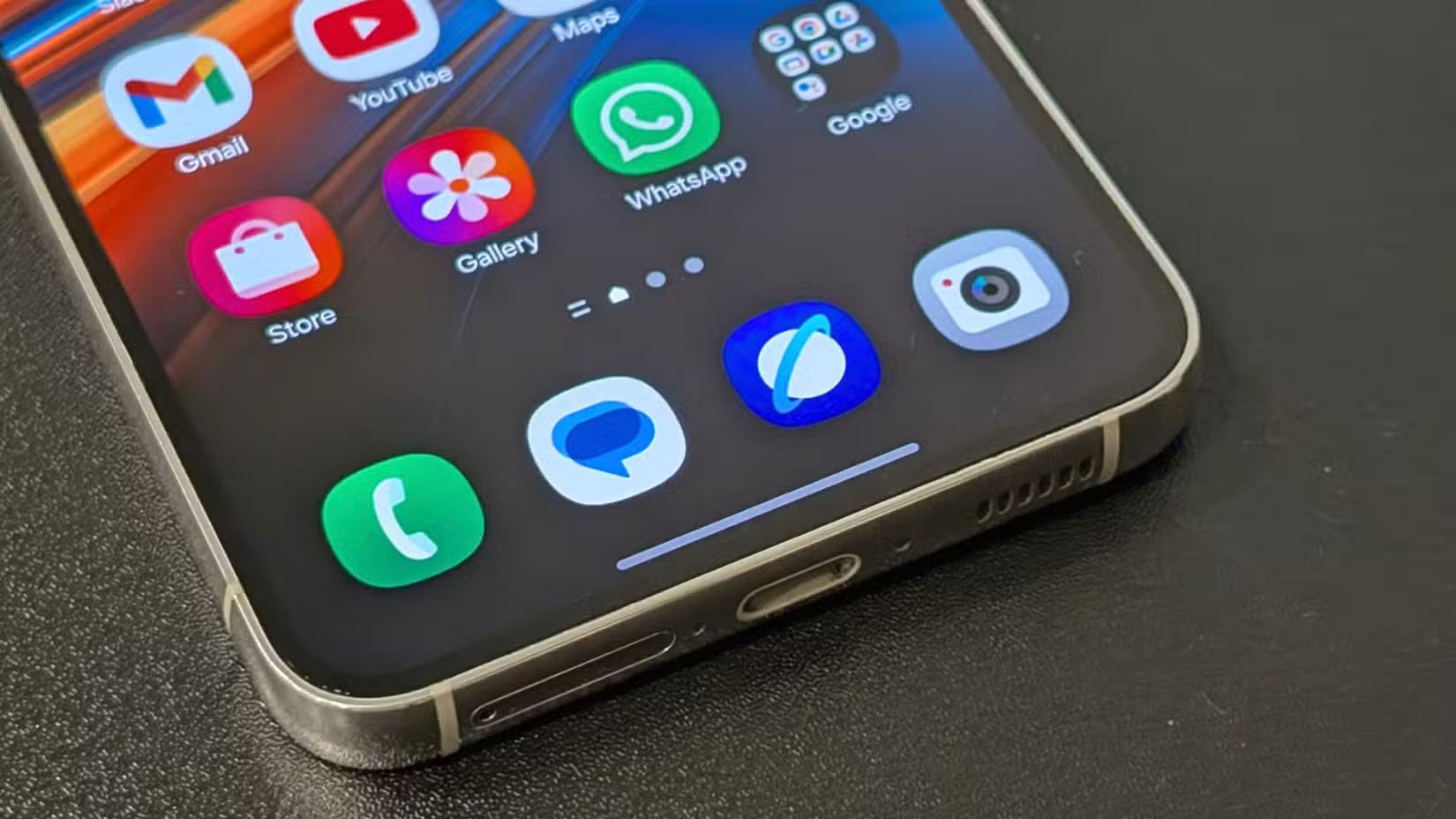
On iPhone, open Settings > Battery and inspect app and system activity for the period shown. On Android, open Settings > Battery > Battery usage, or search Settings for battery usage; names vary by manufacturer. Compare the percentage with time spent on screen and in the background.
An app at the top of the list is not automatically misbehaving. It may account for a large share of a small amount of total battery use. Compare similar days and note whether the screen was off during the unexpected drain.
Understand background work
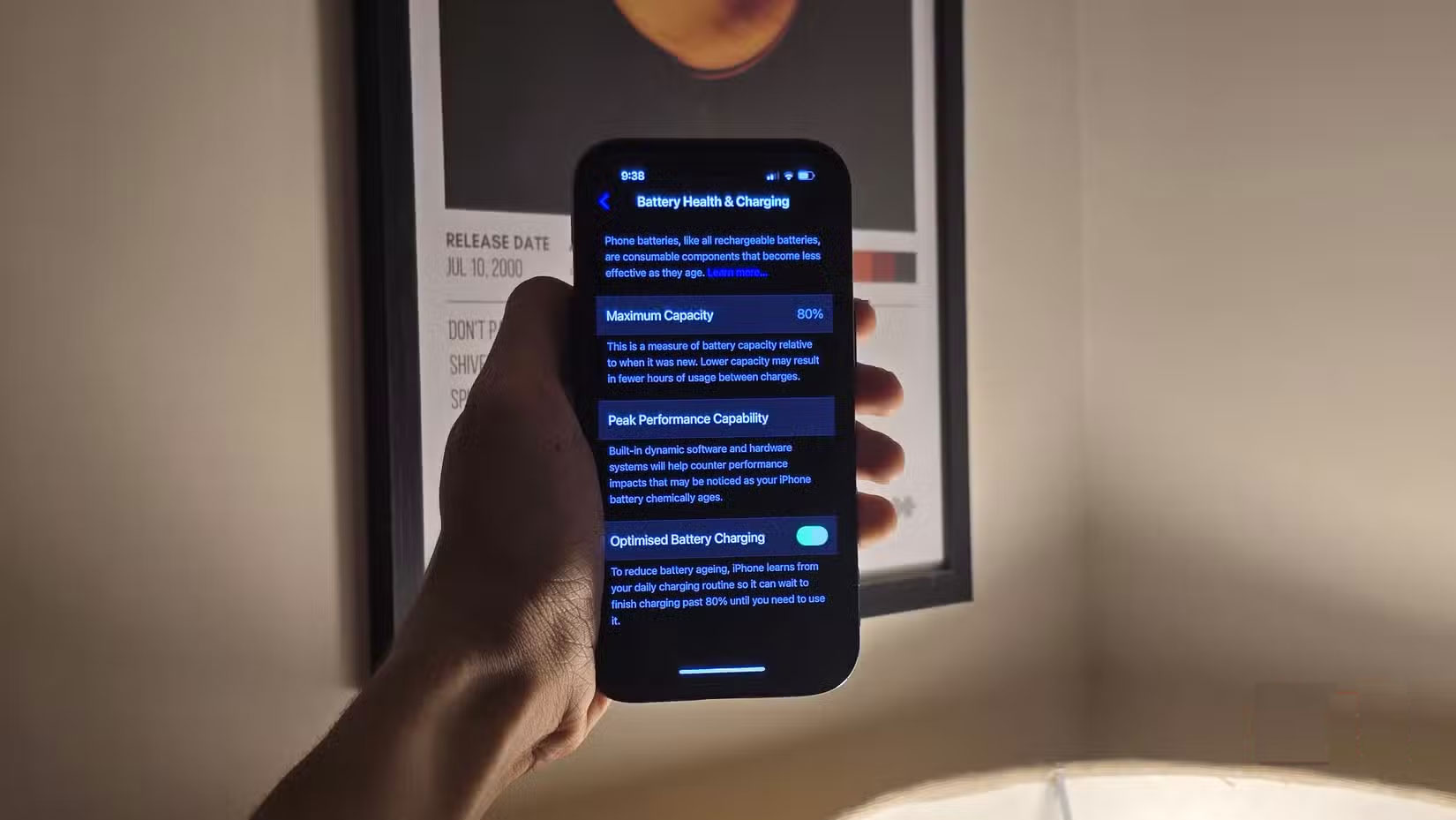
Background activity can include audio playback, route tracking, file transfers or synchronization. It does not mean every app continuously polls a server or uses GPS. Many messages arrive through system push services, while step counting can use motion sensors rather than continuous satellite positioning.
Apple’s battery-drain guidance explains common activity labels. Google’s Pixel battery troubleshooting describes checking usage and problem apps.
App categories worth investigating
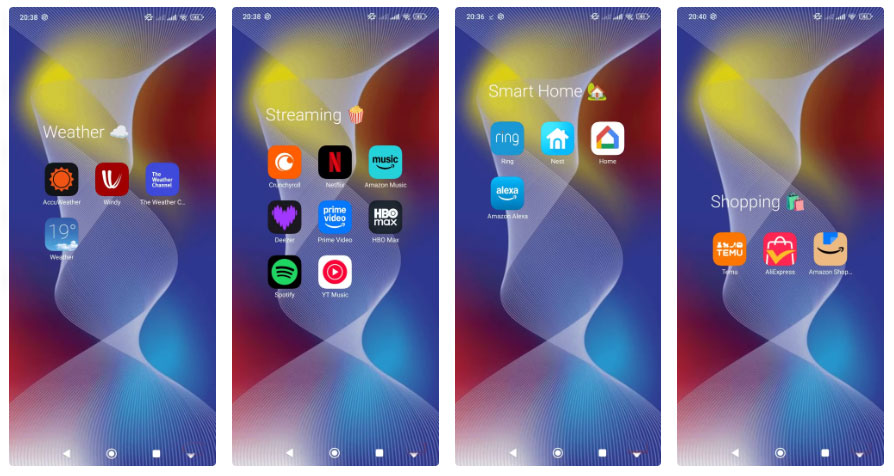
- Navigation and fitness: check for a route or workout left running. Background location can be essential during an active session, but should match your intended use.
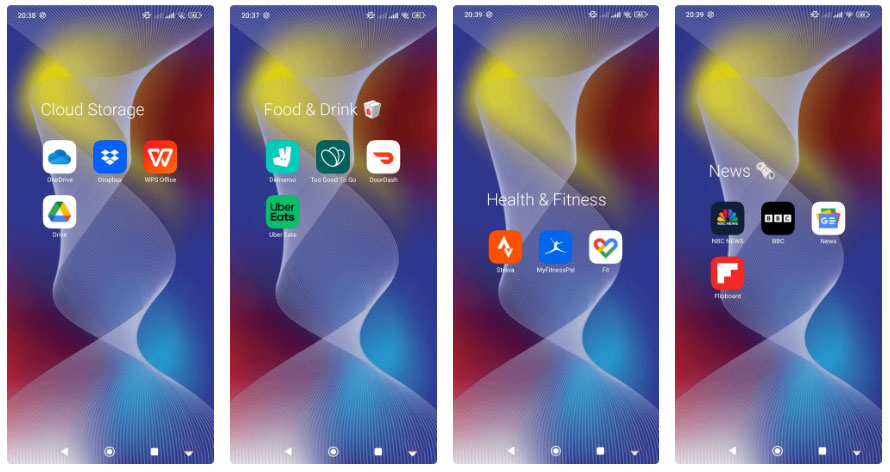
- Cloud and photo apps: look for a large upload, restoration or repeated failed synchronization. Schedule transfers for a convenient time rather than disabling your only backup.
- Streaming apps: check playback, offline downloads and automatic-download settings. Downloading and playing media are different sources of usage.
- News, shopping and social apps: reduce unwanted notifications and refresh activity where useful, but verify the actual battery contribution before blaming a category.
- Smart-home apps: check active camera viewing, connection problems and unusual background activity. Do not assume every app is constantly listening or predicting commands.
Make one targeted change
- Update the app and phone software, then restart if an app appears stuck.
- Stop an unintended download, playback or tracking session.
- Review location permissions and choose access appropriate to the task.
- Adjust the app’s own sync, backup, download or notification settings.
- Use system battery optimization or background restrictions only when needed, then test the feature you depend on.
Restrictions can delay messages, interrupt uploads or affect tracking. Avoid applying the same restriction to every app. If a nonessential app continues unexplained activity, consider uninstalling it after preserving any data you need.
Look beyond apps
High brightness, poor cellular coverage, recent setup or updates, heat and battery aging can also reduce runtime. A factory reset is not a sensible first response to one high-usage entry.
For related diagnosis, see Android standby battery drain and iPhone battery drain after an update. Keep a short record of usage before and after a change so you can tell whether it helped.
Related Articles
 How to check which apps use a lot of battery on Windows 11
 3 App Settings to Review When Your Phone Battery Drains Quickly
 iOS 26 tips to solve the problem of iPhone battery draining quickly
 Why Your Phone Battery Drains While Idle—and How to Fix It
 4 tips to help laptop battery last longer
 How to Secretly Check Your Boyfriend's Phone
Reader Comments 0
Sign in with email or Google to join the discussion.