Table of Contents
A reliable Scratch jumping game needs more than a block that moves the sprite up and down. This tutorial uses a Y Velocity variable for gravity, checks platforms from both directions, and lets the player jump only while standing on a surface. The result is a small platformer you can extend with hazards, collectibles, and levels.
Plan the first level
Build one short level before adding scrolling or multiple stages. You need:
- A Player sprite
- A backdrop with ground and platforms drawn in one solid color
- Two Player costumes, one facing left and one facing right
- A start position and a visible goal
- A variable named Y Velocity for the Player only
Scratch calls a sprite's different appearances costumes. The x coordinate controls horizontal position and y controls vertical position.
1. Draw the ground and platforms
Select the Stage and open the Backdrops tab. Draw the ground and several platforms with one solid color that does not appear in the Player. Keep the first gaps easy to cross and leave enough space above each platform for the sprite.
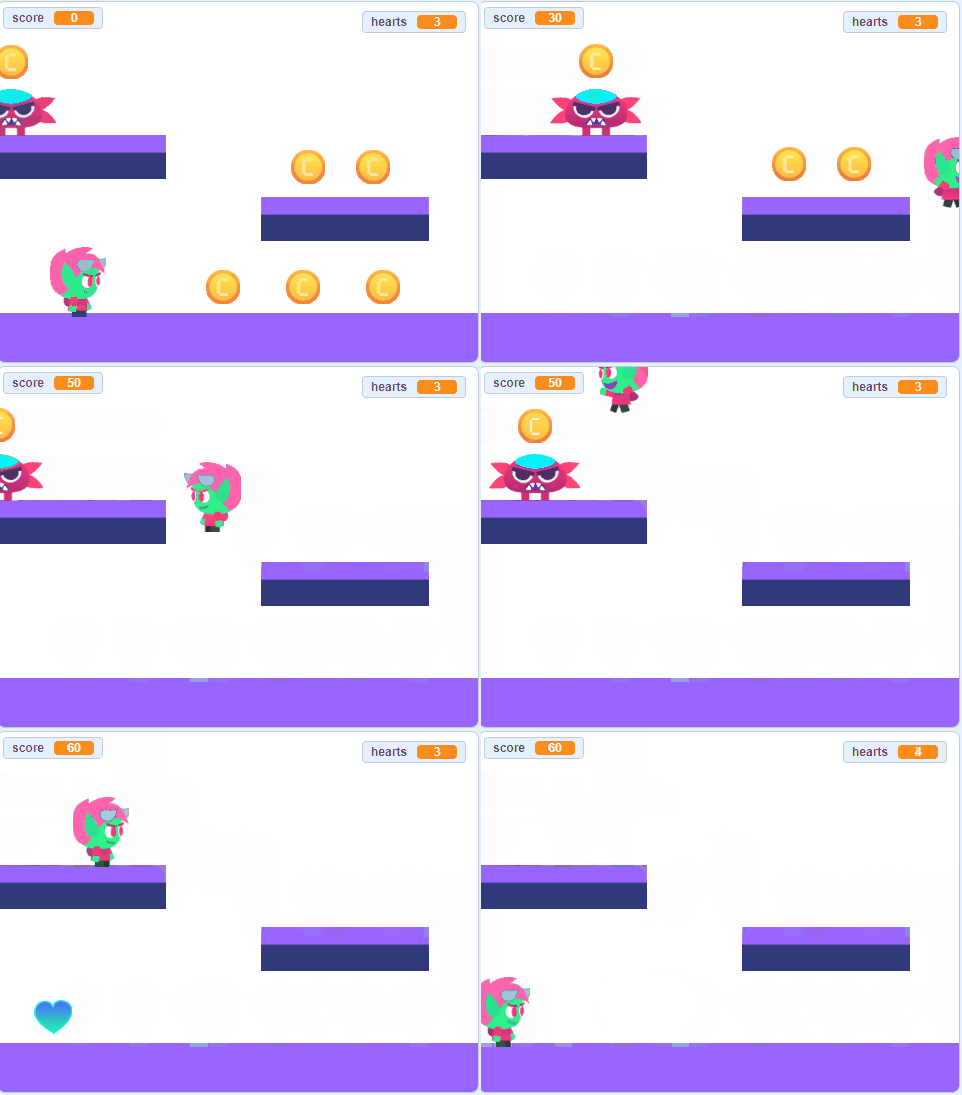
This tutorial uses touching color? for collision. Avoid textured, shaded, or anti-aliased platform edges because the collision block must match the sampled color. Thick platforms are easier to test than thin lines.
2. Create left and right costumes
- Select the Player and open Costumes.
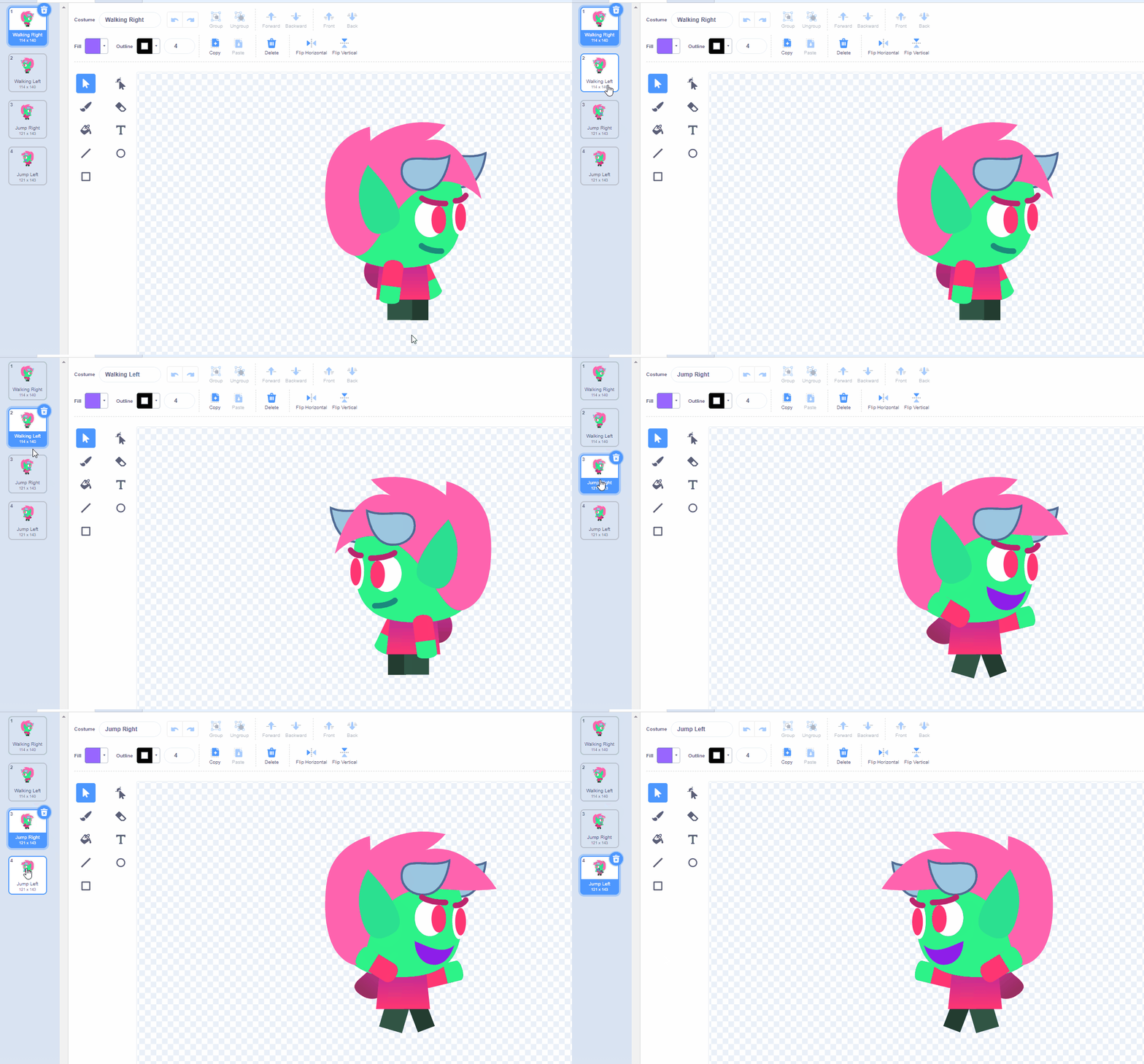
- Draw or choose a costume facing right and name it Right.
- Duplicate it, flip the copy horizontally, and name it Left.
- Set the costume center consistently so the sprite does not appear to jump sideways when the costume changes.
3. Initialize the player
Create a new script on the Player:
- when green flag clicked
- go to x: [start x] y: [start y]
- set [Y Velocity] to 0
- switch costume to [Right]
- show
Use the coordinate readout under the Stage to choose a starting point that is slightly above the ground, not embedded in it.
4. Add smooth horizontal movement
Under the initialization blocks, add a forever loop. Inside it, test the left and right keys with if blocks:
| Input | Costume | Movement | If touching the platform color |
|---|---|---|---|
| Right arrow | Right | change x by 4 | change x by -4 |
| Left arrow | Left | change x by -4 | change x by 4 |
Each direction should switch the costume, change x, and immediately undo that exact change if the sprite touches the platform color. This stops the Player at the side of a platform instead of letting it move through.
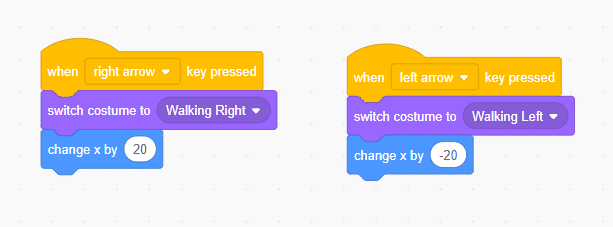
Using key pressed? inside a forever loop gives continuous movement while the key is held. A movement amount of 3 to 5 is safer than a jump of 20 pixels, which can skip across a narrow obstacle.
5. Add gravity with a velocity variable
At the end of the same forever loop, add these blocks in order:
- change y by (Y Velocity)
- change [Y Velocity] by -1
A positive velocity moves the Player up. Subtracting 1 on every loop slows the ascent, reaches zero at the top, and then becomes negative so the Player falls.
6. Resolve floor and ceiling collisions
After moving vertically, test touching [platform color]?. The correction depends on the direction of travel:
- If Y Velocity > 0, the Player hit the underside of a platform. Repeat change y by -1 until it no longer touches the color, then set Y Velocity to 0.
- Otherwise, the Player landed. Repeat change y by 1 until it no longer touches the color, then set Y Velocity to 0.
Moving one pixel at a time out of the platform avoids the “stuck in the ceiling” problem caused by checking only whether the sprite touches a color.
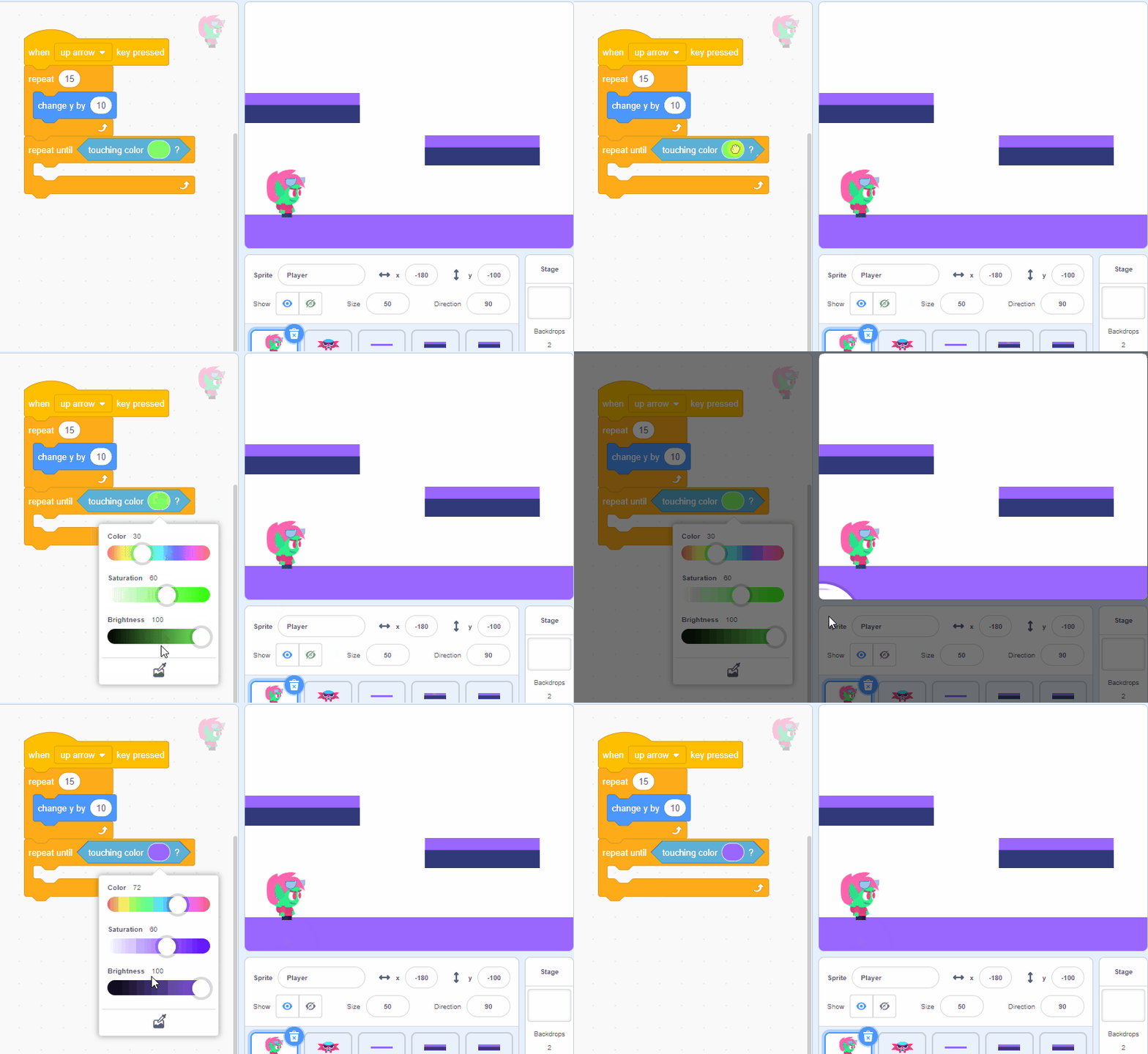
7. Jump only from the ground
Place the jump check in the landing branch, after the Player has been moved out of the platform:
- if <key [up arrow] pressed?> then
- set [Y Velocity] to 12
Because this code runs only during a landing/ground collision, the Player cannot jump indefinitely in midair. Increase 12 for a higher jump or reduce it for a lower one; then adjust platform spacing to match.
Recommended controls and starting values
| Setting | Starting value | Effect |
|---|---|---|
| Horizontal step | 4 | Higher values move faster but can skip thin edges |
| Jump velocity | 12 | Higher values produce a taller jump |
| Gravity per loop | -1 | A larger negative change produces a shorter, heavier jump |
| Controls | Left, right, up | Move and jump |
These numbers depend on sprite size, platform spacing, and how often the loop runs. Change one value at a time and replay the same jump.
8. Add a goal and hazards
Goal
Add a Goal sprite at the end of the level. In the Player's loop, check touching [Goal]?. If true, broadcast Level complete and stop the Player's script. A Stage script can respond by switching to a win backdrop.
Hazards
Draw hazards in a different solid color or create an Enemy sprite. If the Player touches one, return it to the start and set Y Velocity to 0. Resetting velocity prevents the Player from immediately continuing a previous fall after respawning.
Falling off the Stage
Check whether y position < -170 or another value below your level. Return the Player to the start, set Y Velocity to 0, and subtract a life if you use a Lives variable.
9. Test the collision code
Try to break the game before adding more features:
- Hold left or right against a platform wall.
- Jump into the underside of every platform.
- Land near both edges of a platform.
- Press jump while falling and confirm there is no midair jump.
- Walk off a platform without jumping.
- Restart while the Player is falling.
- Test rapid combinations of left, right, and jump.
Troubleshooting
The Player falls through platforms
Reduce the maximum vertical speed, make platforms thicker, and confirm that you sampled the exact color. A large movement can cross a thin platform between collision checks.
The Player sticks to a wall or ceiling
Check that horizontal movement is undone immediately and that vertical collision moves the sprite one pixel at a time until it no longer touches the platform color.
The Player can jump in midair
Make sure the jump block is inside the landing branch, not as a separate key script. A separate when up arrow pressed script has no automatic knowledge of whether the Player is grounded.
The Player changes position when facing left
Open both costumes and align their costume centers. The artwork can face a different direction while the center stays in the same place.
Ideas for the next version
- Add coins and a Score variable.
- Create moving platforms as sprites.
- Use a Lives variable and checkpoint sprites.
- Animate walking by cycling between two costumes while a direction key is held.
- Switch backdrops for new levels and reset the start coordinates.
- Add short sound effects for jumping, damage, and completion.
Implement one upgrade at a time and rerun the collision tests. Stable movement and predictable landings matter more than adding many mechanics at once.
Related Articles
 Basic Scratch Tutorial for Beginners5 minutes read
 Instructions for Creating Simple Games on Scratch6 minutes read
 How to Create a Virtual Pet Game in Scratch10 minutes read
 How to Make a Piano Game Using Scratch5 minutes read
 Scratch: a Guide to Creating an Opening for a Project5 minutes read
 How to Create a Racing Game in Scratch11 minutes read
Reader Comments 0
Sign in with email or Google to join the discussion.