Table of Contents
A sprite is an object in Scratch that can run code, use costumes, play sounds, and interact with other sprites or the Stage. You can choose one from the library, paint a new sprite, upload artwork you have permission to use, or edit an existing costume.
The safest workflow is to duplicate a costume before changing it, keep costume centers aligned, and test the sprite on the Stage after every major edit. This preserves animation and prevents a visual change from breaking movement or collision.
Sprite, costume, and backdrop: what is the difference?
- A sprite is a programmable object with its own code, costumes, sounds, position, direction, and variables.
- A costume is one appearance of a sprite. Switching costumes can create animation or show a different state.
- A backdrop belongs to the Stage and fills the project background; it does not move like a sprite.
A character can be one sprite with several walking costumes. A coin, enemy, button, or text label can also be a sprite.
Choose, paint, or upload a sprite
Move to the Choose a Sprite button near the lower-right area of the editor. The available choices let you:
- Select a sprite from the Scratch library
- Paint a new sprite on a blank canvas
- Let Scratch choose a surprise sprite
- Upload an image from your device
Use artwork you created, public-domain material, or images whose license permits your intended use. An image found through search is not automatically free to republish in a shared Scratch project.
Open the Costume editor
- Select the sprite in the Sprite List.
- Open the Costumes tab.
- Select the costume you want to edit.
- Right-click or use the costume menu to duplicate it before making a major change.
- Rename costumes by purpose, such as walk-right-1 or jump.
Scratch provides vector and bitmap editing modes. Vector graphics are made from editable shapes and curves and scale cleanly. Bitmap graphics are pixels and are often easier for painting or editing a photograph, but they can look blurry when enlarged.
Change the sprite's colors
Select an object in vector mode, then change its Fill and Outline. You can choose a flat color, gradient, or transparent fill. Use the Fill tool in bitmap mode to replace connected areas of similar color.
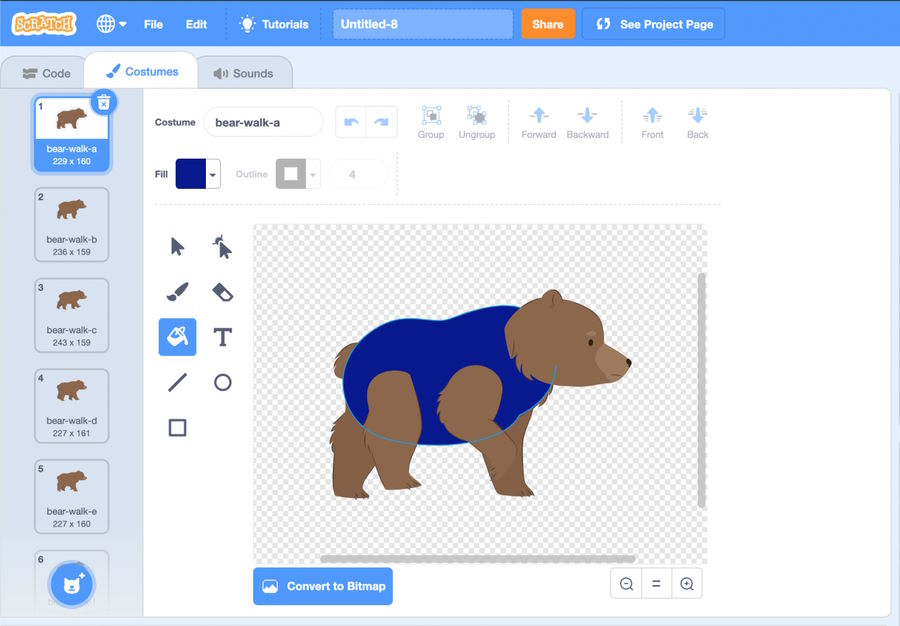
If the fill changes the wrong region, undo the action and close gaps in the outline. In bitmap mode, a one-pixel opening can allow color to spill into another area.
Edit vector shapes and curves
Vector costumes are easiest to reshape when their parts remain separate. Use the Select tool to move, resize, rotate, group, ungroup, duplicate, or delete an object. Use the reshape tool to adjust individual nodes and curve handles.
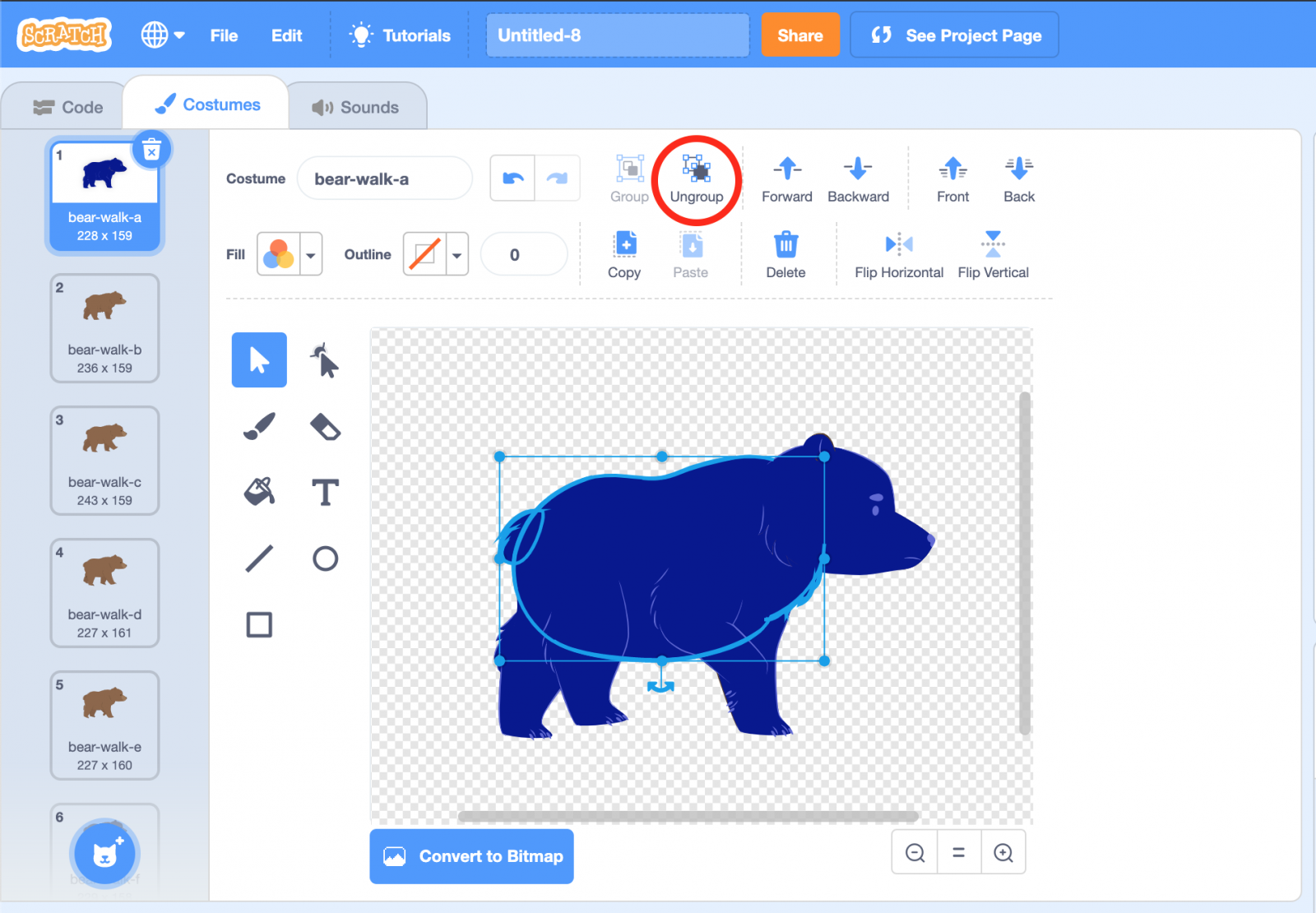
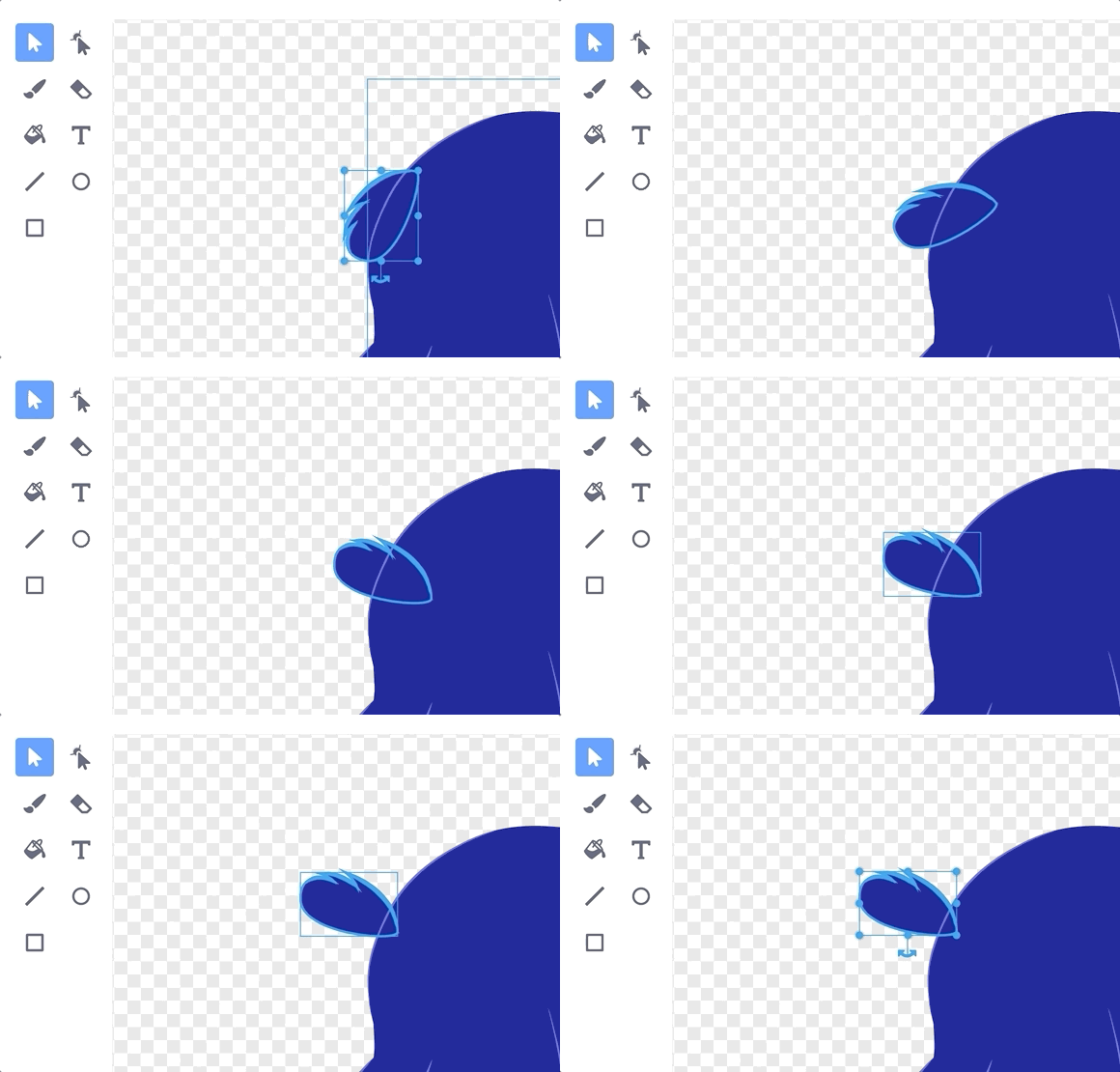
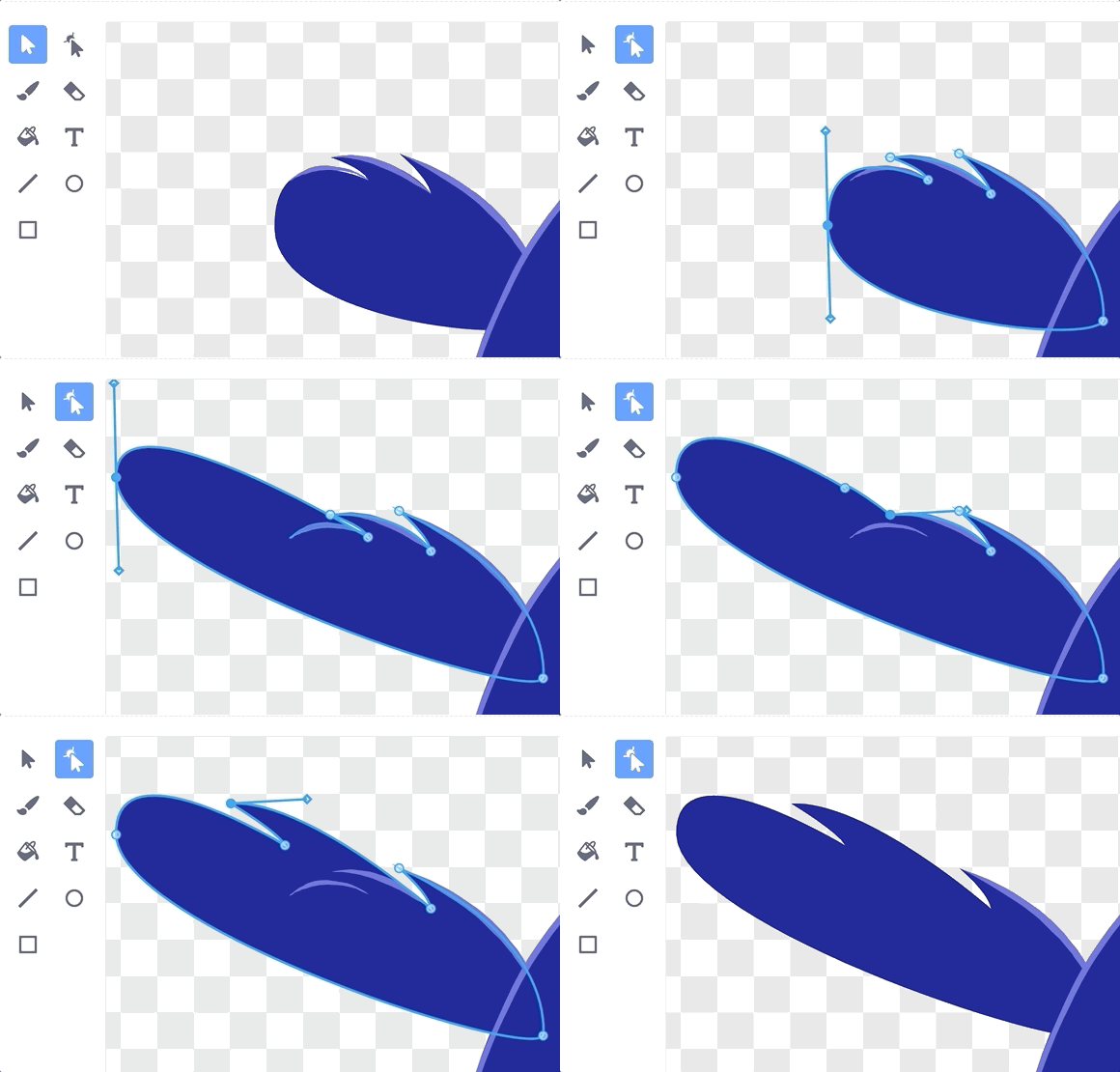
For the bear-and-constellation example, ungroup the artwork so the tail can be selected separately. Rotate and move it, then use the node tool to extend the curve. Group related pieces again when the silhouette is correct.
Layer order matters
Use forward, backward, front, and back controls when one shape must overlap another. Grouping does not fix an incorrect layer order, so arrange the parts before grouping the final artwork.
Add details without breaking the original
Create stars with the circle tool and join them with line segments. Duplicate a correctly sized star instead of redrawing each one; this keeps the design consistent.
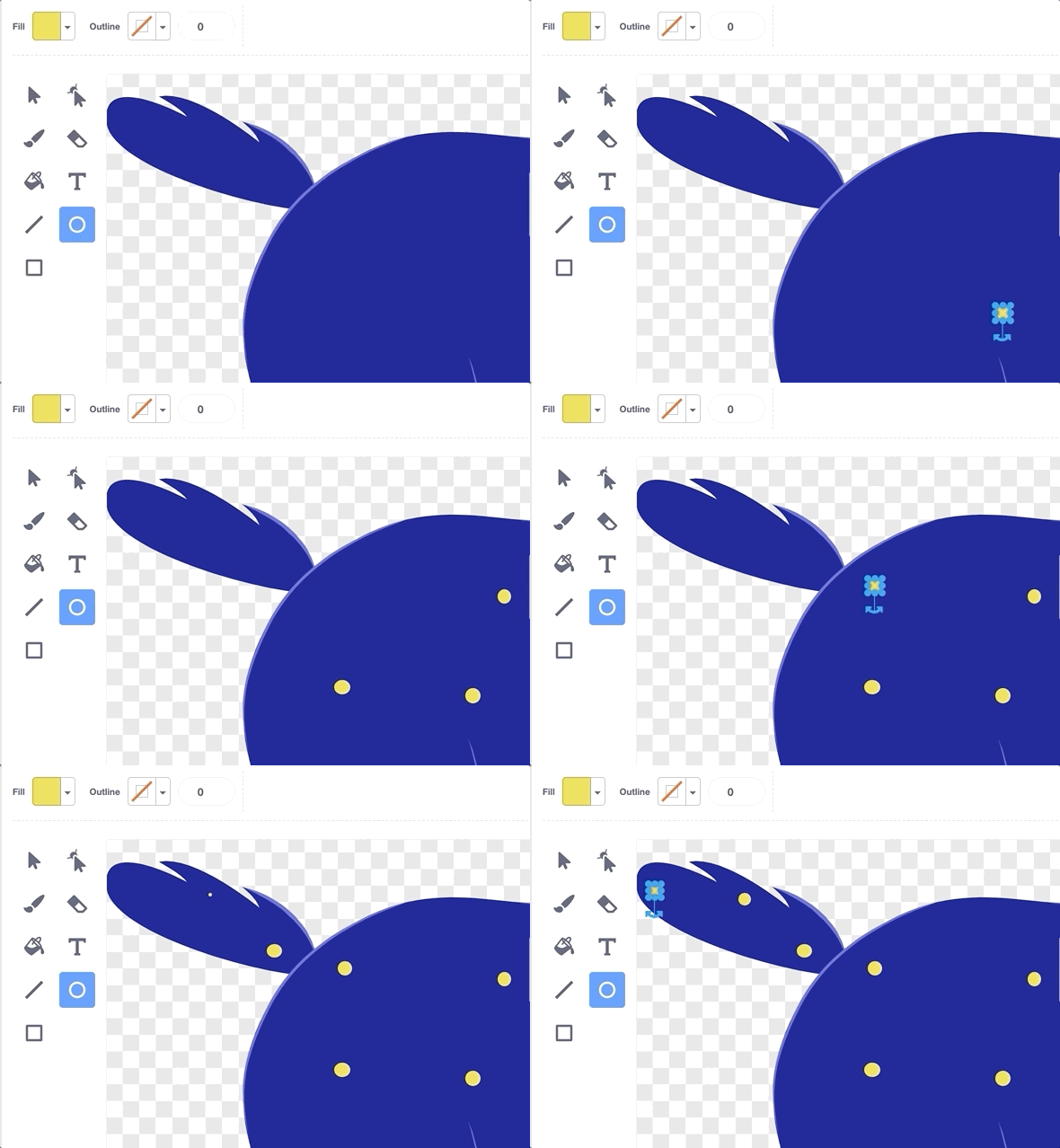
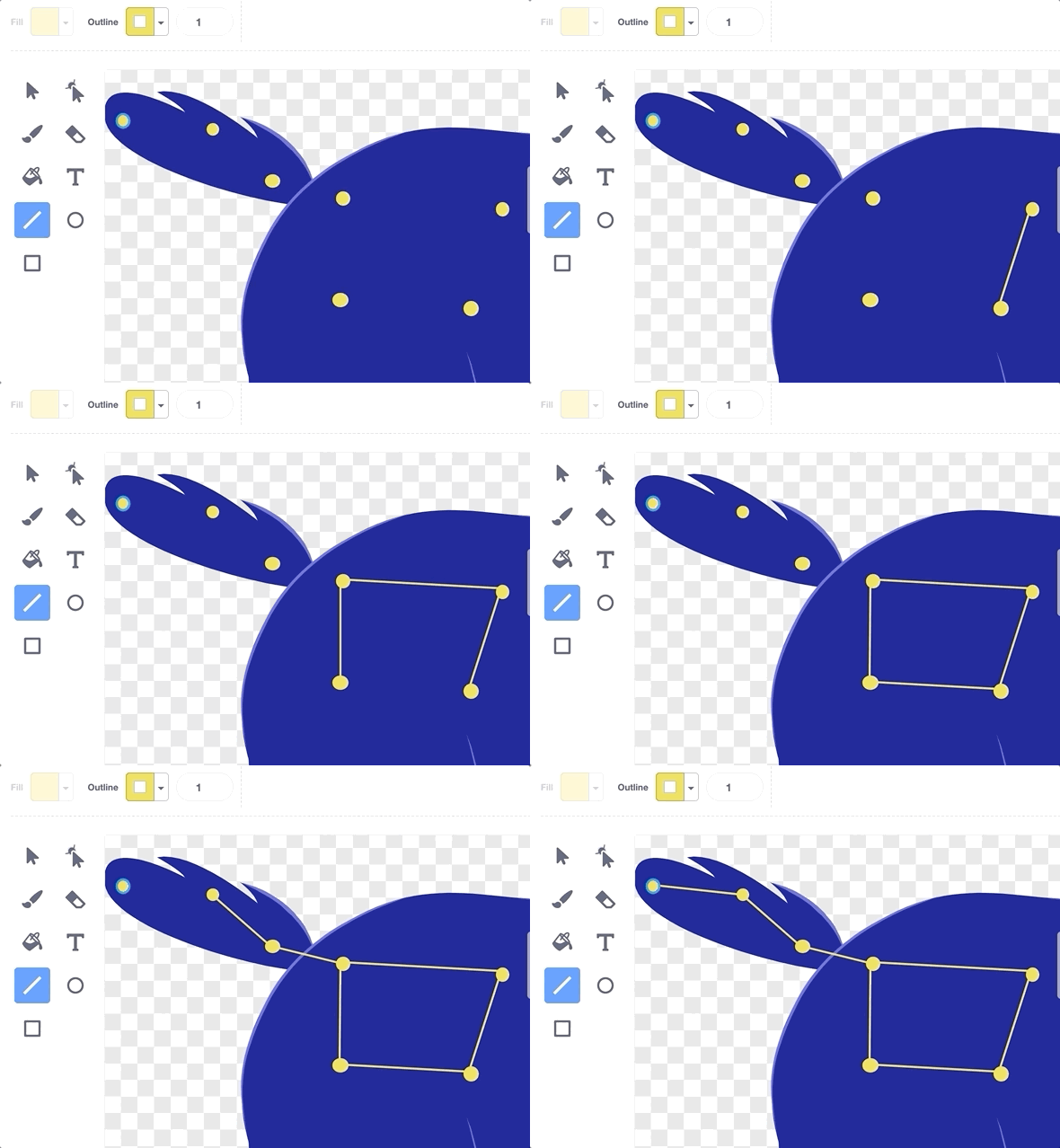
If lines or stars should stay fixed to the bear, select the related objects and group them. Keep a duplicate of the ungrouped version in case you need to edit individual parts later.
Keep multiple costumes aligned
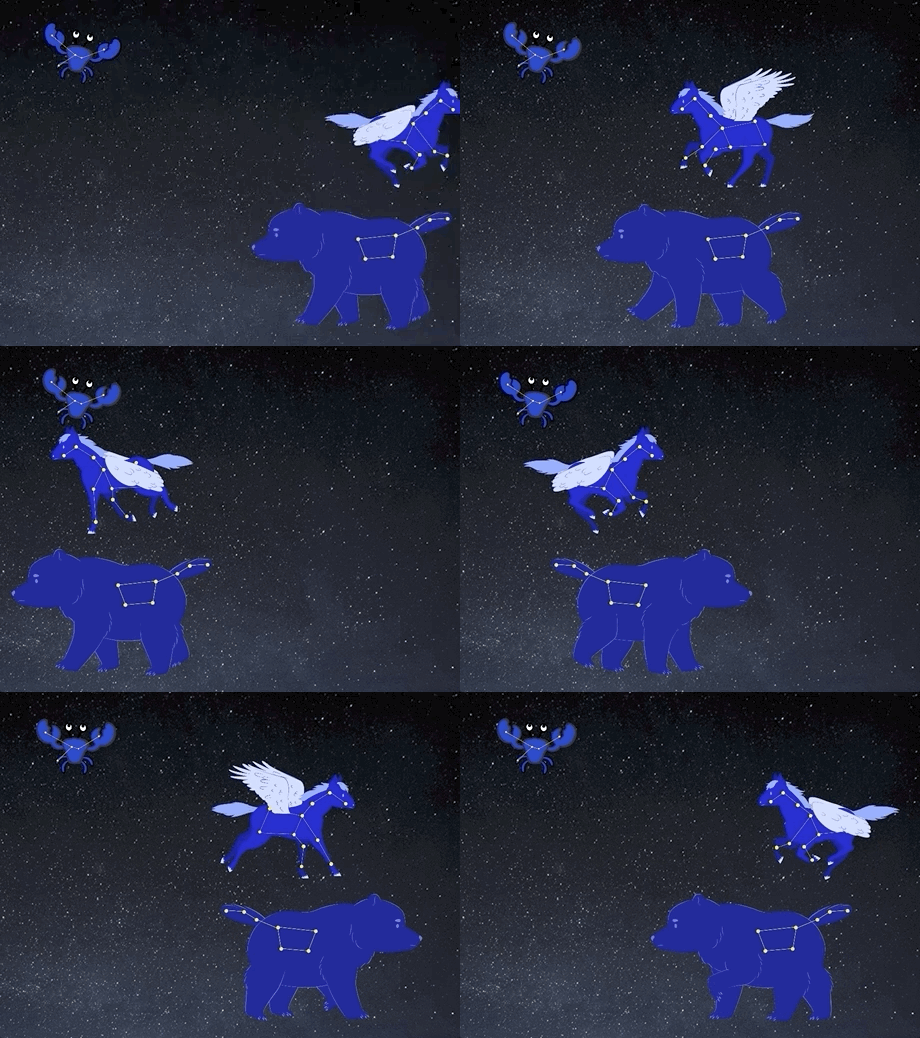
A walking sprite may have several frames. Apply the same color and added details to each relevant costume, then align them:
- Choose a clear reference point, such as the center between the feet.
- Place that point at the costume center in every frame.
- Keep the artwork at a consistent scale.
- Switch rapidly between costumes on the Stage and watch for unwanted jumping or drifting.
Control size, direction, and rotation
The Sprite pane controls the displayed size and direction separately from the costume artwork. Before redrawing a sprite, check whether changing its Size value is sufficient.
Use set rotation style in code when movement changes direction:
- left-right flips a character horizontally without turning it upside down.
- all around rotates the costume to match its direction.
- don't rotate keeps the costume upright.
If you already made separate Left and Right costumes, switch costumes in code and use don't rotate to avoid an extra flip.
How customization affects collision
Scratch's touching sprite? and touching color? checks use the visible costume. A longer tail, larger outline, or transparent-looking bitmap area can change when a collision occurs. After editing, retest narrow passages, platforms, click targets, and contact with hazards.
Common problems
| Problem | Fix |
|---|---|
| Sprite jumps when costumes switch | Align the costume centers and keep every frame at the same scale |
| Artwork looks blurry | Use vector mode for shapes or avoid enlarging a small bitmap |
| A part cannot be selected | Ungroup objects, unlock the correct layer order, or convert carefully |
| Fill changes too much | Undo and close gaps in the outline before filling again |
| Sprite faces the wrong way | Check costume names, direction, and rotation style |
| Collision changed after editing | Retest with the final costume and reduce decorative protrusions if needed |
Final test
Run the project from the green flag, trigger every costume, move the sprite to each edge of the Stage, and test all collisions. Keep the original or an unedited costume until the customized version works in the complete game.
Related Articles
 Points to Know About the New Scratch 3.0 Version7 minutes read
 Basic Scratch Tutorial for Beginners5 minutes read
 Link Download Scratch 4616 minutes read
 Scratch: a Guide to Creating an Opening for a Project5 minutes read
 How to Make Snow Fall in Scratch9 minutes read
 Fun Programming Exercises on Scratch for Students in Grades 2-59 minutes read
Reader Comments 0
Sign in with email or Google to join the discussion.