Table of Contents
NotebookLM can turn meeting notes into a structured implementation plan, but the result should be treated as a draft. Add the notes as a source, generate an Implementation Plan from the Reports area, then verify every owner, date, dependency, and decision before sharing it.
Product note: Google now brands NotebookLM as Gemini Notebook. Existing notebooks remain available, while some accounts and older screenshots may still use the NotebookLM name or layout. The workflow below follows the interface shown in the screenshots.
Prepare the meeting notes first
A plan will be more reliable when the source notes clearly separate facts from suggestions. Before importing them, include as much of the following as the meeting actually established:
- the goal and expected outcome;
- decisions that were approved;
- tasks and named owners;
- deadlines, milestones, and dependencies;
- open questions and items that still need approval.
Do not add a person or date just to complete the template. Use labels such as Unassigned or TBD when the meeting did not settle those details. Follow your organization's rules before uploading confidential notes, personal data, or customer information.
Create an implementation plan from notes
1. Add the notes as a source
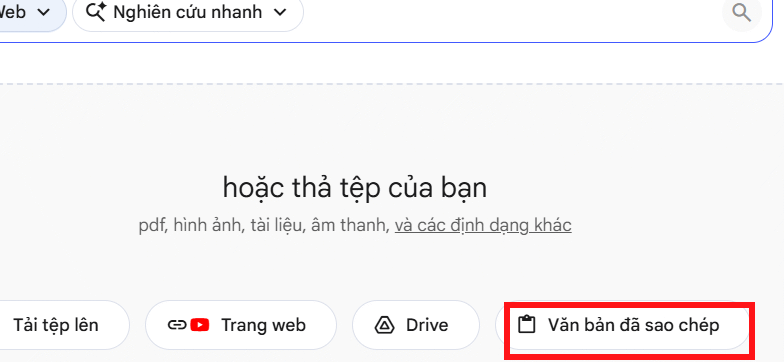
Open Gemini Notebook, create a notebook, and choose Copied text when adding a source. Google also supports other source types, but pasted text is the simplest option for notes that are already on the clipboard.
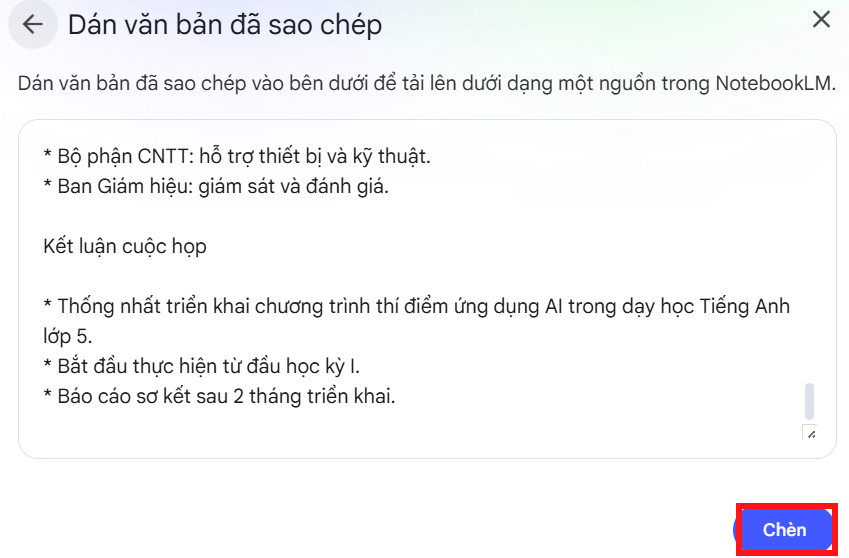
Paste the complete meeting notes, give the source a descriptive name if the interface offers that option, and select Insert.
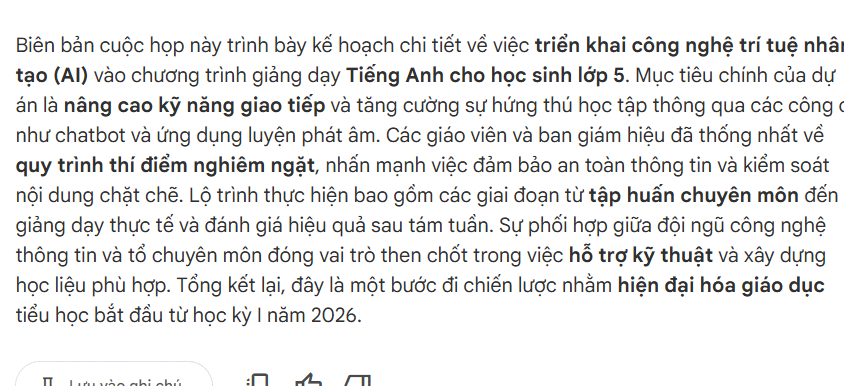
2. Check that the source was imported correctly
NotebookLM processes the text and displays a source summary. Read the summary and compare it with the original notes before generating a report. If a decision, name, or deadline is missing or distorted, correct the source notes first rather than trying to repair the entire plan later.
If you are combining notes from several meetings, use clear source titles and select only the sources relevant to this plan. That reduces the chance of mixing unrelated projects or outdated decisions.
3. Generate the report
In the Studio or Reports area, open the report-format menu by selecting the arrow shown in the interface.
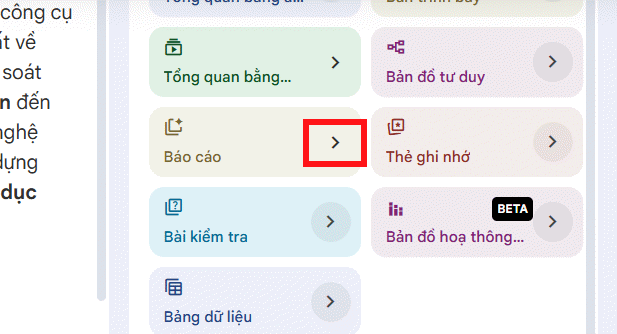
Select Implementation Plan if NotebookLM suggests it for your source. Suggested formats can vary by account and source content. If the preset is unavailable, create a custom report and specify the structure you need.
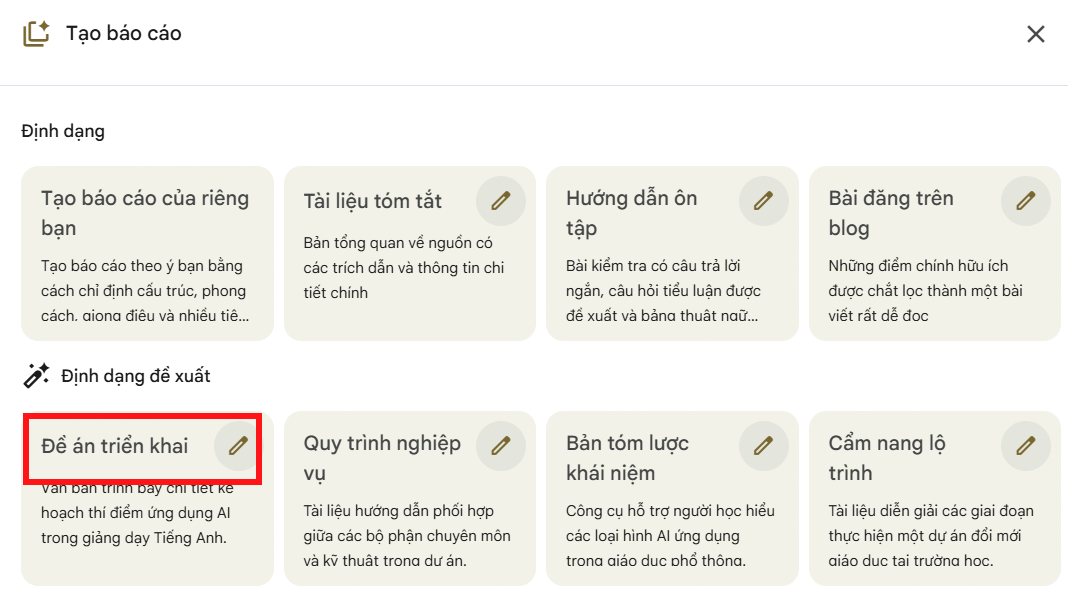
A useful custom instruction is:
Create an implementation plan using only the selected meeting notes. Organize it by objective, approved decision, task, owner, deadline, dependency, success criterion, and open question. Do not invent owners or dates; write “Unassigned” or “TBD” when the source does not provide them.
4. Review the generated plan
Wait for the report to finish, then open it from the Studio panel.
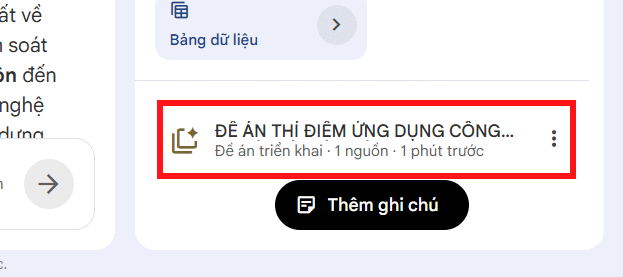
Read the entire plan against the notes. A polished layout does not prove that every assignment is correct. Where citations or source references are available, open them to check the supporting passage.
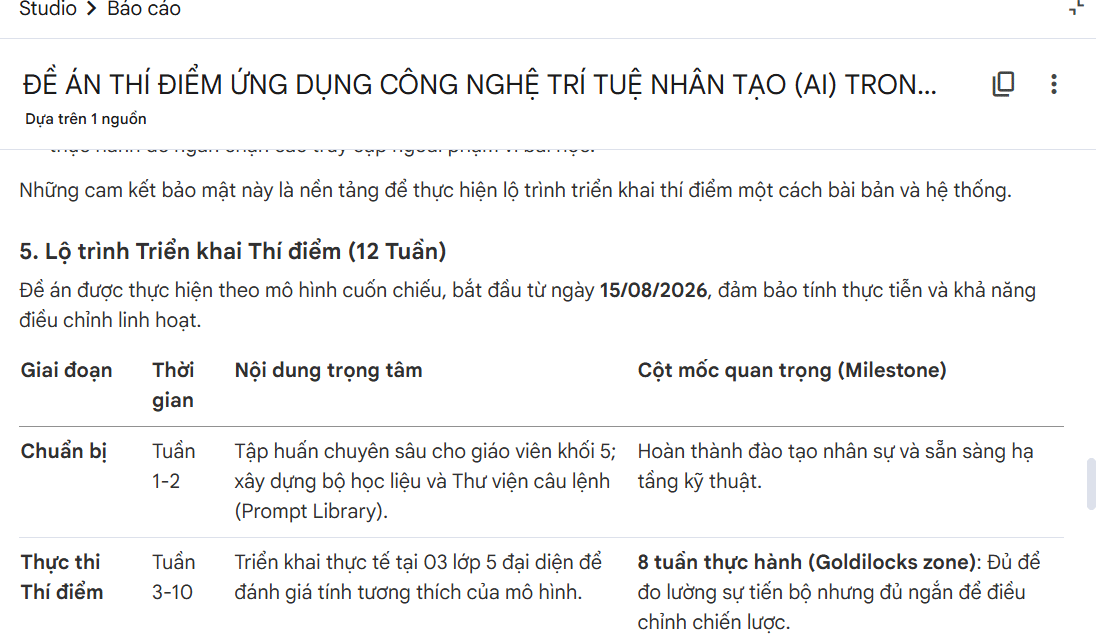
Checklist before sharing the plan
| Item | What to verify |
|---|---|
| Objective | It matches the outcome agreed in the meeting. |
| Tasks | Each task is specific and does not combine unrelated work. |
| Owners | Every named owner appears in the source notes; otherwise use Unassigned. |
| Dates | Deadlines, time zones, and milestone order are correct; otherwise use TBD. |
| Dependencies | Blocked work and required approvals are visible. |
| Status | Approved decisions are not confused with proposals or open questions. |
| Evidence | Important details can be traced back to the relevant meeting note. |
Ask the meeting organizer or task owners to confirm the final version. NotebookLM can organize the material, but it cannot approve commitments on a person's behalf.
Export the checked report
When the content is accurate, open the report's three-dot menu and choose Export to document or the equivalent Google Docs option shown for your account. The command may create a Google Doc rather than download a local file.
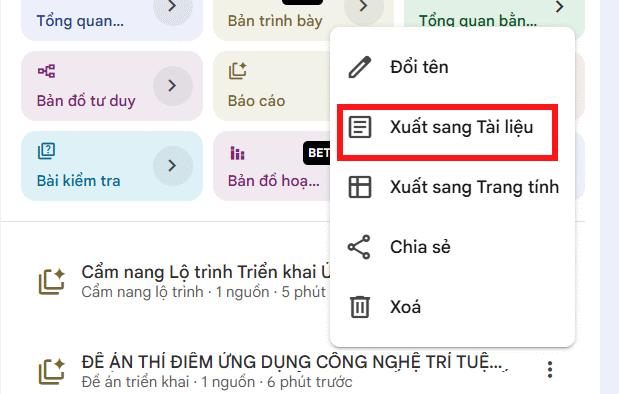
In Google Docs, add any internal metadata that did not belong in the AI source, such as approval status, document owner, or version history. If you are deciding whether source-grounded work or a general chatbot suits a task, see the comparison of NotebookLM and ChatGPT. For a broader way to organize connected notes and project knowledge, read the guide to building a second-brain system with AI.
If the Implementation Plan option is missing
- Use a custom report: paste the structure above into the report instructions.
- Check the selected sources: the format may not appear when the notebook has no processed source or the relevant source is excluded.
- Refresh the notebook: interface changes may appear gradually across personal and Workspace accounts.
- Use copy and paste if export is unavailable: move the reviewed text into Google Docs manually, then restore any headings or tables that did not carry over.
The final plan should contain only commitments supported by the meeting notes and any changes confirmed by the responsible people.
Related Articles
 NotebookLM's Latest Feature Allows Creating Videos from Notes5 minutes read
 Instructions on Converting Lessons into Videos on NotebookLM4 minutes read
 Instructions on Creating Flashcards and Quizzes on NotebookLM5 minutes read
 Instructions for Creating Reading-style Readings Using NotebookLM4 minutes read
 Create Data Tables at Lightning Speed in NotebookLM5 minutes read
 Guide to Writing Training Materials/reports Using NotebookLM4 minutes read
Reader Comments 0
Sign in with email or Google to join the discussion.