Table of Contents
Use NotebookLM's report feature to turn training documents into a structured draft, then check that draft against the source material. A source summary can explain what a course covers; it cannot establish what a participant learned unless you also provide their notes or assessment evidence.
1. Create a notebook and add the training material
Open NotebookLM, create a new notebook, and upload the relevant training document. Give the notebook a recognizable name and include the version of the material you intend to summarize.
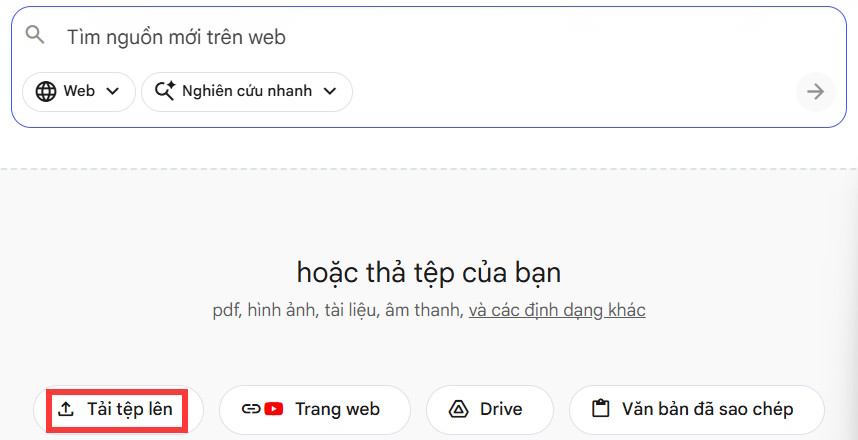
Check that the imported text is readable before generating a report. Scanned pages, missing tables, or incomplete files can leave gaps. Keep unrelated documents out of the source set. For a broader explanation of this source-based workflow, see NotebookLM vs. ChatGPT.
2. Open Reports and customize the format
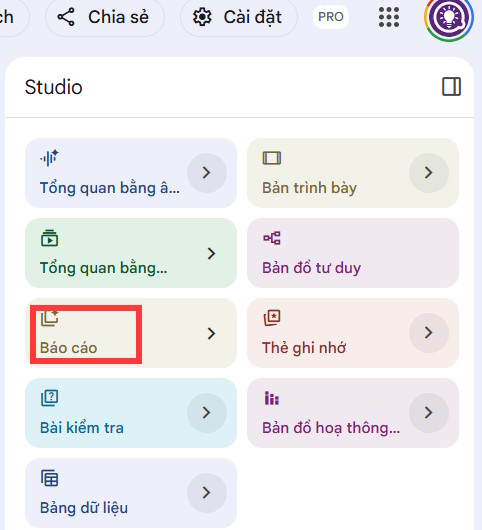
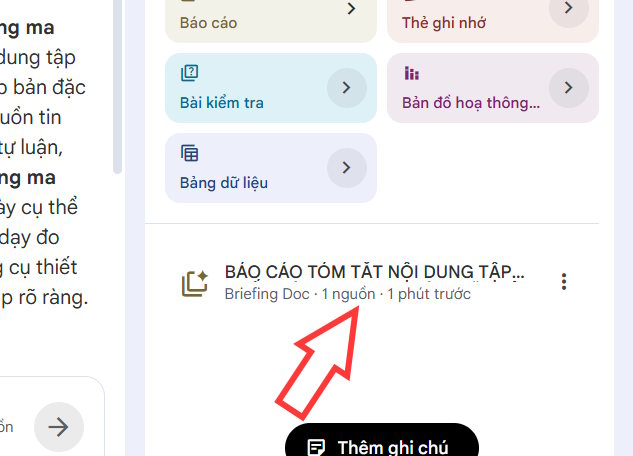
In the notebook's Studio area, choose Reports. The source screenshots show the option on the right.
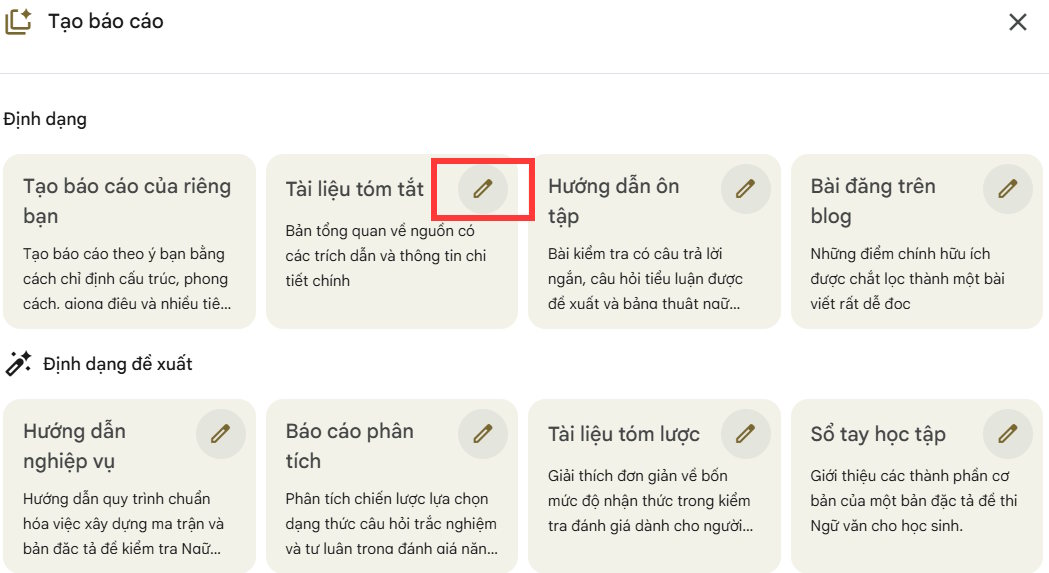
Select a suitable summary/report format and open its customization control. In the pictured interface, this is a pen icon on the summary option. Labels and available templates may differ in your account.
3. Specify the report's purpose
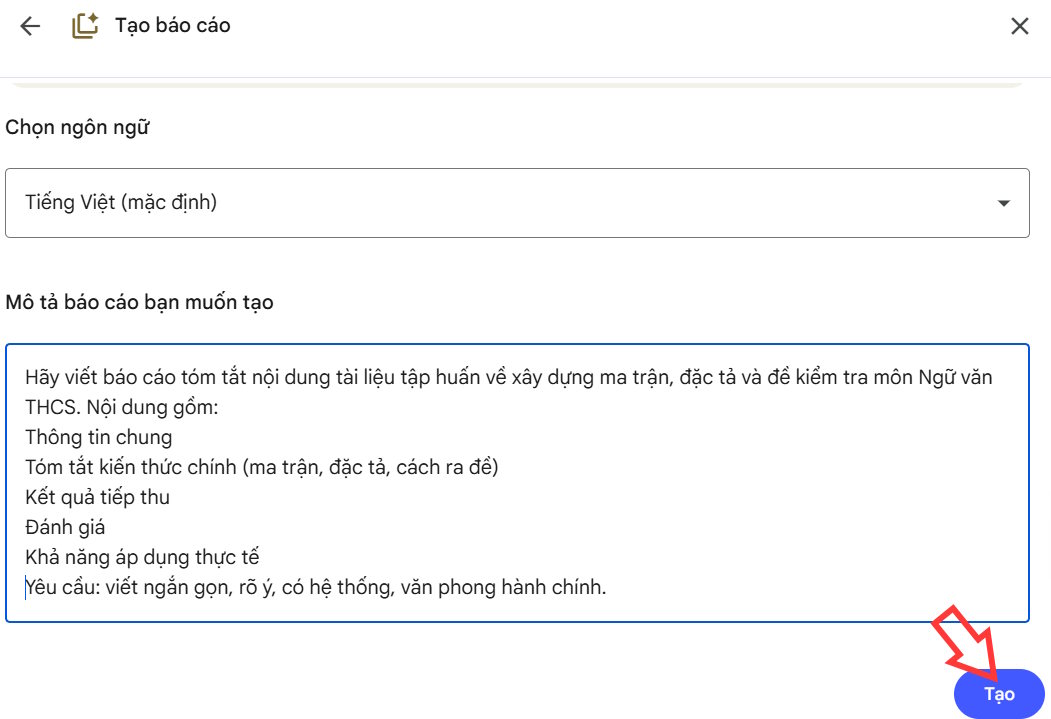
Describe the audience, required sections, tone, and scope. For example, the original tutorial uses training material about assessment design for lower-secondary literature classes. An English prompt for that task is:
Write a concise, structured report on the uploaded training material about assessment matrices, test specifications, and test design for lower-secondary literature classes.
Audience: teachers reporting on the training.
Include:
1. General information explicitly stated in the source.
2. Main concepts: assessment matrix, test specification, and question design.
3. Practical applications supported by the material.
4. Questions or limitations that need follow-up.
Use clear, formal English and cite supporting sources where available.
Do not invent the event date, organizer, attendance, participant feedback, or learning outcomes. If participant notes are provided, separate those observations from the training document's content.
For another subject, replace the course description and concepts. If your organization requires a section called “Learning outcomes” or “Evaluation,” provide the relevant evidence or leave that section for the participant to complete.
Select Create or the equivalent generation button once the instructions are ready.
4. Review and correct the draft
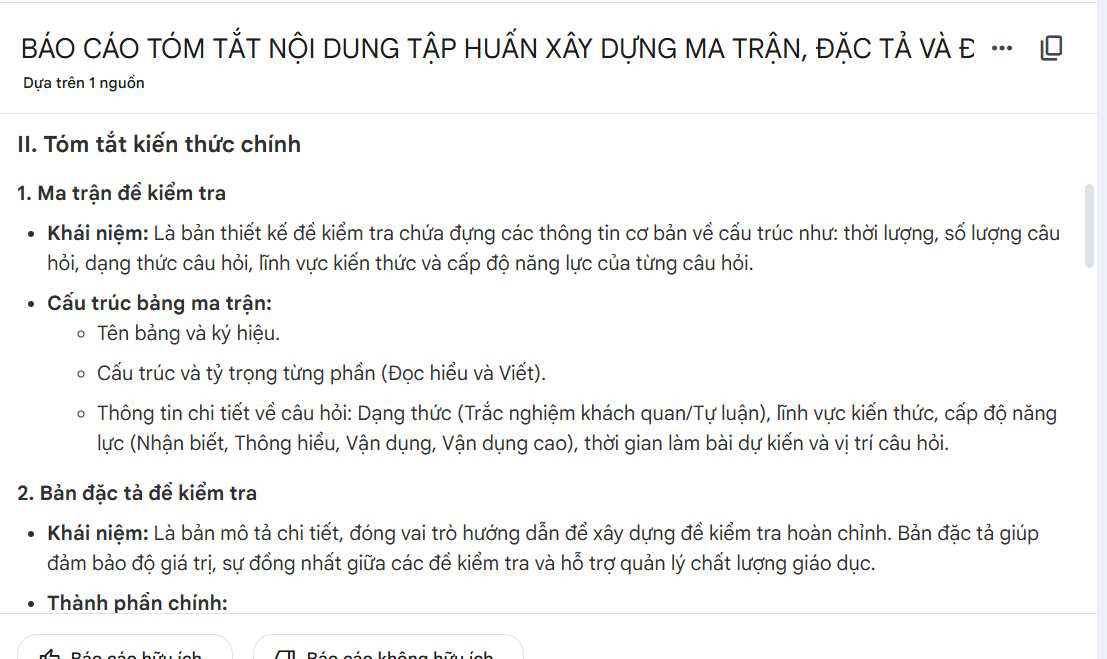
Open the generated report to read it in full.
- Check factual details: names, dates, terminology, and stated objectives must match the uploaded material.
- Check coverage: important concepts should be explained, not merely listed under headings.
- Separate evidence from suggestions: a proposed classroom application is not proof that it has already been implemented.
- Check source support: follow available citations and compare important statements directly with the document.
If the draft misses a topic or uses the wrong tone, revise the generation instructions and create a corrected version. Give a specific request, such as “Explain the difference between the assessment matrix and test specification using only the supplied document.”
For complementary review material, NotebookLM's audio and video overview workflows can offer another way to revisit the source. Check those outputs too.
5. Export and finish the report
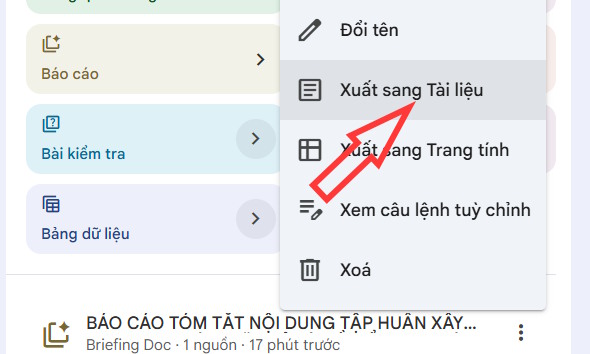
Open the report's three-dot menu and use Export to Docs if available, as shown in the source workflow. Exporting to Google Docs creates an editable document; it is a separate step from downloading a file to your device.
In the exported document, add verified participant reflections, apply your organization's required format, and check that headings and references survived the export. Review access permissions before sharing the finished report.
Related Articles
 How to Share NotebookLM Publicly6 minutes read
 NotebookLM: User Guide with Practical Examples16 minutes read
 Instructions on Creating Flashcards and Quizzes on NotebookLM5 minutes read
 Guide to Creating Discussion Forums Using NotebookLM4 minutes read
 Guide to Creating Lesson Plans Using NotebookLM4 minutes read
 How to Write 'Viral' YouTube Subtitles Using the Free NotebookLM Tool7 minutes read
Reader Comments 0
Sign in with email or Google to join the discussion.