Table of Contents
You can move useful preferences and project context from ChatGPT to Claude, but this is a memory import, not a complete account or conversation transfer. Claude can turn a reviewed text summary into memory entries; it does not recreate your ChatGPT sidebar, move subscriptions, copy uploaded files, or import every past conversation.
The safest workflow is to ask ChatGPT for a concise summary, remove anything private or irrelevant, and then use Claude's built-in import screen. Do not paste passwords, API keys, financial details, private medical information, client secrets, or confidential company data into the transfer.
What can be moved to Claude?
A memory summary can carry durable context that would otherwise need to be explained again, such as:
- Your preferred response style and formatting.
- Your role, general skill areas, and recurring terminology.
- Active projects, their purpose, current status, and important decisions.
- Reusable workflows or instructions you want another assistant to follow.
- Broad preferences that are helpful across future conversations.
Not every fact should become a permanent memory. Temporary task details, old projects, speculative conclusions, and personal information unrelated to your work usually create clutter rather than better responses.
What does not transfer?
This process does not move your ChatGPT account, plan, GPTs, files, generated images, shared links, or full conversation history to Claude. It also cannot guarantee that ChatGPT will reproduce every stored memory or every fact mentioned in an old conversation.
ChatGPT's formal Export data option is different: it creates an account-data archive. Claude's memory import is designed for a readable summary, not for rebuilding another service from that archive.
Step 1: Open Claude's memory import
In a personal Claude account, open Settings and find Memory. Depending on the current interface, the import option may appear under Settings > Memory, under Settings > Capabilities > Memory, or as an Import memory to Claude card on the home screen.
Select Start import. Claude will show an extraction prompt and a text box for the result. Anthropic describes the feature as experimental and still under active development, so menu placement and behavior may change. Its official memory import guide lists the current entry points.
Step 2: Ask ChatGPT for a focused memory summary
You can use the prompt supplied by Claude's import flow. If you prefer a smaller, privacy-conscious export, use the following prompt:
Create a concise memory summary that I can review before importing into another AI assistant.

Include only durable information that would improve future work:
1. Instructions and response preferences
2. My role and general skill areas
3. Active projects, current status, and key decisions
4. Reusable workflows and terminology
5. Other long-term preferences

Do not infer missing facts. Exclude passwords, access tokens, financial data, medical details, private contact information, confidential client or company information, and temporary conversation details. Mark uncertain or possibly outdated items for review.

Output clear Markdown with one section per category and one item per line.
This wording deliberately asks for a useful working profile rather than “everything you know about me.” A broad request can collect unnecessary identity, family, location, or historical details that do not belong in another service's memory.
Step 3: Review the export before sharing it
Read every line before copying the summary into Claude. Remove information that is sensitive, incorrect, outdated, too personal, or no longer useful. Also simplify instructions that only made sense in one ChatGPT project.
- Replace exact customer, employee, or server names with neutral descriptions when possible.
- Remove credentials and private URLs entirely; do not merely label them confidential.
- Separate durable preferences from one-time task instructions.
- Correct project status and delete abandoned work.
- Keep the final summary short enough to inspect again later.
ChatGPT memories are managed separately from chat history. If the generated summary appears incomplete, review the Memory area in ChatGPT settings rather than assuming every old chat has been searched. OpenAI's Memory FAQ explains how saved memories can be viewed, edited, cleared, or disabled.
Step 4: Import the summary into Claude
Return to Claude's import screen, paste the reviewed summary into the text box, and select Add to memory. Claude will extract useful information as individual memory edits.
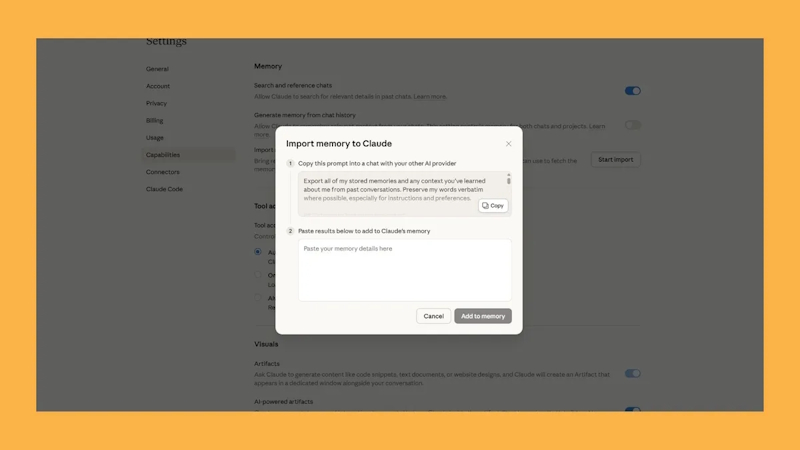
Open Manage edits or the current memory-management screen to inspect what Claude stored. Anthropic says Claude's memory emphasizes work-related context, so it may omit personal details that are not useful for collaboration. Add a missing item manually only when you actually want it retained.
Step 5: Test the imported context
Start a new Claude conversation and ask a few specific questions that the imported memory should support:
- “What formatting preferences should you follow for my reports?”
- “Summarize the current status of Project A.”
- “Which technical conventions should you apply when editing my code?”
Compare the answers with your reviewed summary. Fix incorrect entries in Claude's memory settings instead of repeatedly adding contradictory instructions in chat.
Alternative: use instructions or project knowledge
Memory is not the best destination for every kind of context. Put account-wide response preferences in Claude's instructions. Put project-specific documentation, requirements, and reference files in the relevant Claude project or workspace. This keeps unrelated work from influencing every conversation.
Memory summary vs full ChatGPT data export
| Method | Best use | Important limitation |
|---|---|---|
| Claude memory import | Move selected preferences, work context, and project summaries | Does not recreate full conversations or account content |
| ChatGPT Export data | Download a copy of eligible account data for your records | Produces an archive, not a one-click Claude migration |
| Manual project summary | Move only one project's current requirements and decisions | Requires you to maintain the summary |
If you need an account archive, ChatGPT provides Settings > Data Controls > Export data; follow OpenAI's data export instructions. Do not upload the entire archive to another service merely to transfer a few preferences.
Bottom line: move only the context that will improve future work. A short, reviewed memory summary is easier to verify, safer to share, and more useful than an indiscriminate dump of personal history.
Related Articles
 Claude vs ChatGPT: Which AI Assistant Should You Use?10 minutes read
 How to Retain ChatGPT Memory When Switching to Claude: Step-by-Step Guide8 minutes read
 Should I Buy ChatGPT Plus or Claude Pro?10 minutes read
 Claude Officially Allows Free Data Import from ChatGPT: Explained6 minutes read
 How to Transfer ChatGPT and Claude Conversations to Gemini7 minutes read
 4 Ways AI Claude Chatbot Outperforms Chatgpt6 minutes read
Reader Comments 0
Sign in with email or Google to join the discussion.