Table of Contents
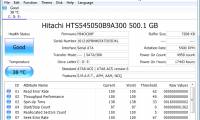
CrystalDiskInfo reads a drive's S.M.A.R.T. information and displays a health summary, temperature, and individual attributes. Use it to inspect a supported HDD or SSD on Windows, but do not treat a Good result as a guarantee against failure.
Open CrystalDiskInfo and select the correct drive
- Get CrystalDiskInfo from the developer's website and follow the instructions for the package you choose.
- Open it and select the physical drive you want to inspect. If several drives are installed, check the model and capacity so you do not read the wrong device's results.
- Read Health Status, temperature, and the attribute list together.
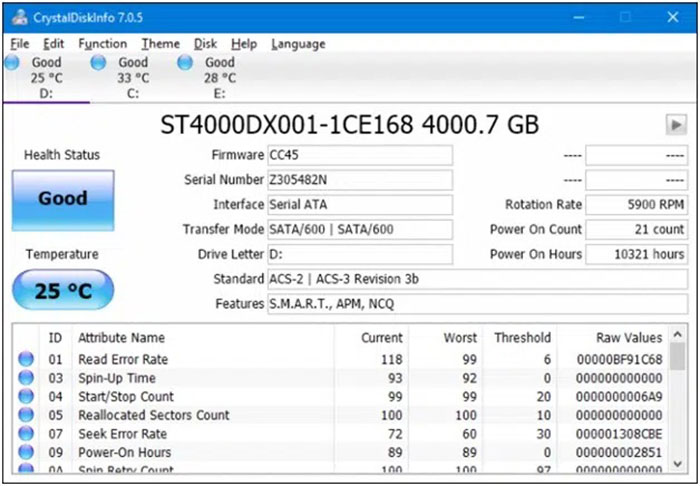
Understand the health status
| Status | What it tells you |
|---|---|
| Good | No warning has been triggered by the information available to the application. Keep backups anyway. |
| Caution | A monitored attribute indicates a potential problem or deterioration. It does not mean the drive has already stopped working. |
| Bad | The reported condition has crossed a failure threshold. Protect your data promptly and investigate replacement. |
| Unknown | The application cannot determine a reliable health status. This is not evidence that the drive is healthy. |
Interpretation depends on the drive and its firmware. SSD health indicators do not necessarily have the same meaning as HDD sector counts. CrystalDiskInfo also cannot read every drive, controller, or USB enclosure.
What to do with a warning
If the status is Caution or Bad, copy important data to another physical device or storage service before intensive testing. Save the model, affected attributes, and a screenshot for support. CrystalDiskInfo reports a condition; it does not repair the drive or predict an exact failure date. See the developer's warning guidance for next steps.
For routine file protection, see how to set up File History backups. Confirm that the files you need are actually included and that the backup is stored separately from the affected drive.
Monitor the drive in the background
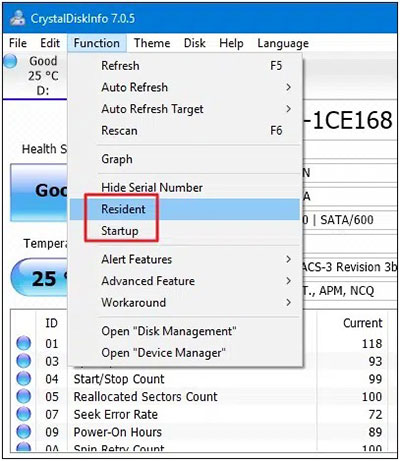
In the Function menu, Resident keeps the application running in the notification area. Startup controls whether it opens with Windows. Enable these if you want ongoing checks, then review the refresh and alert options available in your version.
Temperature should be compared with the drive manufacturer's operating limits. A single universal temperature cutoff is not appropriate for every HDD and SSD.
About the older Command Prompt method
Older Windows guides show this command in Command Prompt:
wmic diskdrive get status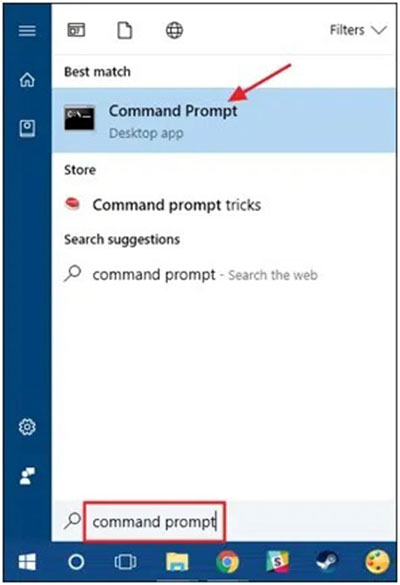
Open Command Prompt by entering cmd in the Run dialog first; the command above is entered inside that window. These screenshots document the legacy method, not a requirement for CrystalDiskInfo.
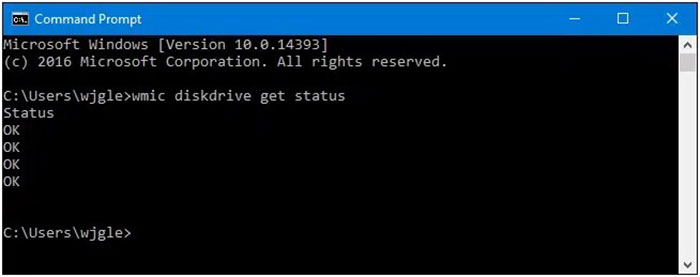
Microsoft has deprecated and removed WMIC from newer Windows releases, so the command may not exist on your PC. Even where it works, a simple OK result is not a detailed diagnosis. Use a supported monitoring tool and the drive manufacturer's diagnostics instead of relying on this command alone.
If the drive is missing or the computer is slow
A missing drive in CrystalDiskInfo can reflect an unsupported connection rather than a drive fault. Check whether the enclosure or controller passes through S.M.A.R.T. data and consult its documentation.
If health information looks normal but Windows remains slow, investigate other causes using our Windows 11 performance troubleshooting guide. Drive health and system performance are related, but they are different questions.
Related Articles
 5 Ways to Check Hard Drive Effectively to Help Periodically Check11 minutes read
 Check the Health Status of Your Hard Drive3 minutes read
 How to Installing and Using CrystalDiskInfo to Check Hard Drives3 minutes read
 CrystalDiskInfo - Software to Check Information on the Health of Your Hard4 minutes read
 How to Check Hard Drive Status with SMART7 minutes read
 How to Scan a Hard Drive with Error Checking6 minutes read
Reader Comments 0
Sign in with email or Google to join the discussion.