Table of Contents
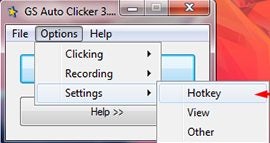
To change GS Auto Clicker's start/stop key, open Options > Settings > Hotkey, choose a replacement key, and confirm it. This changes the shortcut that controls automatic clicking; it does not create a keyboard macro or record typed text.
1. Open GS Auto Clicker
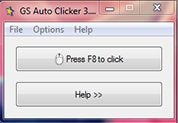
Launch the application and look for the shortcut shown in its main window. The version pictured uses F8 by default. If your copy shows a different key, use that displayed setting as your starting point.
Stop any active clicking before changing settings. Choose a replacement key that is easy to reach and does not conflict with a shortcut in the application you plan to automate.
2. Set the new hotkey
Open Options, choose Settings, and select Hotkey. In the dialog, select the shortcut control and press the key you want to use. Click OK to confirm.
The new hotkey replaces the previous shortcut. It controls the click behavior you have configured; changing it does not change the click interval, mouse button, repetition count, or recorded locations.
Test the shortcut
- Choose a harmless target and set a slow click interval with a small repeat count.
- Press the new shortcut and confirm that clicking starts.
- Test the stop behavior before using a longer sequence.
- If nothing happens, reopen the hotkey dialog to confirm the setting and try a key that the target program does not already use.
Keep the target window in the expected position when using saved coordinates. Check the target app's automation rules before running a sequence.
Hotkeys and macros are different
A hotkey triggers an action. A macro is a sequence of actions that may include clicks, key presses, text, and delays. The steps above only assign a trigger for GS Auto Clicker.
For click intervals, repeat counts, and multiple locations, see how to configure automatic mouse clicks. If you are new to the program, start with the GS Auto Clicker walkthrough.





Reader Comments 0
Sign in with email or Google to join the discussion.