Table of Contents
Excel on a phone is useful for capturing a paper table, entering a few records, and checking figures away from your desk. Its advantage is convenience in those situations, rather than a larger set of spreadsheet features than desktop Excel.
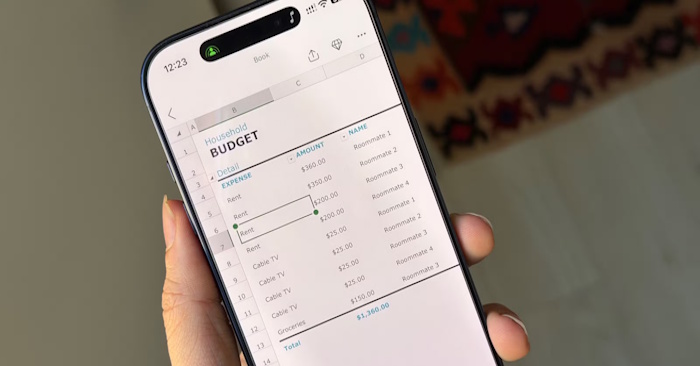
Capture a printed table with the camera
On a supported mobile version, open Insert > Data from Picture, photograph the table, and crop away unrelated material. Review the recognized values before inserting them into the workbook.
Use a clear, straight-on image. Check decimal points, minus signs, dates, and column alignment against the original. A clean-looking table can still contain recognition errors. Keep the source image until you have verified the important values.
Data from Picture is also available in supported desktop versions; the phone's practical advantage is having a camera beside the paper. See importing photos into Excel for the desktop workflow, and Microsoft's feature guidance for platform and language requirements.
Edit table rows in Cards View
Cards View presents Excel table rows in a layout suited to a narrow screen. Tap a card to inspect the row's details, then tap a value to edit it. This can be easier than scrolling across many columns in the normal grid.
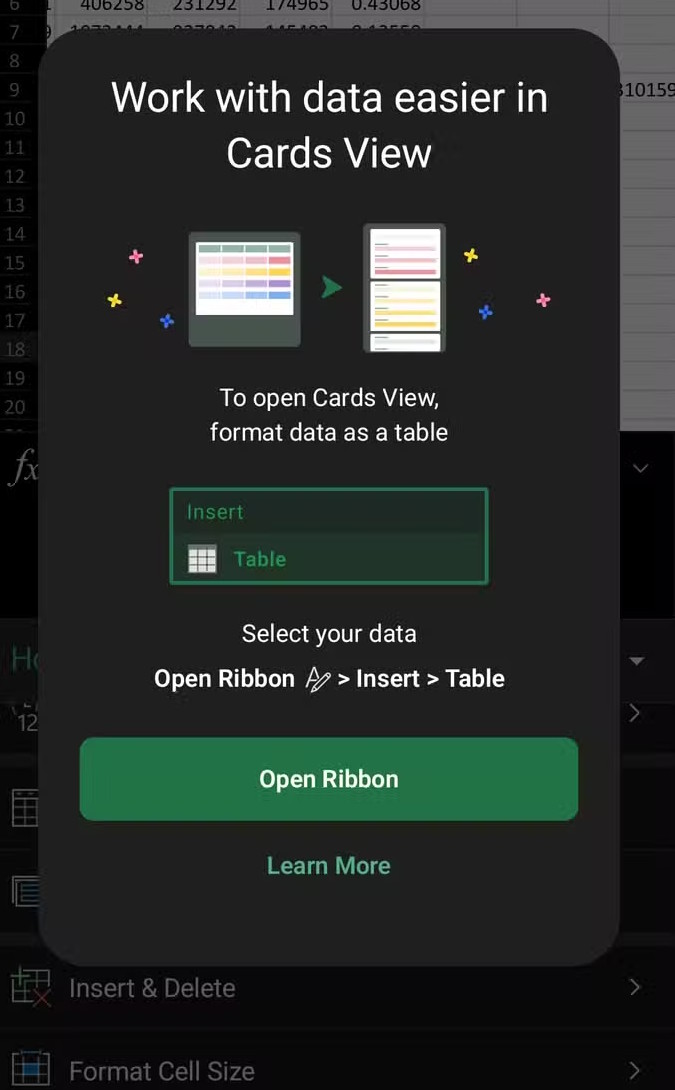
The data must be formatted as an Excel table, not merely a range with borders. Prepare one with descriptive column headings; our guide to creating Excel tables covers that setup. Then, on the phone, tap inside the table and select the Cards View button.
Cards View includes a summary list and a detailed row view. Use the controls available in your version to browse, search, or add records. Not every table feature is supported. See Microsoft's Cards View instructions if your interface differs.
Record observations where they happen
A phone can be convenient for entering inventory counts, scores, or expenses at the point of collection. Record an item identifier, date, quantity, and any necessary note while the details are still available.
When working with a shared cloud workbook, confirm that you opened the correct file and that changes have synchronized. Do not assume coworkers can see an offline edit immediately. After reconnecting, check the saved result before treating the record as complete.
Look up a figure away from your desk
Use mobile Excel to find a stock count, review a budget target, or check a specification during a meeting or site visit. A workbook with clear sheet names and short column headings is easier to navigate on a phone.
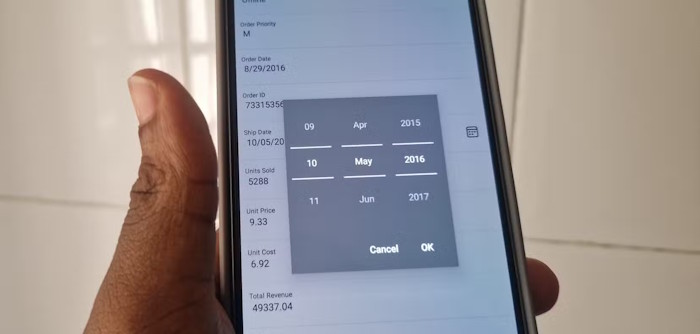
Confirm the record's date and units as well as the number itself. An old inventory count or an amount in the wrong currency can be misleading even when the cell was read correctly.
Prepare shared data-entry workbooks carefully
Set up the table and formulas on a larger screen before asking others to enter records on phones. Make required fields clear and test one complete entry through the actual mobile interface.
Cards View simplifies navigation, but it is not a security boundary and does not guarantee that formulas cannot be changed. Use appropriate file permissions and protection settings, keep backups, and check whether those settings allow the intended mobile edits.
Leave complex model building, extensive formula changes, and wide-sheet review for a larger screen. Use the phone when immediate capture or quick access is the main requirement.
Related Articles
 Learn to Use Lesson 6 Computer - Mobile Devices7 minutes read
 17 Blockbuster in the History of Mobile Computing8 minutes read
 6 Powerful Excel Features Most People Never Use9 minutes read
 PUBG Mobile Player Configuration on Latest Phones and Computers8 minutes read
 How to Add Computers to Excel: Insert Computer into Excel3 minutes read
 Get Started with Excel for Beginners5 minutes read
Reader Comments 0
Sign in with email or Google to join the discussion.