Table of Contents
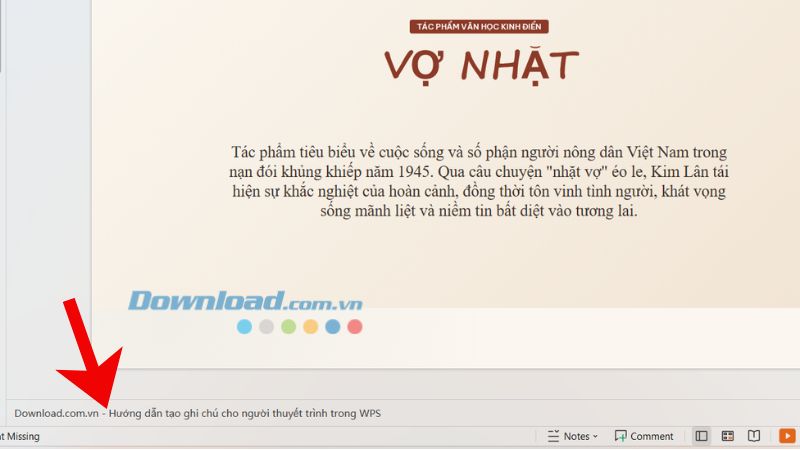
Speaker notes in WPS Presentation let you keep talking points, sources, reminders, and transitions with each slide without placing that text on the slide itself. The fastest method is to select a slide and type in the notes area below it. You can also use Slide Show > Speaker Notes to open a separate notes dialog.
Notes are hidden from the normal audience slide, but they are not automatically private in every setup. Configure Presenter View and test the actual projector or screen-sharing arrangement before presenting.
Add notes in the notes pane
- Open the presentation in WPS Presentation.
- Select the slide that needs a note.
- Click the notes area below the slide, which may say Click to add notes.
- Type the points you want to see while presenting.
- Select another slide and repeat as needed.
If the notes area is collapsed, drag its upper border upward or switch to a view that displays notes. The wording and location can vary slightly by WPS Office version.
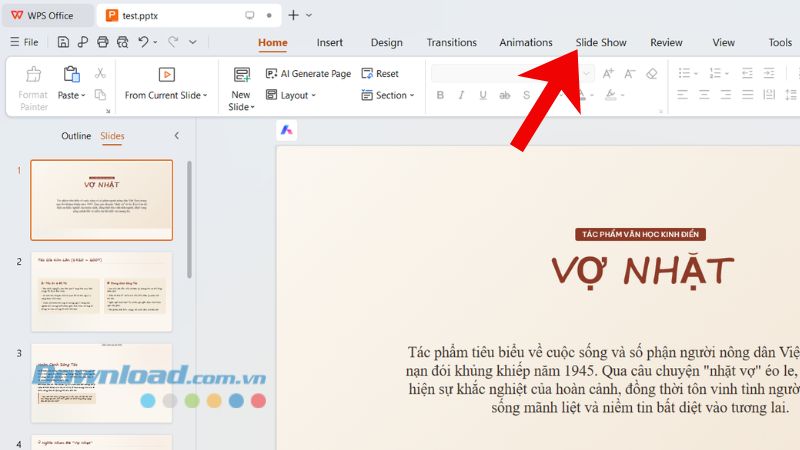
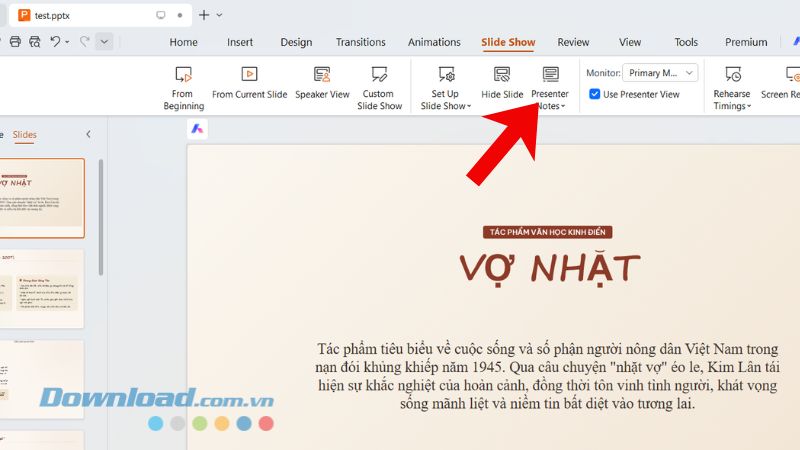
Add notes from the Slide Show tab
If you prefer a separate dialog:
- Select the target slide.
- Open the Slide Show tab.
- Select Speaker Notes or Presenter Notes.
- Enter the note for that slide and select OK.
The note is attached to the selected slide. Move through the deck carefully so that each point is stored with the correct slide.
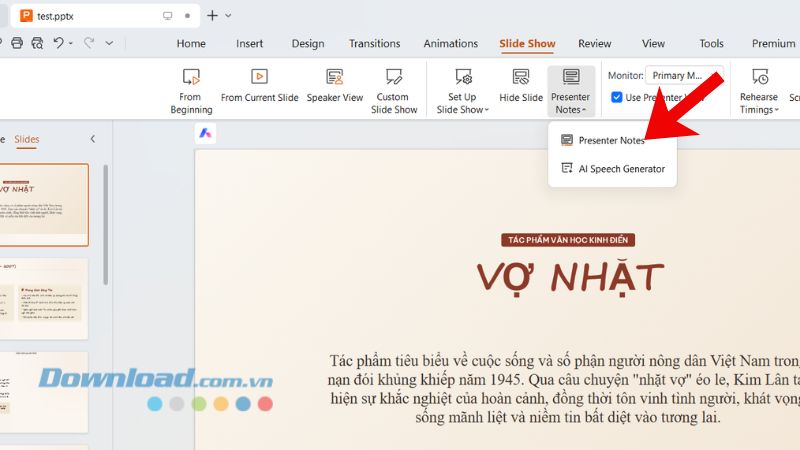
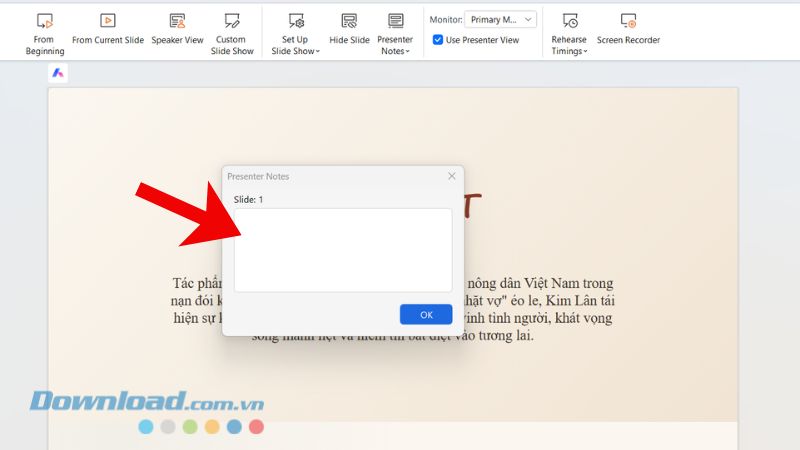
Show notes to the presenter, not the audience
To use notes during a live presentation, connect the second display or projector first, then:
- Open Slide Show.
- Enable Use Presenter View or choose Show presenter view, depending on the version.
- If needed, open Set Up Show and select the audience display under the multiple-monitor settings.
- Start the slide show and verify that the projector shows only the current slide while your computer shows notes, the next slide, and presenter controls.
Some WPS versions also let you right-click during the slide show and open Speaker Notes. The official WPS speaker-notes guide describes both adding and viewing notes.
Prevent notes from appearing in a video call
Presenter View protects notes only when the displays and sharing choice are configured correctly. In Zoom, Teams, Google Meet, or similar software, share the slide-show window or the audience display—not the entire desktop that contains Presenter View.
Run a private test meeting or ask a colleague to confirm what participants can see. Also disable notifications and close unrelated windows before sharing your screen.
Write notes that are easy to use while speaking
- Use short prompts rather than a full script.
- Put one idea per line and lead with the important word.
- Include difficult names, exact figures, or source reminders where needed.
- Add a transition to the next slide so the talk flows naturally.
- Mark optional detail separately so it can be skipped when time is short.
- Do not store confidential information in notes if the file will be distributed.
A note such as “Explain Q3 increase; mention launch in July; ask for questions” is easier to scan than a dense paragraph.
Print or export notes
WPS Presentation can print notes pages, which normally place a slide and its notes on the same page. Open the print dialog, look for Print what or the layout options, and choose Notes pages. Preview the output before printing because long notes may wrap or be clipped.
Some versions can also export notes pages to PDF through the presentation menu's PDF export options. Treat that PDF as presenter material: notes that were hidden during the slide show become visible in the exported document. WPS documents this workflow in its notes-to-PDF instructions.
Notes are missing or not visible
| Problem | What to check |
|---|---|
| The notes pane is not visible while editing | Expand the pane below the slide or switch to Notes Page view. |
| Presenter View shows on the projector | Swap the presenter and audience displays in Set Up Show or operating-system display settings. |
| Online viewers can see the notes | Share only the slide-show window or audience screen, not the whole desktop. |
| Notes disappeared after conversion | Confirm that the target format supports speaker notes and keep the original PPTX/WPS file as a backup. |
| Notes do not fit on a printed page | Shorten the text, adjust the notes layout, and check Print Preview. |
Final check before presenting
- Save, close, and reopen the deck to confirm the notes were retained.
- Run the slide show on the actual two-display setup.
- Confirm that the audience sees only slides.
- Check that notes correspond to the correct slides and are readable at a glance.
- Keep a printed or offline backup if the presentation is important.
Related Articles
 How to Post GIF in Messenger Notes2 minutes read
 How to Use Copilot to Create a Presentation from Notes7 minutes read
 Powerpoint: How to Add an Object to a Presentation2 minutes read
 Quickly Handle PDF Notes with These 5 Essential Apps!6 minutes read
 How to Add and Print Notes in PowerPoint Slides8 minutes read
 How to Set Notes Notes Password on iPhone6 minutes read
Reader Comments 0
Sign in with email or Google to join the discussion.