Table of Contents
Microsoft is building a new feature that lets you control keyboard backlighting on Windows 11 via System Settings.
Turn on Windows 11 Keyboard Backlight Overview
Microsoft is building a new feature that lets you control keyboard backlighting on Windows 11 through System Settings. Accordingly, You can adjust and control keyboard backlighting as they like.
Currently, with backlit keyboards, You should use physical shortcuts on the keyboard to turn the backlight on or off and change the intensity. However, this new update will let you control this feature directly from Settings.
First, we access Settings on Windows 11, then click on Bluetooth & devices And look to the right And select Keyboard.
On this page you will find the Keyboard backlight Section with the keyboard backlight adjustment bars.
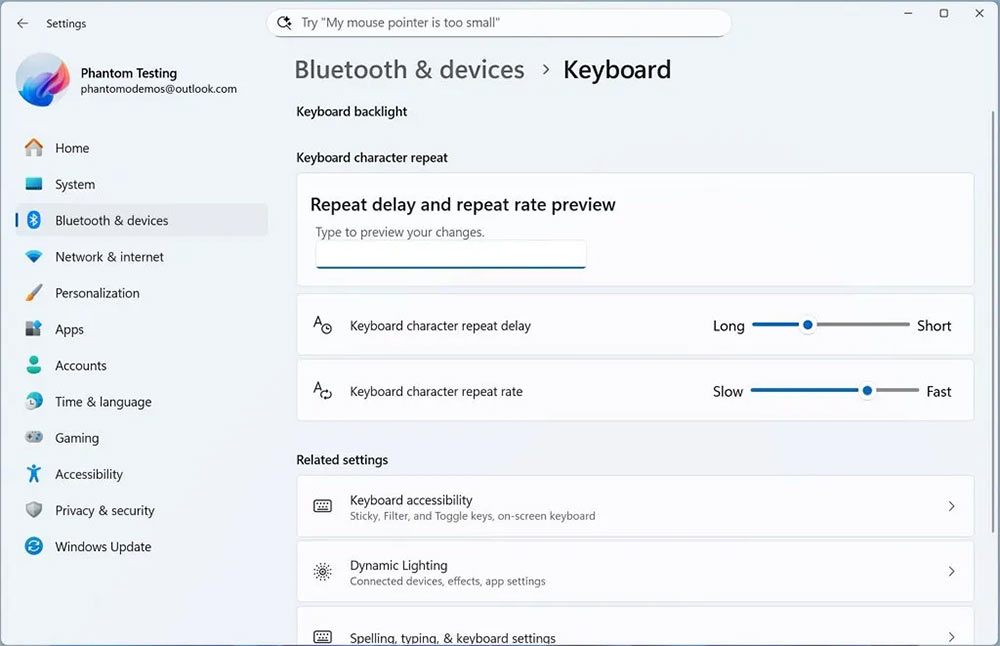
In addition to the keyboard backlight adjustment feature, Microsoft also has additional settings to control the repeat delay and repeat rate for the keyboard.
FAQ
How do you turn on Windows 11 keyboard backlight?
In practical terms, Microsoft is building a new feature that lets you control keyboard backlighting on Windows 11 via System Settings.
What should you check before getting started?
Review the requirements, compatible device or software version, and any warnings described in the guide before making changes.
What should you do if the steps do not work?
Repeat the steps in order, confirm that your app or system is up to date, and review the troubleshooting details provided above.
Related Articles
 Instructions for Activating Keyboard Backlight on Windows 105 minutes read
 How to Turn the Keyboard Backlight on and Off on Windows Laptops and MacBooks9 minutes read
 How to Turn the Keyboard Backlight on and Off on Windows and MacBook Laptops9 minutes read
 How to Turn on Laptop Keyboard Light and Activate Keyboard8 minutes read
 How to Automatically Turn Off the Macbook Keyboard Backlight3 minutes read
 Disable Windows 10 Keyboard in 5 Simple Ways6 minutes read
Reader Comments 0
Sign in with email or Google to join the discussion.