Table of Contents
Most backlit laptop keyboards use a key marked with an illuminated-keyboard symbol. Press that key—sometimes while holding Fn—to cycle through off, low, and high brightness. The shortcut is model-specific, even within the same brand, so the symbol and manual are more reliable than a generic brand list.
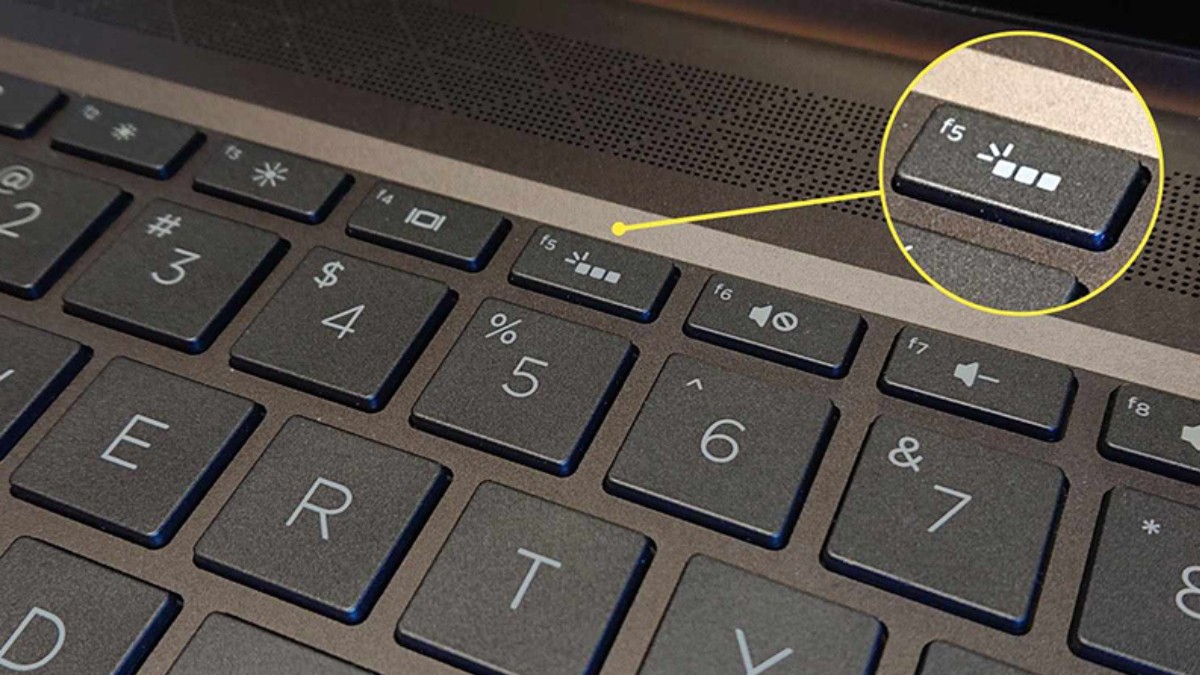
Confirm the keyboard is backlit
- Look for a backlight icon on the function row, Space bar, or arrow keys.
- Check the exact laptop configuration on the manufacturer's support page; some models offer backlighting only on selected variants.
- Inspect the keyboard in a dark room after startup.
- Do not confuse Caps Lock, Num Lock, or power LEDs with key illumination.
Windows laptops
- Connect power if the battery is low.
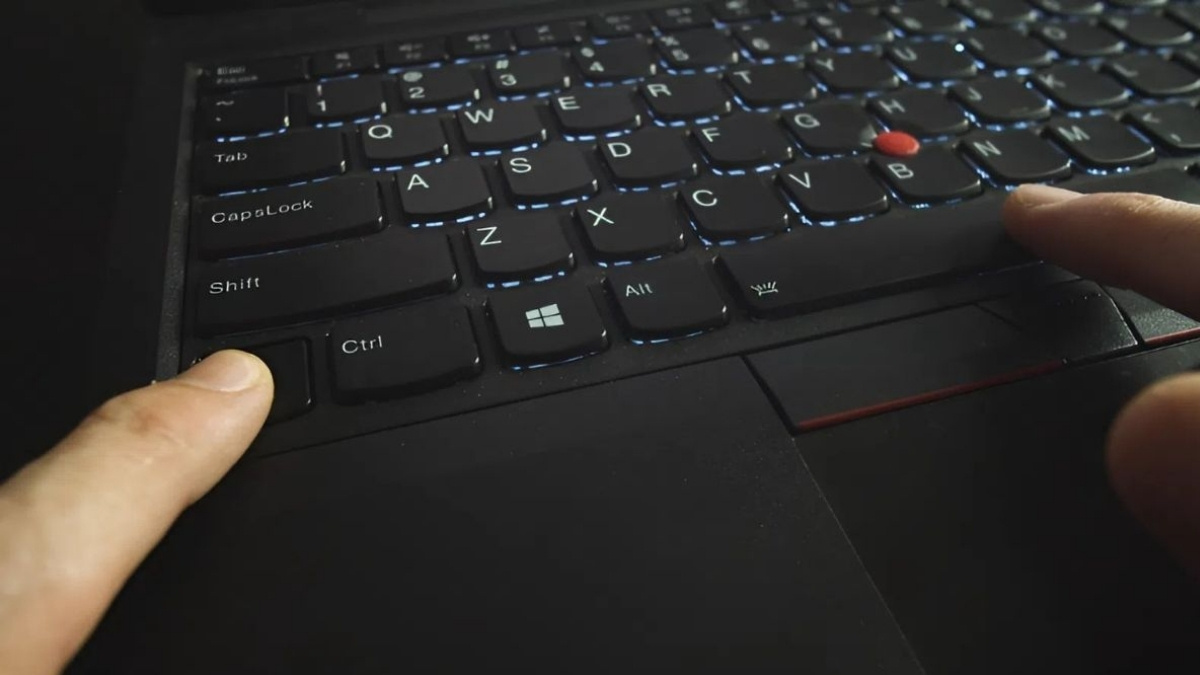
- Press the key with the backlight icon once.
- If nothing changes, try Fn plus that key.
- Press repeatedly to cycle brightness or turn it off.
Common locations include F3/F4, F5, F7, F9, F10, F11, Space, and arrow keys, but they are not universal. Fn Lock can reverse whether Fn is required.
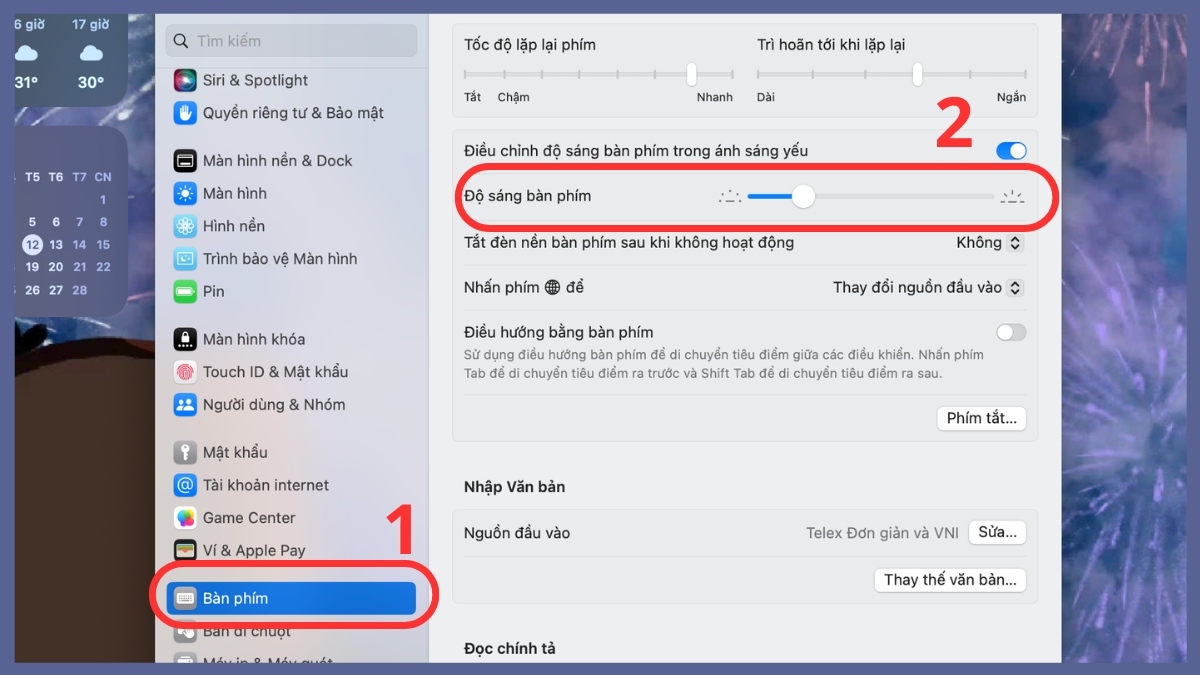
MacBook
On supported Mac models and macOS versions, open Control Center and choose Keyboard Brightness, or open System Settings > Keyboard and adjust the brightness control. Some older MacBook keyboards provide dedicated brightness keys. Options may also reduce brightness after inactivity or adapt to low light.
Not every Apple keyboard or Mac model has backlit keys, and a desktop Magic Keyboard model may differ from the built-in MacBook keyboard.
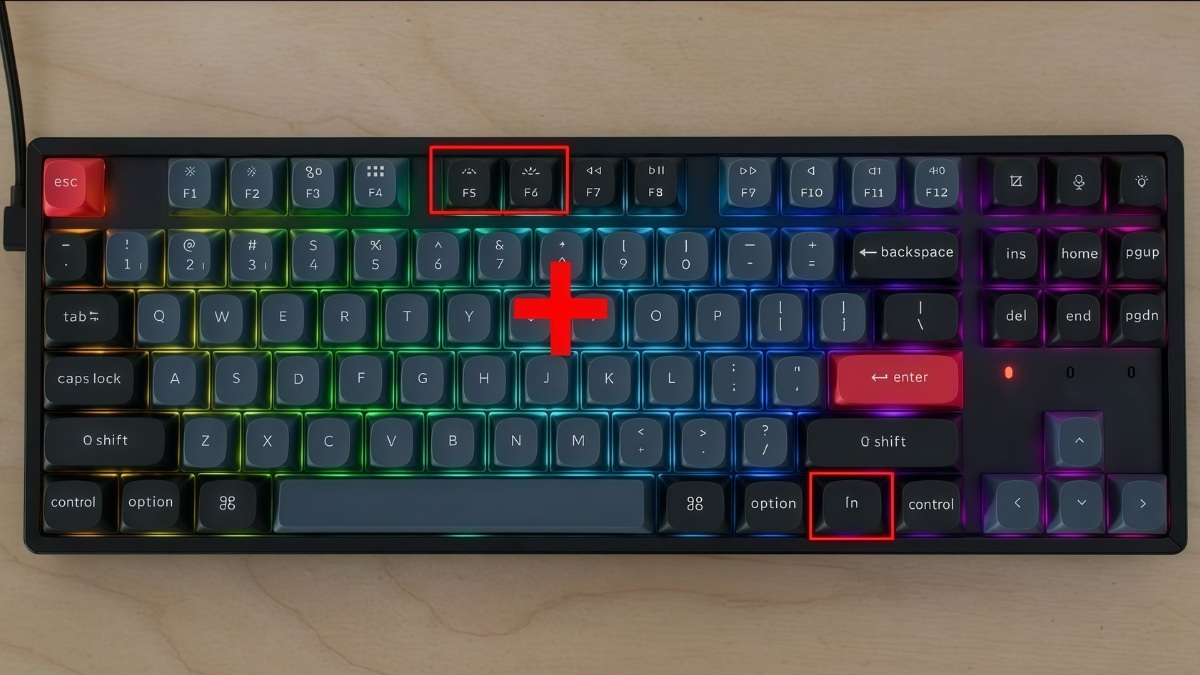
External mechanical and gaming keyboards
Use the shortcut printed in the keyboard manual or its official configuration software. Lighting can be stored in onboard profiles or controlled by software, so closing the app may change the effect. Install configuration tools only from the manufacturer and avoid unnecessary always-running RGB utilities.
If the backlight will not turn on
- Restart the laptop and test before opening third-party lighting apps.
- Raise brightness through every level; some keyboards remember the off state.
- Check battery-saver, ambient-light, sleep, and keyboard timeout settings.
- Install BIOS, firmware, hotkey, system-control, and keyboard software from the laptop maker for the exact model.
- Restore the manufacturer's lighting profile if a control app changed it.
- Test in firmware setup or hardware diagnostics where supported.
If only some keys light up
Uneven illumination may be normal on budget designs, but a dark region, flicker, or failure after liquid/impact can indicate an LED, cable, or keyboard assembly fault. Keycaps do not create backlight; replacing them may reduce readability if they are not shine-through compatible.
Battery and comfort
Keyboard lighting uses some power, though the effect on runtime varies. Lower the brightness or shorten the timeout on battery. In a bright room, turning it off may improve key contrast. RGB animation can also consume resources when heavy control software runs in the background.
When to seek service
Arrange service if the backlight stopped after liquid exposure, the keyboard is swollen or hot, the cable is damaged, or the correct firmware and settings do not help. Do not pry off keycaps to reach LEDs on a laptop. For other key failures, see laptop keyboard troubleshooting and how Fn Lock works.
Related Articles
 How to Automatically Turn Off the Macbook Keyboard Backlight3 minutes read
 How to Turn on Windows 11 Keyboard Backlight2 minutes read
 How to Turn the Keyboard Backlight on and Off on Windows Laptops and MacBooks9 minutes read
 How to Turn on Laptop Keyboard Light and Activate Keyboard8 minutes read
 Instructions for Activating Keyboard Backlight on Windows 105 minutes read
 The New MacBook Air and Pro Can Use a Thinner Keyboard3 minutes read
Reader Comments 0
Sign in with email or Google to join the discussion.