Table of Contents
Turning on the keyboard backlight on Windows laptops (Asus, Dell, Lenovo, etc.) and MacBooks is quite simple if you know the correct steps for each operating system. With just a few key combinations or adjustments in the settings, you can easily control the keyboard brightness to suit your needs.
Identifying a laptop keyboard with backlighting
With a laptop keyboard, try looking for a backlight symbol that looks like a glowing keyboard or light bulb. If you see these symbols on the Space key or the F keys, your laptop likely has a backlight.
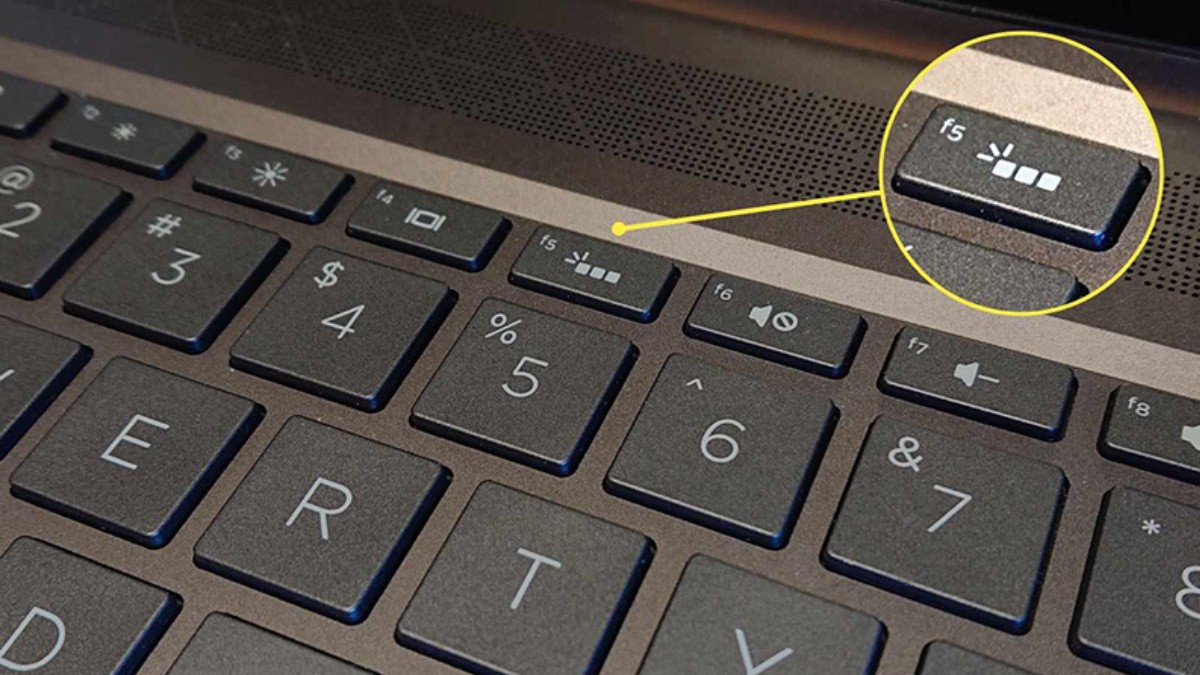
You can confirm whether a detachable keyboard has backlighting by checking the specifications printed on the box. Look for distinctive symbols like LED or RGB to indicate whether the product has an integrated lighting system.
How to turn the laptop keyboard backlight on and off
Depending on the manufacturer and whether your computer is Windows or macOS, you can turn the keyboard backlight on or off using a keyboard shortcut or by adjusting the system settings.
On Windows laptops
Most Windows laptops (with backlight support) allow you to adjust the backlight using a combination of the Fn key and the F5, F6, F7 keys… To turn on the keyboard backlight on a Windows laptop, press and hold the Fn key and the key with the light icon to adjust the brightness as desired.
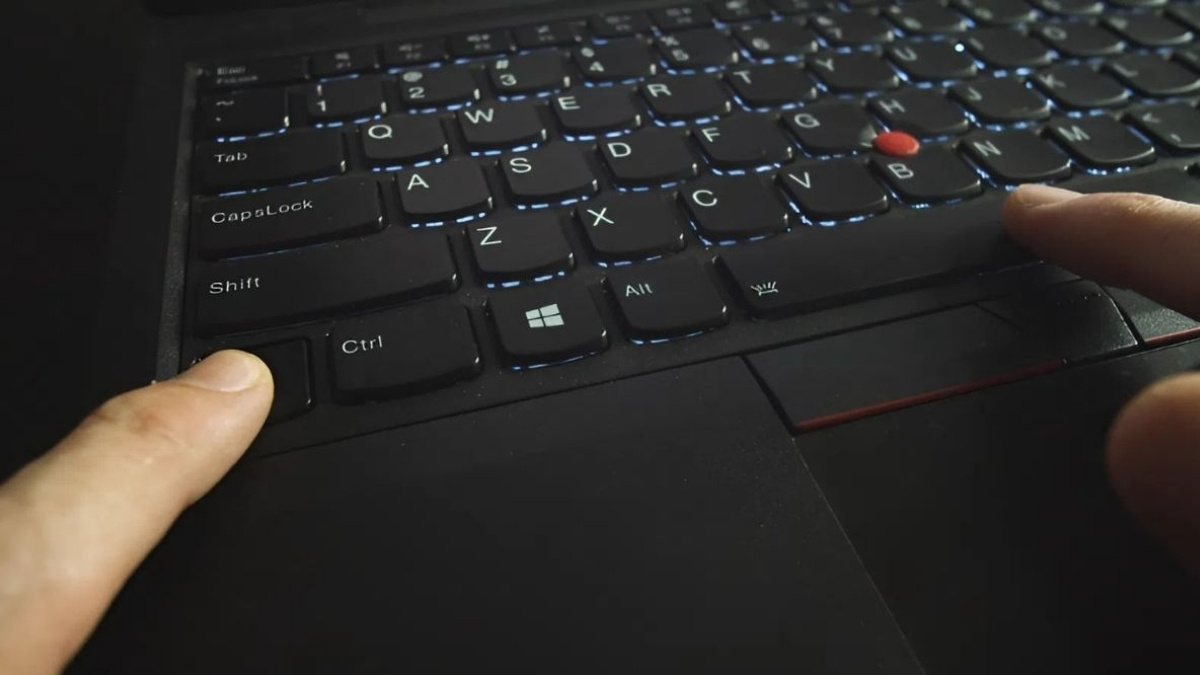
If your laptop doesn't support backlighting or your keyboard backlight is broken, buy a genuine mechanical keyboard with vibrant RGB LED lighting and many great deals waiting for you.
On macOS
If you're using macOS, you can quickly turn on the keyboard backlight in System Settings. In the Keyboard section of Settings, find the Keyboard Brightness option and slide the toggle to the right to enable the laptop keyboard backlight.
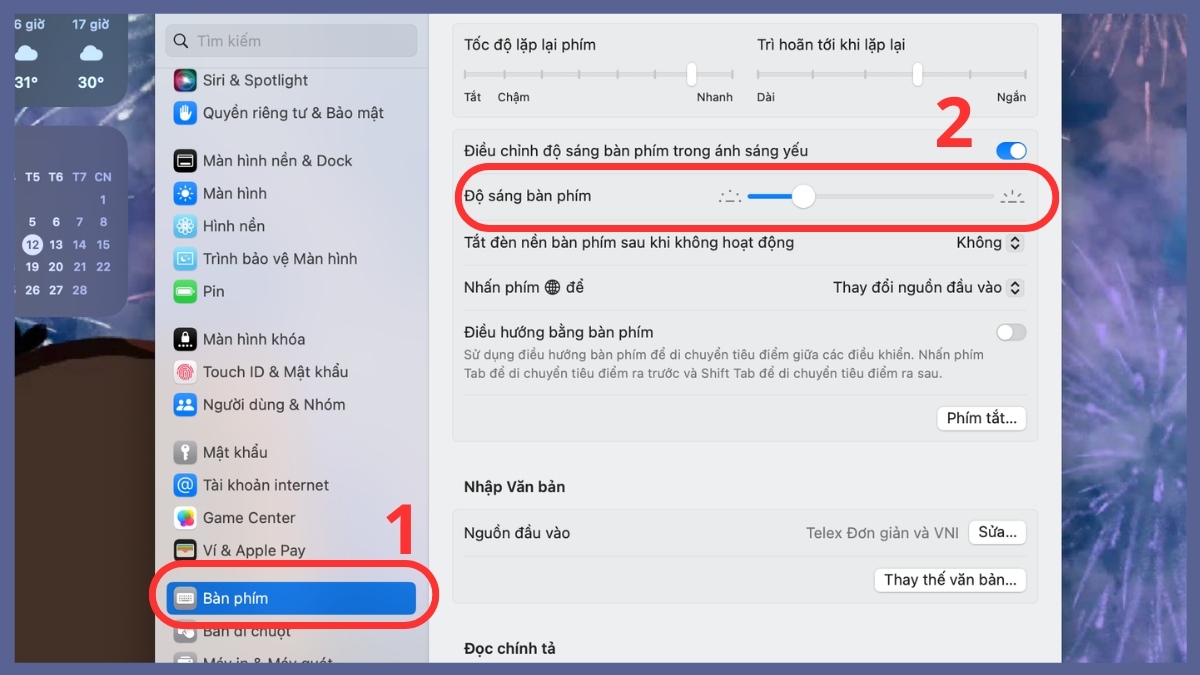 Use the settings menu to configure automatic keyboard backlighting for your MacBook.
Instructions on how to turn the backlight on and off on a separate keyboard
Instructions on how to turn on the backlight on a separate keyboard vary; you need to follow the instructions of each manufacturer. For gaming or office keyboards with LED/RGB lighting, you usually use Fn + the key with the light icon or Fn + Space to switch modes such as off → on → RGB → off.
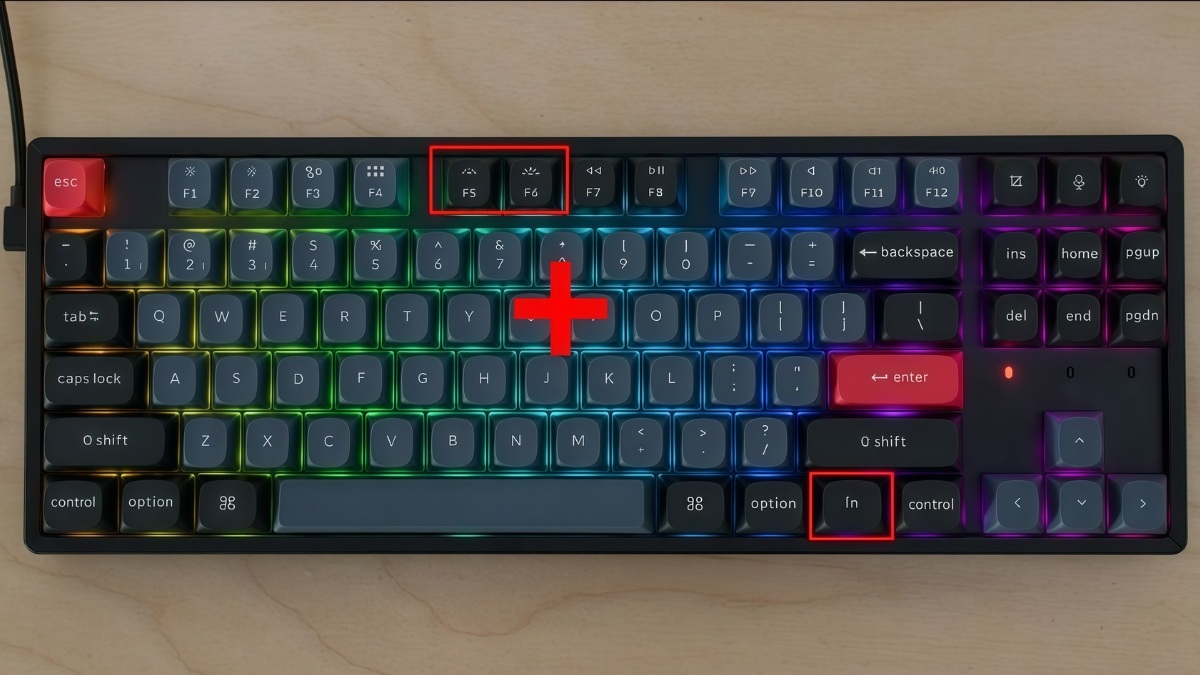
In addition to physical key combinations, some external keyboards also support separate control software; the general steps are as follows:
- Step 1: Download the official driver package from the manufacturer's website.
- Step 2: Complete all software setup steps to fully activate all features.
- Step 3: Adjust the different lighting levels directly within the application interface.
How to turn the keyboard backlight on and off on popular laptop models
Turning on the keyboard backlight on most laptops today is quite simple thanks to the unique keyboard shortcuts of each brand such as Asus, Dell, HP, Lenovo, MSI, or Acer.
ASUS laptops
For Asus laptops, the common method is to use the Fn + F7 key combination to increase the brightness and press it repeatedly until the light turns off – this is also the most common way to turn off the keyboard backlight on Asus laptops. For some specific models, you can try the Fn + F4 (increase) and Fn + F3 (decrease/off) key combinations.
Dell laptops
You can turn off the keyboard backlight on a Dell laptop using the key combination Fn + F10 or Fn + F5, F6, F7, depending on the design of your specific model. In some versions, turning on the keyboard backlight is done via Fn + right arrow key or a function key with a light icon.
HP laptops
If you're using an HP laptop, the Fn + F5 key combination is the most common way to toggle keyboard brightness levels. Depending on the model, you can also experiment with Fn + F4, Fn + Space , and then press the same key combination again to turn the lights off.
Acer laptops
You can easily activate the LED backlight on your Acer laptop by simultaneously pressing and holding Fn + F9. If your laptop is a specific model, try turning on the keyboard backlight using F11 , Fn + F10 , and using Fn + F8/F9 to dim or turn it off completely.
MSI laptops
Turning the keyboard backlight on and off on MSI laptops is quite simple; you just press Fn + the + key on the numeric keypad to increase brightness and Fn + the – key to decrease it. Additionally, some models use Fn + F8 to cycle through brightness modes or Fn + PageUp/PageDown to adjust the brightness.
Lenovo laptops
Depending on your Lenovo model, the shortcut key to adjust the backlight may be Fn + Space or Fn + Esc. Look for the flashlight or illuminated keyboard icon on these keys to quickly and correctly turn on the Lenovo laptop keyboard backlight.
MacBook
Besides enabling automatic backlighting on your MacBook via System Settings, you can also quickly adjust it using the following methods:
1. Use the physical buttons:
- On some MacBook models, you can turn the backlight on/off by pressing F5 and F6 .
2. Operations in the Control Panel:
- From the Control Panel , click the light icon (if it's not there, go to the Control Center to turn it on).
- Drag the slider left/right to increase/decrease the brightness.
Notes on using laptop keyboard backlights
Here are some important tips for using your laptop's keyboard backlight to make the most of its features, protect your device, and extend battery life:
- Avoid leaving it at the highest brightness level for too long as it can drain the battery and cause eye strain; choose a brightness level that is sufficient for clearly seeing the keys.
- After learning how to turn on your laptop keyboard backlight, you can turn it off when working in a well-lit environment to save battery and power.
- Clean the gaps between the keys with a soft brush or compressed air to maintain brightness and increase durability.
How to check if your laptop supports a backlit keyboard
Find the light bulb icon on the function keys and press the corresponding key combination to check the keyboard backlight. If none of the keys have this icon, your computer does not have a backlight.
If a key has a light icon but isn't illuminated, visit the manufacturer's official website to download the correct driver or keyboard management software. After installation, you can turn the brightness on/off and adjust it directly within the system.
Related Articles
 How to Turn on Windows 11 Keyboard Backlight2 minutes read
 How to Turn the Keyboard Backlight on and Off on Windows and MacBook Laptops9 minutes read
 How to Turn on Laptop Keyboard Light and Activate Keyboard8 minutes read
 How to Automatically Turn Off the Macbook Keyboard Backlight3 minutes read
 Instructions for Activating Keyboard Backlight on Windows 105 minutes read
 Top 5 Laptops with the Top Keyboard Backlight in 2023: Expert Selection Guide18 minutes read
Reader Comments 0
Sign in with email or Google to join the discussion.