Table of Contents
In case you want to use Canva files to edit on Photoshop, it is also relatively simple. We will download the Canva file in the file format used on Photoshop to edit according to our needs.
In case you want to use Canva files to edit on Photoshop, it is also relatively simple. This guide will download Canva files in the file format used on Photoshop to edit according to our needs. Below are instructions for converting Canva files to Photoshop.
How to convert Canva files to Photoshop
Step 1:
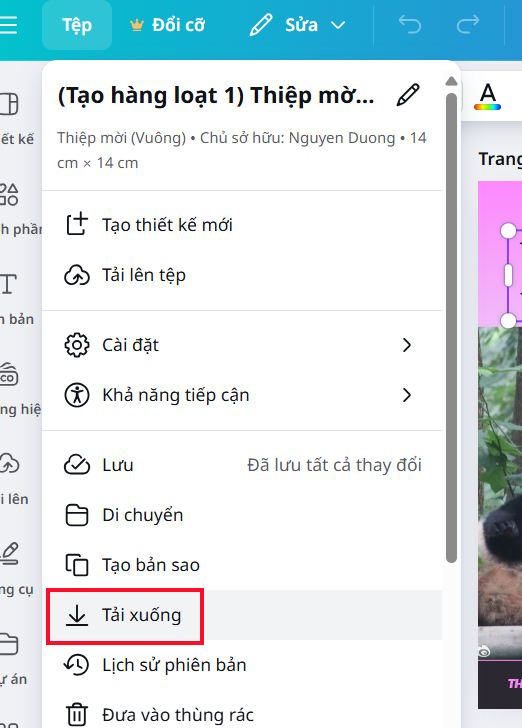
At the file you want to download on Canva, we click on The File option And then Click Download In the top right corner of the interface.
Step 2:
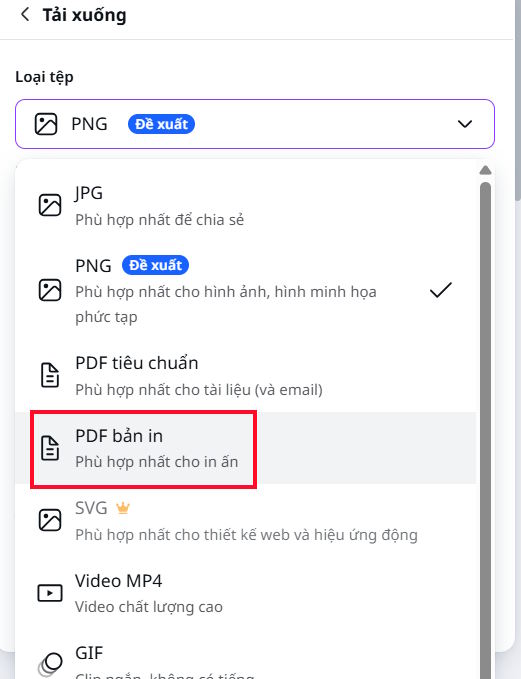
Displays options for downloading files on Cava. Now select The printable PDF format To download the file to your computer.
Step 3:
Open the online photoshop editing Website Photopea at the link below, then Select Open file from computer . Now Click on the PDF file you downloaded From Canva.
Https://www.photopea.com/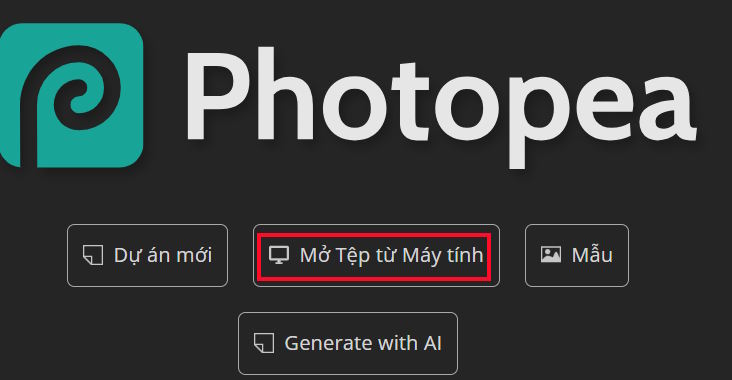
Step 4:
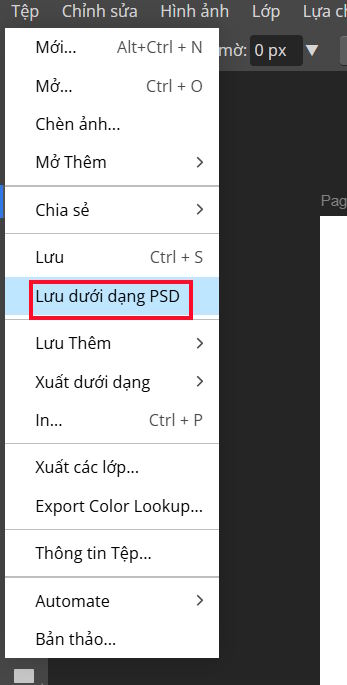
After opening the file on Photopea, users continue To click on File , Select Save as PSD And then save the image in the new format.
Finally, Open Photoshop software To edit the photo you just saved from Photopea and you're done.
FAQ
How do you convert Canva files to photoshop?
In practical terms, in case you want to use Canva files to edit on Photoshop, it is also relatively simple. We will download the Canva file in the file format used on Photoshop to edit according to our needs.
What should you check before getting started?
Review the requirements, compatible device or software version, and any warnings described in the guide before making changes.
What should you do if the steps do not work?
Repeat the steps in order, confirm that your app or system is up to date, and review the troubleshooting details provided above.
Related Articles
 Why Is Photoshop More Valuable Than Canva Pro for Creators8 minutes read
 Instructions for Blurring Photos on Canva Are Very Simple4 minutes read
 minutes read
 How to Export Printing Files in Photoshop5 minutes read
 Instructions for Creating QR Codes on Canva3 minutes read
 How to Convert from Canva to PowerPoint Quickly and Easily3 minutes read
Reader Comments 0
Sign in with email or Google to join the discussion.