Table of Contents
The best AI photo editor depends on the job. Photoshop is the strongest choice when you need layers and precise compositing; Lightroom suits large RAW photo libraries; Canva is faster for social graphics; Photopea provides capable browser-based layer editing; and Photoroom is designed around product photos. Start with the workflow, file types, and export quality you need rather than choosing from the longest feature list.
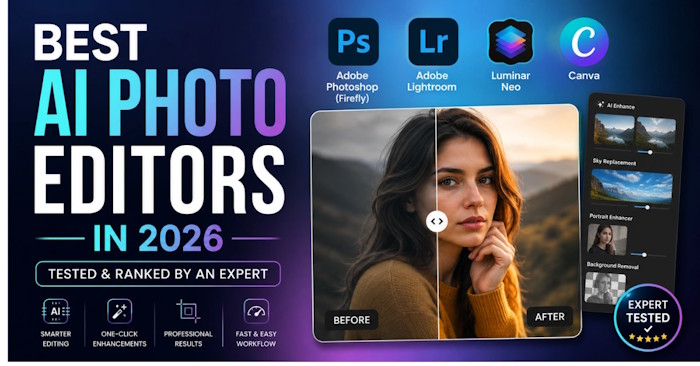
AI tools can remove distractions, isolate a subject, extend a canvas, reduce noise, and generate replacement content. They can save time, but results still need inspection—especially around hair, hands, text, reflections, logos, and repeated patterns.
What to check before choosing an AI photo editor
- Output quality: inspect edges, texture, lighting, color, and whether generated details match the source.
- Editing control: decide whether one-click output is enough or you need selections, masks, layers, blend modes, and revision history.
- File support: confirm support for RAW, PSD, TIFF, transparent PNG, or other formats in your workflow.
- Resolution and export rules: free plans may limit size, quality, watermarks, or the number of AI operations.
- Batch work: catalog management and consistent processing matter more than novelty when editing hundreds of images.
- Privacy and rights: check how uploads are stored and whether generated assets are suitable for your intended commercial use.
- Platform: a browser tool is convenient, but a desktop editor may handle large files and offline work more reliably.
AI photo editors compared
| Tool | Best fit | Useful capabilities | Main tradeoff |
|---|---|---|---|
| Adobe Photoshop | Detailed composites and professional layer-based editing | Selections, masks, layers, Generative Fill, Generative Expand, object removal | More complex than quick-edit apps; generative features can consume credits |
| Adobe Lightroom | RAW photo libraries and consistent batch adjustments | Catalog management, AI masking, denoise, removal, adaptive adjustments | Less suited than Photoshop to complex composites |
| Canva | Social posts, presentations, and fast branded layouts | Background removal, object cleanup, AI expansion, templates and design tools | Less granular control for pixel-level retouching |
| Luminar Neo | Portrait and landscape enhancement | Relighting, sky replacement, object removal, portrait adjustments | Test difficult edges and generated areas before committing to a plan |
| Photopea | PSD and layer editing in a browser | Layers, masks, blending, broad format support, familiar Photoshop-like workflow | Browser performance depends on the device and file size |
| Photoroom | Product listings and catalog images | Background removal and replacement, product staging, shadows, batch-oriented tools | Specialized around commerce rather than full creative compositing |
| Pixelcut | Product shots and quick marketing assets | Prompt-based edits, backgrounds, cleanup, upscaling, social and commerce workflows | Advanced usage and exports may depend on credits or plan limits |
| Pixlr or Fotor | Occasional browser and mobile edits | Enhancement, cleanup, background tools, filters, generative edits | Free access and feature limits can change; verify before a large project |
Which tool should you choose?
For layered, high-control editing: Photoshop
Photoshop combines conventional editing controls with generative tools. Its Generative Fill can add or remove content nondestructively, while masks and layers let you refine the result instead of accepting a single flattened output. Choose it for composites, advertising work, or files that must remain editable.
For RAW libraries: Lightroom
Choose Lightroom when the main challenge is organizing, color-correcting, and applying consistent adjustments across many photographs. AI masks and denoise can speed up a photographer's existing workflow, but Photoshop remains the better partner for intricate pixel-level changes.
For quick designs: Canva
Canva works well when photo editing is one step in producing a social post, flyer, or presentation. Its current AI photo editor includes object edits, cleanup, expansion, and background generation alongside templates. It is easier to approach than a full desktop editor, though it offers less detailed control.
For free browser-based layer editing: Photopea
Photopea opens and saves PSD files and provides layers, masks, and blending in the browser. It is a practical option for students, occasional PSD edits, and computers where installing a desktop suite is impractical. TipsMake also compares it with other free desktop and browser photo editors.
For product photography: Photoroom or Pixelcut
Photoroom centers its workflow on backgrounds, product staging, and listing images. Pixelcut covers similar fast commerce and marketing tasks. Test both with reflective objects, fine edges, transparent packaging, and branded labels; those reveal quality differences more clearly than a simple portrait.
For occasional edits: Pixlr or Fotor
Browser tools are convenient for removing an object, resizing a photo, or making a quick graphic without installing software. Pixlr combines conventional adjustments with AI tools, while Fotor emphasizes accessible enhancement and background features. Review export resolution and credit limits before processing a batch.
Can AI replace manual photo editing?
AI can replace repetitive steps, not visual judgment. Background removal, first-pass masking, denoise, and object cleanup are often faster with automation. Manual controls are still important when a client needs exact brand colors, a reversible layered file, accurate product details, or consistent results across a campaign.
Generated edits can invent texture, change small text, alter jewelry, or create physically inconsistent shadows. Inspect important work at 100% magnification and compare it with the original. Keep the source file and use masks or duplicate layers when the editor supports them.
Free vs paid AI photo editors
| Area | Free access often provides | Paid access often adds |
|---|---|---|
| AI operations | A trial allocation or limited monthly credits | More credits, faster queues, or higher usage limits |
| Export | Possible limits on resolution, formats, watermarks, or file count | Higher-quality exports and broader format support |
| Workflow | Single-image tools and basic templates | Batch processing, brand controls, shared assets, and team features |
| Professional editing | Basic adjustments; some tools offer layers | Advanced masks, RAW workflows, larger files, and deeper history |
These are common patterns, not guarantees. Plans and credit systems change frequently, so check the product's current terms rather than relying on an old price comparison.
A five-image test before you pay
- Use the same portrait with flyaway hair in every editor.
- Test a product with glass, metal, text, and a complicated shadow.
- Try a low-light image that needs denoise and detail recovery.
- Open your largest normal file and export at the resolution you actually need.
- Time the full workflow, including cleanup after the AI result.
Compare outputs at full size, not only in the editor preview. Count the manual corrections each result needs and confirm that the paid tier removes the limits that affect your real workload. For specialized alternatives, see TipsMake's guides to AI photo enhancers and AI editors for different workflows.
A good editor is not the one that generates the most dramatic first result. It is the one that preserves important details, gives you enough control to correct mistakes, and produces the required file reliably.
Related Articles
 Why Topaz Labs AI Has the Best AI Photo and Video Editing Tool?7 minutes read
 Free Online Photo Editing Services Should Not Be Missed!5 minutes read
 Best AI Photo Editing Tools10 minutes read
 How to Change Photo Size on Fotor Online Application5 minutes read
 7 Reasons Why Hapic Is Becoming a Favorite Free Photo Editor6 minutes read
 Invite to Download Analog Pro, a Photo Editing Application Package4 minutes read
Reader Comments 0
Sign in with email or Google to join the discussion.