Table of Contents
This updated guide explains how to set up an out of office email on outlook with clear steps, practical tips, and useful context. To create a more professional work email on Outlook, you can set up an out-of-office email to respond to emails when you cannot reply directly. Setting up an out-of-office email on Outlook has been applied to all versions, including Outook web platform, phone application or.
How to Create an Out of Office Email on Outlook Web
Step 1:
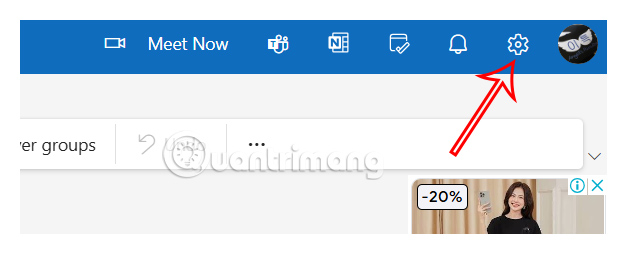
At the Outlook web interface, users select the gear icon in the top right corner.
Step 2:
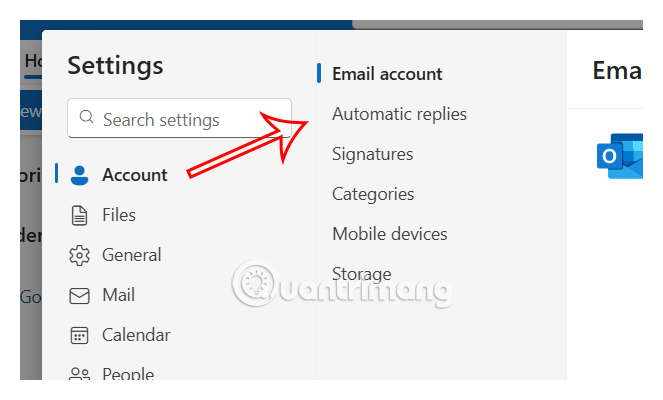
Next, select Account and look to the side, choose Automatic replies to activate the out of office email mode on Outlook.
Step 3:
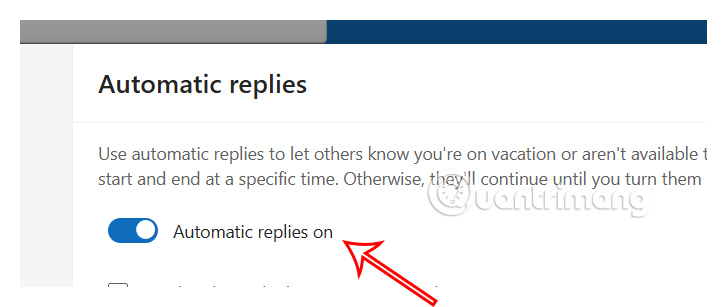
Turn on Automatic replies to set up an out of office reply email.
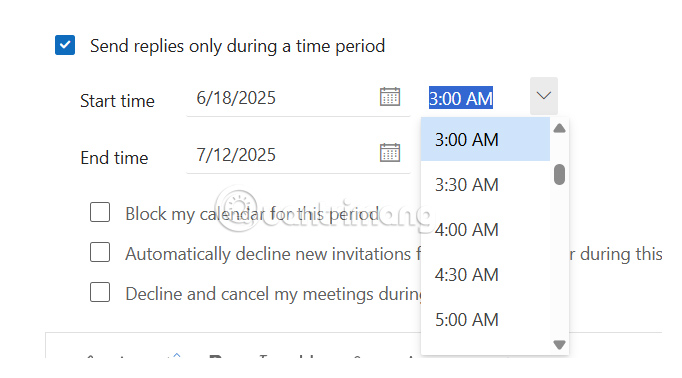
Then you choose the time to use the out of office reply email on Outlook web . Enter the start and end time for the period of time you want to send the out of office message.
Finally, enter your out of office email and choose Save below to save.

How to Create an Out of Office Email on Outlook Mobile
Step 1:
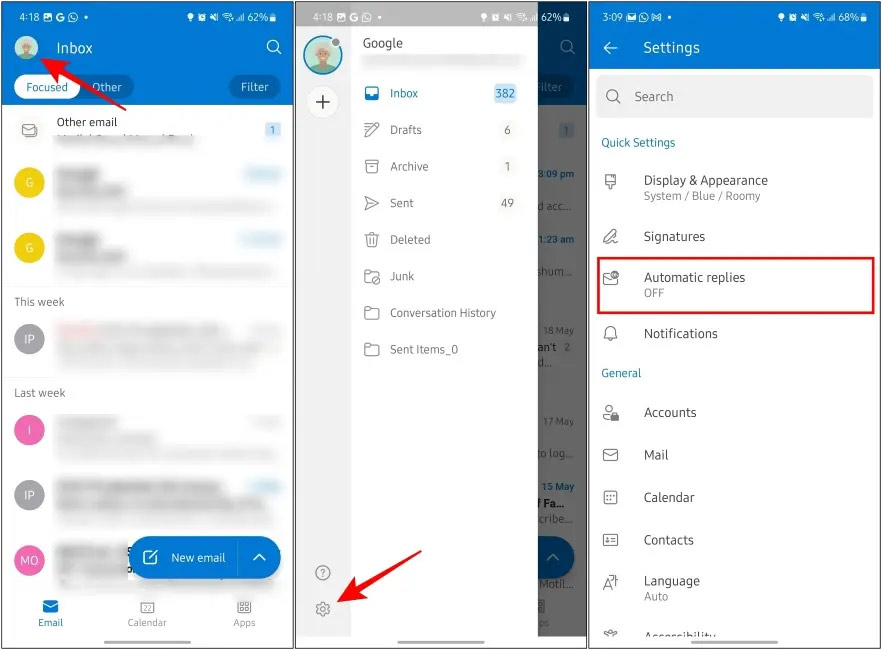
At the Outlook application interface on your phone, select your avatar and select the gear icon . Then choose Automatic replies .
Step 2:
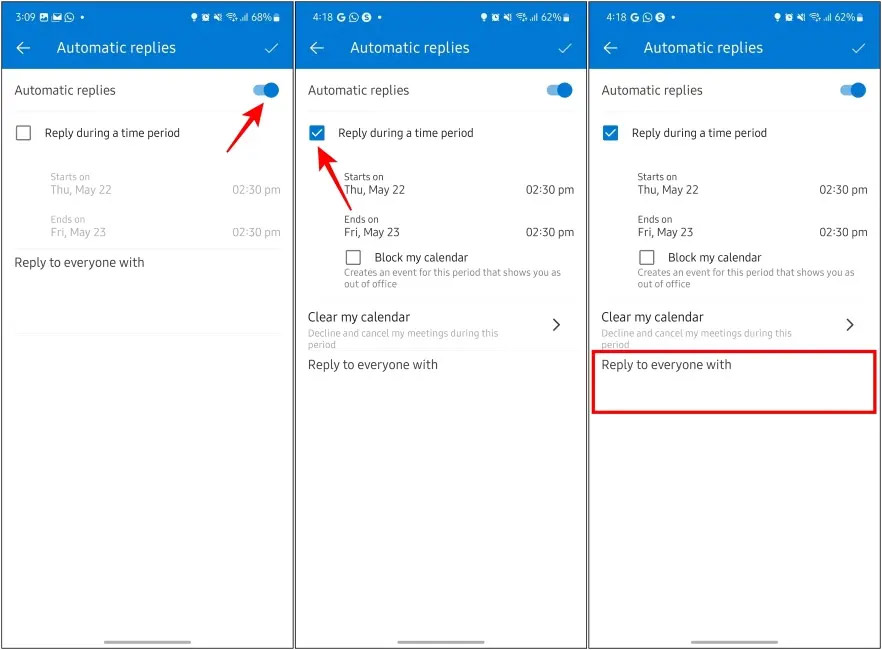
Next, you also activate Automatic replies and then select Reply during a time period to use. Then you choose the start and end time for the out of office email you want to use on Outlook phone.
Click Reply to everyone with and enter the reply message . Finally, choose save as usual.
FAQ
What should I prepare before I set up an out of office email on outlook?
Review the requirements and options in the guide first. Having the correct device, app version, account access, or materials ready helps prevent avoidable errors.
How long does it take to set up an out of office email on outlook?
The time depends on the task and your setup. Most basic steps can be completed quickly, while downloads, updates, scans, or troubleshooting may take longer.
What should I do if the steps do not work?
Repeat the instructions in order, confirm that your software or device is supported, and check permissions, connectivity, and available updates before trying again.
Related Articles
 How to Add Email Signatures in Microsoft Office 3657 minutes read
 How to Encrypt Email on Microsoft Outlook10 minutes read
 Instructions on How to Use Outlook from AZ for Beginners4 minutes read
 How to Insert a Table into an Outlook Email4 minutes read
 Instructions for Using Copilot in Outlook: Complete Overview5 minutes read
 Fix Outlook Crash When Opening or Creating Email3 minutes read
Reader Comments 0
Sign in with email or Google to join the discussion.