Table of Contents
Recent Windows 11 releases can install Sysmon as an optional Windows feature. After enabling the feature, you must initialize the service from an elevated terminal and should apply a reviewed configuration so that the events you need are actually recorded.
Sysmon records detailed telemetry such as process creation, network connections, and selected file or registry activity in the Windows Event Log. It does not analyze events or block threats by itself.
Before you install Sysmon
- Install current Windows updates. Native Sysmon began rolling out with Windows 11 updates in 2026 and may not appear on an older build.
- Sign in with an administrator account or have administrator credentials available.
- If the separate Microsoft Sysinternals edition of Sysmon is already installed, export or retain its XML configuration and uninstall that edition before enabling native Sysmon. Running both can cause a conflict.
- Plan log collection and retention before enabling a high-volume configuration.
Enable Sysmon from Windows Features
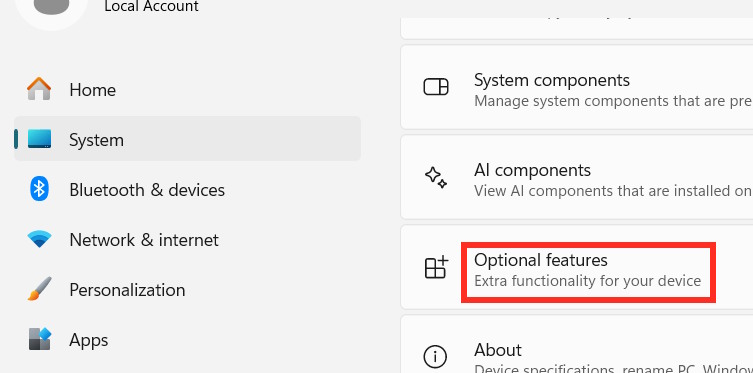
- Open Settings and select System > Optional features.
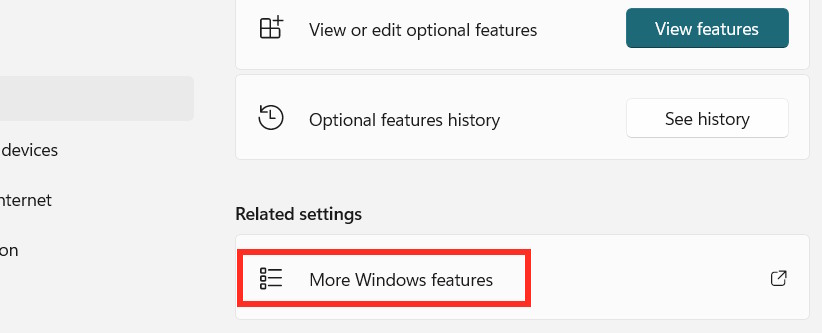
- Select More Windows features.
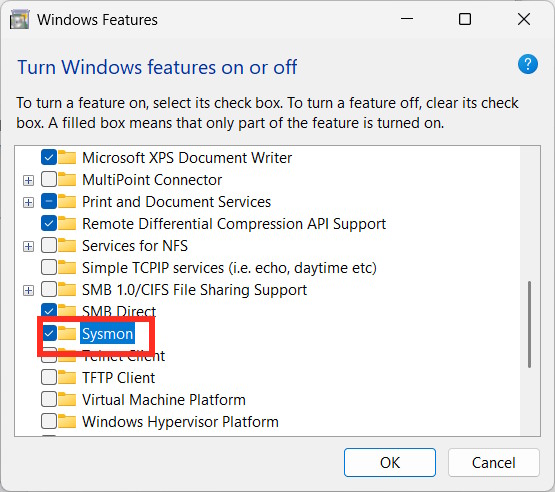
- Select Sysmon, choose OK, and allow Windows to apply the change.
- Open Windows Terminal as administrator and initialize Sysmon:
sysmon -accepteula -i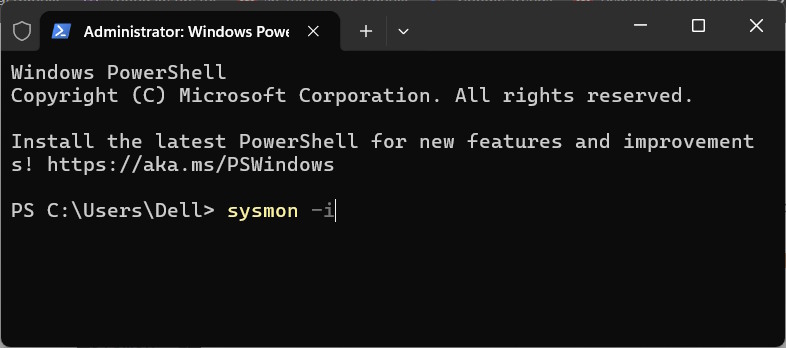
Enable Sysmon with Command Prompt
Open Command Prompt as administrator and run:
Dism /Online /Enable-Feature /FeatureName:Sysmon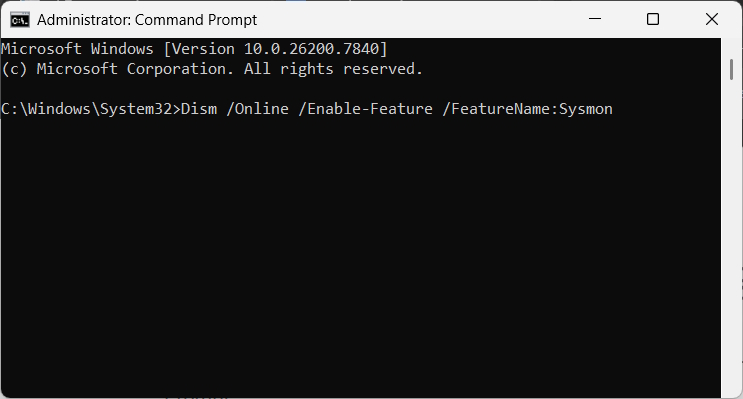
When DISM finishes, initialize the service:
sysmon -accepteula -iEnable Sysmon with PowerShell
Open PowerShell as administrator and run:
Enable-WindowsOptionalFeature -Online -FeatureName Sysmon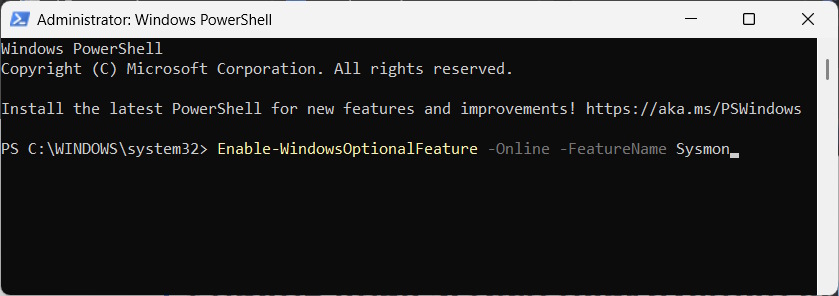
Then initialize Sysmon:
sysmon -accepteula -iIf Windows reports that the feature name is unknown, install current updates and check the graphical Windows Features list. On a system that does not support native Sysmon, use Microsoft’s separately maintained Sysinternals Sysmon package and documentation instead; do not download it from an unofficial mirror.
Apply a Sysmon configuration
The default installation is only a starting point. An administrator can install with an XML configuration:
sysmon -accepteula -i C:PathTosysmon-config.xmlTo replace the active configuration later, use:
sysmon -c C:PathTosysmon-config.xmlUse a configuration that your organization understands and maintains. Very broad rules can create large logs and unnecessary noise; overly narrow rules can omit useful evidence. Test changes on a small group of systems before broad deployment.
Verify that Sysmon is running
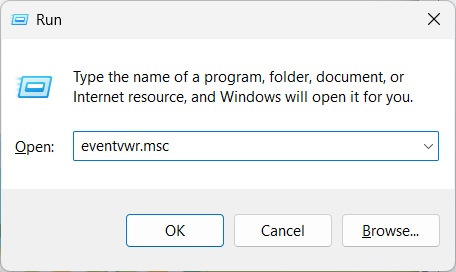
- Press Windows + R, enter
eventvwr.msc, and select OK.
- Browse to Applications and Services Logs > Microsoft > Windows > Sysmon > Operational.
- Confirm that recent Sysmon events appear. Process-creation events are commonly recorded as Event ID 1 when enabled by the configuration.
You can also check the installed version and active configuration from an elevated terminal:
sysmon -s
sysmon -c
Security and maintenance notes
- Restrict who can change the XML configuration or clear the event log.
- Forward relevant events to a protected central log platform when Sysmon is used for incident response.
- Monitor log size and retention so important events are not overwritten too quickly.
- Review configuration changes after Windows, application, or security-tool updates.
- Do not assume that installing Sysmon replaces antivirus, endpoint detection, patching, or event analysis.




Reader Comments 0
Sign in with email or Google to join the discussion.