Table of Contents
The safest way to download a Facebook video is to use Facebook’s own Download video option for a video you uploaded. For other videos, the available method depends on the post’s privacy settings, your browser, and whether the creator allows downloads. Do not try to bypass a private post or group.
Before downloading a Facebook video
- Download only content you created or have permission to save and reuse.
- Able-to-view does not automatically mean able-to-republish. Copyright and privacy rules still apply.
- Avoid sites or extensions that ask for your Facebook password, cookies, session data, or a browser permission unrelated to downloading.
- Do not upload a private video URL or private-page source code to an unknown service.
Method 1: Download a video you uploaded
- Sign in to Facebook and open your profile.
- Open the video from your Videos, Reels, or post history.
- Select the three-dot menu on the video.
- If Facebook offers Download video or Download reel, select it and choose a folder.
The menu depends on the type of upload and the current Facebook interface. If the download command is missing, use Facebook’s Download your information feature to request an archive that includes your own photos and videos.
Method 2: Use the browser’s save command
Some public videos are delivered as a direct media file that a browser can save:
- Open the individual Facebook post and start the video.
- Right-click the playing video. On a Mac, Control-click it.
- If Save video as appears, select it and save the file.
This command is not available for every video. Facebook may stream a video in segments, and the old trick of changing www.facebook.com to m.facebook.com is inconsistent. Do not rely on obsolete Internet Explorer instructions or browser developer tools to defeat access controls.
Method 3: Use an online downloader cautiously
Third-party downloader sites generally ask you to copy the URL of a public Facebook post, paste it into a form, and select an available resolution. The output cannot exceed the quality Facebook provides; a “4K” or “enhance” label does not create genuine detail that is absent from the source.
The screenshot below shows the type of interface commonly used by these services. A site name or interface can change, so treat it as an example rather than an endorsement.
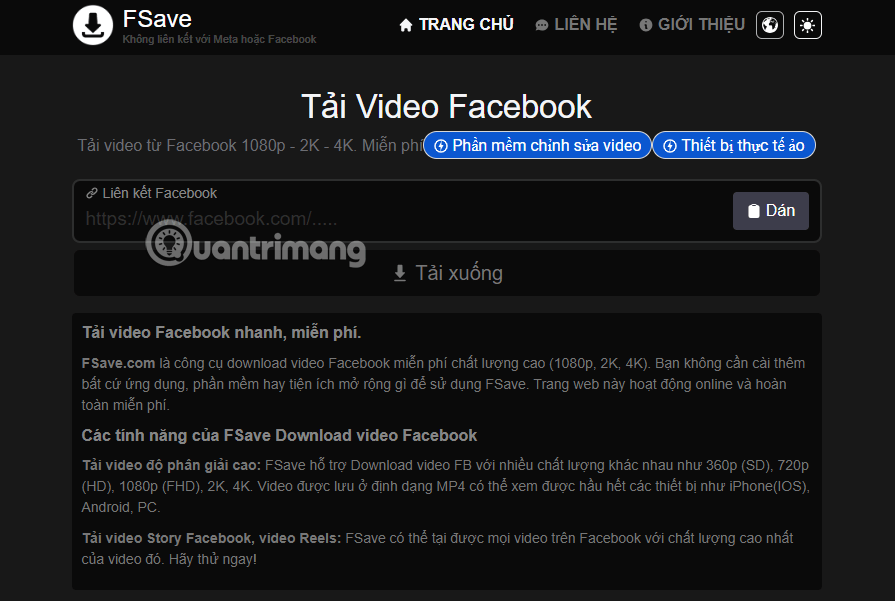
Use these checks before proceeding:
- The page should accept only a public post URL, not your Facebook credentials.
- Close misleading “Download” advertisements and refuse notification prompts.
- Scan the downloaded file with your device’s security software. A normal video should not arrive as an
.exe,.msi,.apk, or browser-extension package. - Do not install a “helper” merely to finish a one-time download.
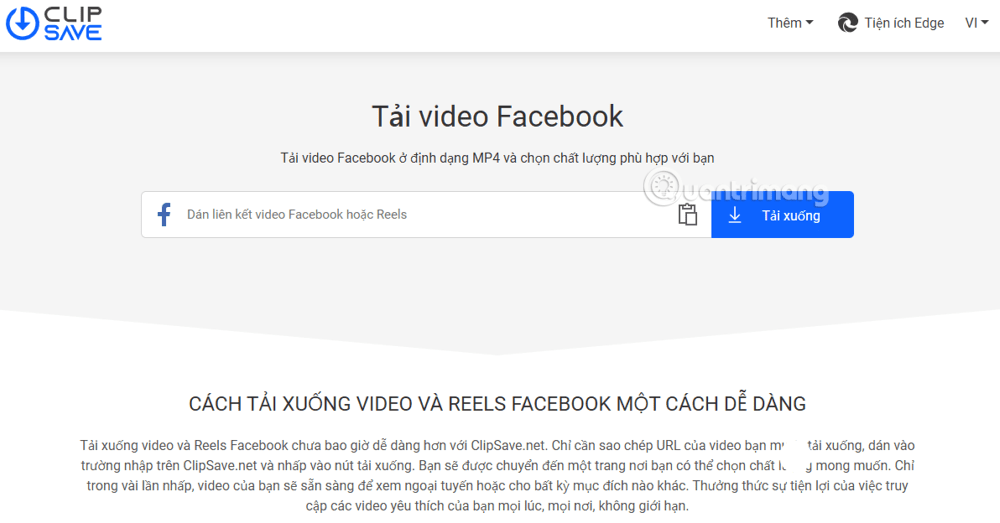
Using a browser with built-in media detection
Some browsers, including certain versions of Cốc Cốc, can detect downloadable media on the current page. Start the video, open the browser’s media-download control, and select a quality only if the control identifies the expected Facebook file.
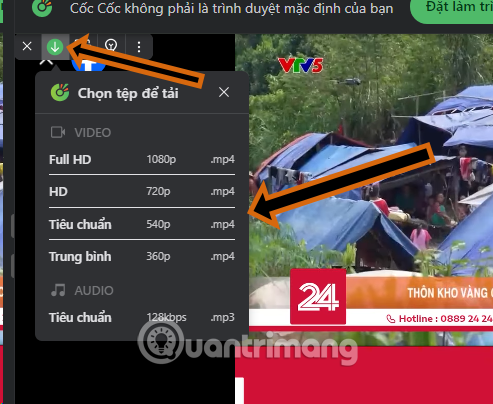
Built-in detection still cannot legitimately unlock a private video or guarantee that downloading is permitted. Browser features also change, so use Facebook’s own download or information-export tools whenever they meet your needs.
Why a video may not download
- The post is private: the downloader cannot access content that requires your authenticated session.
- The video is streamed in segments: there may be no single file for “Save video as.”
- The post URL is incomplete: copy the link from the post’s Share menu rather than the browser’s Feed address.
- The creator removed the post: an expired or deleted URL cannot be recovered by a downloader.
- The service is broken: Facebook frequently changes how media URLs are delivered, which can stop third-party sites from working.
For a video you need to keep long term, retain the original file before uploading it to Facebook. That preserves the best quality and avoids depending on a third-party service later.
Related Articles
 Downloading Facebook Videos to Your Phone and Computer Is11 minutes read
 Instructions for Downloading Private Videos on Facebook3 minutes read
 How to Downloading Videos on Facebook: Step-by-Step Guide3 minutes read
 How to Download Private Facebook Videos to Your Phone Super Fast4 minutes read
 Instructions for Downloading Facebook Videos on iOS and Android8 minutes read
 The Fastest Way to Download Facebook Videos to Your Computer Without10 minutes read
Reader Comments 0
Sign in with email or Google to join the discussion.