Table of Contents
This updated guide explores instructions to reduce photo size on Windows 11 with practical details, clear explanations, and useful takeaways. Starting from Windows 11 build 26120.4151, Microsoft has added a new feature that allows users to reduce image size directly on the system without using a support tool to compress images as before.
How to Reduce Photo Size on Windows 11
Step 1:
First, users need to install ViVeTool on their computer. Then, open ViVeTool using Windows Terminal application and run the command below as administrator to turn on and restart your computer.
vivetool /enable /id:55390938Step 2:
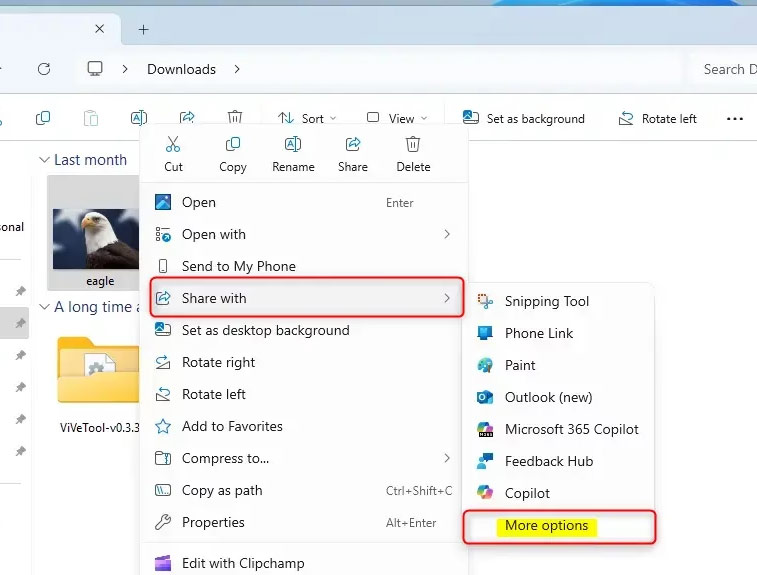
After restarting the computer, the user right-clicks on the image they want to share and then selects Share with from the menu. The next menu appears, we select More options to expand the options.
Step 3:
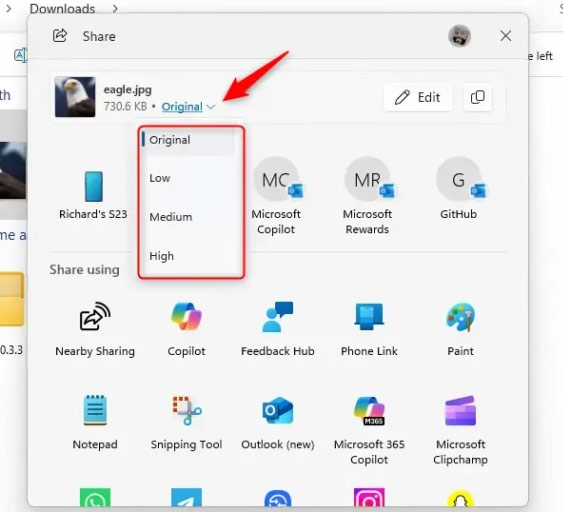
Now we will see the image sharing interface, in the capacity section, select Original and then select the image quality you want to compress to perform.
FAQ
What is the main takeaway about Instructions to Reduce Photo Size on Windows 11?
The key is to understand the core idea, compare the available options, and apply the practical guidance that matches your situation.
What should beginners know about Instructions to Reduce Photo Size on Windows 11?
Start with the essential steps and terminology. Avoid changing advanced settings until you understand how they affect performance, privacy, cost, or compatibility.
How can I use this information in practice?
Follow the relevant section in order, test one change at a time, and confirm the result before moving to the next step or recommendation.
Related Articles
 How to Reduce Photo Size in Batches with High Quality Photo Resize6 minutes read
 How to Reduce the Size of Excel Files3 minutes read
 How to Reduce the Size of JPG Files in Windows 106 minutes read
 Instructions for Reducing Image Size with Fileminimizer Pictures6 minutes read
 Reduce Image Size Online Without Breaking the Image, Keeping7 minutes read
 Instructions to Reduce the Volume of Photos in Photoshop3 minutes read
Reader Comments 0
Sign in with email or Google to join the discussion.