Table of Contents
This practical guide explains how to invert screen colors using magnifier Windows 11. Follow the steps in order, review the requirements first, and use the troubleshooting notes when a setting or option does not work as expected.
How to Invert Colors Using Magnifier Setting Windows 11
Step 1:
Press Windows + I to open Settings , then select Accessibility on the left side of the interface.
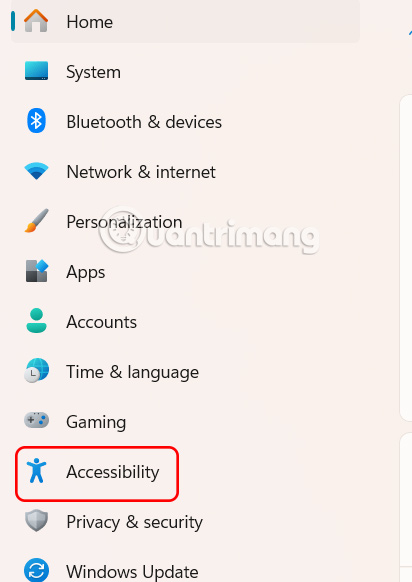
Then look to the side, select Magnifier to use.
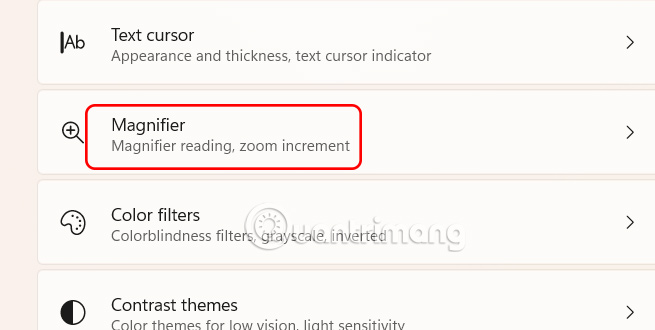
Step 2:
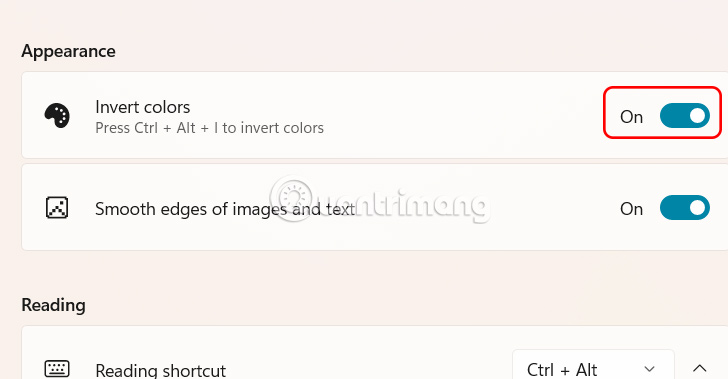
Go to the Windows 11 Magnifier tool settings interface, in the Appearance section below the Invert colors section, switch to On mode to enable color inversion on Windows 11 computer.
Enable Windows 11 color inversion with keyboard shortcut
Step 1:
We press the Windows key + plus sign to activate the Magnifier interface on the computer.

Step 2:
While the Magnifier tool is on, press Ctrl + Alt + I . Black will turn to white and vice versa, and other colors will change accordingly. Press Ctrl + Alt + I again to return the colors to normal.
FAQ
How to Invert Colors Using Magnifier Setting Windows 11?
Press Windows + I to open Settings, then select Accessibility on the left side of the interface.
What should you know about enable Windows 11 color inversion with keyboard shortcut?
We press the Windows key + plus sign to activate the Magnifier interface on the computer.
What does this guide cover?
This guide explains invert screen colors using magnifier Windows 11, including the main steps, important details, and practical considerations.
Related Articles
 Magnifier: How to Invert Colors on Windows 73 minutes read
 How to Invert Colors in MS Paint: Clear Instructions5 minutes read
 Click: How to Invert Colors on Your Windows Xp3 minutes read
 2 Ways to Reverse Colors on Windows 74 minutes read
 How to Invert Colours in MS Paint3 minutes read
 How to Change Voice Speed Magnifier in Windows 113 minutes read
Reader Comments 0
Sign in with email or Google to join the discussion.