Table of Contents
While reading text with Magnifier, you can change the speed to suit your listening needs. Below are instructions for changing the Magnifier Windows 11 voice speed.
The Magnifier tool enlarges part or all of your screen so you can see content and images more clearly. You can also use the Magnifier to read text aloud on Windows 11 when you can't follow along. While reading text with the Magnifier, you can change the speed to suit your listening needs. Here's how to change the Magnifier Windows 11 speech speed.
Change Magnifier's speech speed
Step 1:
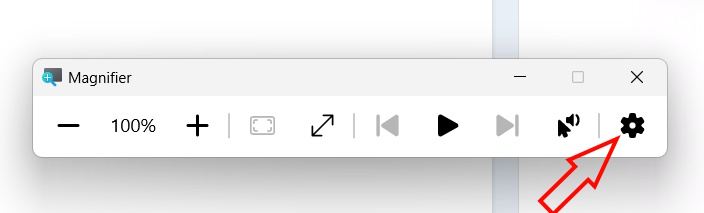
First You should Activate Magnifier by pressing Windows + '+' Key combination on your computer. Next in the Magnifier toolbar, click on The gear icon .
Step 2:
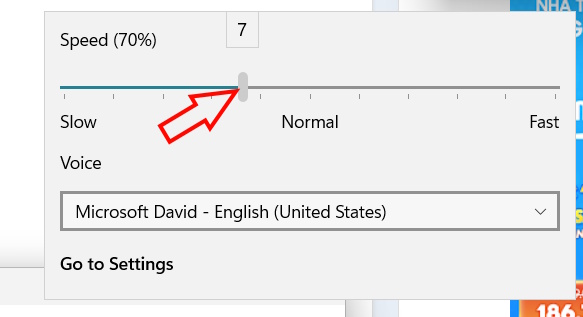
Display the customization interface, you Change the horizontal bar To change the Magnifier voice speed you want.
How to change Magnifier voice speed in Settings
Step 1:
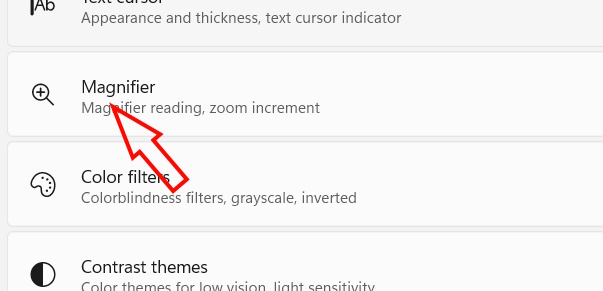
Open Settings on your computer, then click on The Accessibility group, Look to the right And select Magnifier To adjust.
Step 2:
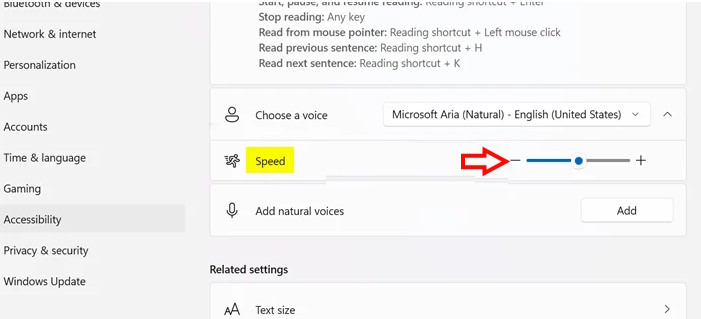
Scroll down below the Reading section, in The Choose a voice section, You also expand it and then adjust The voice speed in the Speed section .
How to change Magnifier voice speed via Registry Editor
Step 1:
Open Registry Editor on your computer, then access the path below.
HKEY_CURRENT_USERSoftwareMicrosoftScreenMagnifier
Then you look to the side And double click on the NeuralSpeechSpeed value .
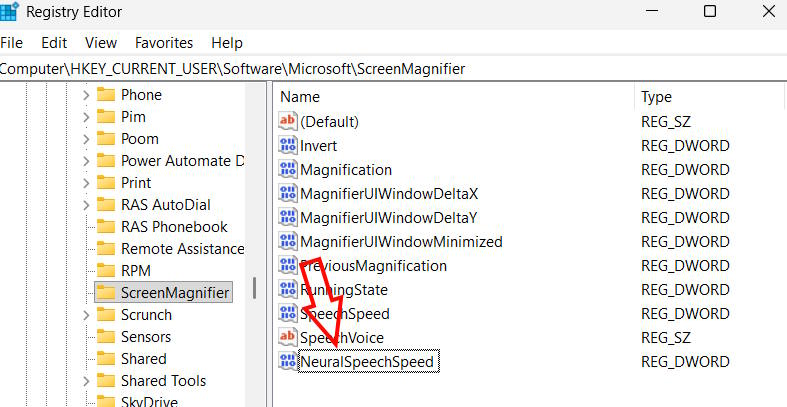
Step 2:
Display the new interface you Select Decimal , Enter the data value from 0 to 20 (default is 10) for the voice speed you want to change for Magnifier.
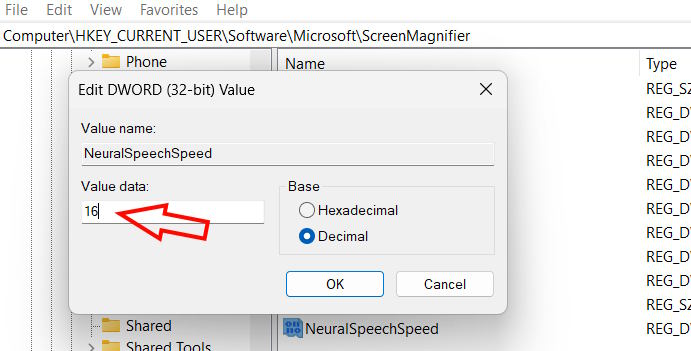
Magnifier speech rate change settings via Registry Editor and in Settings will apply to Windows 11 build 26220.7262 (Dev and Beta).
FAQ
How do you change voice speed magnifier in Windows 11?
In practical terms, while reading text with Magnifier, you can change the speed to suit your listening needs. Below are instructions for changing the Magnifier Windows 11 voice speed.
What should you check before getting started?
Review the requirements, compatible device or software version, and any warnings described in the guide before making changes.
What should you do if the steps do not work?
Repeat the steps in order, confirm that your app or system is up to date, and review the troubleshooting details provided above.
Related Articles
 How to Invert Screen Colors Using Magnifier Windows 112 minutes read
 Detailed Instructions for Using Magnifier on iPhone: Key Facts4 minutes read
 How to Change DNS to Surf Faster, Speed up Internet17 minutes read
 Magnifier: How to Invert Colors on Windows 73 minutes read
 2 Ways to Reverse Colors on Windows 74 minutes read
 How to Use Fake Voice to Change Voice: Step-by-Step Guide3 minutes read
Reader Comments 0
Sign in with email or Google to join the discussion.