Table of Contents
If you see a full storage message on ChatGPT, it means that the chatbot has reached its personalization data storage limit. This feature stores details you have chosen to share, such as your name, writing style, etc., so that the chatbot can tailor its responses. Clearing the storage allows you to store new preferences and keeps ChatGPT from storing new personal information. Here are instructions for clearing ChatGPT storage.
How to clear ChatGPT storage on computer
Step 1:
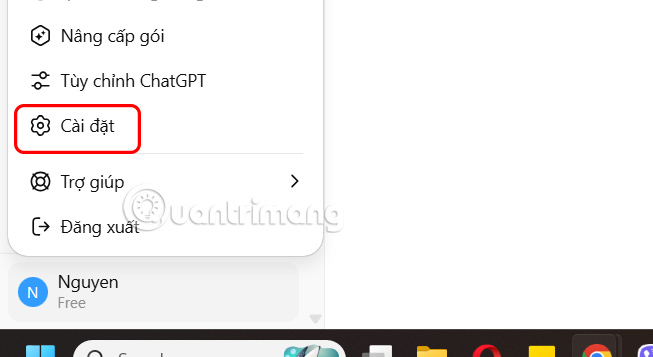
At the ChatGPT interface on your computer, select your avatar and select Settings .
Step 2:
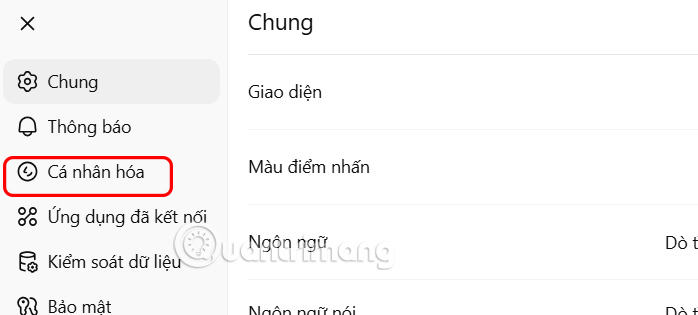
Switch to the settings interface, we select Personalization .
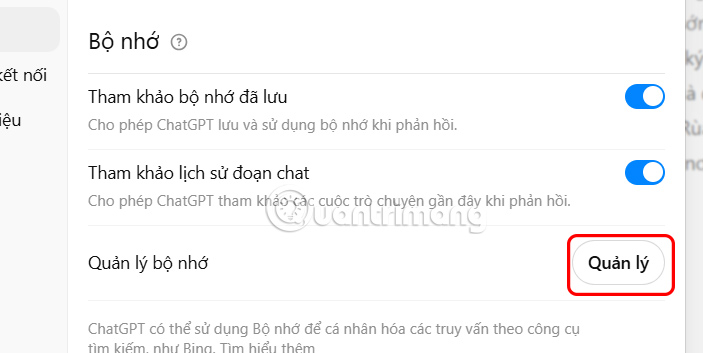
Continue to select Memory Management to access on ChatGPT computer.
Step 3:
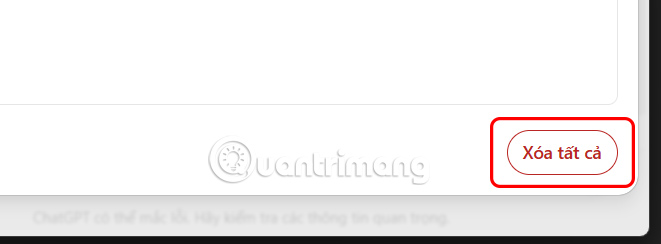
A new interface will appear and you will see the content that ChatGPT stores information about you. Here we can click the trash icon to delete each memory you want to delete.
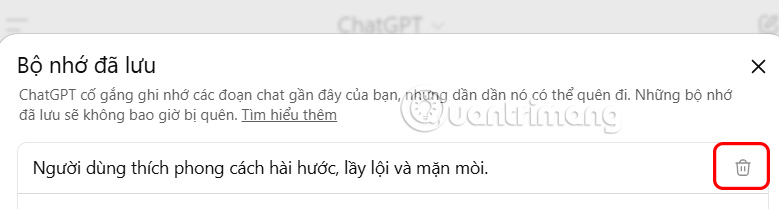
Or you can also click Delete All to do it.
How to clear ChatGPT storage on phone
Step 1:
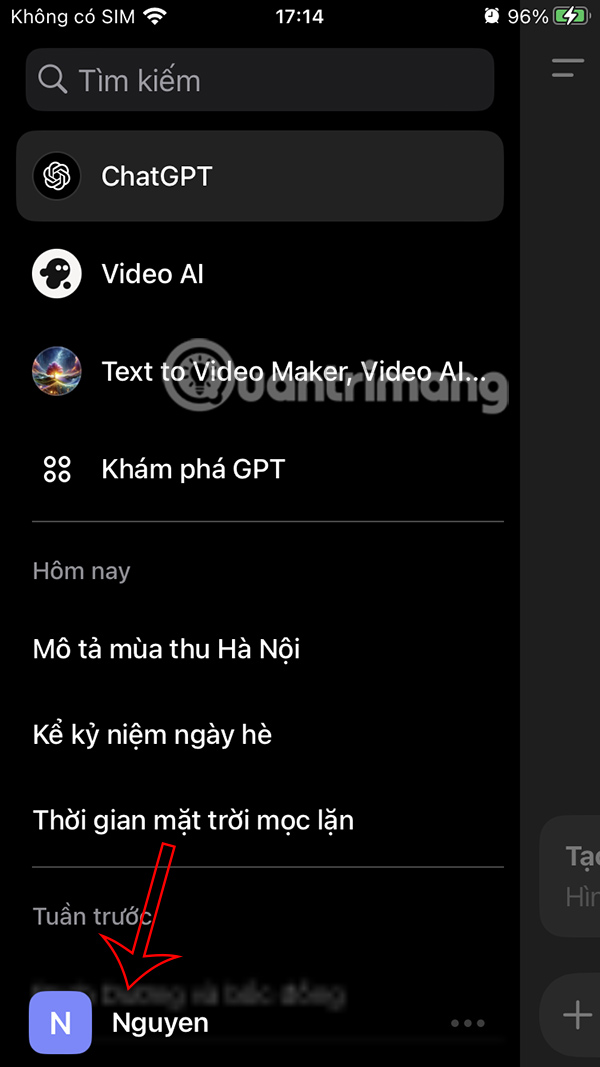
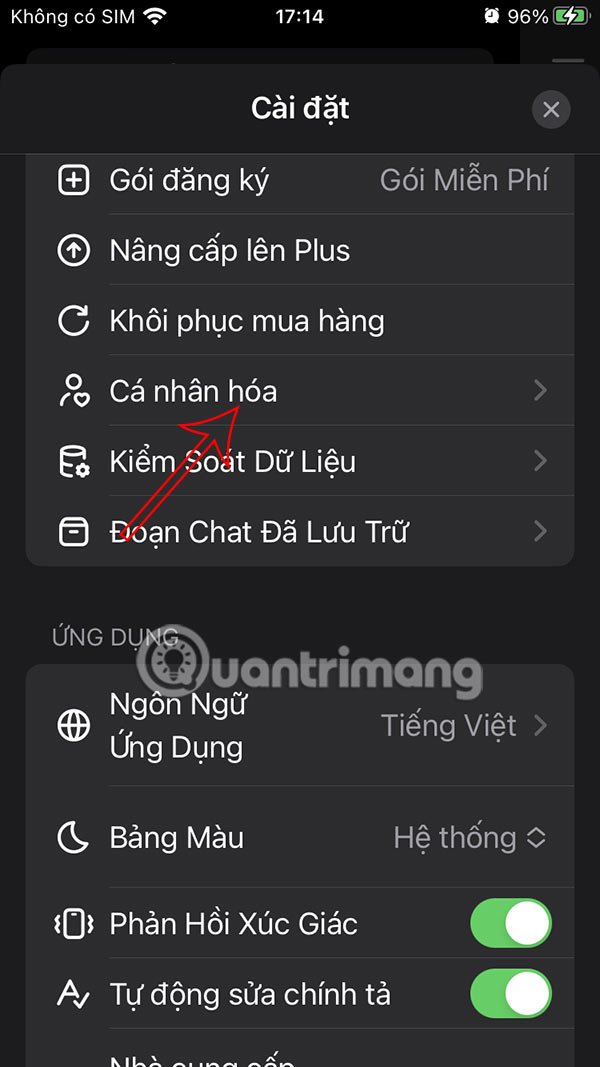
You select the menu icon on ChatGPT phone then select your account name . Go to the settings interface for the chatbot application, you select Personalize to do it.
Step 2:
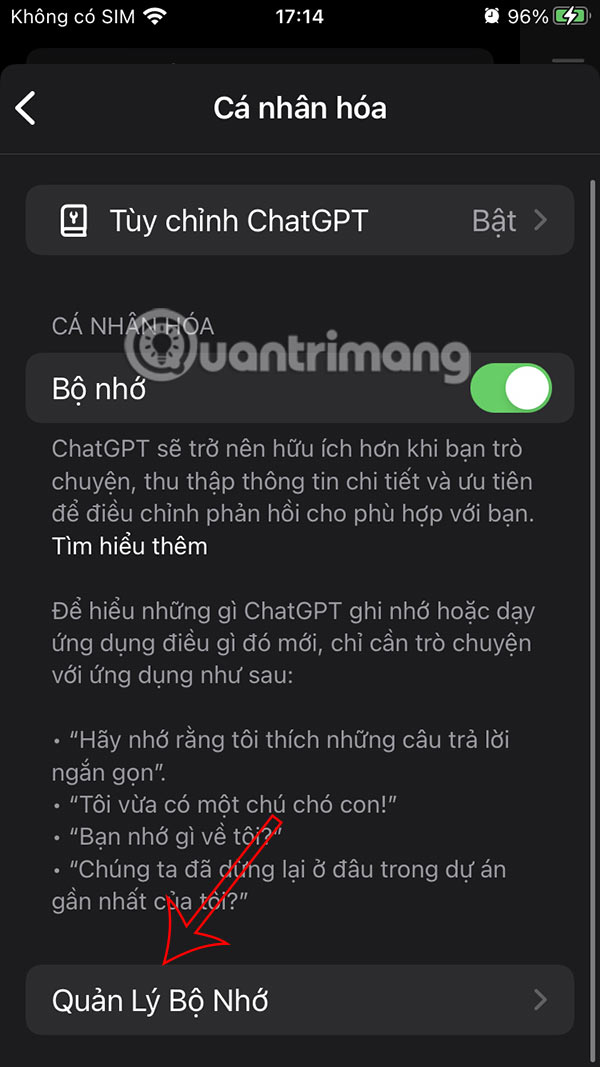
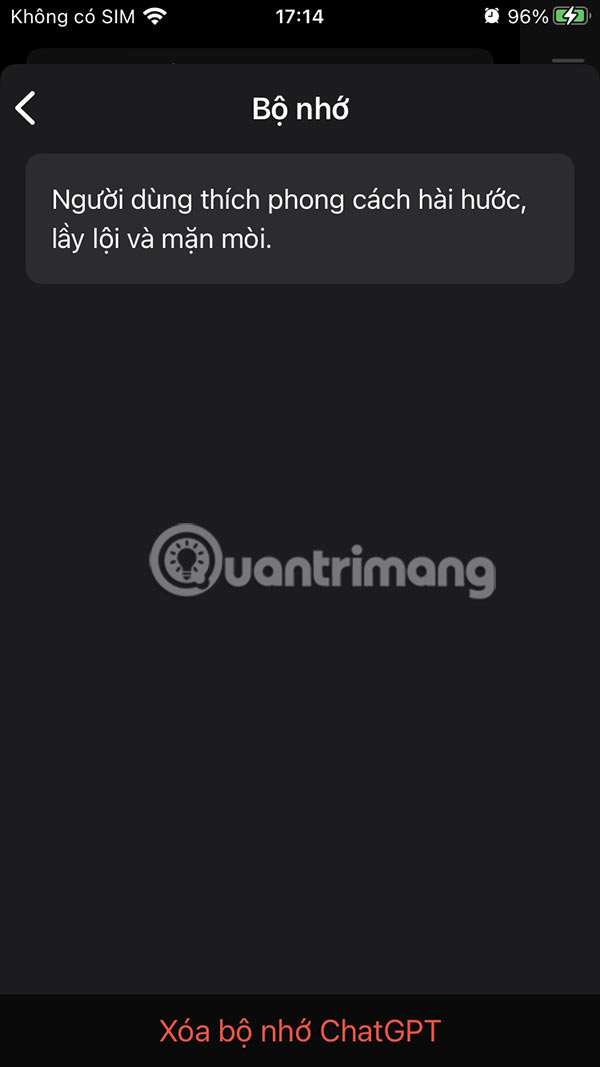
In the interface as shown, you continue to select Memory Management, then you will also see the information that ChatGPT stores about you. Then you will also see information about yourself as shown.
Step 3:
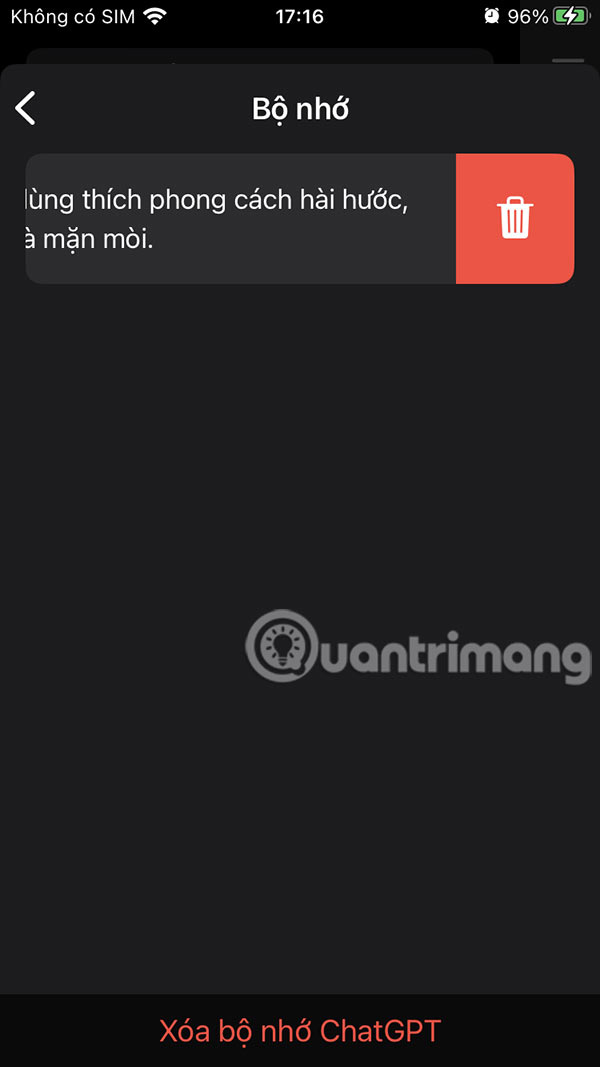
You can swipe the information from right to left and then press the trash can to delete each content , or press Delete ChatGPT memory to delete everything.
Final Thoughts
Following the steps in order and checking version-specific settings should make it easier to Free up ChatGPT Storage. If an option looks different, verify the device, app, or operating-system version before changing additional settings.
FAQ
What is the best way to Free up ChatGPT Storage?
Start with the requirements described in the article and follow the steps in order. If you see a full storage message on ChatGPT, it means that the chatbot has reached its personalization data storage limit.
What should you know about How to clear ChatGPT storage on computer?
At the ChatGPT interface on your computer, select your avatar and select Settings.
What should you do if the instructions do not match your screen?
Check the device, software version, account permissions, and regional settings. Interfaces can change after updates, so use the closest matching option and consult the official support documentation when necessary.
Related Articles
 5 Simple Ways to Regain Storage Space on Your Android Device6 minutes read
 How to Convert ChatGPT-5 to ChatGPT-4o3 minutes read
 How to Create Quizzes on ChatGPT5 minutes read
 Learn About ChatGPT-4o: Features, Benefits and How to Use It: Complete Guide7 minutes read
 How to Creating Screenshot Shortcuts Using ChatGPT3 minutes read
 What Is ChatGPT Pro? Is It Worth It in 2026?8 minutes read
Reader Comments 0
Sign in with email or Google to join the discussion.