Table of Contents
ChatGPT can draft multiple-choice, true/false, short-answer, and open-response questions, but it should not be the final authority on subject accuracy or grading. The dependable process is to define a quiz blueprint, provide an approved source, generate a structured draft, and verify every question and answer before students see it.
You do not need a separate quiz app for the core workflow. A normal ChatGPT conversation can produce a printable question set, an answer key, or an interactive one-question-at-a-time review. Connected apps are optional and vary by account, region, and workspace policy.
1. Write a quiz blueprint
Specify the assessment before asking for questions:
- Subject, topic, and grade or learner level
- Learning objectives or standards
- Number and type of questions
- Difficulty distribution
- Allowed source material
- Time limit and whether calculators, notes, or references are allowed
- Answer-key, explanation, and rubric requirements
- Accessibility and language needs
A blueprint prevents the quiz from becoming a random collection of questions that happen to mention the topic.
2. Add the source material
Paste a short source into the chat or use the attachment control to upload an authorized document, image, slide deck, or worksheet. Tell ChatGPT exactly which pages or sections to use. OpenAI's file-upload documentation explains supported analysis tasks and current limits.
Do not upload student records, unpublished exams, copyrighted material you cannot process, or confidential school documents. If an image or scan is unclear, replace it or paste the critical text rather than allowing the model to guess.
3. Generate a reviewable draft
Use a prompt that ties every item to an objective and source:
Create a draft quiz using only the attached lesson.

Audience: Grade [level]
Objectives:
1. [objective]
2. [objective]
3. [objective]

Requirements:
- 8 multiple-choice questions and 2 short-answer questions
- 30% recall, 50% application, 20% analysis
- One clearly correct answer for each multiple-choice item
- Plausible distractors based on common misconceptions
- No trick wording, double negatives, or “all of the above”
- Cite the source page or section for each answer
- After the questions, provide a separate answer key with brief explanations
- Mark any item that cannot be supported by the source as [REMOVE]
Ask for questions first and the key afterward if students may see the chat or screen. For a reusable bank, request a table with ID, objective, type, difficulty, question, choices, answer, explanation, and source.
4. Verify every item
Do not approve the quiz by reading only the answer key. For each question:
- Locate the claimed answer in the source.
- Confirm that the stem has one reasonable interpretation.
- Check that exactly one multiple-choice option is defensibly correct.
- Make distractors plausible but not misleading.
- Remove clues such as a much longer correct option, grammar mismatches, or repeated keywords.
- Check that the difficulty matches the required thinking, not merely obscure vocabulary.
- Solve numerical items independently and verify units and rounding.
- Review examples, names, and contexts for bias or unnecessary cultural assumptions.
ChatGPT can produce confident but incorrect facts, calculations, citations, or interpretations. A second prompt asking it to “check itself” is not a substitute for a knowledgeable human checking the source.
5. Revise the quiz with targeted prompts
Give precise correction requests instead of regenerating everything:
Revise questions 3 and 7 only.
- Question 3 has two correct options; keep the same objective but make one answer unambiguous.
- Question 7 tests recall. Replace it with an application question using only pages 8–10.
Return the revised questions and updated key. Do not change other items.
This preserves already verified items and makes changes easier to audit.
6. Create an interactive practice session
For a learner who wants feedback rather than a printable test, use Study mode. OpenAI's Study mode guide documents the current shortcut and file support.
Quiz me on the attached chapter one question at a time.
Wait for my answer before giving feedback.
If I am wrong, give one hint before revealing the answer.
After 10 questions, summarize the concepts I should review.
Use only the attached chapter and mention the source page in each explanation.
Practice mode should not be used to submit answers for an active graded assessment unless the instructor explicitly allows it.
Optional: connect a quiz app
Some accounts can connect an app that creates or stores an interactive quiz. App names, availability, capabilities, and interface labels can change. Open the Apps area or Settings > Apps, search for the service, and review the publisher and requested access before connecting it. Workspace administrators may restrict apps.
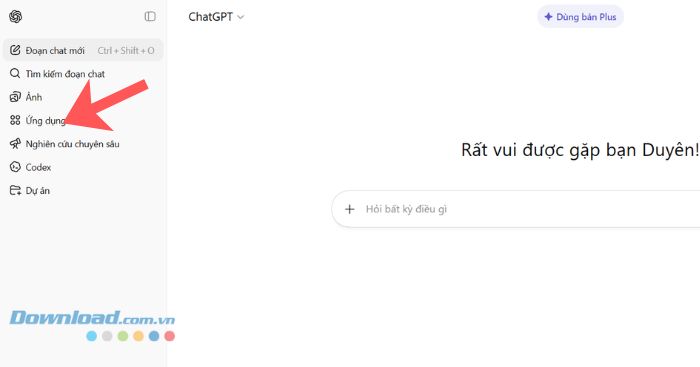
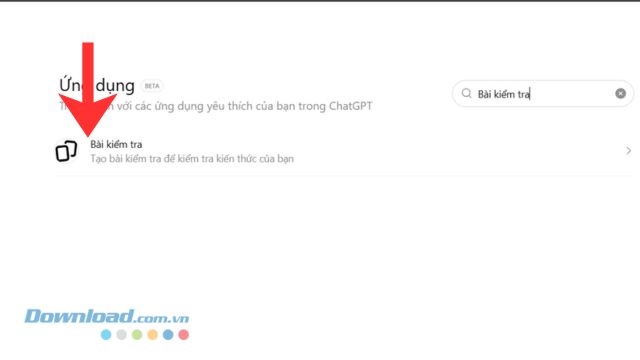
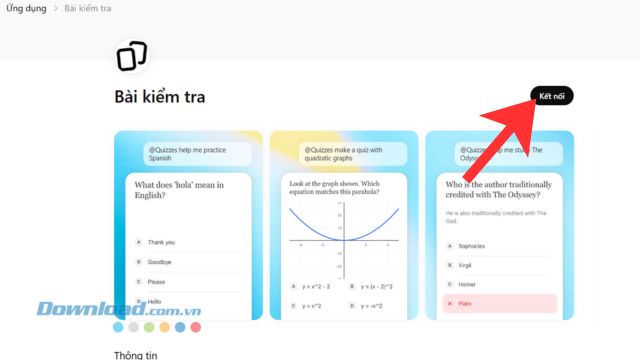
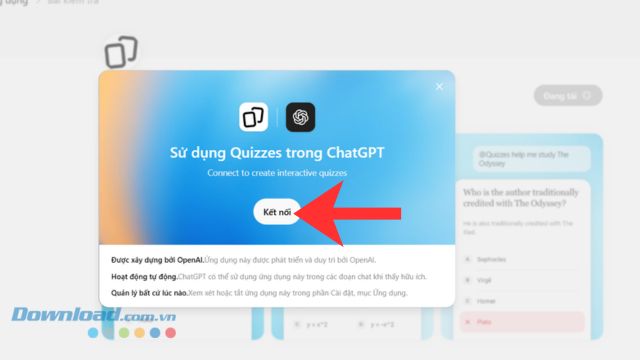
After connecting an app, select it from the chat's add/tools menu when needed, then describe the quiz and approved source. Review the generated activity inside the app before publishing or assigning it.
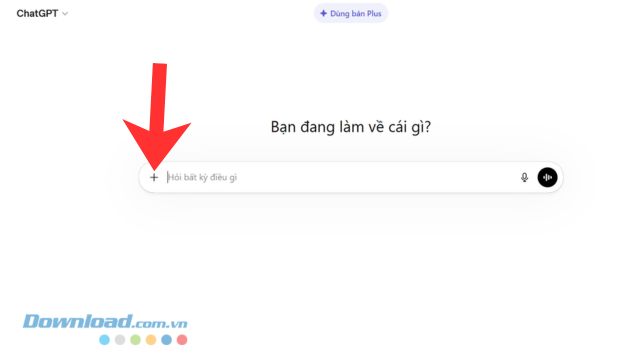
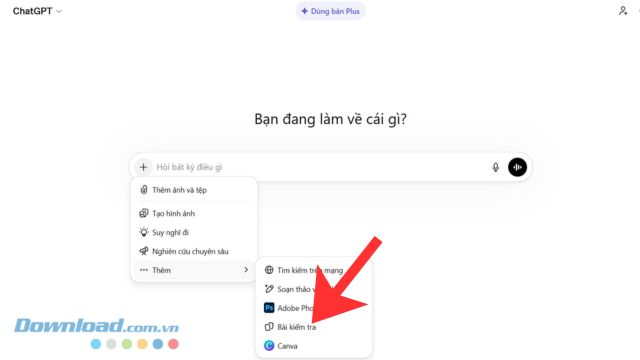
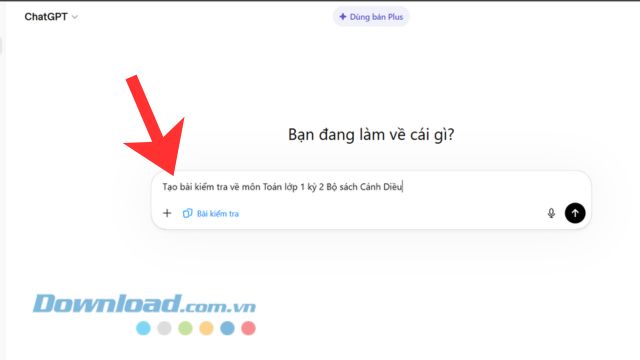
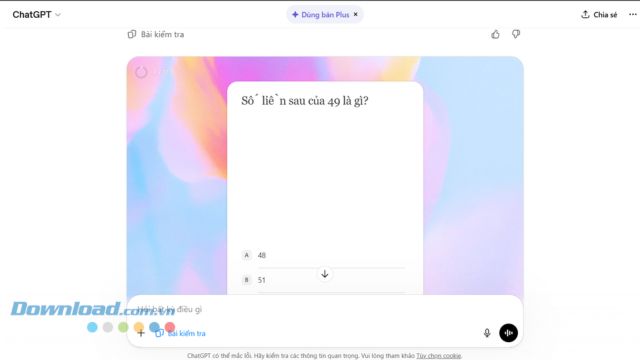
Connecting an app can share relevant chat content and files with that service. Review its permissions, privacy policy, retention rules, and the school's approved-tool list. OpenAI's Apps in ChatGPT guide explains app permissions and administrator controls.
Video walkthrough of the app-based workflow
Export formats that work well
| Format | Best use | What to check |
|---|---|---|
| DOCX or Google Docs | Editing and printing | Page breaks, answer-key separation, equations, images |
| Fixed-layout distribution | Selectable text, accessibility, clipping, fonts | |
| CSV or spreadsheet | Importing a question bank | Required column names, delimiter escaping, answer notation |
| Plain text or Markdown | Simple review and version control | Question numbering and clear option labels |
If file creation is available in the account, ask ChatGPT for the needed format; otherwise copy the verified text into the destination application. Always open the exported file and compare it with the approved draft. Equations, tables, images, and special characters are common failure points.
Prompt for a question-bank table
Convert the approved quiz into a CSV-ready table with these columns:
ID, Objective, Question Type, Difficulty, Question, Option A, Option B,
Option C, Option D, Correct Answer, Explanation, Source.

Keep commas and line breaks safely quoted.
Do not change the verified wording or answer key.
Put short-answer questions in the same table with blank option fields.
Using ChatGPT for grading
ChatGPT can help apply a rubric to sample responses, but a teacher should make consequential grading decisions. Remove personal identifiers, provide the exact rubric, request criterion-by-criterion evidence, and review every result. Do not send protected student data to a tool unless school policy and the applicable account protections allow it.
For an essay, ask for feedback tied to the rubric rather than a bare score. Check whether the response uses valid reasoning that the model overlooked and whether the rubric itself needs clarification.
Pre-publish checklist
- Every item maps to a stated objective.
- Every answer was independently verified from an authoritative source.
- Multiple-choice questions have one clearly correct answer.
- Difficulty and reading level match the learners.
- Instructions, scoring, units, and acceptable variants are explicit.
- Images, equations, tables, and accessibility features survived export.
- Student data and restricted content were not exposed.
- The quiz was completed once in student view before assignment.
Related Articles
 How to Create a YouTube Thumbnail with ChatGPT8 minutes read
 How to Create Stickers Using ChatGPT4 minutes read
 How to Creating Screenshot Shortcuts Using ChatGPT3 minutes read
 How to Create Presentation Slides on ChatGPT5 minutes read
 Instructions on Creating Mind Maps on ChatGPT: Explained6 minutes read
 Instructions on Creating Flashcards and Quizzes on NotebookLM5 minutes read
Reader Comments 0
Sign in with email or Google to join the discussion.