Table of Contents
Canva AI can generate poster concepts from a written description, then open the selected result in the regular Canva editor for detailed changes. A useful prompt should state the subject, audience, format, visual style, required text, and any brand colors.
Write a clear poster prompt
Step 1: Draft the prompt yourself or ask an AI writing tool to help organize it. You do not need code; Canva expects a plain-language design brief.
A simple prompt structure is:
Create a [poster size] poster about [topic] for [audience]. Use a [style] layout with [colors]. Include the headline “[text]”, the details “[text]”, and a clear call to action. Keep all text readable and leave space for [logo or image].Specify the exact wording that must appear on the poster. AI-generated designs can misspell or alter text, so plan to check every line in the editor.
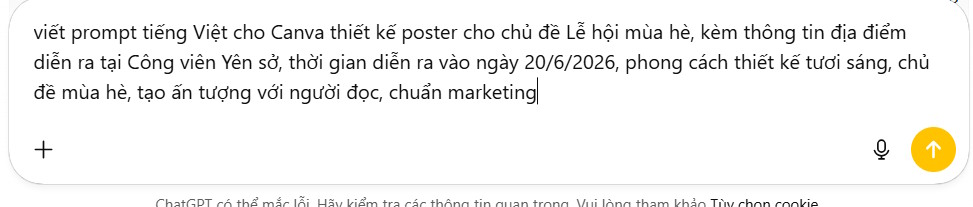
Generate poster designs in Canva AI
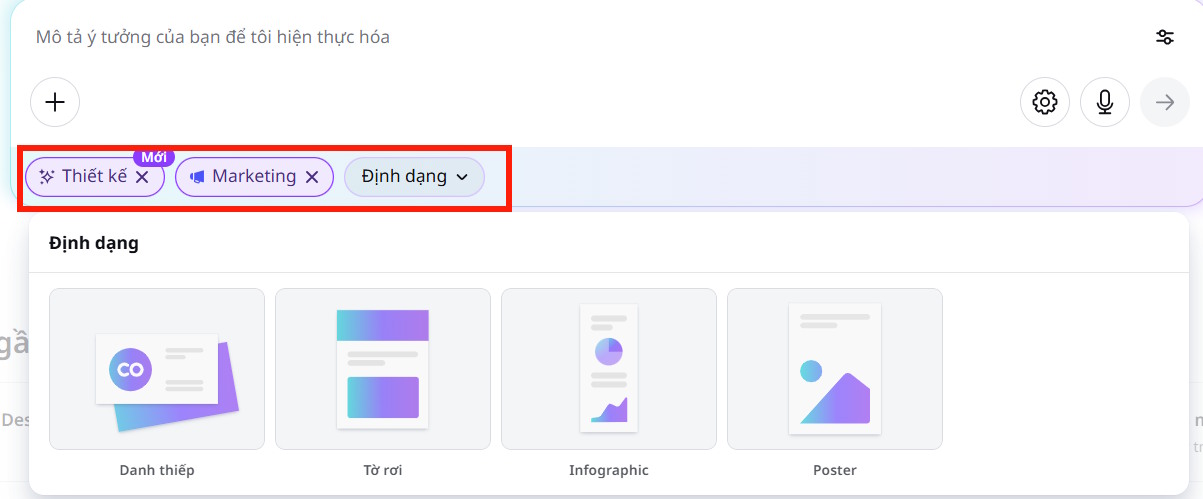
Step 2: Open Canva AI and select Design. Choose the Marketing category and select Poster as the output format.
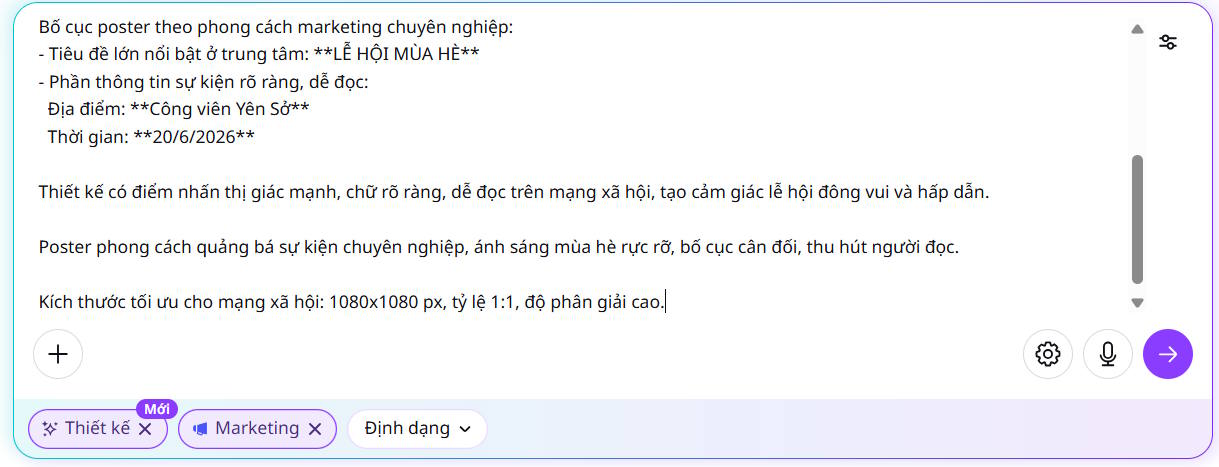
Paste your prompt into the prompt box and submit it. If the first results are too generic, revise the brief with more specific instructions about hierarchy, colors, imagery, and audience.
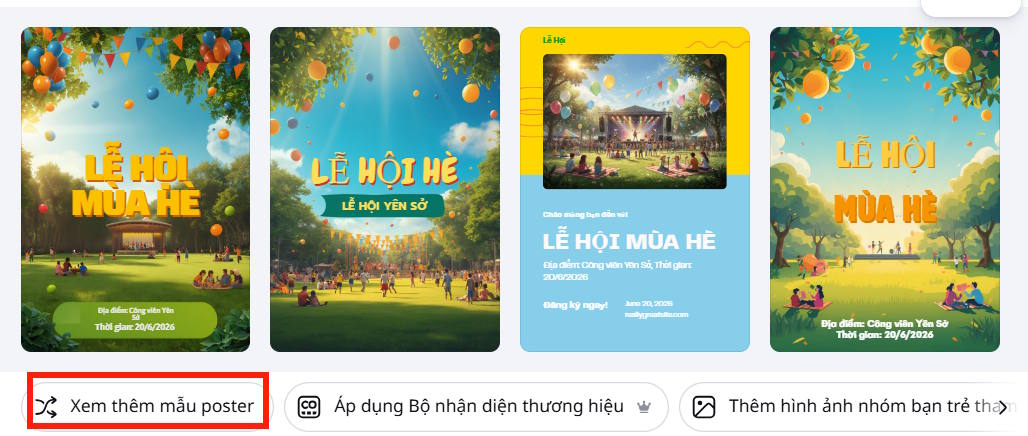
Step 3: Review the generated options. Select View more poster templates if you want additional variations, then choose the design with the clearest layout rather than judging only by decoration.
Edit and export the poster
Step 4: Select Use Canva editor to open the chosen concept as an editable design.
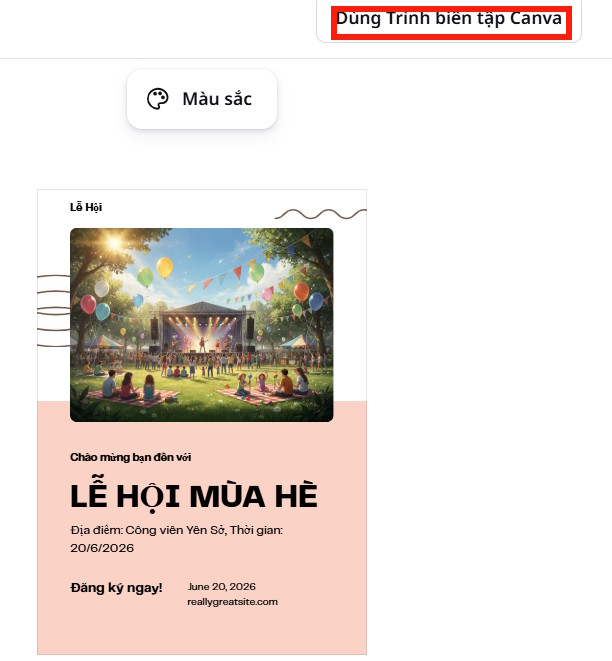
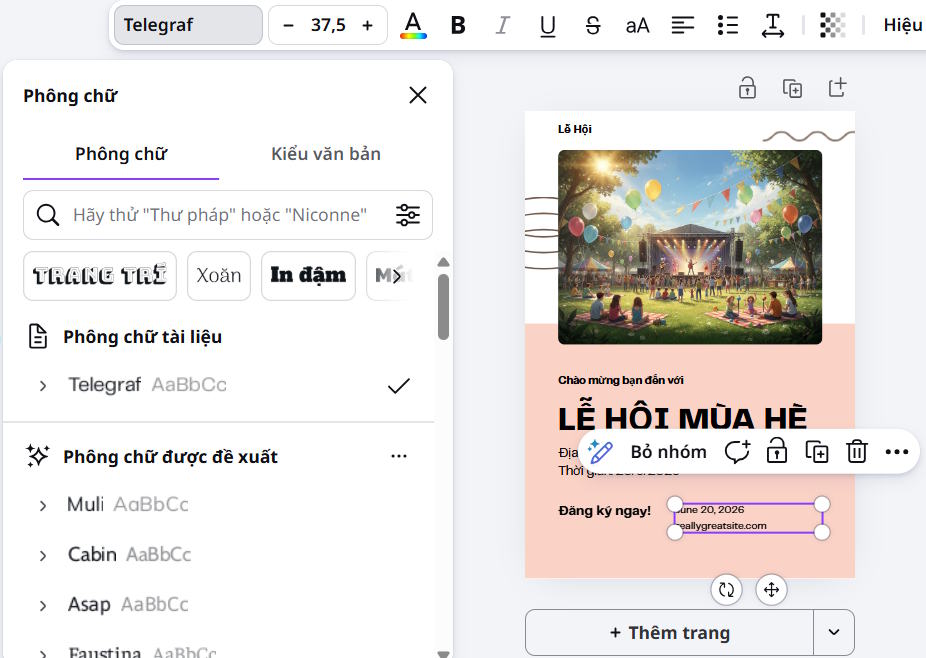
Replace placeholder images, correct the text, align elements, and apply your brand colors and fonts. Check that essential information remains readable at the poster's intended size. If the design will be printed, confirm the final dimensions and leave enough margin around important content before downloading it.
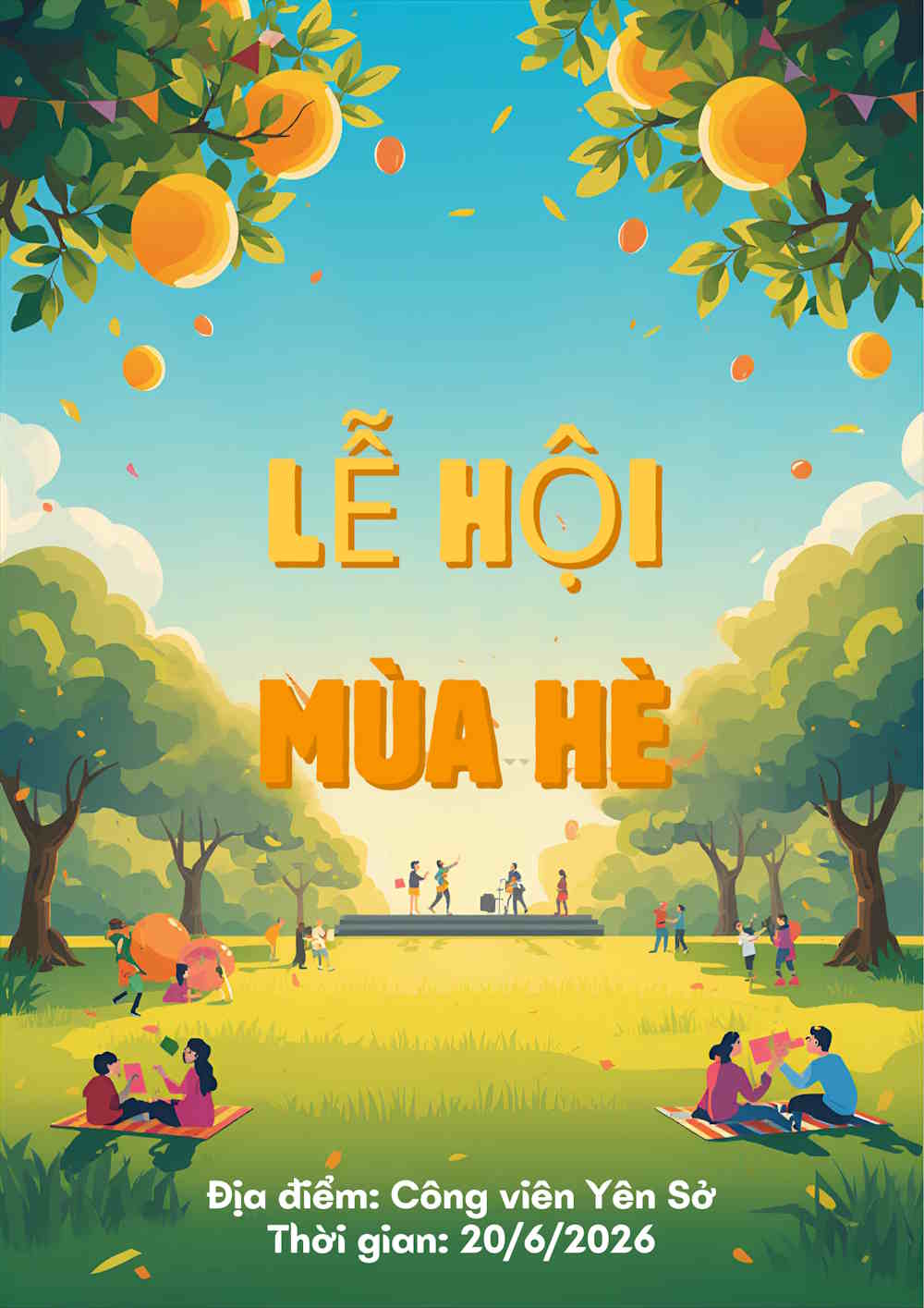
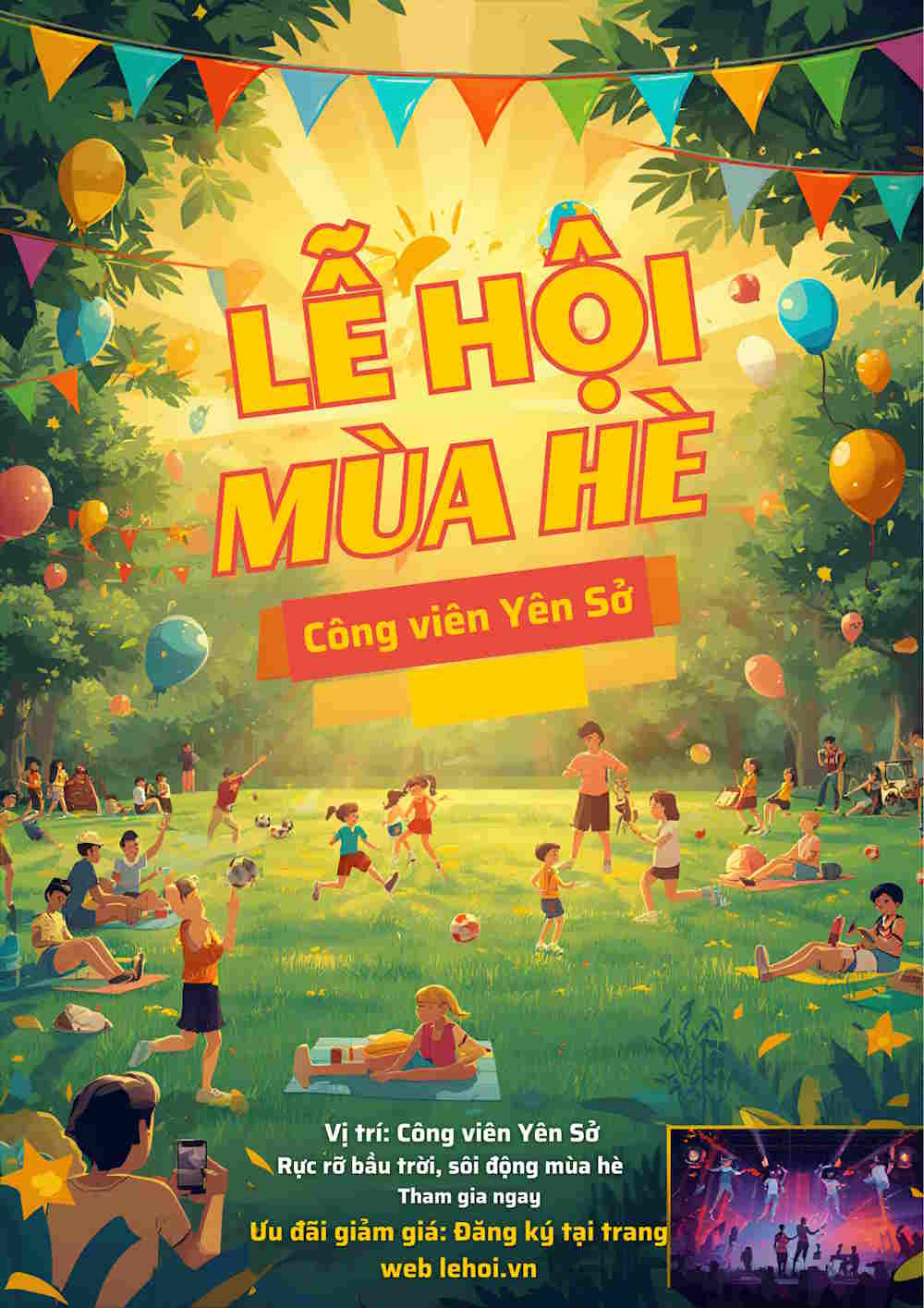
The examples below show the type of layout Canva AI can generate. Treat the generated poster as a starting point and review all wording, images, and branding before publishing it.
Related Articles
 How to Design Greeting Cards on Canva AI4 minutes read
 Guide to Designing Writing Practice Exercises in Canva4 minutes read
 How to Design 3D Text on Canva3 minutes read
 How to Underline Text in Canva3 minutes read
 Guide to Creating 3D Designs Using AI in Canva4 minutes read
 How to Create a Resume with Canva9 minutes read
Reader Comments 0
Sign in with email or Google to join the discussion.