Table of Contents
This updated guide explores instructions to delete login password on Windows 11 with practical details, clear explanations, and useful takeaways. On Windows 11, you can remove the login password from your user account in several different ways. Using a Windows login password helps you secure your account, but if we use a personal computer, we can remove the login password to speed up the account access process.
Disable Password Login on Windows 11
Step 1:
Enter the keyword netplwiz in the search bar then select the account you want to delete the password for in Users for this computer.
Uncheck User must enter a user name and password to use this computer . choose Apply to execute.
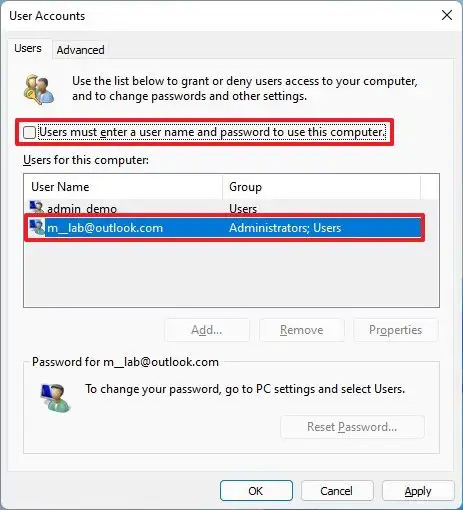
Step 2:
Confirm your Microsoft account information to automatically sign in.
Once you complete the steps, the password will not be removed from your account, but your computer will automatically log you in every time you start your device.
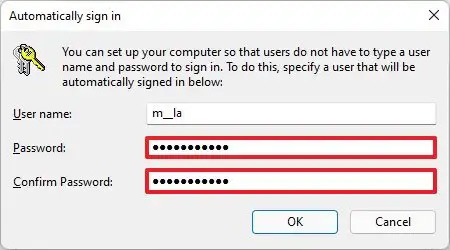
Instructions to Delete Login Password on Windows 11
to completely remove Windows 11 account password, you need to convert your Microsoft account to a local account type.
Delete Microsoft Account Password
Step 1:
You access Settings then choose Accounts then look to the right and select the Your info tab . In the new interface, the user clicks Sign in with a local account instead .
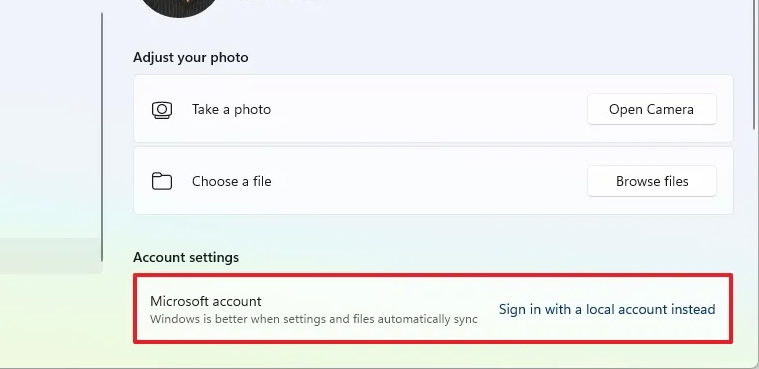
Step 2:
choose Next to continue then create a username for the account. Switch to the new interface , delete all information and leave the Password and Reenter password options blank to completely delete the password.
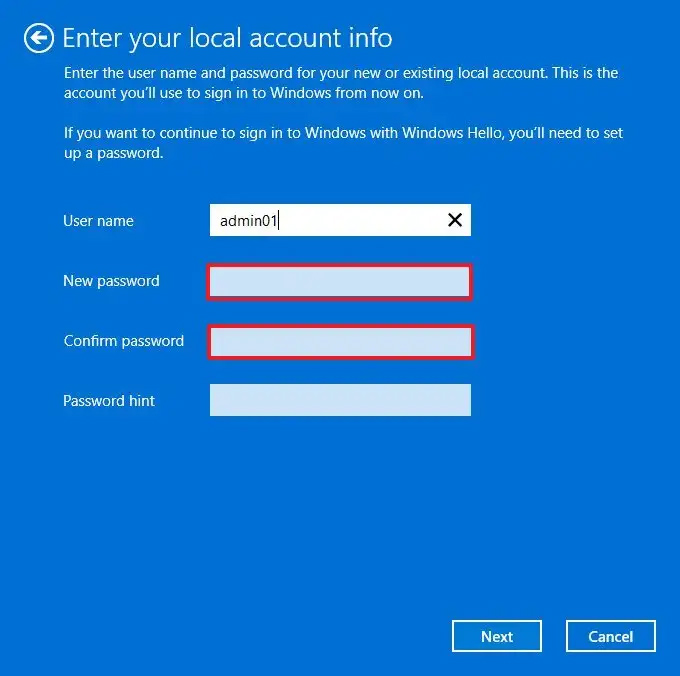
choose Next and select Sign out and finish . As a result, the computer is no longer connected to the Microsoft account and will automatically log in when the system starts.
Remove Password for Local Account
Removing the password is much easier if the device already has a local account on your computer.
Step 1:
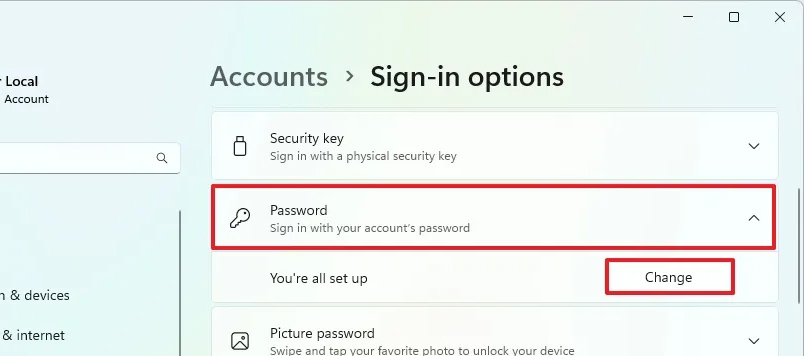
You also open Settings then select Accounts and select Sign-in option . In the Password section, select the Change button to do so.
Step 2:
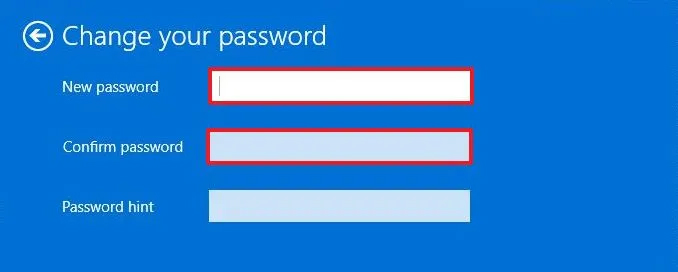
Confirm your password, then we delete the password at Password and Reenter password .
Once you complete the steps, Windows 11 will automatically sign you in.
Remove Login Password from Command Prompt
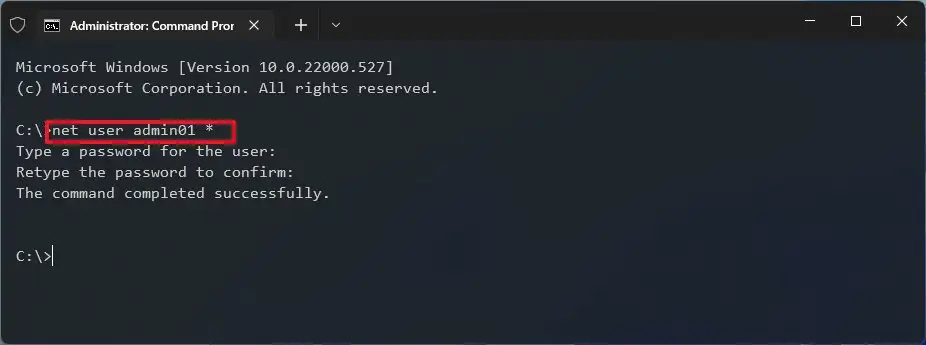
You open the Command Prompt interface with Admin rights , then enter the command net user and press Enter, then enter the command net user USERNAME * where USERNAME is the name of the Admin account that needs to be changed.
Press Enter to clear the password.
Remove Login Password from Computer Management
You can remove the password for an existing local account through Computer Management.
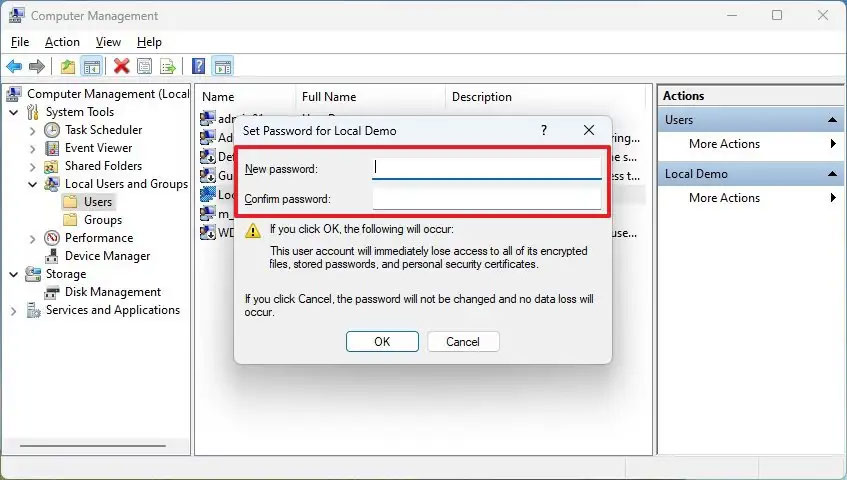
We open Computer Management on the computer and then access System Tools > Local Users and Groups > Users . Right-select the account and select Set password .
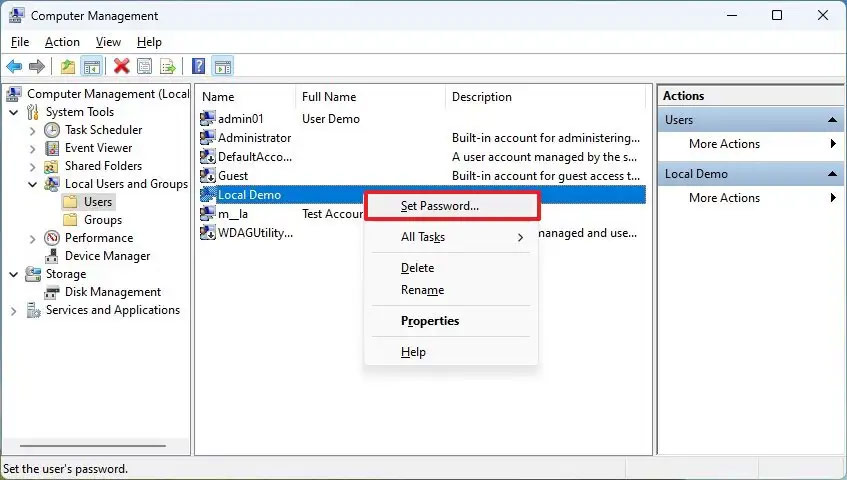
Click the Proceed button , then delete the displayed password and choose OK to save . From the next time you access the local account on Windows 11, you will not need a password.
FAQ
What is the main takeaway about Instructions to Delete Login Password on Windows 11?
The key is to understand the core idea, compare the available options, and apply the practical guidance that matches your situation.
What should beginners know about Instructions to Delete Login Password on Windows 11?
Start with the essential steps and terminology. Avoid changing advanced settings until you understand how they affect performance, privacy, cost, or compatibility.
How can I use this information in practice?
Follow the relevant section in order, test one change at a time, and confirm the result before moving to the next step or recommendation.
Related Articles
 Instructions to Create, Change, Delete Windows 7 Login Password3 minutes read
 How to Login to Your Computer When You Forget Your Password10 minutes read
 How to Remove Pin and Other Login Options on Windows 105 minutes read
 Turn Off Windows 10 Login Password When Starting Up4 minutes read
 What Will You Do When You Forget Your Mac OS X Login Password5 minutes read
 Configure Auto-Login for Windows 7 Domain or Workgroup PC4 minutes read
Reader Comments 0
Sign in with email or Google to join the discussion.